

5 geteste en bewezen manieren om Samsung-berichten te back-uppen

Voor Samsung-gebruikers spelen berichten een belangrijke rol in ons dagelijks leven, of het nu gaat om verificatiecodes, meldingen of belangrijke communicatie met familie en vrienden. Verlies ervan kan ons veel ongemak bezorgen. Daarom is het essentieel om een Samsung-berichten back-up.
In dit bericht worden 5 manieren om een back-up te maken van Samsung-berichten gedetailleerd beschreven. Deze zijn allemaal volledig getest en effectief gebleken, zodat u ze met een gerust hart kunt gebruiken.
PAGINA-INHOUD:
- Deel 1: Maak op elk gewenst moment een back-up van Samsung-sms-berichten op uw computer
- Deel 2: Maak een back-up van Samsung-berichten met SMS Backup+
- Deel 3: Berichten op Samsung back-uppen via cloudservice
- Deel 4: Back-up van Samsung-berichten via de SMS Backup & Restore Android-app
- Deel 5: Gebruik Super Backup & Restore om berichten op Samsung te back-uppen
Deel 1: Maak op elk gewenst moment een back-up van Samsung-sms-berichten op uw computer
Als u op elk gewenst moment een back-up van Samsung-tekstberichten op uw computer wilt maken, mag u dit niet missen Apeaksoft Android-gegevensback-up en -herstelHet is een gebruiksvriendelijke tool waarmee je met één klik een back-up van Samsung-gegevens kunt maken en deze kunt herstellen. Naast berichten kun je deze software ook gebruiken om een back-up te maken van andere belangrijke gegevens, zoals contacten, gesprekslogboeken en foto's. Of het nu gaat om regelmatige back-ups of om je gegevens op te slaan voordat je van apparaat wisselt, je kunt altijd op deze tool vertrouwen.
Betrouwbare back-uptool voor Samsung-berichten
- Maak snel een back-up van Samsung-sms-berichten op een computer.
- Selecteer welk bericht u precies en selectief wilt back-uppen.
- Alle back-ups van Samsung-berichten worden veilig op uw computer bewaard.
- Herstel op elk gewenst moment een back-up van Samsung-berichten zonder deze te overschrijven.
Veilige download
Veilige download

Stap 1. Download deze Samsung back-uptool gratis via de bovenstaande knop.
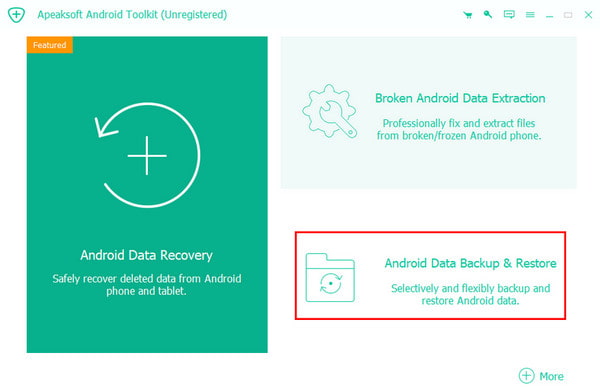
Stap 2. Kies Back-up en herstel van Android-gegevens op de hoofdinterface.
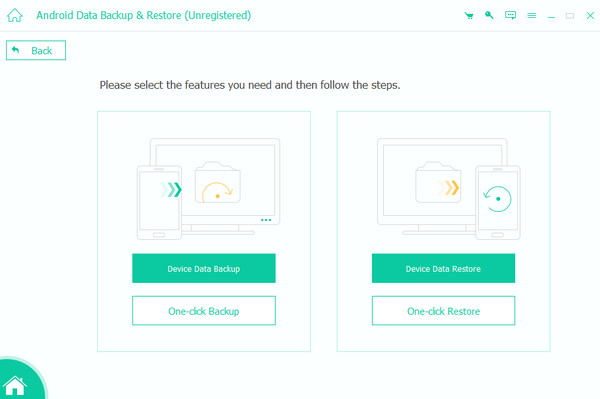
Stap 3. Druk dan op de Back-up van apparaatgegevens knop.
Stap 4. Verbind uw Samsung-telefoon met deze software, controleer Berichtenen druk op de Start knop.
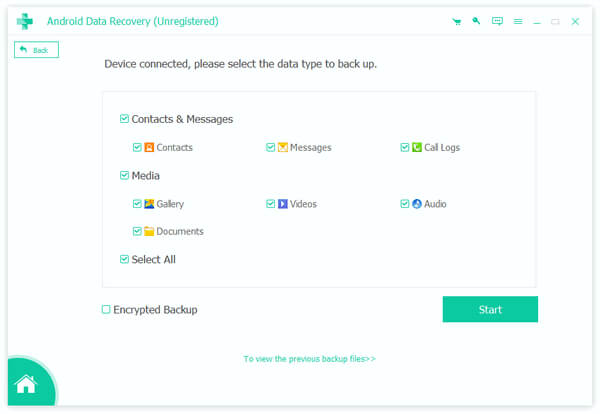
Tips: U kunt controleren de Gecodeerde back-up onderaan als u uw back-up veiliger wilt maken. Als u wilt contacten back-uppen op Android, controleer gewoon de Contacten.
Deel 2: Maak een back-up van Samsung-berichten met SMS Backup+
Als u een gratis tool wilt gebruiken om tekstberichten op Samsung te back-uppen, SMS Backup + is een ideale keuze. Het kan je berichten, gesprekslogboeken, enz. back-uppen naar Gmail of Google Agenda, zodat je ze op verschillende apparaten kunt openen.
Stap 1. Zoek naar SMS Backup + in uw Google Play Store en installeer deze op uw Samsung-telefoon.
Stap 2. Start het programma en geef het alle benodigde rechten.
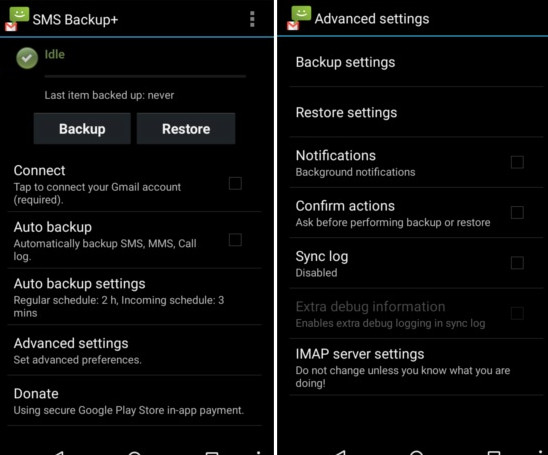
Stap 3. Druk op de backup -knop op het startscherm. Koppel deze aan je Google-profiel.
Stap 4. U kunt ook een automatische back-up instellen en de frequentie ervan instellen.
Deel 3: Berichten op Samsung back-uppen via cloudservice
Als je zonder computer een back-up van Samsung-berichten wilt maken, is Samsung Cloud Backup een prima alternatief. Het is tevens een officiële back-upoplossing voor Samsung. Zolang je de synchronisatiefunctie hebt ingeschakeld, worden je berichten automatisch naar de cloud gesynchroniseerd. Bovendien biedt Samsung Cloud 15 GB gratis opslagruimte.
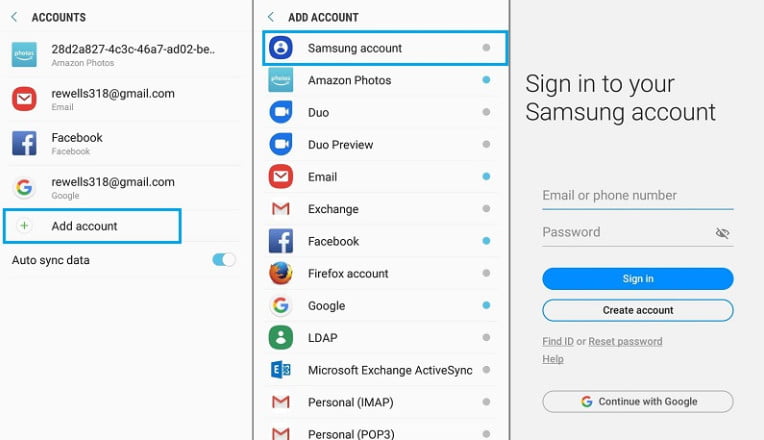
Stap 1. Ga naar Instellingen - Wolken & Account - accounts - Account toevoegen om u aan te melden met een Samsung-account.
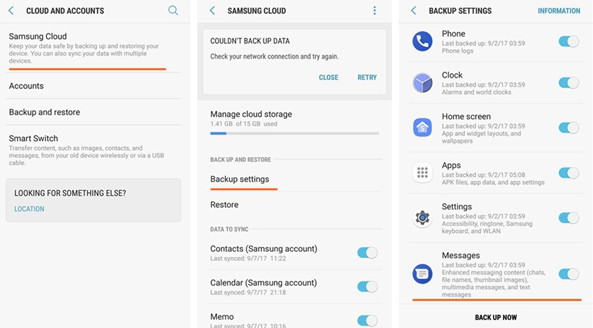
Stap 2. Terug naar de Wolken & Account scherm en klik op Samsung Cloud.
Stap 3. Klik Back-upinstellingen en schakel aan Berichten.
Stap 4. Druk op de NU BACKUPPEN knop.
Deel 4: Back-up van Samsung-berichten via de SMS Backup & Restore Android-app
Als u op zoek bent naar een uitgebreidere tool die ondersteuning biedt voor het maken van back-ups van Samsung-tekstberichten, zowel lokaal als in de cloud, SMS Backup & Restore is een Android-app die het overwegen waard is. Hij kan niet alleen Samsung-sms'jes back-uppen, maar ook gespreksgegevens. Bovendien kan hij de gegevens opslaan op je lokale telefoon, Google Drive of Dropbox.
Stap 1. Download de Samsung Backup and Restore Android-app uit de Google Play Store. Installeer en start de app zodra deze klaar is.
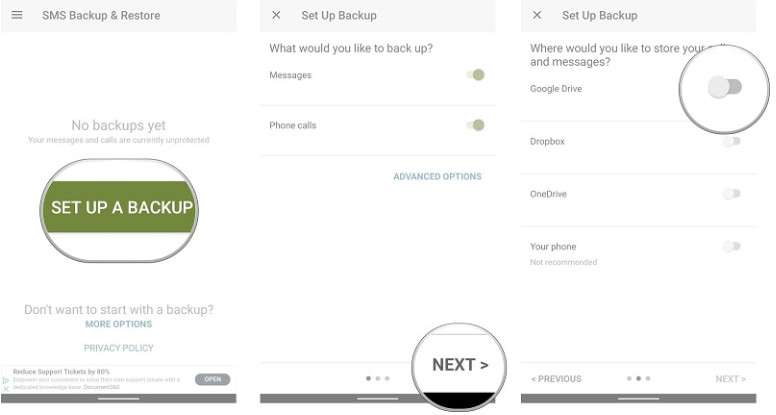
Stap 2. Druk op de EEN BACK-UP MAKEN knop op het startscherm.
Stap 3. Draai de schakelaar van Berichten aan en klik vervolgens op VOLGENDE.
Stap 4. Kies de locatie waar u uw Samsung-berichten wilt back-uppen.
Deel 5: Gebruik Super Backup & Restore om berichten op Samsung te back-uppen
Als u snel een back-up van Samsung-tekstberichten wilt maken op uw lokale apparaat of in de cloud, Superback-up en herstel is een eenvoudig te bedienen hulpmiddel waarmee u eenvoudig tekstberichten kunt opslaan en op elk gewenst moment kunt herstellen.
Stap 1. Download en installeer Super Backup & Restore vanuit de Google Play Store.
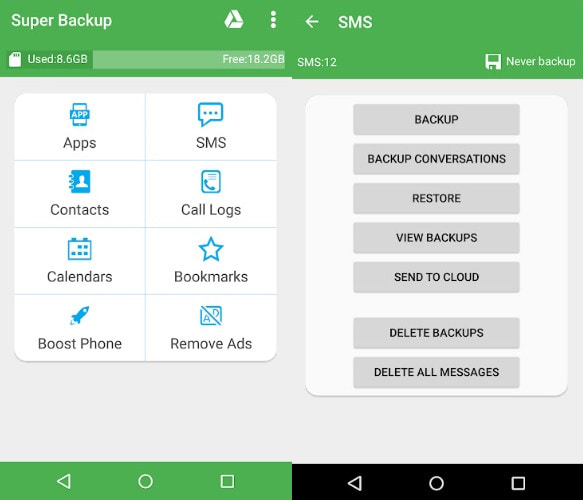
Stap 2. Start de app en druk op de SMS knop.
Stap 3. Vervolgens ziet u verschillende opslagopties. Kies op basis van uw behoeften.
Stap 4. Volg de instructies op het scherm om het proces te voltooien.
Conclusie
Tot nu toe heeft dit bericht 5 bewezen manieren geïntroduceerd om back-up maken van Samsung-berichten Op basis van onze zorgvuldige tests bevelen we Apeaksoft Android Data Backup & Restore het meest aan, omdat het u in staat stelt om: back-up maken van Android-oproeplogboeken, contacten, foto's, enz., op elk gewenst moment met één klik!
Gerelateerde artikelen
Wilt u een back-up en terugzetten van WhatsApp-gegevens op Android of iPhone? Lees de onderstaande passage die helpt bij het oplossen van het probleem.
Heb je wel eens gehoord van Google-foto's? Weet jij hoe je een back-up maakt van foto's met Google-foto's? Lees verder en lees meer over dit artikel.
Dit artikel toont de complete gids om optioneel een back-up van Android naar Mac te maken. Zo kunt u eenvoudig contacten, foto's of volledige Android-bestanden naar Mac overbrengen.
Om de veiligheid van uw Android-gegevens te garanderen, had u een betere back-uptelefoon naar een Google-account. En dit bericht toont ook stappen om een back-up van een telefoon naar Mac of pc te maken.



