

Hoe je verwijderde GIF's kunt herstellen op Windows en Mac (4 bewezen methoden)

Key Takeaways
- Als je GIF-bestanden hebt verwijderd, kun je ze eerst in de prullenbak terugzetten.
- Als je een lokale of cloudback-up hebt, kun je de verwijderde GIF's daarvandaan herstellen.
- Zelfs als de GIF-bestanden permanent zijn verwijderd (met Shift + Delete of na het legen van de prullenbak), kunnen ze nog steeds worden hersteld met professionele software voor gegevensherstel, zolang de gegevens maar niet zijn overschreven.
Per ongeluk je GIF's verwijderd? Geen paniek - het is veel makkelijker om ze terug te halen dan je denkt! Deze handleiding laat je zien hoe je dat doet. Verwijderde GIF's herstellen Stap voor stap, of je nu de prullenbak hebt geleegd, bestanden bent kwijtgeraakt na een systeemcrash of je GIF's nergens op je computer kunt vinden.
PAGINA-INHOUD:
- Kun je verwijderde GIF-bestanden herstellen?
- Methode 1. Verwijderde GIF-bestanden herstellen vanuit de prullenbak.
- Methode 2. Herstel permanent verwijderde GIF's met één klik [Aanbevolen]
- Methode 3. Verwijderde GIF herstellen vanuit lokale back-up
- Methode 4. Verwijderde GIF's herstellen vanuit een cloudback-up
- Tips om te voorkomen dat GIF-bestanden opnieuw worden verwijderd
Kun je verwijderde GIF-bestanden herstellen?
GIF's zijn vergelijkbaar met andere afbeeldingsbestanden zoals JPG en PNG, dus als je ze verwijdert, zijn ze niet voorgoed verdwenen.
Wanneer je een GIF-bestand verwijdert, wordt het niet direct verwijderd. Het wordt eerst naar de Prullenbak verplaatst (of Trash op een Mac). Daar kun je het bestand eenvoudig terugzetten.
Als je de prullenbak hebt geleegd, hoef je je ook geen zorgen te maken. Je kunt professionele software voor gegevensherstel gebruiken. De meeste van deze programma's bieden een gratis proefperiode of een beperkte herstellimiet, wat vaak voldoende is om de GIF-afbeeldingen terug te halen.
Als je ooit een back-up van je computer hebt gemaakt, wordt het een stuk eenvoudiger. Je kunt je computer rechtstreeks herstellen vanuit Bestandsgeschiedenis (of Time Machine op een Mac).
Kortom, het herstellen van verwijderde GIF-bestanden is meestal mogelijk, vooral als je snel na het verwijderen handelt.
Methode 1. Verwijderde GIF-bestanden herstellen vanuit de prullenbak.
De snelste en gemakkelijkste manier om een verwijderde GIF terug te krijgen, is door je Prullenbak (Windows) of Prullenbak (Mac) te controleren. Verwijderde bestanden worden hier normaal gesproken tijdelijk opgeslagen totdat je de prullenbak leegt. Je kunt ze dus met een paar klikken herstellen.
Prullenbak (Windows)
Stap 1. Open de Prullenbak.
Stap 2. Enter gif in het filtervak (rechtsboven).
Stap 3. Dubbelklik op de gewenste optie en klik vervolgens. herstellen.
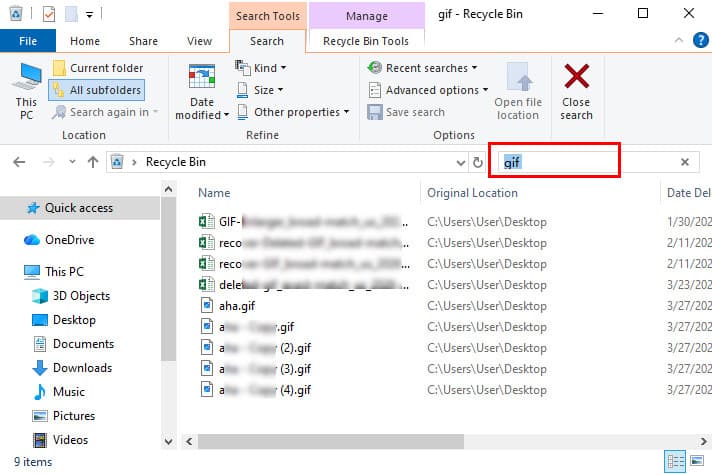
Tips: GIF-bestanden worden teruggezet naar hun oorspronkelijke locatie.
Prullenbak (Mac)
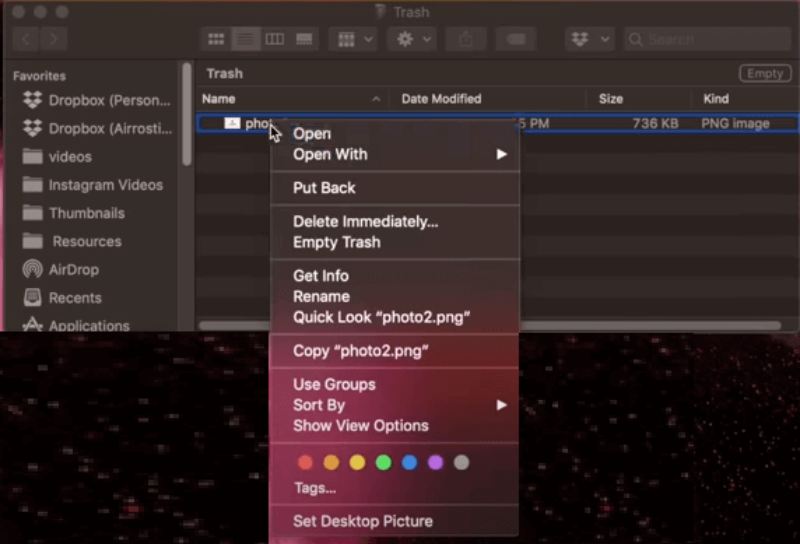
Stap 1. Open afval vanaf de steiger.
Stap 2. Zoek naar de GIF-afbeeldingen die je zoekt.
Stap 3. Klik er met de rechtermuisknop op en kies Terugzetten.
Methode 2. Herstel permanent verwijderde GIF's met één klik [Aanbevolen]
Als je de gewoonte hebt om Shift + Delete te gebruiken, of als je regelmatig je verwijderde bestanden opruimt, wordt het een stuk ingewikkelder. Gelukkig, Apeaksoft Data Recovery Biedt een eenvoudige en complete oplossing om permanent verwijderde GIF-pakketten te herstellen op zowel Windows als Mac, zelfs zonder back-up.
Herstel eenvoudig verwijderde GIF-pakketten
- Herstel verwijderde GIF-pakketten met één klik.
- Ondersteuning voor het herstellen van GIF-bestanden vanaf uw computer, harde schijven, SD-kaarten, USB-sticks, enz.
- Herstel GIF-afbeeldingen na diverse oorzaken, zoals per ongeluk verwijderen, formatteren, beschadiging van de schijf, systeemcrashes, enz.
- Bovendien werkt deze tool voor vrijwel alle bestandstypen die je nodig hebt, zoals PowerPoint herstellenWord, video's, audio, enz.
- Het biedt een gratis herstelproef van 200 MB.
Veilige download
Veilige download

Stap 1. Download en installeer deze professionele GIF-hersteltool gratis op uw computer.
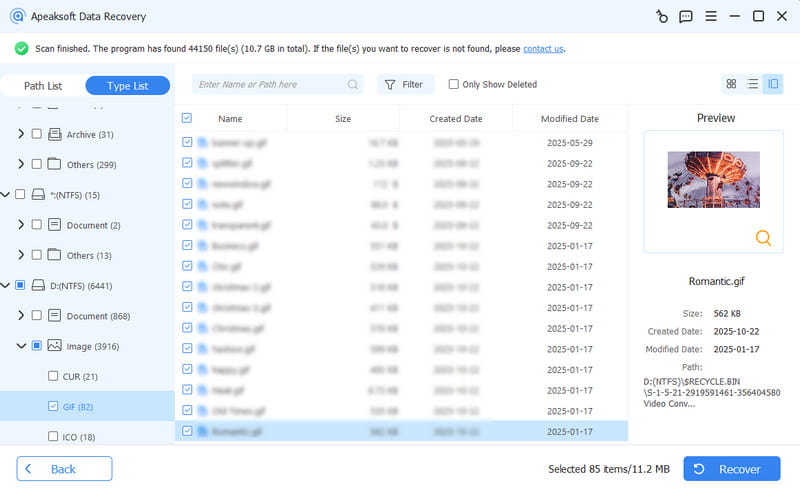
Stap 2. Start de tool en kies Harde schijf herstel klik in het linkerpaneel. Start scannen.
Als uw GIF's op een externe schijf zijn opgeslagen, moet u de tweede optie kiezen.

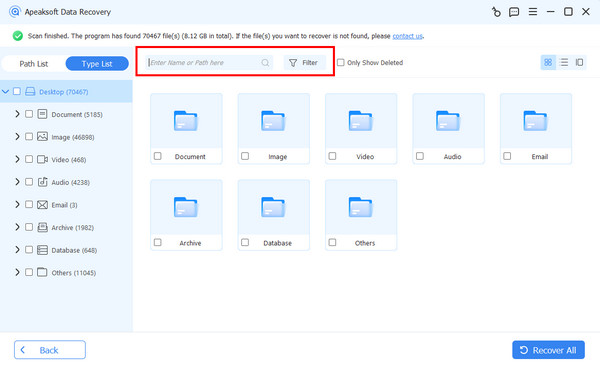
Stap 3. Zoek de GIF-bestanden die je zoekt op basis van de Type lijstU moet zoeken in het filtervak.
Stap 4. Bekijk de GIF-bestanden.
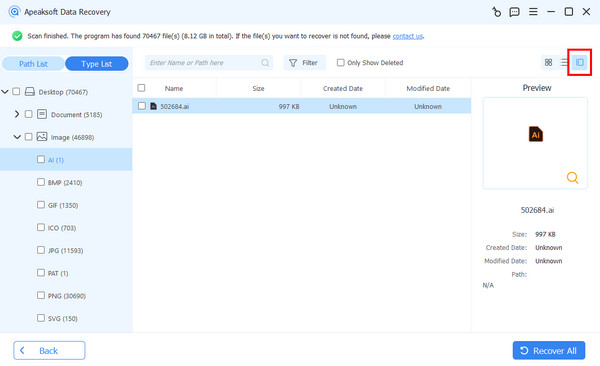
Stap 5. Selecteer alle GIF's die je nodig hebt en klik op Herstellen (rechtsonder).
Methode 3. Verwijderde GIF herstellen vanuit lokale back-up
Als je eerder een back-upfunctie op je computer hebt ingeschakeld, kun je verwijderde GIF's snel en gemakkelijk herstellen. Hier laten we je zien hoe je Windows Bestandsgeschiedenis/Vorige versies en Mac Time Machine kunt gebruiken om GIF's vanuit je lokale back-ups te herstellen.
Bestandsgeschiedenis (Windows)
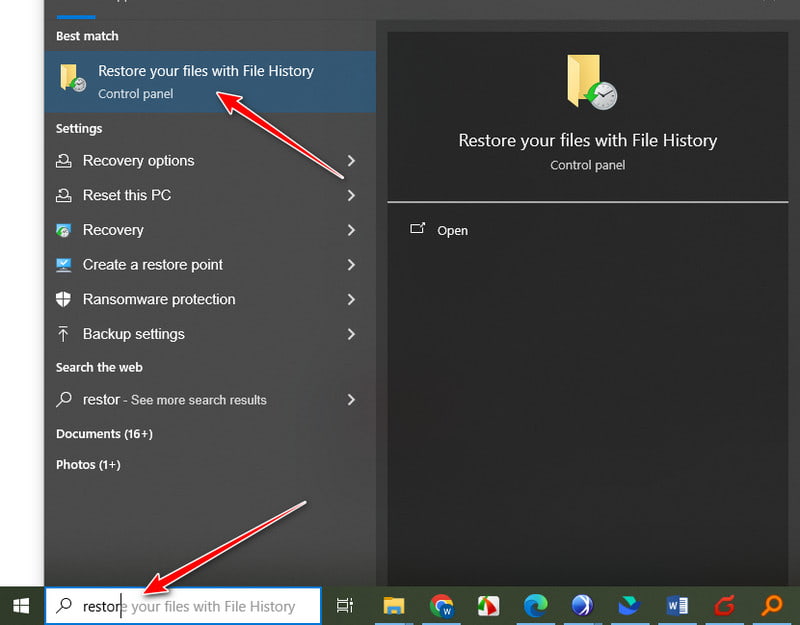
Stap 1. Type Herstel uw bestanden met Bestandsgeschiedenis in het zoekvak (linksonder).
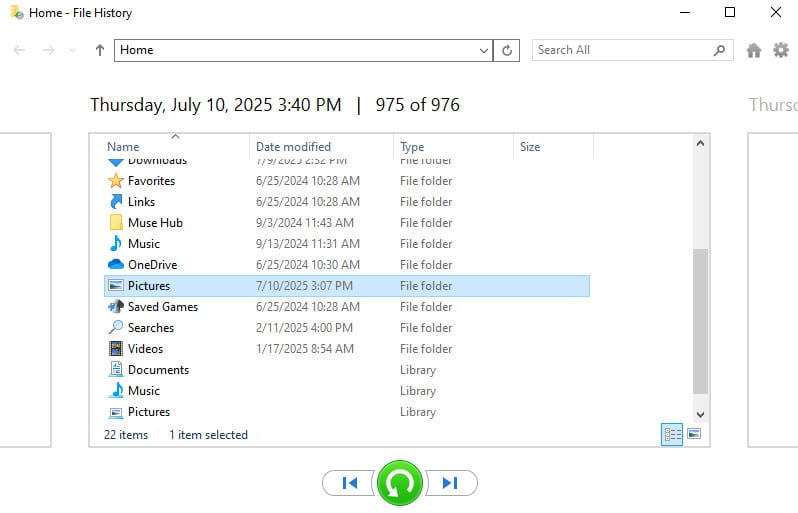
Stap 2. Zoek de bijbehorende map op.
Stap 3. Klik op de Herstellen knop middenonder.
Vorige versie (Windows)
Stap 1. Open file Explorer en zoek de map op waarin je verwijderde GIF's ooit waren opgeslagen.
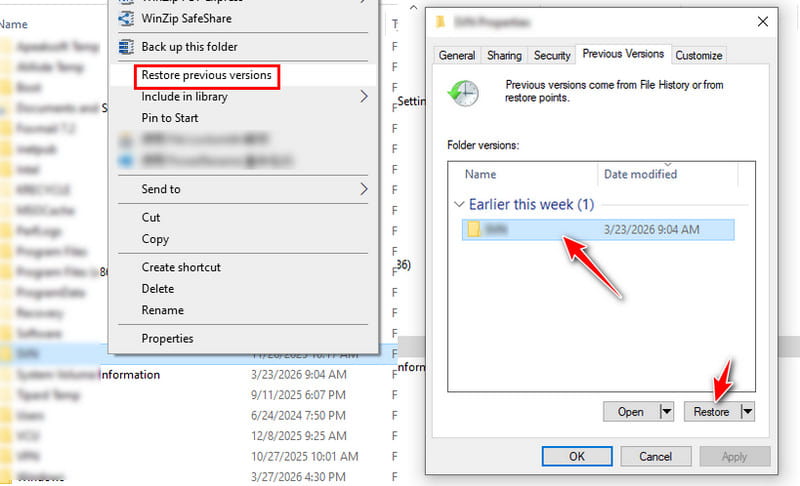
Stap 2. Klik met de rechtermuisknop op de map en kies Herstel vorige versie.
Stap 3. Kies de versie waarvan je denkt dat die de verwijderde GIF-afbeeldingen bevat.
Stap 4. Klik herstellen.
Tijdmachine (Mac)
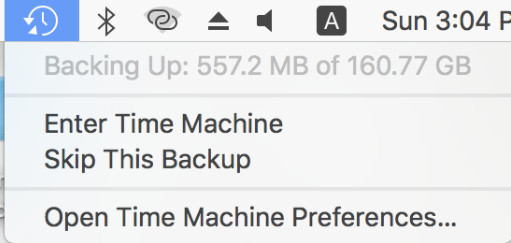
Stap 1. Open tijd Machine van rechtsboven.
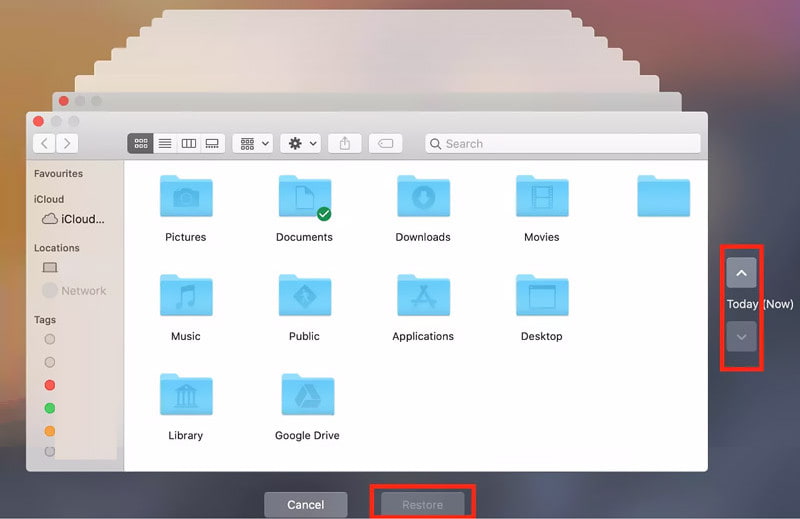
Stap 2. Klik op de pijl omhoog of omlaag in de tijdlijn aan de rechterkant om de exacte map te vinden.
Stap 3. Selecteer het gewenste GIF-pakket en klik herstellen.
Methode 4. Verwijderde GIF's herstellen vanuit een cloudback-up
Als je een cloudback-upservice gebruikt, kun je verwijderde GIF's snel en gemakkelijk herstellen. We zullen hier een voorbeeld van geven. Google Drive Als voorbeeld om te laten zien hoe je je GIF-bestanden kunt herstellen.
Stap 1. Open Google Drive in je browser en log in met je account.
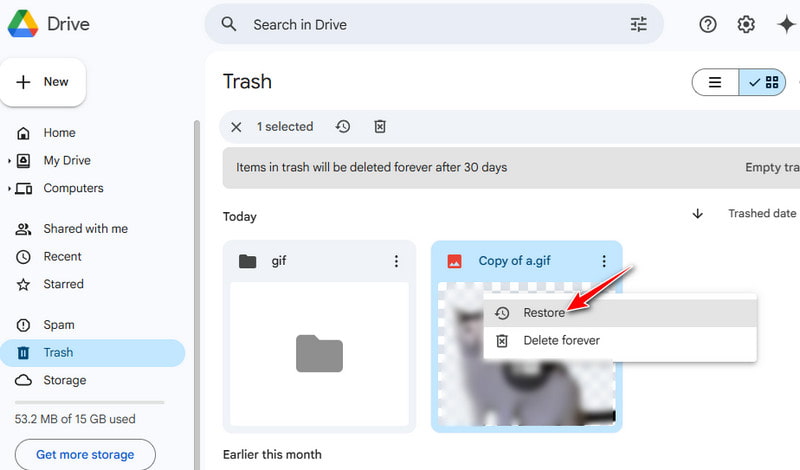
Stap 2. Controleer de uitschot map.
Stap 3. Klik er met de rechtermuisknop op en kies herstellen.
Tips om te voorkomen dat GIF-bestanden opnieuw worden verwijderd
- Maak regelmatig een back-up van je GIF-bestanden op een externe harde schijf of in de cloud.
- Schakel de back-upfunctie op uw computer in, zodat er een herstelpunt beschikbaar is dat u kunt gebruiken.
- Denk goed na voordat je GIF's van je computer verwijdert of de prullenbak leegt.
- Sorteer je GIF's overzichtelijk voor een beter beheer.
- Koppel uw apparaten niet plotseling los tijdens het overdragen van gegevens.
Conclusie
GIF's herstellen Het is minder ingewikkeld dan je denkt, toch? Kijk eerst in de prullenbak. Als ze daar niet staan, controleer dan je lokale of cloudback-ups. Voor permanent verwijderde bestanden, Gratis dataherstel software kan je helpen je GIF's snel en veilig terug te krijgen.
Gerelateerde artikelen




