

Video's overzetten van je Android-apparaat naar je computer

Video opnemen is makkelijker dan ooit. Vrijwel alle Android-apparaten zijn tegenwoordig uitgerust met uitstekende lenzen. Wanneer je herinneringen wilt vastleggen, hoef je alleen maar je telefoon te pakken, een camera-app te openen en op de opnameknop te tikken. Het nieuwe probleem is echter dat je geheugen snel vol raakt. Het goede nieuws is dat je... Video's overzetten van je Android-apparaat naar een computer en vervolgens ruimte vrijmaken.
PAGINA-INHOUD:
Deel 1: Een snelle manier om video's van Android naar de computer over te zetten
Als je waarde hecht aan videokwaliteit, Apeaksoft MobieTrans is een goede optie om video's van Android naar pc en Mac over te zetten. Het integreert AI-technologie om de videokwaliteit te beschermen tijdens het beheren en overzetten.
Een snelle manier om video's van Android naar de computer over te zetten.
- Synchroniseer video's snel tussen Android en een computer.
- Behoud de videokwaliteit tijdens het overzetten.
- Ondersteuning van een breed scala aan videoformaten.
- Beheer Android-video's op een computer.
- Compatibel met vrijwel alle Android-merken.
Veilige download
Hoe video's van Android naar pc over te zetten
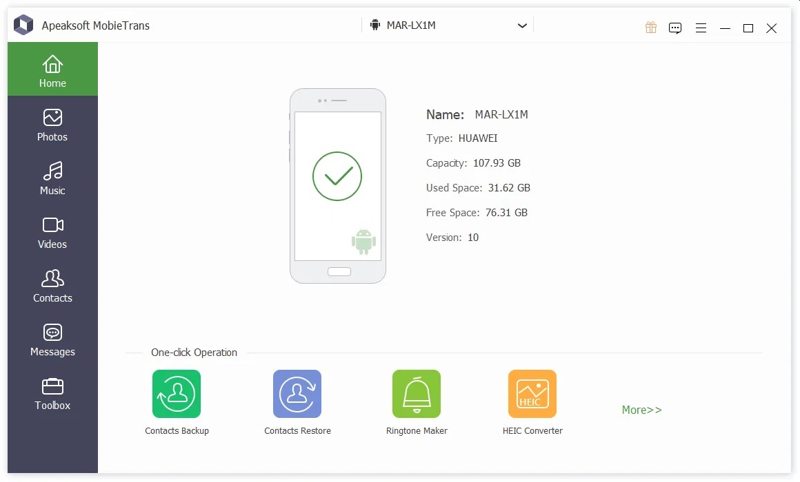
Stap 1. Detecteer uw telefoon
Start de video-overdrachtstool zodra je deze op je pc hebt geïnstalleerd. Er is ook een versie voor Mac. Verbind je telefoon met je pc via een USB-kabel. Zorg ervoor dat je de optie inschakelt. USB Debugging modus op uw telefoon.
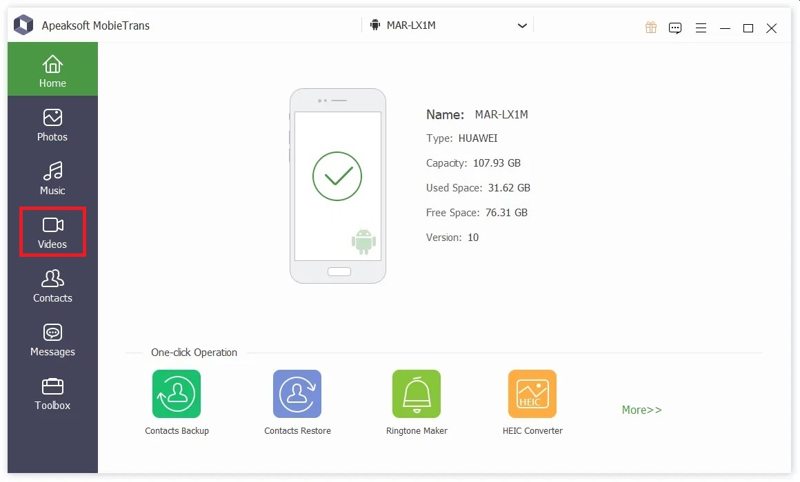
Stap 2. Voorbeeld van video's
Nadat je telefoon is gedetecteerd, ga je naar de Video's Het tabblad in de linkerzijbalk. Nu kun je alle video's op je Android-apparaat bekijken.
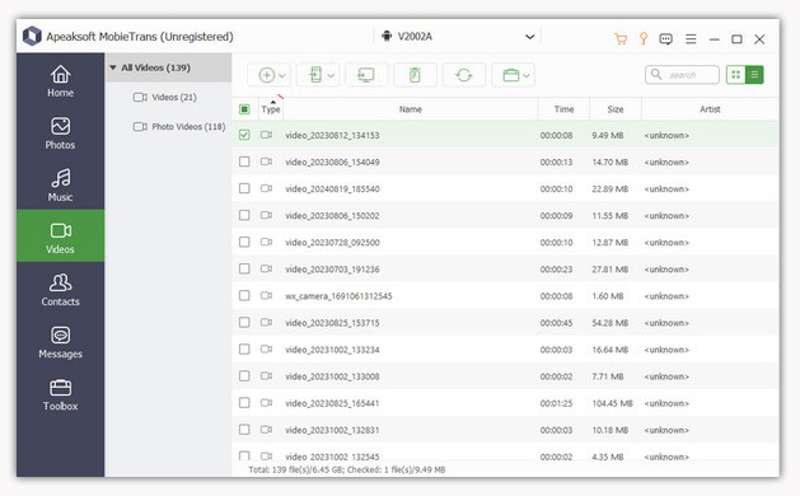
Stap 3. Android-video's overzetten naar pc
Selecteer alle video's die u wilt overzetten en klik op de PC op het bovenste lint en kies Exporteren naar pcNavigeer naar de uitvoermap en bevestig dit. Je kunt ook foto's overbrengen van Android naar computer.
Deel 2: Hoe je Android-video's via cloudopslag naar een computer overzet
Met cloudopslag, zoals Google Drive, kun je Android-video's draadloos naar een computer overzetten. Deze methode werkt zowel voor pc's als Macs. Hieronder volgen de stappen om een back-up van je Android-video's te maken:
Stap 1. Voer de ... uit Google Foto's App op je telefoon.
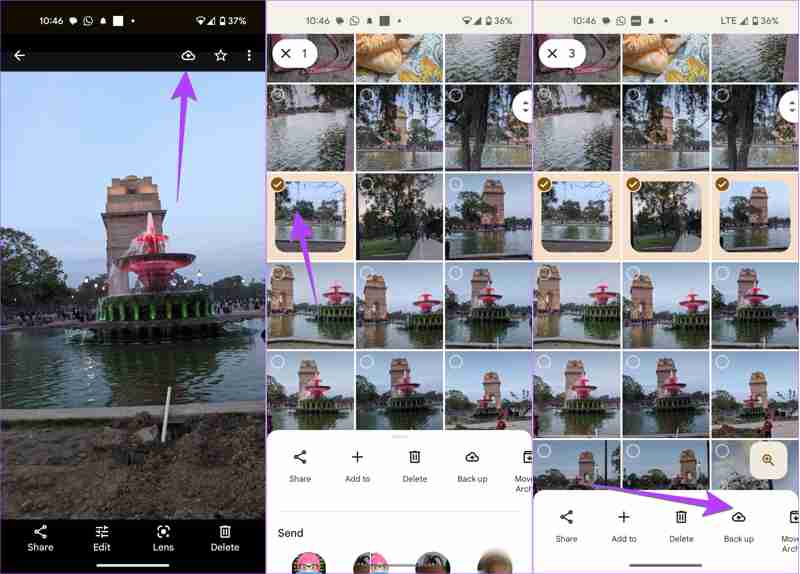
Stap 2. Druk op Uploaden Klik op de knop en selecteer de gewenste video's.
Tips: Geef Google Foto's toegang tot je galerij.
Stap 3. Tik vervolgens op de Een back-up knop onderaan.
Stap 4. Ga naar uw computer en open de volgende instellingen: open photos.google.com in een browser.
Stap 5. Log in met hetzelfde account.
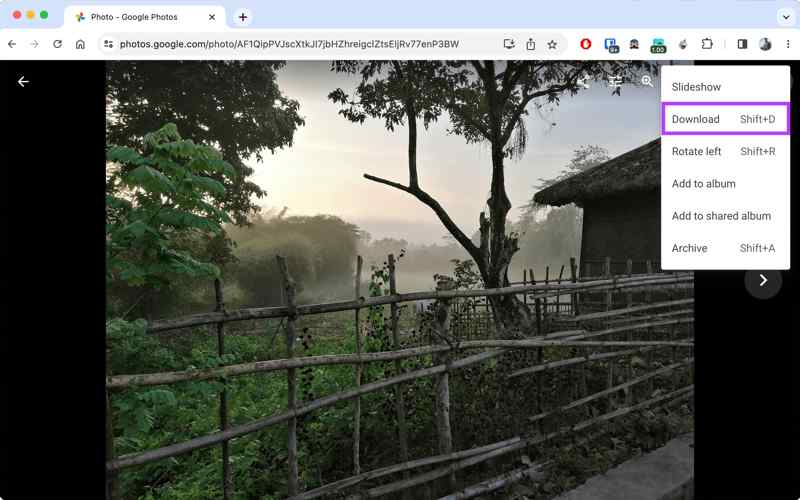
Stap 6. Zoek en selecteer de video's.
Stap 7. Klik op de Meer knop met een pictogram met drie stippen en kies Download.
Tips: Je vindt de video in de map Downloads.
Deel 3: Hoe je video's met een kabel van Android naar pc overzet
Android is een open-source besturingssysteem. Het geeft je toegang tot het geheugen. Met andere woorden, je kunt je telefoon met een compatibele kabel aan je pc koppelen om video's rechtstreeks van je Android-apparaat naar je pc over te zetten.
Stap 1. Voer de ... uit Instellingen App op je telefoon.
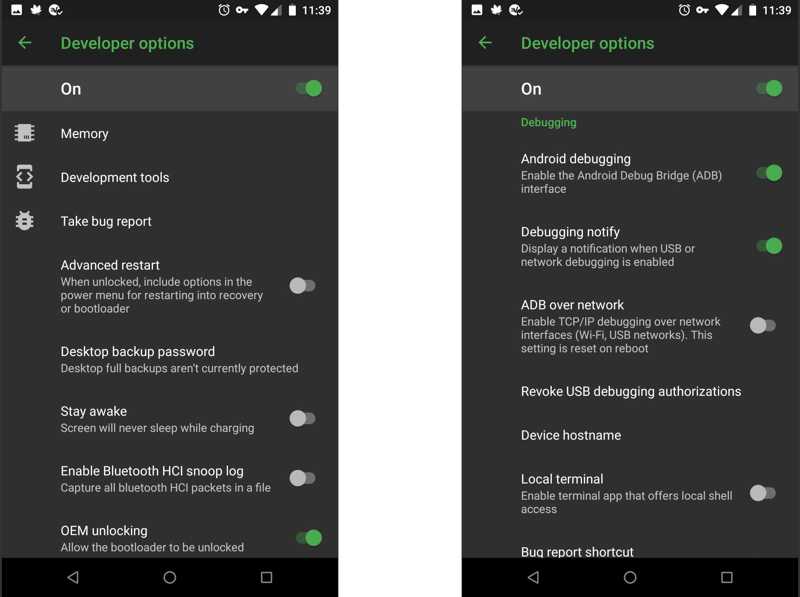
Stap 2. Ga naar Ontwikkelaarsoptiesen schakel de in USB Debugging modus.
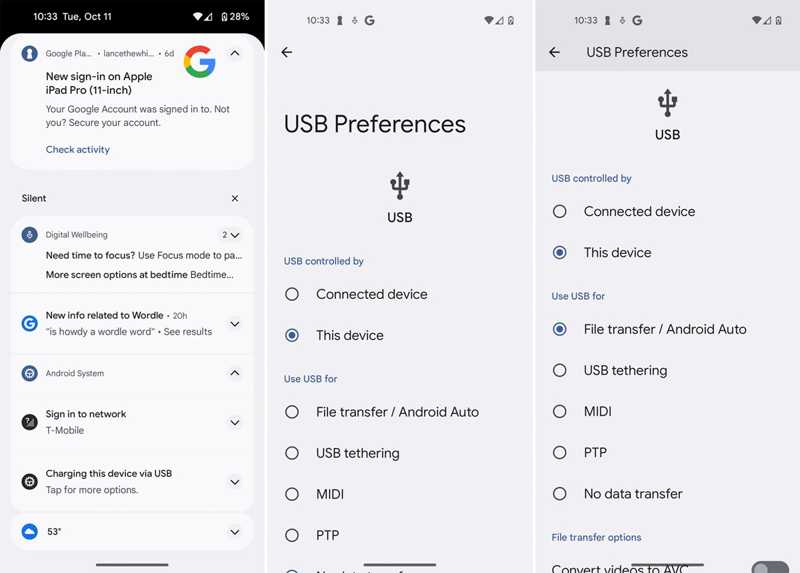
Stap 3. Sluit je telefoon met een USB-kabel aan op je pc.
Stap 4. Als daarom wordt gevraagd, kiest u Bestandsoverdracht.
Op Windows 11 / 10
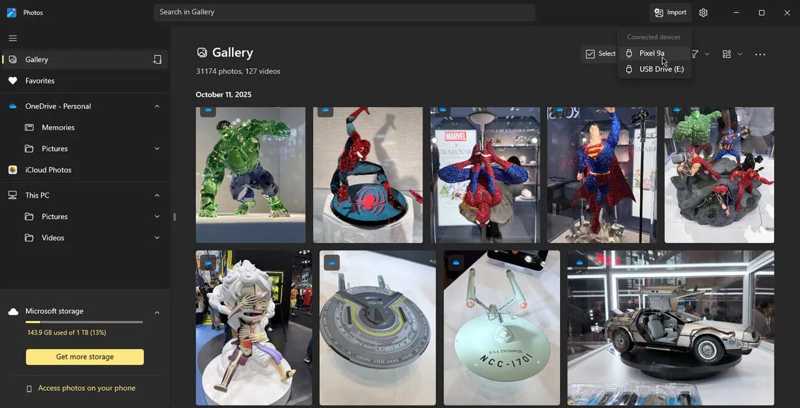
Stap 5. Voer de ... uit Foto's app, klik importen pak je telefoon.
Stap 6. Selecteer de gewenste video's en klik Voeg N items toe.
Op Windows 8/7/XP/Vista
Stap 7. Open een bestandsverkenner en klik op je telefoon.
Stap 8. Zoek de video's op en kopieer en plak ze naar je harde schijf.
Deel 4: Hoe je Android-video's via e-mail naar een computer downloadt
Je kunt Android-video's ook via e-mail naar een Mac of pc overzetten. Deze methode is geschikt voor het migreren van één of meerdere video's, aangezien alle e-mailproviders een maximale grootte hanteren. Gmail staat bijvoorbeeld toe dat je een bericht van maximaal 25 MB per keer verstuurt. Je kunt ook contacten overdragen van Android naar iPhone met deze methode.
Stap 1. Open de e-mailapp op je telefoon.
Stap 2. Ga naar uw inbox Tik op de knop 'Nieuw' om naar het scherm voor nieuwe e-mails te gaan.
Stap 3. Voer uw e-mailadres in bij Naar Schrijf een onderwerp op in het betreffende veld.
Stap 4. Druk op Gehechtheid klik op de knop en selecteer de video's.
Stap 5. Druk op de Verstuur knop.
Stap 6. Ga naar uw computer en open uw e-mail in een browser of e-mailprogramma.
Stap 7. Lees de nieuwe e-mail en download de video's naar je harde schijf.
Tips: Als je video's groot zijn, heb je mogelijk een cloudservice nodig, zoals Google Drive.
Conclusie
Deze handleiding beschreef vier methoden om video's overbrengen van Android naar pc Draadloos of met een kabel. Met een cloudservice kun je video's van je Android-telefoon naar een ander digitaal apparaat sturen, zoals een Mac of een pc. E-mail is een andere manier om video's tussen Android en een computer over te zetten. Als je een pc gebruikt, kun je Android-video's met een USB-kabel naar je harde schijf downloaden. Apeaksoft MobieTrans Dit is een eenvoudige methode om Android-video's te synchroniseren.
Gerelateerde artikelen
U kunt Android-muziek overzetten naar iPhone met behulp van de Move to iOS-app, een USB-kabel, software van derden of de muziekstreamingservice.
Je leert drie methoden om tekstberichten van een iPhone naar een Android-telefoon over te zetten met een USB-kabel of draadloos.
Om apps probleemloos van Android naar Android over te zetten, kunt u Android Data Transfer Tool, Nearby Share, Google Backup of Samsung Smart Switch gebruiken.
Foto's nemen het geheugen van de mobiele telefoon in beslag. Veel mensen willen daarom een back-up maken van hun foto's, maar weten niet hoe ze die van hun telefoon naar hun laptop kunnen overzetten.



