Hva er Minecraft Motion Blur og hvordan slår du det på

Som en visuell effekt introduserte Minecraft bevegelsesuskarphet, noe som påvirker den generelle spillopplevelsen for spillere. Bevegelsesuskarpheten er designet for Minecraft-spillere for å endre spillets særegne blokkerte og pikselkunstinspirerte estetikk. Men hvis den ikke implementeres nøye, vil denne effekten kollidere med det visuelle designet, og introdusere noe uskarphet som forringer spillets pikselutseende og -følelse. Denne artikkelen deler hvordan du bruker bevegelsesuskarphet-mod i Minecraft.
SIDEINNHOLD:
Del 1: Forstå bevegelsesuskarphet i Minecraft
Bevegelsesuskarphet er ikke unikt for Minecraft. I stedet integrerer mange spill denne visuelle effekten som simulerer uskarphet av objekter i rask bevegelse eller kamerabevegelser. Ved å bruke bevegelsesuskarphet kan spill skape en mer filmatisk og visuelt tiltalende presentasjon, som formidler en større følelse av fart og flyt.
Ulempen er at dårlig implementert bevegelsesuskarphet kan redusere visuell klarhet, påvirke spillpresisjonen og føre til belastning på øynene. For eksempel kan effekten kollidere med Minecrafts blokkerte visuelle stil og redusere klarheten.
Har Minecraft bevegelsesuskarphet? Ja. Selv om Minecraft er et sandkassespill og kjent for sin særegne, blokkerte grafikk og minimalistiske estetikk, kan du legge til bevegelsesuskarphet-moden i kjernen av Minecraft-opplevelsen. Du må imidlertid sørge for at enheten din har muligheten til å kontrollere og administrere endringen og glattheten.
Del 2: Slik slår du av eller på bevegelsesuskarphet i Minecraft
Som nevnt tidligere, kan du aktivere bevegelsesuskarphet i Minecraft. Dessuten har du andre teknikker for å bruke bevegelsesuskarphet i spillet ditt. Vi demonstrerer prosessene i henhold til disse.
Slik får du bevegelsesuskarphet i Minecraft
Trinn 1. Åpne Minecraft på datamaskinen din.
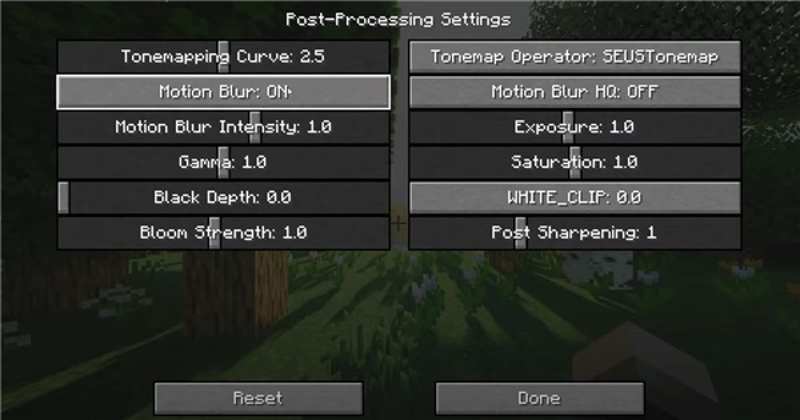
Trinn 2. Klikk alternativer Og velg video~~POS=TRUNC innstillinger~~POS=HEADCOMP.
Trinn 3. Klikk på Shader-alternativer alternativ og velg Innstillinger for etterbehandling.
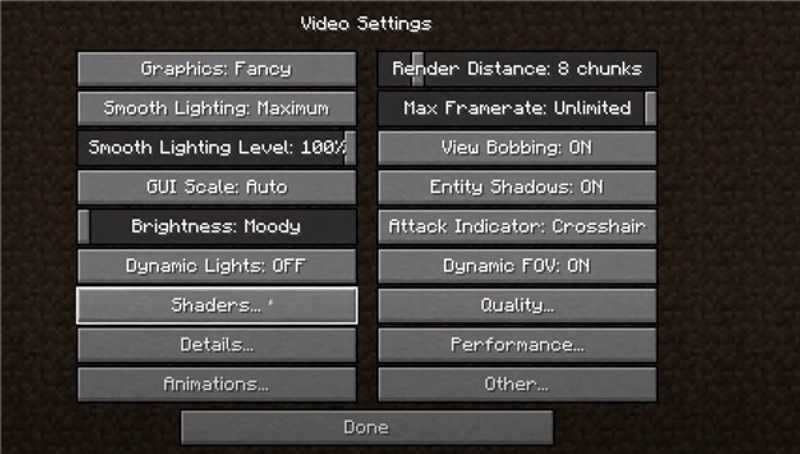
Trinn 4. Finn det Bevegelsesoskarphet alternativ, og slå bevegelsesuskarphet av eller på i Minecraft.
Videre Reading
Slik legger du til bevegelsesuskarphet i Minecraft med Motion Blur FX
Trinn 1. Last ned og installer Optifine eller Fabric fra det offisielle nettstedet.
Trinn 2. Last ned Motion Blur FX-shaderpakken.
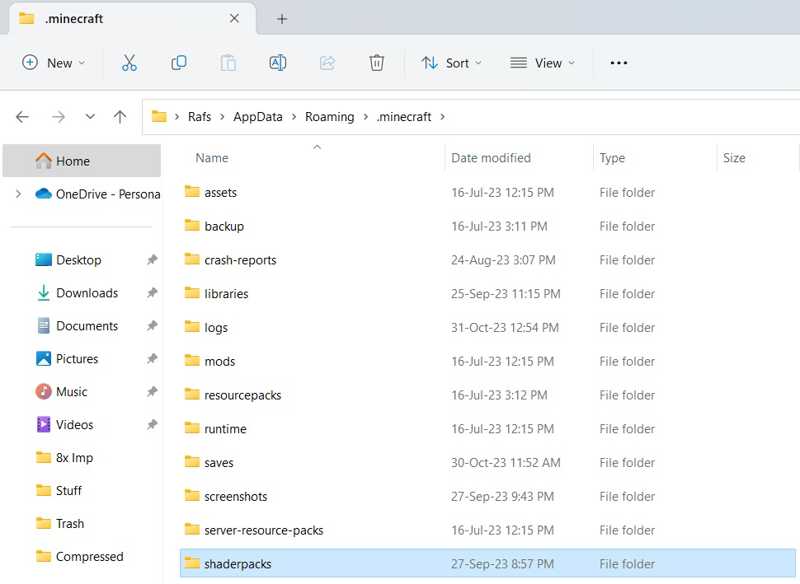
Trinn 3. Flytt shader-pack.zip-filen til shaderpacks-mappen i Minecraft-katalogen din.
Trinn 4. Åpne Minecraft på datamaskinen din.
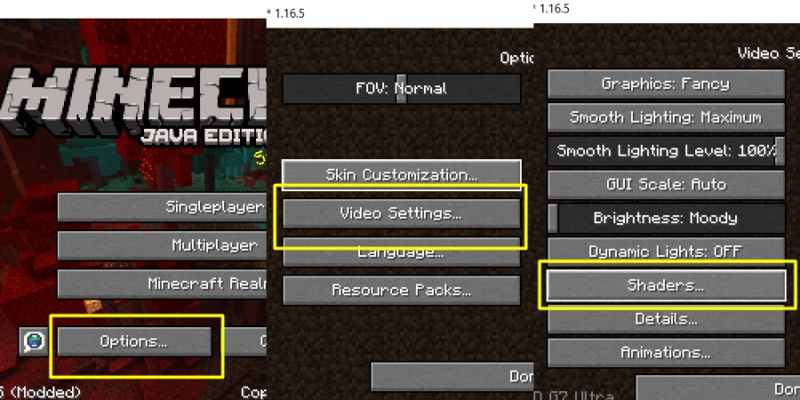
Trinn 5. Klikk alternativer, video~~POS=TRUNC innstillinger~~POS=HEADCOMPog shaders.
Trinn 6. Velg shader pack.zip-filen for å legge til bevegelsesuskarphet i Minecraft.
Slik slår du på bevegelsesuskarphet i Minecraft ved hjelp av PVP-klienter
Trinn 1. Installer en PVP-klient på datamaskinen din, som Lunar Client eller Badlion.
Trinn 2. Åpne klienten og velg Minecraft-versjonen.
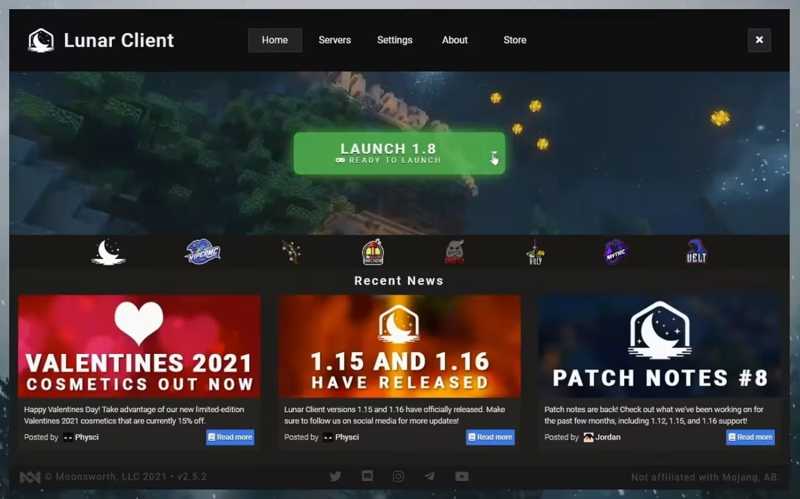
Trinn 3. Flytt til alternativer og video~~POS=TRUNC innstillinger~~POS=HEADCOMP.
Trinn 4. Velg Ytelse alternativet og slå av Rask gjengivelse.
Trinn 5. Trykk på høyre Skift tasten på tastaturet for å få tilgang til klientmenyen.
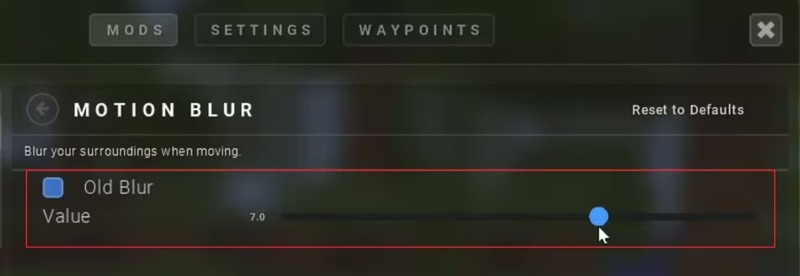
Trinn 6. Angi intensiteten til den visuelle effekten.
Tips: Hvis du vil deaktivere bevegelsesuskarphet i Minecraft, må du redusere intensiteten.
Del 3: Slik fjerner du bevegelsesuskarphet i Minecraft-spillvideoen
Som nevnt tidligere, kan Minecraft-modusen for bevegelsesuskarphet generere uklarhet i spillingen. Heldigvis, Apeaksoft Video Converter Ultimate kan hjelpe deg med å forbedre spillvideoene dine og redusere uskarphet. Det intuitive grensesnittet lar deg enkelt retusjere spillvideoene dine.

Lastet ned av over 1,000,000 Brukere
- Reduser og fjern bevegelsesuskarphet fra Minecraft-spillvideoer.
- Beskytt videokvaliteten din underveis.
- Støtter nesten alle videoformater.
- Forhåndsvis retusjerte videoer med mediespilleren.
- Tilbyr bonusfunksjoner, som konvertering av videoformat.
Sikker nedlasting
Sikker nedlasting
Slik fjerner du bevegelsesuskarphet fra en Minecraft-spillvideo
Trinn 1. Importer en video
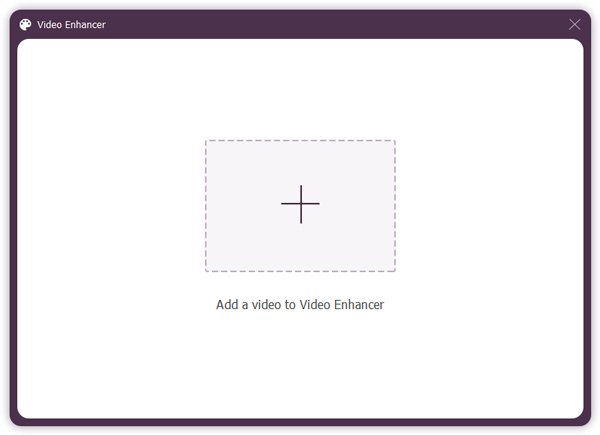
Start videoredigeringsprogramvaren når du har installert den på PC-en. Den er kompatibel med Windows 11/10/8/7/XP/Vista. Det finnes en annen versjon for Mac OS X 10.12 eller nyere. Bytt til Toolbox fanen øverst og velg Videoforsterker verktøy. Klikk på Legg til -knappen for å importere en Minecraft-spillvideo.
Trinn 2. Reduser bevegelsesuskarphet
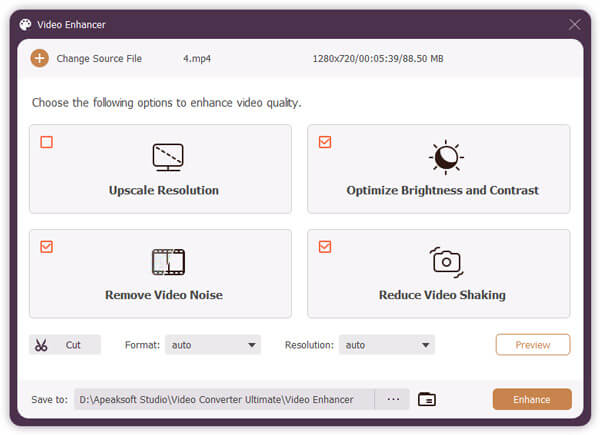
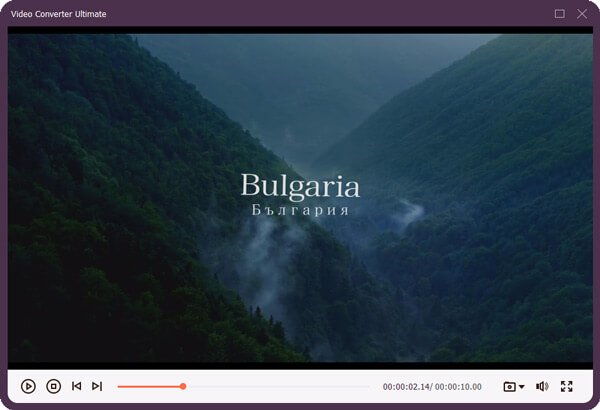
Etter at videoen er lastet inn, kryss av i avmerkingsboksene for Reduser video shaking og andre alternativer. Klikk deretter på Forhåndsvisning -knappen for å se resultatet. Hvis du er fornøyd med det, lukker du den innebygde mediespilleren.
Trinn 3. Eksporter spillvideo
Klikk på Folder knappen nederst og velg en utdatamappe for å lagre den forbedrede videoen. Klikk til slutt på forbedre knappen nederst til høyre for å eksportere Minecraft-videoen uten bevegelsesuskarphet.
Tips: Det finnes flere videoredigeringsverktøy i verktøykassevinduet som venter på at du skal utforske dem.
Konklusjon
Denne guiden forklarte hva Minecraft-bevegelsesuskarphet mod er, hvordan den fungerer og hvordan du slår på effekten. Du kan følge metodene og detaljerte trinnene våre for å bruke den visuelle effekten når du spiller Minecraft-spillet ditt. Den innebygde effekten er begrenset til bestemte versjoner. Tredjepartsklienten tilbyr tilpassede alternativer. Apeaksoft Video Converter Ultimate er en enkel måte å fjerne bevegelsesuskarphet fra spillvideoene dine og forbedre videoene dine uten tekniske ferdigheter.
Relaterte artikler