

iPhone/iPad iTunes-gjenoppretting fungerer ikke – årsaker og feilsøking

Det er ganske vanlig å gjenopprette iPhone eller iPad ved hjelp av iTunes, men noen ganger går ikke ting som planlagt. Hvis du ser meldinger som «Det oppsto et problem med å gjenopprette iPhone» eller enheten din setter seg fast i gjenopprettingsmodus eller DFU-modus, betyr det at iTunes-gjenopprettingen ikke fungerer som den skal.
Hvorfor gjør dette iTunes -gjenopprettingsfeil oppstå, og hvordan kan du fikse det? Les mer for å finne svar!
SIDEINNHOLD:
Del 1: Hva er iTunes-gjenopprettingsfeil
iTunes-gjenopprettingsfeilen refererer til en feil som oppstår når du prøver å gjenopprette en iPhone, iPad eller iPod til den opprinnelige eller oppdaterte iOS-tilstanden ved hjelp av iTunes-programvaren (eller Finder i macOS Catalina og senere versjoner).
Det skjer under gjenopprettingsprosessen i iOS, enten når man gjenoppretter fra en sikkerhetskopi eller oppdaterer enhetens fastvare. Avhengig av den spesifikke feilkoden kan det skje på et hvilket som helst tidspunkt – i begynnelsen, midten eller slutten.
Denne feilen indikerer at gjenopprettingsprosessen mislyktes på grunn av feil fra iTunes eller enhetene dine, for eksempel kommunikasjonsavbrudd, feil med fastvareverifisering osv. Det betyr imidlertid ikke at enheten din er permanent skadet. Du kan lese vår videre illustrasjon for å feilsøke deretter.
Formene for feil
Vanligvis vil du se et grensesnitt som ligner på følgende (i iTunes eller Finder):
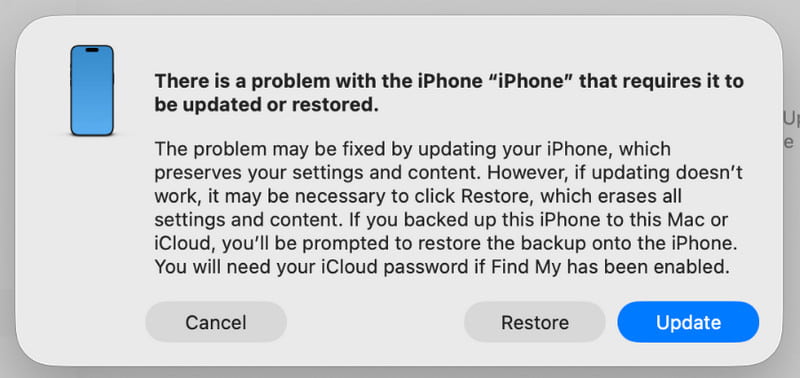
- En dialogboks dukker opp i iTunes/Finder som angir Det oppsto et problem med å gjenopprette iPhonen din. iTunes kunne ikke gjenopprette iPhonen fordi det oppsto en feil.Osv
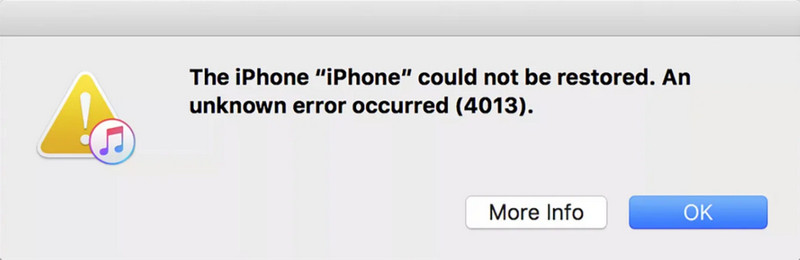
- Dialogboksen vil inneholde en spesifikk feilkode, for eksempel Feil 9, Feil 4013, Feil 14 osv.
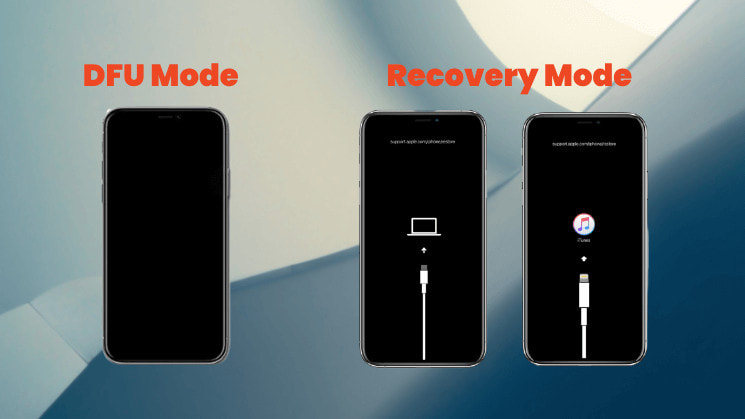
- Selve enheten din kan sette seg fast Recovery Mode (viser en svart skjerm med en USB-kabel og et iTunes-ikon) eller på en svart skjerm i DFU-modus (svart skjerm), klarer ikke å starte normalt.
Vanlige iTunes-gjenopprettingsfeilkoder og deres betydning
| Feil | Tekniske beskrivelser |
| Feil 2, 4, 7 | iTunes kunne ikke installeres eller startes |
| Feil 9, 14, 2001, 2002 | Enheten kan ikke gjenkjennes, eller forbindelsen er avbrutt |
| Feil 21, 3194 | Fastvareverifisering eller serverfeil |
| Feil 50, 13010, 1671 | Sikkerhetskopiering eller synkronisering mislyktes |
| error 53 | Gjenopprettingen mislyktes på grunn av Touch ID eller maskinvarebegrensning. |
| Feil 4013, 4014 | Gjenoppretting eller oppdatering mislyktes |
| Feil 1630–1641, 3000–3999 | Feil med installasjon av fastvare eller gjenoppretting av iOS |
| error 13014 | iTunes kan ikke lese enheten |
| Feil 14xx | Mislykket kommunikasjon med Apple-servere |
Del 2: Vanlige årsaker til iTunes-gjenopprettingsfeil
1. Problemer med USB-tilkobling (vanligst)
Det er den vanligste årsaken til gjenopprettingsfeil i iTunes. Disse problemene kan omfatte:
- En skadet/uoriginal/ikke MFi-sertifisert datakabel.
- En løs, skitten eller ustabil USB-port på datamaskinen.
- Bruk av USB-porten på forsiden av datamaskinkabinettet (det anbefales å bruke den bakre USB-porten direkte på hovedkortet).
2. Problemer med dataprogramvare
iTunes-gjenopprettingsfeil kan også skyldes programvarerelaterte problemer på datamaskinen, inkludert:
- En utdatert iTunes-versjon som ikke er kompatibel med enheten din.
- Datamaskinens operativsystem (Windows/macOS) må oppdateres.
- Sikkerhetsprogramvare som brannmurer eller antivirusprogramvare forstyrrer kommunikasjonen mellom iTunes og serveren.
- Datamaskinens vertsfil har blitt endret.
3. Problemer med enhetens maskinvare
I noen tilfeller har iTunes-gjenopprettingsfeil også noe å gjøre med maskinvareproblemer med enheten, inkludert:
- Enheten ble vannskadet eller mistet i bakken, noe som resulterte i skade på interne komponenter.
- Fysisk feil på lagringsbrikken (NAND flash-minne), som er mer vanlig i eldre enheter.
- Tidligere uoffisiell reparasjon og utskifting av inkompatible komponenter.
4. Nettverks- og serverproblemer
Nettverksrelaterte problemer kan også utløse iTunes-gjenopprettingsfeil, for eksempel:
- En ustabil nettverksforbindelse avbryter nedlastingen av fastvaren.
- Apple-serverne er midlertidig opptatt eller under vedlikehold.
5. Programvarekonflikter
Noen ganger kan programvarekonflikter også forhindre at gjenopprettingsprosessen fullføres, inkludert:
- Modifiserte systemfiler (vanligvis etter en jailbreak) gjør enheten inkompatibel med den offisielle gjenopprettingsprosessen.
- Du har nedgraderte iPhonen din til en eldre versjon som ikke lenger er bekreftet eller signert av Apple.
Del 3: Slik fikser du iTunes-gjenopprettingsfeil
1. Sjekk USB-tilkobling:
- Prøv å bytte ut en original eller MFi-sertifisert datakabel.
- Koble datakabelen til den bakre USB 2.0-porten på datamaskinen (vanligvis den svarte).
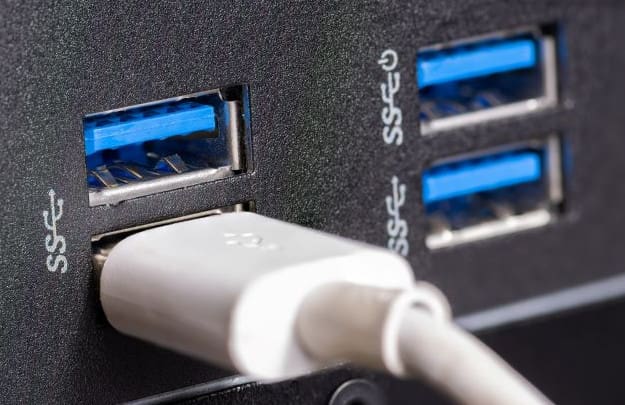
- Sørg for at USB-porten og datakabelkontakten er rene og ikke løse.
2. Oppdater programvare:
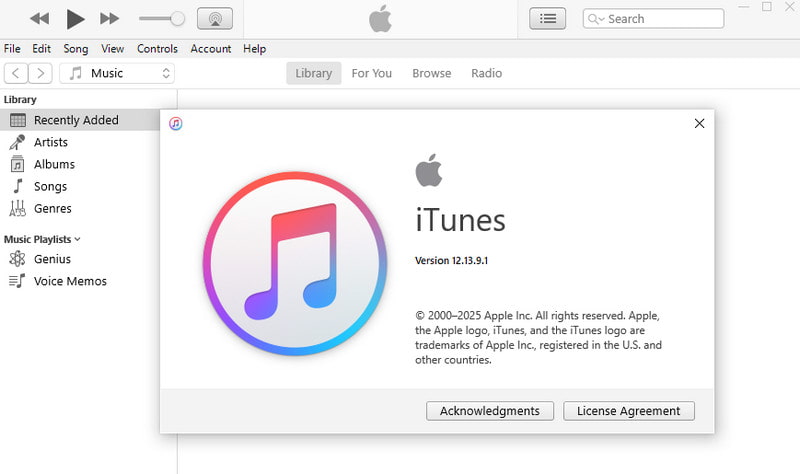
- Oppdater iTunes til den nyeste versjonen.
- Oppdater datamaskinens operativsystem (Windows eller macOS) til den nyeste versjonen.
- Oppdater datamaskinens operativsystem (Windows eller macOS) til den nyeste versjonen.
Windows:
Trinn 1. Klikk på Start menyen nederst til høyre, og velg innstillinger.
Trinn 2. Gå til Oppdatering og sikkerhet, klikk deretter Se etter oppdateringer.
Mac:
Trinn 1. Klikk på eple logoen øverst til venstre på skjermen og velg Systeminnstillinger (eller system~~POS=TRUNC på eldre macOS-versjoner).
Trinn 2. Gå til Informasjon > programvare~~POS=TRUNC, klikk deretter Oppdater nå og følg instruksjonene for å installere den nyeste macOS-versjonen.
3. Start enheten på nytt:
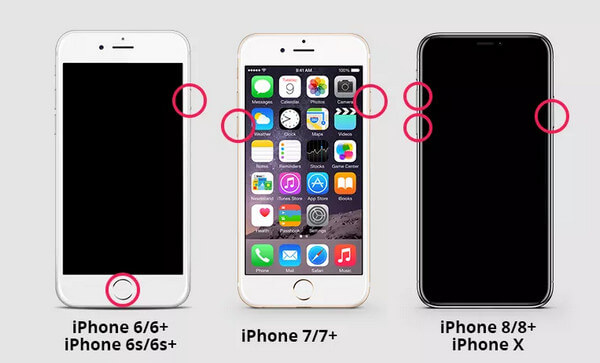
Noen ganger kan du også prøve å utføre en tvungen omstart av enheten.
iPhone 8 og nyere
Trinn 1. Trykk raskt og slipp volum opp og volum ned knappene én etter én.
Trinn 2. Trykk og hold inne Side -knappen til Apple-logoen vises.
iPhone 7/7+
Trinn 1. Trykk og hold inne volum ned og Side knappen samtidig.
Trinn 2. Slipp begge knappene når Apple-logoen vises.
iPhone 6/6+
Trinn 1. Trykk og hold inne Hjem knapp og Side (eller topp) knappen samtidig.
Trinn 2. Slipp begge knappene når Apple-logoen vises.
4. Start på nytt i gjenopprettingsmodus/DFU-modus for gjenoppretting:
I stedet for å klikke direkte GjenoppretteSett enheten manuelt i gjenopprettingsmodus eller DFU-modus, og iTunes vil be deg om å fortsette med gjenopprettingen. Dette gir et renere gjenopprettingsmiljø.
5. Bruk profesjonell programvare
Hvis du har prøvd alle metodene ovenfor, men fortsatt mislyktes, kan du søke hjelp fra profesjonell programvare som Apeaksoft iOS System Recovery for å fikse iTunes-gjenopprettingsfeil. Den er utviklet for å fikse iOS-systemproblemer og kan hjelpe deg med å løse gjenopprettingsfeil enkelt og raskt.
Beste verktøyet for å fikse iTunes-gjenopprettingsfeil
- Fiks iTunes Restore-feil med ett klikk.
- Tilby en gratis reparasjonsfunksjon for å raskt reparere enheten din.
- Reparerer iOS-systemet uten å slette eksisterende data.
- Støtter alle iOS-enheter og den nyeste iOS 26.
- Brukervennlig grensesnitt.
Sikker nedlasting
Sikker nedlasting

Trinn 1. Last ned denne programvaren fra knappen ovenfor. Start programvaren og velg iOS System Recovery.
Trinn 2. Trykk på Start nå knapp fra System Repair alternativet.
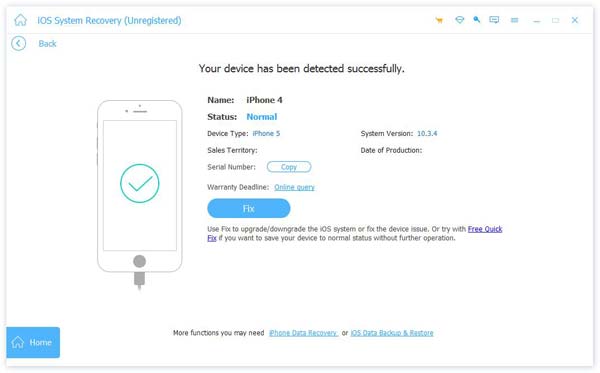
Trinn 3. Klikk på Start knappen for å fortsette.
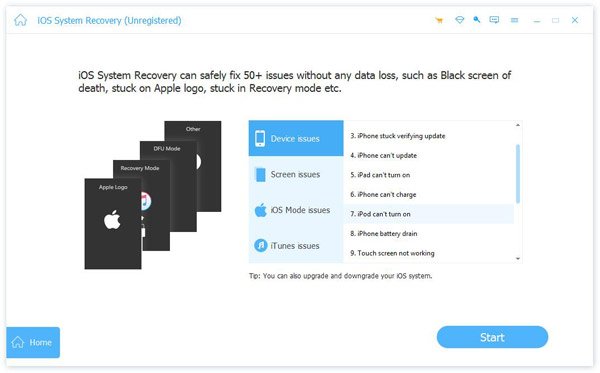
Trinn 4. Du kan klikke på Gratis hurtigreparasjon lenke for å få en rask løsning.
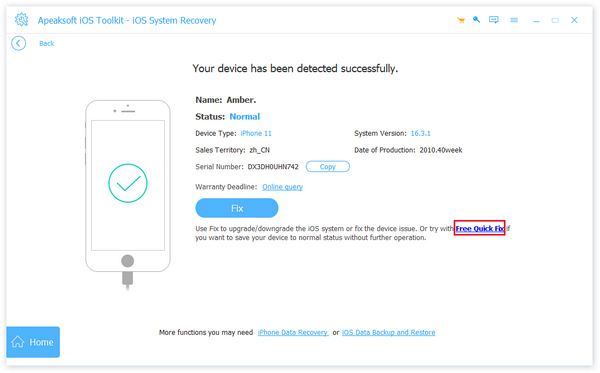
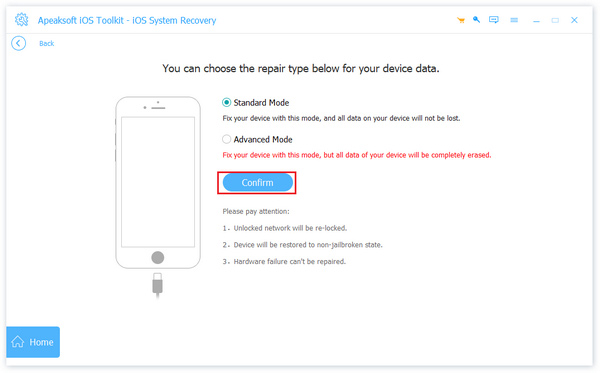
Trinn 5. Hvis iTunes-gjenopprettingsfeilen fortsatt eksisterer, må du trykke på Fix -knappen og velg en Standard/Avansert modus for å fortsette.
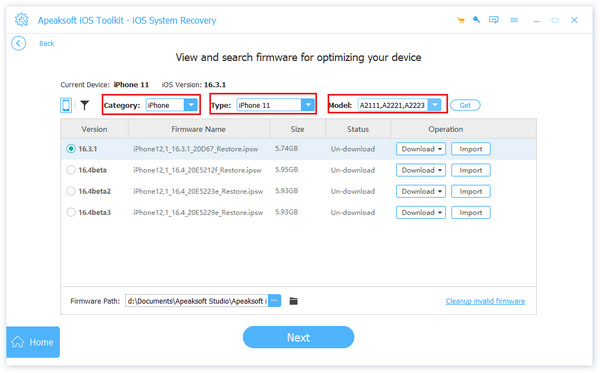
Trinn 6. Sett inn den tilhørende fastvaren for enheten din.
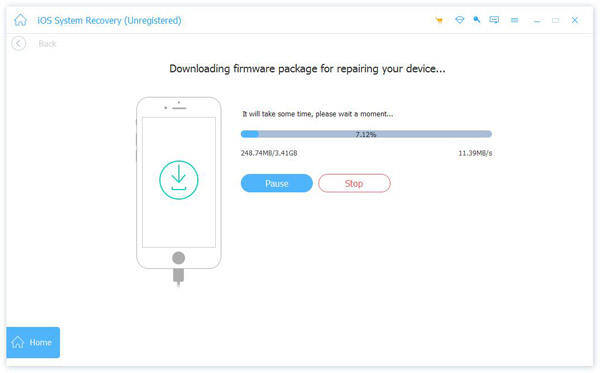
Trinn 7. Vent til programvaren laster ned fastvaren for å fikse enheten din.
Konklusjon
iTunes kunne ikke gjenopprette iPhone fordi det oppsto en feilIkke bekymre deg! Vi tror at etter å ha fulgt trinnene og feilsøkingsmetodene som er beskrevet i denne veiledningen, kan du løse problemet og gjenopprette enheten til normalen.
Relaterte artikler
Hvis iPhonen din sitter fast i gjenopprettingsmodus, kan du lære flere metoder for å få iPhonen ut av gjenopprettingsmodus raskt.
Hvordan tilbakestille iPhone uten iTunes? Denne siden viser 4 enkle måter å tilbakestille (deaktivert) iPhone uten iTunes, selv uten Apple ID / passord / datamaskin.
iPhone får uendelig omstart etter iOS 17/18/26-oppdateringen? Her er 3 trygge måter å løse det på og dra iPhone til normal tilstand fra oppstartsløyfen (iPhone 17/16/15/14 inkludert).
Hvis iPhonen din har hengt seg fast under iOS 26/18/17/16/15/14/13/12-oppdateringen, kom og les dette innlegget. Få 3 forskjellige måter å fikse problemet med at iPhone-oppdateringen har frosset enkelt.



