


Slik fullfører du indeksering av iPhone-meldinger: 8 dokumenterte løsninger

Mange iPhone-brukere opplever at meldingene deres fortsetter å indekseres etter en oppdatering, og at det vises et «Flere resultater vises når meldingen er ferdig indeksert"-melding. Dette er spesielt vanlig på eldre iPhone-modeller som oppdateres til en nyere iOS-versjon. Hvis du lurer på hvordan du løser problemet med meldingsindeksering, kan du lese denne veiledningen, så gir den deg effektive løsninger.
SIDEINNHOLD:
Del 1: Hva betyr meldingsindeksering på iPhone
Hvis du søker etter en melding på iPhonen din og ser varselet «Flere resultater vises når indekseringen av meldingen er fullført», betyr det at enheten din skanner alle tekstmeldingene, meldingene og vedleggene og oppretter en søkbar database i bakgrunnen. Denne prosessen kalles indeksering. Indeksering av iPhone-meldinger skjer vanligvis etter at du har gjenopprettet iPhonen fra en sikkerhetskopi eller oppdatert til en nyere iOS-versjon. Hvis du ikke finner bestemte meldinger på dette tidspunktet, betyr det ikke at de er permanent tapt. De kan vises når indekseringen er fullført.
Del 2: Hvorfor indekseres meldingene mine stadig på iPhone
Normalt tar indekseringsprosessen bare noen få sekunder til flere minutter. Hvis iPhonen din fortsetter å indeksere meldinger i flere timer eller til og med dager, kan det være underliggende problemer. Vanlige problemer inkluderer:
- Nettverksproblemer: Et dårlig nettverk vil forstyrre synkroniseringen av meldinger og forsinke indekseringen.
- Utilstrekkelig lagring: Hvis lagringsplassen nesten er full, kan prosessen sette seg fast.
- Stor mengde data: For mange meldinger eller medievedlegg kan forsinke indekseringsprosessen.
- Inkompatibel sikkerhetskopi: Å gjenopprette iPhonen din fra en inkompatibel sikkerhetskopi, spesielt hvis den er fra en eldre iOS-versjon, kan føre til indekseringsproblemer.
Del 3: Slik fullfører du indeksering av meldinger på iPhone – 8 løsninger
Hvordan få fart på meldingsindeksering på iPhone?
Løsning 1. Start iPhonen på nytt
Den enkleste metoden er alltid den mest effektive løsningen. Det første du bør gjøre er å starte iPhonen på nytt. En rask omstart kan oppdatere systemet og løse de mindre feilene.
- iPhoner med Face ID: Trykk og hold inne side- og volumknappene samtidig, og dra deretter glidebryteren for å slå av iPhonen.
- iPhoner med Touch ID: Trykk og hold inne sideknappen, og dra deretter glidebryteren for å slå av iPhonen.
Etter at iPhonen er slått av, vent i 20–30 sekunder, og slå deretter på enheten igjen.
Fiks 2. Juster innstillingene for søkeindeksering
Innstillingene for søkeindeksering er nært knyttet til resultatene for indeksering av meldinger. Hvis du deaktiverer noen innstillinger, kan det føre til at iPhone ikke indekserer meldinger.
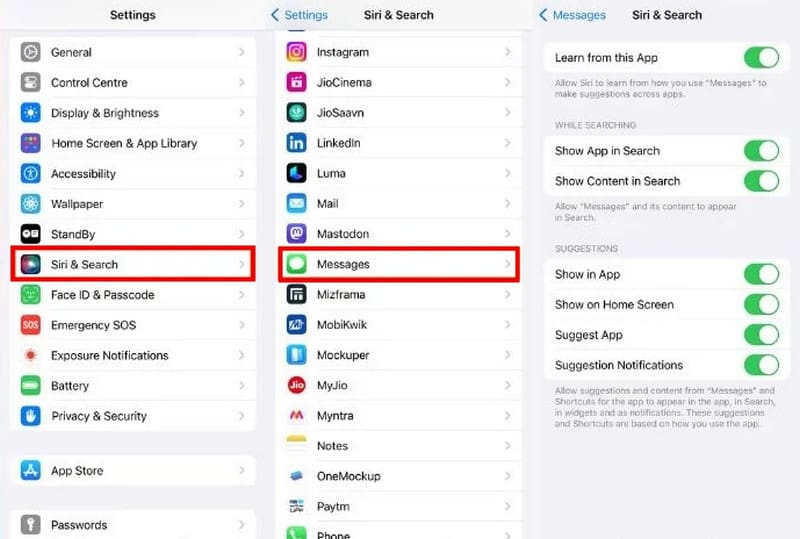
Trinn 1. Gå til innstillinger > Siri & Søk.
Trinn 2. Bla ned for å finne og velge meldinger.
Trinn 3. Slå på alle alternativene på denne siden. Hvis noen innstillinger er deaktivert, må du aktivere dem.
Fiks 3. Slå av og på iCloud-meldinger
Hvis du bruker Meldinger i iCloud, iCloud-synkronisering Problemer kan være hovedårsaken til at indekseringen av iPhone-meldinger setter seg fast. Å slå Meldinger i iCloud av og på igjen kan løse problemet.
Trinn 1. Gå til innstillinger > [Navnet ditt] > iCloud.
Trinn 2. Finn meldinger og slå den av. Vent noen sekunder, og slå den deretter på igjen.
Trinn 3. Sørg for at iPhonen din er koblet til Wi-Fi, og vent til synkroniseringen er fullført.
Fiks 4. Oppdater den nyeste iOS-versjonen
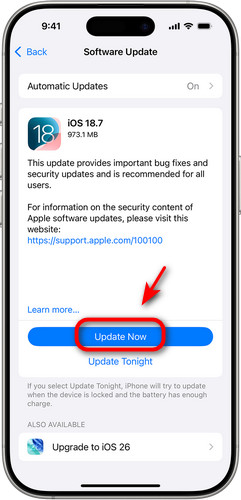
Du kan oppgradere iPhonen din til den nyeste versjonen for å fikse problemet med indeksering av meldinger. For å gjøre dette, åpne innstillinger og velg Informasjon. Tap programvare~~POS=TRUNC for å sjekke om det finnes en tilgjengelig oppdatering, og trykk deretter på Last ned og installer å fortsette.
Fiks 5. Deaktiver og aktiver iCloud-sikkerhetskopiering
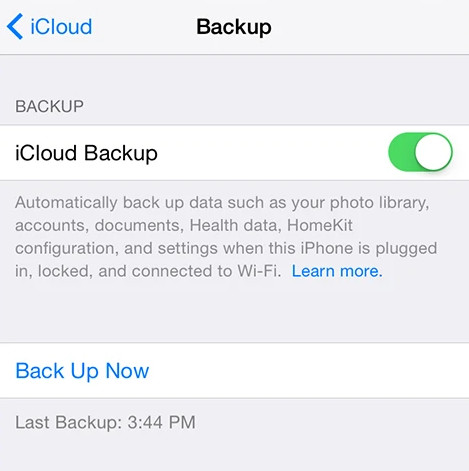
Du kan slå av iCloud-sikkerhetskopiering midlertidig for å se om problemet med indeksering av iPhone-meldinger er løst. Gå til innstillinger > [Navnet ditt] > iCloud. Deaktiver iCloud Backup og start iPhonen på nytt. Hvis problemene dine er løst, aktiver iCloud Backup igjen for å unngå tap av data ved ulykker.
Fiks 6. Sjekk iPhone-språkinnstillingene
Feil språkinnstillinger kan forhindre at iPhone-meldinger indekseres.
Trinn 1. Open innstillinger > Informasjon > Språk og region.
Trinn 2. Sjekk om gjeldende iPhone-språk er riktig angitt.
Trinn 3. Gå tilbake til innstillinger side og trykk på Siri & SøkTrykk på Språk og sørg for at Siri bruker samme språk som iPhonen din.
Fiks 7. Sjekk iPhone- og iCloud-lagring
Hvis minnet på iPhonen din er tregt, kan det påvirke indekseringsprosessen for meldinger på iPhonen. For å sjekke lagringsplassen på iPhonen din, åpne innstillinger > Informasjon > iPhone LagringHvis lagringsplassen din er full, bør du vurdere å slette store eller ubrukte filer, bilder og apper for å frigjøre lagringsplass.
Du bør også sjekke iCloud-lagringsplassen din. Gå til innstillinger > [Navnet ditt] > iCloudDu vil se en stolpe som viser hvor mye iCloud-lagringsplass du har brukt og hvor mye som er tilgjengelig. Tøm iCloud-lagringen din hvis det er utilstrekkelig.
Fiks 8. Tilbakestill alle innstillinger
Å tilbakestille innstillingene kan bidra til å løse dette problemet. Denne prosessen vil slette alle innstillingene dine, inkludert nettverksinnstillinger, tastaturinnstillinger og personvernkonfigurasjoner.
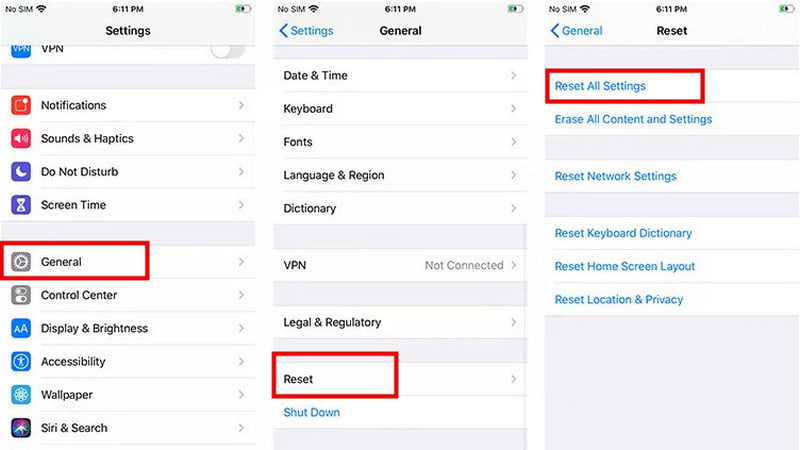
Trinn 1. Open innstillinger > Informasjon > Tilbakestill.
Trinn 2. Velg Nullstill alle innstillinger.
Trinn 3. Du må kanskje oppgi passordet ditt for å bekrefte handlingen.
Del 4: Slik gjenoppretter du meldinger som ikke vises etter indeksering
Hvis visse meldinger ikke vises etter at du er ferdig med å indeksere meldinger på iPhone, betyr det at du har mistet meldingene dine for alltid? Ikke ennå! Apeaksoft iPhone Data Recovery kan hjelpe deg med å gjenopprette tapte meldinger etter indeksering! Enten dataene gikk tapt etter en tilbakestilling til fabrikkinnstillinger, utilsiktet sletting eller systemfeil, kan dette kraftige verktøyet gjenopprette dem fra iPhone, iPad eller iPod på en trygg måte.

Lastet ned av over 1,000,000 Brukere
- Gjenopprett tapte eller slettede meldinger i ulike scenarier.
- Gjenopprett data fra iOS-enheter eller iTunes/iCloud-sikkerhetskopi.
- Hent bilder, dokumenter, notater og flere datatyper.
- Støtter nesten alle iOS-systemversjoner og -modeller.
Sikker nedlasting
Sikker nedlasting

Trinn 1. Åpne programmet og velg Gjenopprett fra iOS-enheter fra grensesnittet, og koble deretter til iOS-enhetene dine via USB. Trykk Stol å stole på datamaskinen din.
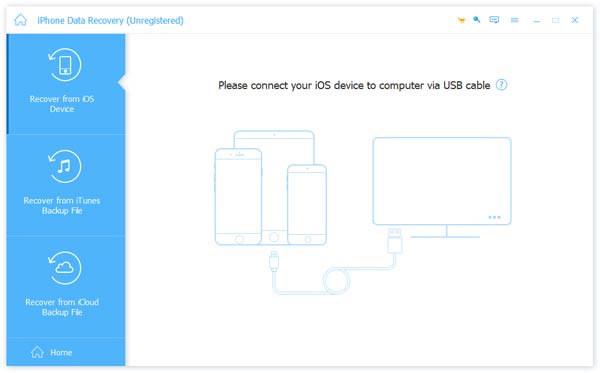
Trinn 2. Klikk på start Scan knappen, så skanner den alle dataene dine på iPhonen din.

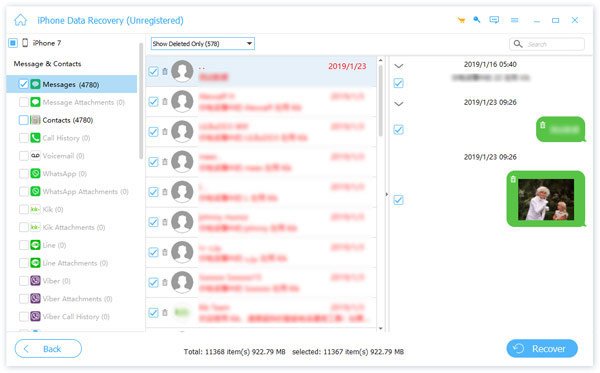
Trinn 3. Etter skanningen kan du forhåndsvise alle gjenopprettelige data. Velg dataene du vil gjenopprette, og klikk deretter på Gjenopprette -knappen nederst til høyre.
Konklusjon
Når meldingsindeksering på iPhone Hvis det tar for lang tid, kan det være veldig frustrerende og få det til å føles som om noen meldinger har forsvunnet for alltid. I de fleste tilfeller kan problemet imidlertid løses ved å prøve de 8 løsningene som er beskrevet i denne veiledningen. Hvis du har prøvd dem og fortsatt ikke finner bestemte meldinger, kan du bruke Apeaksoft iPhone Data Recovery for å gjenopprette tapte meldinger!
 Apeaksoft iPhone Data Recovery
 Gjenopprett slettede eller tapte data fra iOS-enheter, iTunes og iCloud-sikkerhetskopi.
Sikker nedlasting
Sikker nedlasting
Relaterte artikler




