How to Use DU Recorder on Android and PC with Ease

When you are trying to create a video tutorial or record your wonderful game movie on your PC and Android phone, DU Screen Recorder is one of the best choices. As a free, no-root screen recorder to capture videos in high quality, it is very popular for Android and PC users. This passage will give you the most comprehensive guidance on how to record Android and PC with DU Screen Recorder. Please do not miss it!
SIDEINNHOLD:
Part 1: Simple Introduction to DU Screen Recorder
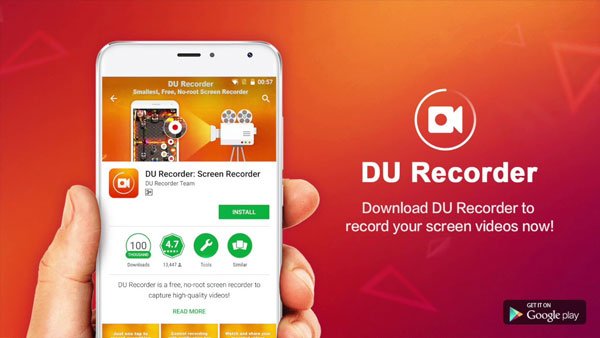
DU Recorder is a free, lightweight screen recording app designed primarily for Android devices. This Android skjermopptaker lets you capture gameplay, app activities, and other on-screen content, making it useful for creating video tutorials and recording mobile gameplay. It also offers video editing features to help you refine your recordings.
You can record audio from the microphone and experience other excellent features. These wonderful features make the program convenient to create screen tutorials or promotional videos, record video chats, and more.
Viktige funksjoner:
- No root access required, no time limit, and no watermark.
- Smooth screen recording with adjustable video resolution, frame rate, and bit rate.
- Record the microphone audio as well.
- There are on-screen touch indicators to show screen interactions.
- The floating window or notification bar can help you get more control over recording, which can also be hidden for a frameless video.
Part 2: How to Record Android with DU Screen Recorder
Trinn 1. Download and install DU Screen Recorder for your Android phone from an official or trusted source. Launch the program on your Android phone.
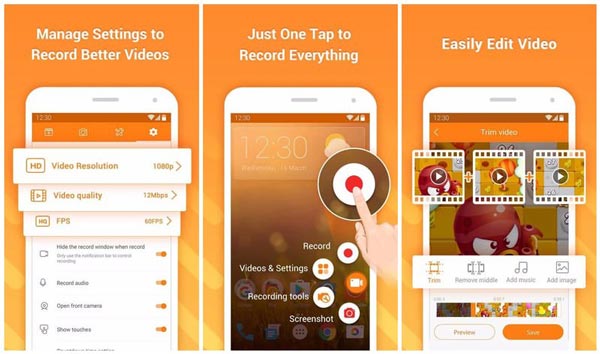
Trinn 2. Open the app, and configure settings for video quality, video resolution, frame rate, audio recording, touch indicators, and other settings for recording Android devices.
Trinn 3. Tap the recording button to ta opp Viber-samtaler, video tutorials, game play, and other activities with DU Screen Recorder.
Trinn 4. Further edit the videos taken by DU Screen Recorder, such as trimming, cropping, blurring, stitching clips, or adding audio narration to make an outstanding video.
Part 3: How to Use DU Recorder on a Windows 10/11 PC
As we mentioned above, DU Recorder is primarily an Android screen recording app. If you want to use it on a computer, you need a compatible Android emulator. Here are the step-by-step instructions on how to use DU Recorder on a computer:
Trinn 1. Download Android Emulator
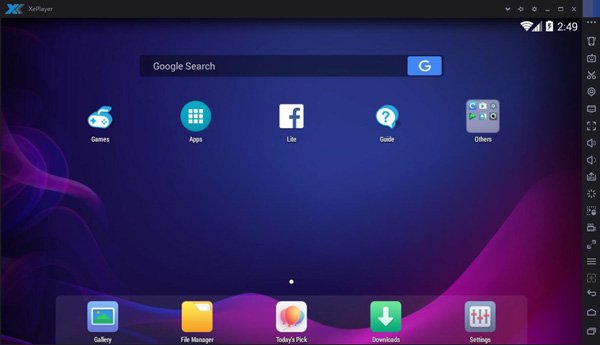
For å laste ned DU Screen Recorder på PCen må du forhåndsinstallere en Android Emulator, som ligner på Xeplayer. Etter installering, start XePlayer Android Emulator.
Trinn 2. Install DU Recorder
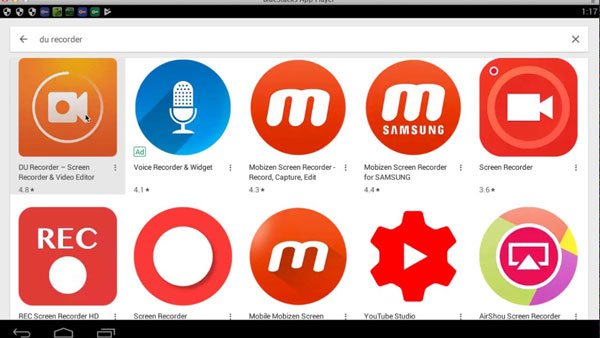
Next, go to the Google Play in the emulator, search for DU Recorder, and click Download. Then install this screen recorder following the instructions on your PC.
Trinn 3. Record the Screen
Now you can use DU Recorder. Tap the recording button to capture the Android apps or activities displayed in the emulator window. There are quite a lot of features for you to stitch, crop and edit the recording videos.
Trinn 4. Check and share videos
Stop recording and check the recorded videos through the floating window and notification bar. After all is done, export and share your recordings with your friends!
Part 4: Best DU Recorder Alternative for Recording Android and PC Screens
If you want more control over screen recording, Apeaksoft Screen Recorder is a versatile alternative to DU Recorder.
Compared with DU Recorder, Apeaksoft Screen Recorder gives you more options and control to record your Android phone screen on a computer and customize the recording settings to suit your needs without an emulator. What's more, you can use it to record your Windows desktop independently, whether you want to capture gameplay, create tutorials, or record other on-screen activities.

Lastet ned av over 1,000,000 Brukere
- Record your Android phone screen directly on your computer without an Android emulator.
- Customize recording settings to meet different recording needs.
- Record your Windows/Mac screen as well.
- Record webcam footage and capture screenshots when needed.
Sikker nedlasting
Sikker nedlasting
Konklusjon
Over er alt innholdet om how to use DU Screen Recorder on Android and even a PC. In this article, we introduce the key features of DU Screen Recorder and show the detailed steps for downloading and operating this app. Besides, we also recommend the alternative software, Apeaksoft Screen Recorder for you to take into consideration.
If you find this article useful, do not forget to share this passage with your friends if it helps you to some extent!
 Apeaksoft Screen Recorder
 Ta opp video og lyd på telefon- og datamaskinskjermen.
Sikker nedlasting
Sikker nedlasting
Relaterte artikler