

Løsninger du kan prøve når iPhonen din ikke gjenopprettes

For mange brukere er formålet med å gjenopprette en iPhone å løse systemavvik eller rydde opp i enheten. Men hvis iPhone som sitter fast i gjenopprettingsmodus gjenopprettes ikke Under drift vil ikke bare enheten bli ubrukelig. Den gode nyheten er at enten du prøver å gjenopprette, sitter fast i gjenopprettingsskjermen, eller har prøvd gjentatte ganger og mislyktes, kan du finne den rette veien gjennom denne artikkelen og unngå datatap så mye som mulig.
SIDEINNHOLD:
Del 1. Hvorfor iPhonen din ikke gjenopprettes eller oppdateres
Det finnes ingen enkelt grunn til at en iPhone ikke gjenoppretter seg ordentlig. Her er de vanligste utløserne, og å kjenne dem vil hjelpe deg med å identifisere kilden til problemet på forhånd, i stedet for å gjenta ineffektive handlinger.
System oppdatering
En iPhone som sitter fast i gjenopprettingsmodus og ikke gjenopprettes kan oppstå når enheten er slått av, koblet fra internett eller tvunget til å slå seg av mens den utfører en systemoppgradering. Når et unntak oppdages, går systemet automatisk inn i gjenopprettingsmodus og venter på at det skal repareres.
Gammel versjon for iTunes
Hvis programvaren på datamaskinen ikke gjenkjenner den gjeldende iOS-versjonen, vil gjenopprettingsprosessen bli blokkert, noe som fører til at iPhone ikke gjenopprettes eller oppdateres. Gamle drivere eller ufullstendige systemoppdateringer vil påvirke gjenoppretting av tilkoblinger.
Formatinkompatibilitet
Når en enhet gjenopprettes med en ødelagt sikkerhetskopifil, rapporterer systemet gjentatte ganger feil eller tvinger frem avbrudd. Brukeren kan forveksle enheten med en feil, men problemet er ofte at selve sikkerhetskopidataene ikke er kompatible.
USB-portunntak
Selv en liten dårlig kontakt med en tilsynelatende normal kabel kan stoppe gjenopprettingsprosessen og føre til at iPhone ikke gjenopprettes i gjenopprettingsmodus, spesielt hvis gjenopprettingsfirmwarefilen er stor.
Sikkerhetsmekanisme utløst
Apples system blokkerer automatisk gjenoppretting fra ukjent opprinnelse, unormal drift eller risikabel oppførsel, så hvis datamaskinen ikke klarer å bekrefte, vil ikke iPhone gjenopprette. Dette er en normal beskyttelsesmekanisme, ikke en utilsiktet feil.
Del 2. Slik fikser du problemet med at iPhone ikke gjenoppretter seg
Etter at du har forstått hva som forårsaker problemet, kan du prøve å fikse en iPhone som ikke gjenopprettes trinn for trinn, fra enkel til avansert, i stedet for å hoppe inn i en kompleks operasjon på en gang.
Beste tredjepartsverktøy - Apeaksoft iOS System Recovery [Hot]
Når enheten din opplever at iPhone ikke gjenopprettes, er den sikreste og mest vellykkede måten å ikke prøve iTunes igjen og igjen, men å bruke et reparasjonsverktøy som er spesielt utviklet for systemfeil. Apeaksoft iOS System Recovery regnes som den mest passende løsningen for nybegynnere og ikke-tekniske brukere fordi den kan omgå diverse feil.
Fiks iPhone vil ikke gjenopprettes på noen få sekunder
- Støtter fiksing av over 50 systemfeil, inkludert gjenopprettingsfeil som har stått fast, mislykkede oppdateringer, omstartsløkker og problemer med svart skjerm.
- Tilby flere reparasjonsmoduser for å bevare brukerdata.
- Unngå vanlige gjenopprettingsfeil uten å stole på iTunes.
- Kompatibel med alle iPhone-modeller og den nyeste iOS-versjonen.
Sikker nedlasting
Sikker nedlasting

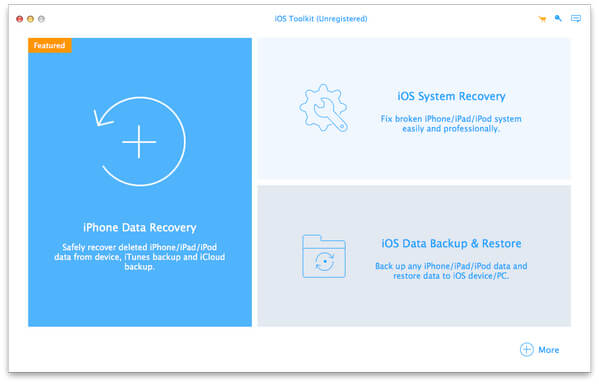
Trinn 1. Installer og start programmet. Koble iPhonen til datakabelen, velg iOS System Recovery i hovedgrensesnittet til programvaren, og klikk deretter på Start.
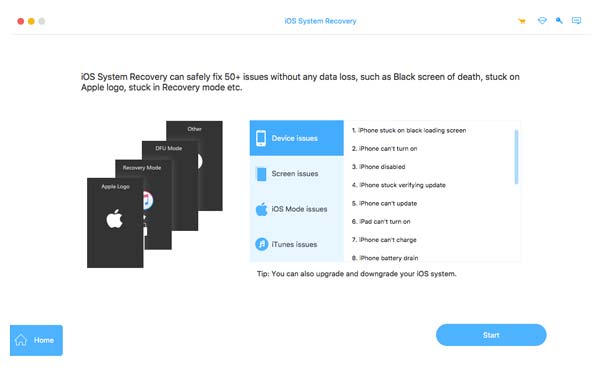
Trinn 2. Hvis enheten er i Recovery Mode, skjermen er svart, eller enheten ikke kan slås på, identifiserer programvaren automatisk statusen og viser en melding.
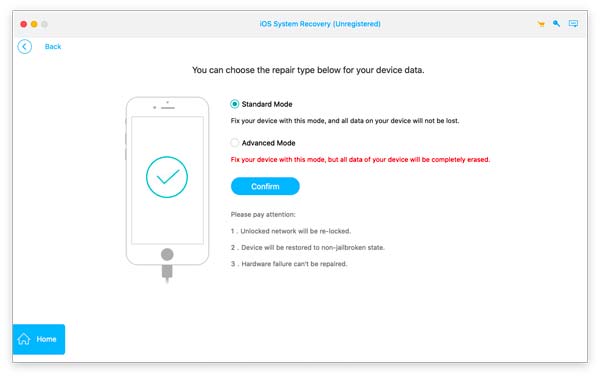
Trinn 3. Systemet tilbyr to reparasjonsmetoder:
• Standard modus (anbefales): tømmer ikke data i de fleste tilfeller, kan fikse gjenopprettingsfeil, svart skjerm, endeløs løkke og andre problemer.
• Avansert modus: For enheter der systemet er alvorlig skadet, men alle data er slettet.
Velg og klikk Bekrefte å fortsette.
Trinn 4. Programmet vil automatisk oppdage modellen din, gjeldende systemversjon og levere samsvarende firmwarefiler. Klikk. Last ned for å begynne å laste ned hele iOS-fastvarepakken, samtidig som datanettverket ditt holdes stabilt.
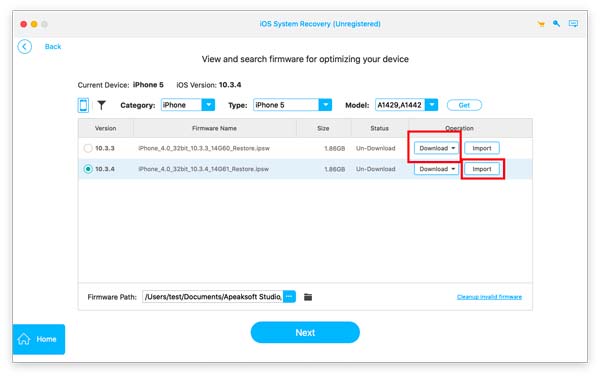
Trinn 5. Etter at nedlastingen av fastvaren er fullført, klikker du neste for å starte systemreparasjonen. Hele prosessen tar flere minutter. Sørg for at forbindelsen er stabil, og ikke koble fra datakabelen.
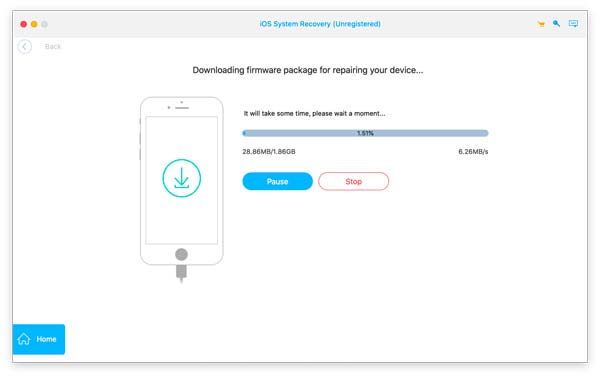
Etter at reparasjonen er fullført, vil iPhone starte på nytt til det normale systemgrensesnittet og vil ikke lenger sitte fast i gjenopprettingsmodus eller på svart skjerm.
Start iPhone på nytt
Noen ganger er en gjenopprettingsfeil ikke en alvorlig feil, men en midlertidig systemforsinkelse. En omstart fjerner midlertidige feil og setter enheten tilbake i en gjenopprettelig tilstand.
• For modeller med Hjem-knapp: Trykk og hold inne makt knappen og Hjem knappen i omtrent 10 sekunder.
• For modeller uten Hjem-knapp: trykk raskt Volum opp, trykk raskt på Volum ned, og trykk deretter lenge på makt knapp.
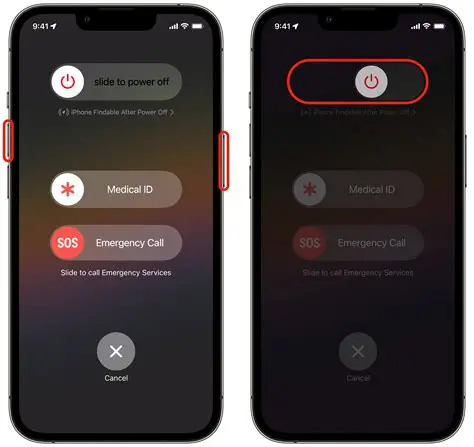
Hvis enheten starter uten problemer, er problemet en systemfrysing, ikke en dyp skade.
iTunes Update
Hvis programvaren på datamaskinen er utdatert, kan gjenopprettingsprosessen bli avvist direkte. Spesielt på macOS Catalina og nyere er gjenopprettingen avhengig av Finder i stedet for iTunes.
Trinn 1. Åpne iTunes og velg Se etter oppdateringer knappen i Hjelp rullegardinmenyen for å installere den tilgjengelige versjonen av iTunes.
Trinn 2. Koble deretter til iPhonen, sjekk om enheten gjenkjennes i venstre enhetslinje og løs problemet med at iPhone ikke gjenopprettes eller oppdateres. Hvis ikke, start Mac-en på nytt og koble den til igjen.
Recovery Mode
Når enheten sitter fast i gjenopprettingsgrensesnittet eller iTunes rapporterer en feil, fungerer det vanligvis å gå inn i gjenopprettingsmodus manuelt og gjenopprette den på nytt.
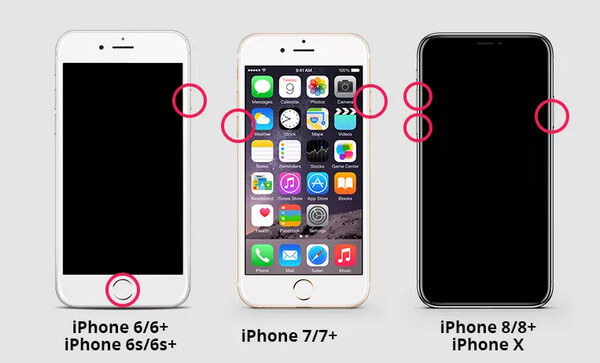
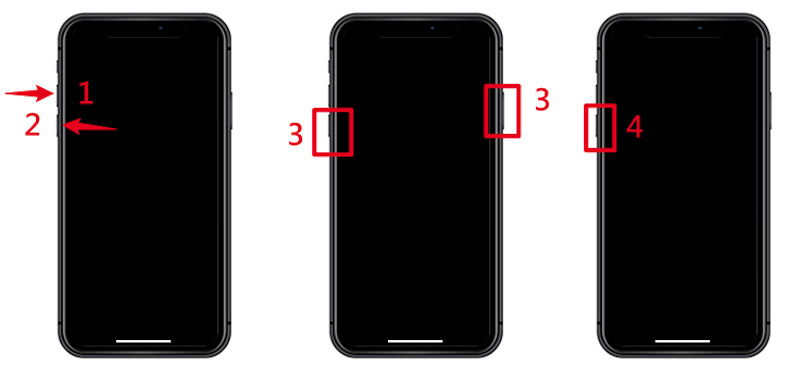
Fremgangsmåten for å gå inn i gjenopprettingsmodus er litt forskjellig for hver modell:
• iPhone 8 og nyere:
Trinn 1. Slå av iPhonen. Hvis den setter seg fast, trykk og hold inne for å tvinge den til å slå seg av. Koble enheten til datamaskinen og åpne iTunes/Finder.
Trinn 2. Trykk raskt Volum opp og Volum ned, og trykk deretter lenge på sidetasten til skjermbildet Koble til datamaskin eller gjenopprettingsmodus vises.
• iPhone 7/7 Plus:
Trinn 1. Slå av enheten og koble den til datamaskinen.
Trinn 2. Trykk lenge på Volum ned -knappen til skjermbildet for gjenopprettingsmodus vises.
• iPhone 6s og tidligere:
Trinn 1. Slå av enheten og koble den til datamaskinen.
Trinn 2. Trykk lenge på Hjem -knappen til skjermbildet for gjenopprettingsmodus vises.
DFU Mode
Hvis vanlig gjenopprettingsmodus ikke fungerer, kan du prøve en dypere løsning, DFU-modus, som kan omgå noen fastvareproblemer.
Trinn 1. Åpne iTunes på datamaskinen din og koble iPhonen til datamaskinen med en kabel, slik at den er tilkoblet hele tiden.
Trinn 2. Gå inn i DFU-modus i henhold til forskjellige modeller; denne prosessen og den tilhørende knappen ligner på å gå inn i gjenopprettingsmodus. Men nøkkelen er at skjermen må forbli svart for at du skal kunne gå inn i DFU-modus.
Trinn 3. iTunes vil deretter gjenkjenne den tilkoblede enheten og be deg om å velge Gjenopprett iPhoneEtter at dette er fullført, vil enheten starte på nytt og gå inn i det første innstillingsskjermbildet.
Del 3. Forhindre at iPhone ikke gjenoppretter problemet i fremtiden
• Hold iTunes eller Finder oppdatert regelmessig.
• Bruk iCloud eller datamaskinen til å sikkerhetskopiere dataene dine regelmessig.
• Ikke koble fra under gjenoppretting.
• Bruk godt utførte kabler eller porter.
• Sjekk lagring og batteri før gjenoppretting.
Konklusjon
Når du gjentatte ganger støter på et problem som iPhone gjenoppretter ikke, er det bedre å gå rett til et mer stabilt systemreparasjonsverktøy for å øke suksessraten enn å prøve en risikabel modusbryter hele tiden. Apeaksoft iOS System Recovery hjelper deg med å omgå komplekse operasjoner og få enheten tilbake til normalen på en mer kontrollert måte. Hvis du holder systemet oppdatert og sikkerhetskopierer dataene dine på riktig måte, vil denne typen gjenopprettingsfeil være enklere å håndtere i fremtiden.
Relaterte artikler
Denne veiledningen forteller deg hvordan du gjenoppretter iPhonen din fra iCloud- eller iTunes-sikkerhetskopi og hvordan du gjenoppretter iPhonen til fabrikkinnstillinger.
iPhone sitter vanligvis fast på gjenopprettingsskjermen etter at du har utført en mislykket gjenoppretting. Se dette innlegget og få metoder for å bli kvitt iPhone-gjenopprettingsskjermen.
Du kan sette inn en ny iPhone eller få tilbake tapte data ved å gjenopprette apper/data/innstillinger fra din nyeste iCloud- eller iTunes-sikkerhetskopi ved å følge vår konkrete veiledning.
Denne trinnvise veiledningen deler tre metoder for å gjenopprette en iPhone uten å oppdatere programvaren fra sikkerhetskopi eller i gjenopprettingsmodus.



