


6 måter å overføre kontakter fra Android til Android uten problemer

Har du kjøpt en ny telefon og vil overføre kontakter fra den gamle Android-telefonen din til den nye? Vil du ikke kaste bort tid på dataoverføring? Denne veiledningen viser deg 6 enkle måter å gjøre det på. del kontakter fra Android til Android samtidig. Uansett hvilket Android-merke du bruker, vil du finne en løsning som passer best for deg!
SIDEINNHOLD:
- Del 1: Rask sammenligning av Android-kontaktoverføringsmetoder
- Del 2: Slik overfører du kontakter fra Android til Android ved hjelp av MobieTrans (enklest)
- Del 3: Slik sender du kontakter fra Android til Android via nærliggende deling
- Del 4: Slik synkroniserer du kontakter fra Android til Android via Google-konto
- Del 5: Slik deler du kontakter fra Android til Android med Smart Switch (Samsung)
- Del 6: Slik kopierer du kontakter fra Android til Android med et SIM-kort
- Del 7: Slik flytter du kontakter fra Android til Android via en VCF-fil
Del 1: Rask sammenligning av Android-kontaktoverføringsmetoder
Før vi går inn i trinnvise instruksjoner, er det en sammenligningstabell som hjelper deg med å raskt få oversikt over de mest populære metodene for kontaktoverføring på Android!
| Metode | Trenger PC? | Trenger du internett? | Brukervennlighet | Begrensninger |
| MobieTrans | Ja | Ja | Meget lett | Krever datamaskin og nettverk. |
| Nærliggende del | Nei | Nei | Lett | Enheter må være tett sammen; ikke for lange kontaktlister. |
| Google-kontosynkronisering | Nei | Ja | Meget lett | Krever en Google-konto. |
| Samsung Smart Switch | Nei | Ja | Lett | Er kanskje ikke kompatibel med telefoner som ikke er fra Samsung. |
| SIM-kort | Nei | Nei | Moderat | Begrenset lagringsplass; lagrer kanskje ikke all kontaktinformasjon. |
| MobieTrans | Nei | Nei | Moderat | Du må eksportere og importere kontakter manuelt. |
Del 2: Slik overfører du kontakter fra Android til Android ved hjelp av MobieTrans (enklest)
Apeaksoft MobieTrans er din alt-i-ett-løsning for å overføre data fra Android til Android, fra iOS til iOS, eller mellom iOS og Android. I tillegg kan den også eksportere data fra mobile enheter til PC-en din. MobieTrans er din pålitelige databehandler som du enkelt kan legge til, slette, overføre, redigere informasjon om telefonfiler og deduplisere telefonkontakter med.

Lastet ned av over 1,000,000 Brukere
- Overfør data fritt mellom iOS-enheten, Android-enheten og Windows-PC-en din.
- Synkroniser alle viktige data med den nye telefonen din med bare noen få klikk
- Flytt ulike typer data, som kontakter, bilder, videoer, meldinger og mer.
- Støtter alle iOS- og Android-versjoner og Windows 11/10/8.1/8/7/Vista/XP.
Sikker nedlasting
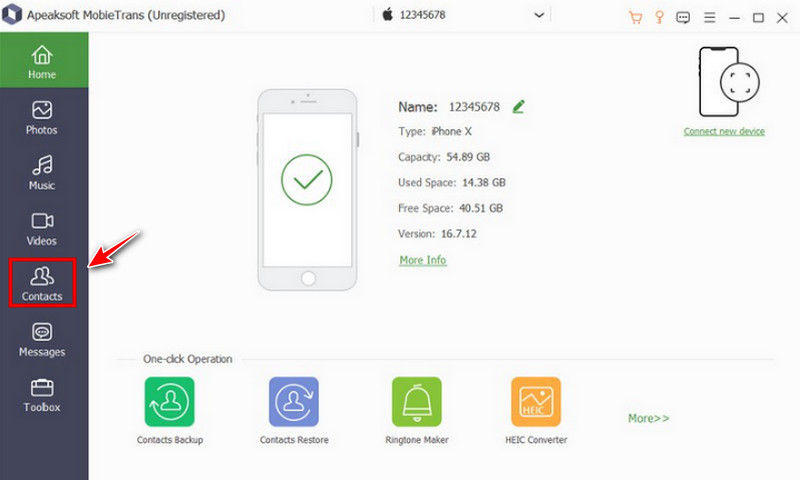
Trinn 1. Åpne programvaren og koble Android-enhetene dine til PC-en. Klikk deretter på Kontakter alternativet i venstre felt.
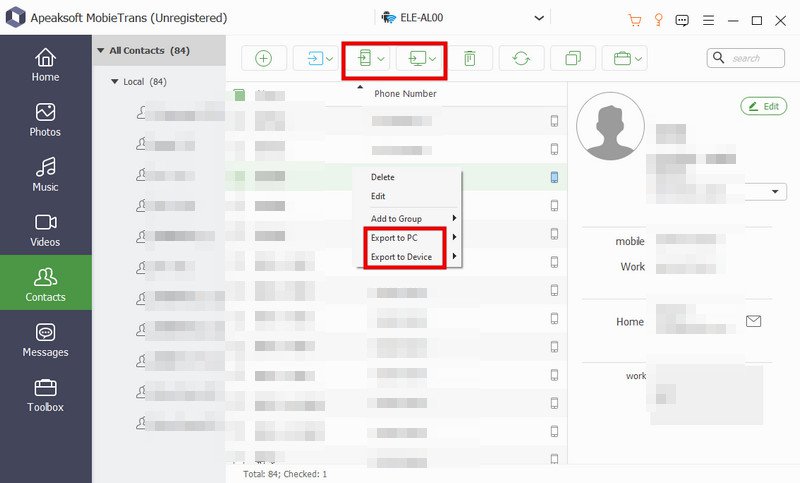
Trinn 2. Du kan se alle kontaktene dine på enheten din. Velg kontaktene du vil overføre.
Trinn 3. Klikk på Phone knappen på den øverste linjen, velg Eksporter til enhet, og velg den andre enheten for å importere kontakter fra Android til Android. Vent noen sekunder, så blir kontaktene dine flyttet.
Del 3: Slik sender du kontakter fra Android til Android via nærliggende deling
Hvis du leter etter en rask og offline metode for å overføre kontakter, kan du bruke den innebygde funksjonen for nærdeling. Før du starter, må du slå på Bluetooth og aktivere posisjonstjenesten på begge Android-telefonene.
Trinn 1. Åpne Kontakter-appen på Android-enheten din, og trykk på trepunktsmeny for å få tilgang til kontaktinnstillingene.
Trinn 2. Pek Import / Export > Del kontakter, og velg deretter kontaktene du vil kopiere, eller trykk på Velg alle.
Trinn 3. Pek Del, velg deretter Nærliggende del (den viser Quick Share på Samsung).
Trinn 4. Velg destinasjons-Android-enheten fra enhetslisten. Du må trykke på Godta på destinasjonsenheten for å motta kontaktene.
Del 4: Slik synkroniserer du kontakter fra Android til Android via Google-konto
Mange Android-brukere har allerede en Google-konto. I så fall er det å synkronisere kontakter via Google-kontoen din en av de enkleste måtene å overføre kontakter fra Android til Android.
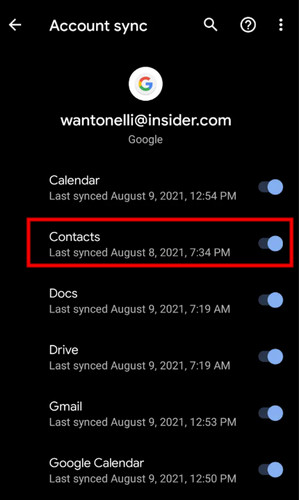
Trinn 1. Open innstillinger, bla ned og trykk på kontoer or Kontoer og sikkerhetskopi. Tap Google og velg Google-kontoen din.
Trinn 2. Sørge Kontakter synkronisering er aktivert. Velg deretter Synkroniser nå øverst til høyre.
Trinn 3. Logg på den samme Google-kontoen på destinasjonstelefonen din, og gå deretter til innstillinger > kontoer > Google og velg kontoen din. Aktiver Kontakter synkronisere, så vises kontaktene dine automatisk på den nye enheten.
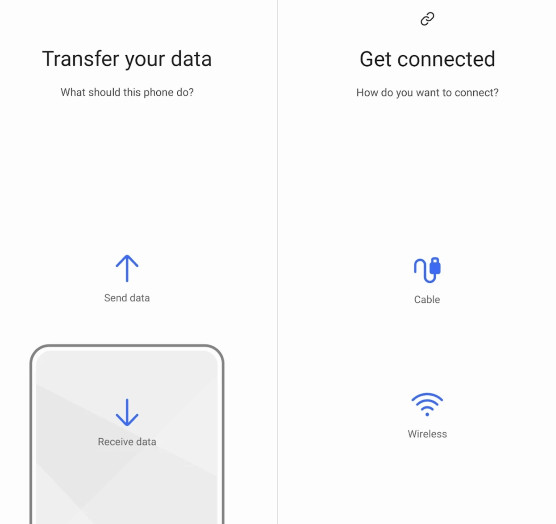
Del 5: Slik deler du kontakter fra Android til Android med Smart Switch (Samsung)
For Samsung-telefonbrukere kan du bruke Smart Switch for å overføre kontakter mellom Android-telefoner sømløst. Denne funksjonen er kun utviklet for Samsung-telefoner. Den er kanskje ikke kompatibel med andre merker.
Trinn 1. Åpne Kontakter appen på kilde-Android, trykk på trepunktsmeny og finne Administrer kontakter.
Trinn 2. Pek Eksporter kontakter og velg et SIM-kort. Kontaktene dine blir kopiert til SIM-kortet.
Trinn 3. Slå av telefonen og ta ut SIM-kortet. Sett det inn i Android-enheten som skal brukes.
Trinn 4. Åpne Kontakter appen på mål-Android, gå til Meny > Administrer kontakter > Importer kontakter, velg deretter Importer fra SIM-kort.
Del 6: Slik kopierer du kontakter fra Android til Android med et SIM-kort
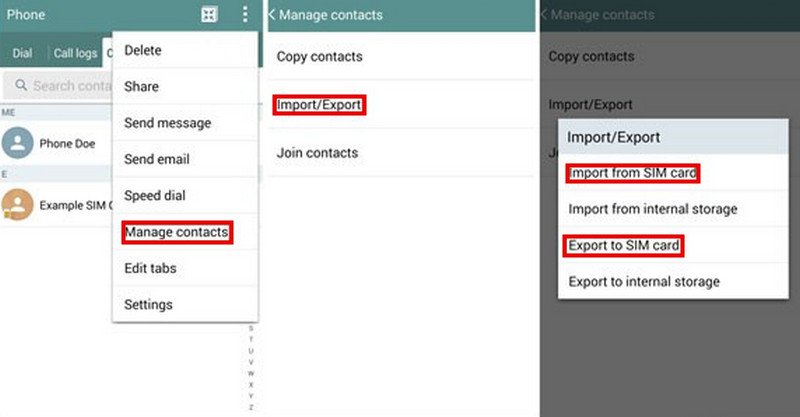
Hvis Android-telefonen din bruker et uttakbart SIM-kort, kan du kopiere kontaktene dine til den, deretter sette inn SIM-kortet i en annen telefon og importere kontaktene. SIM-kort har imidlertid begrenset lagringsplass, og de kan bare inneholde 250–500 kontakter. Hvis du har flere kontakter, bør du vurdere å bruke en VCF-fil for å flytte kontakter fra Android til Android.
Trinn 1. Åpne Kontakter appen på kilde-Android, trykk på trepunktsmeny, og finn Administrer kontakter.
Trinn 2. Pek Eksporter kontakter og velg et SIM-kort. Kontaktene dine blir kopiert til SIM-kortet.
Trinn 3. Slå av telefonen og ta ut SIM-kortet. Sett det inn i Android-enheten som skal brukes.
Trinn 4. Åpne Kontakter-appen på destinasjons-Androiden, gå til Meny > Administrer kontakter > Importer kontakter, velg deretter Importer fra SIM-kort.
Del 7: Slik flytter du kontakter fra Android til Android via en VCF-fil
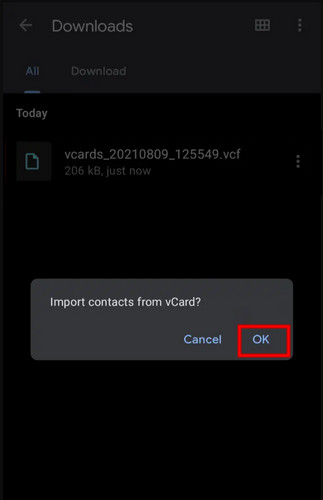
En VCF-fil kan lagre kontakter, navn, telefonnumre, e-postadresser og annen informasjon. Du kan eksportere kontaktene dine som en VCF-fil, sende den via e-post og deretter importere den manuelt til den nye Android-telefonen din.
Trinn 1. Åpne Kontakter app, trykk på trepunktsmeny, og finn Administrer kontakter.
Trinn 2. Pek Eksporter kontakter og velg en mappe for å lagre den. Kontaktene dine lagres som en VCF-fil.
Trinn 3. Naviger til mappen, finn den eksporterte VCF-filen, og trykk deretter på DelDu kan velge Gmail-appen for å sende kontraktene dine som et vedlegg.
Trinn 4. Logg inn på Gmail-kontoen din på en annen Android-telefon og last ned VCF-filen.
Trinn 5. Åpne Kontakter-appen, og gå til Meny > Administrer kontakter > Importer kontakter, og velg deretter VCF-filen for å importere kontaktene dine.
Konklusjon
Du har lært 6 forskjellige måter å Overfør kontaktene dine fra Android til AndroidNeste gang du bytter til en ny telefon, trenger du ikke å legge til kontaktene én etter én manuelt! Med disse effektive metodene kan du også flytt WhatsApp-meldinger, bilder, musikk og alt annet du trenger til din nye Android uten problemer!
 Apeaksoft MobieTrans
 Overfør data mellom iOS, Android og Windows PC.
Sikker nedlasting
Relaterte artikler




