How to Record iMovie Video on Your Mac or iOS Device

Recording a video with iMovie is pretty easy once you understand where to start. You can add a live video, voiceover, comments, and any clip to your project timeline after recording them using Apple's video editor. When you are editing a movie project on your Mac or putting holiday clips together on your iPhone, you can learn every step without making things feel confusing. This guide walks you through the concrete steps.
SIDINNEHÅLL:
Part 1: How to Record Video in iMovie on Mac
Most Mac computers and laptops have a modern version of iMovie and a front-facing FaceTime or iSight camera. They can directly record a video with iMovie. Here is what you need to do:
How to Record Video in iMovie
Steg 1. Open iMovie on your Mac.
Steg 2. Create a new project or go inside an existing project.
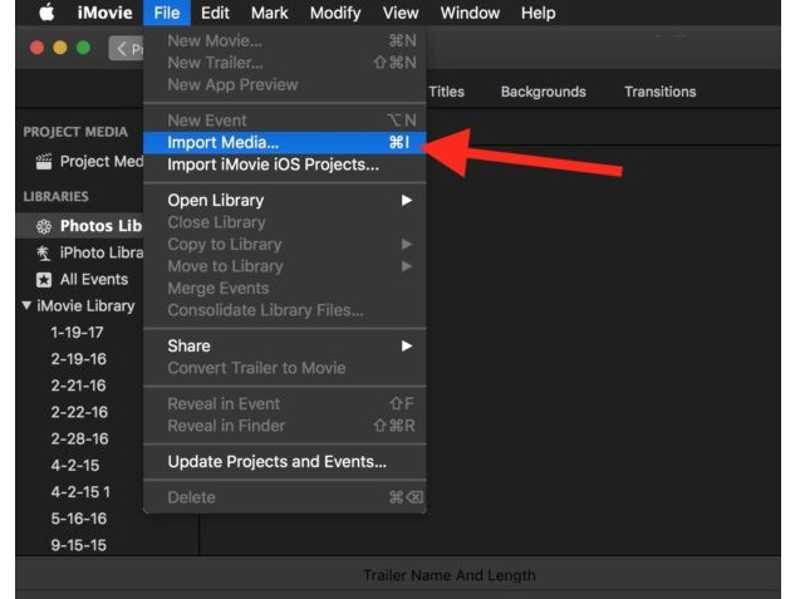
Steg 3. Click the downward arrow Importera button on the left side or go to the Fil menyn och välj Importera media.
Steg 4. Enligt kameror section, select your built-in camera, such as FaceTime HD-kamera.
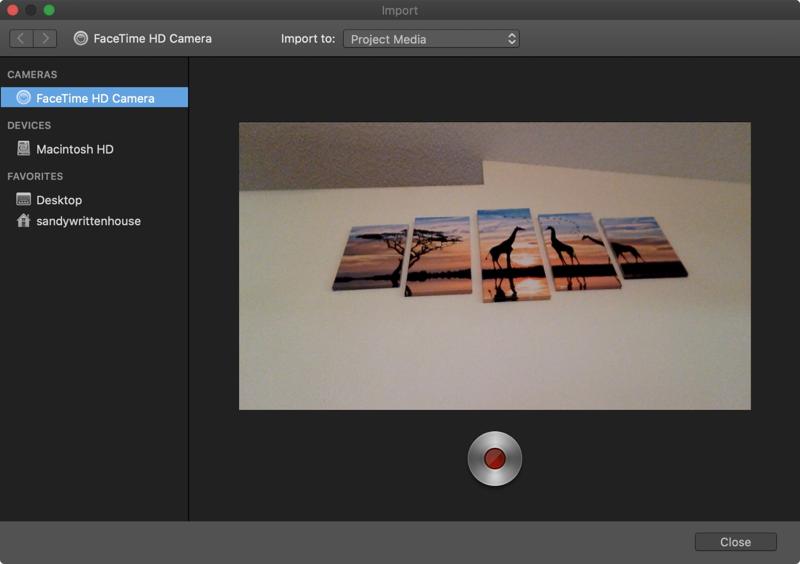
Steg 5. Välj ett alternativ från Importera till drop-down box if you want to change the location of the video.
Steg 6. Klicka sedan på Spela in button at the bottom to begin recording your video.
Steg 7. När du är klar klickar du på Spela in knappen igen.
Steg 8. Stäng Importera fönster.
Steg 9. Now, you will see the recording in the library pane.
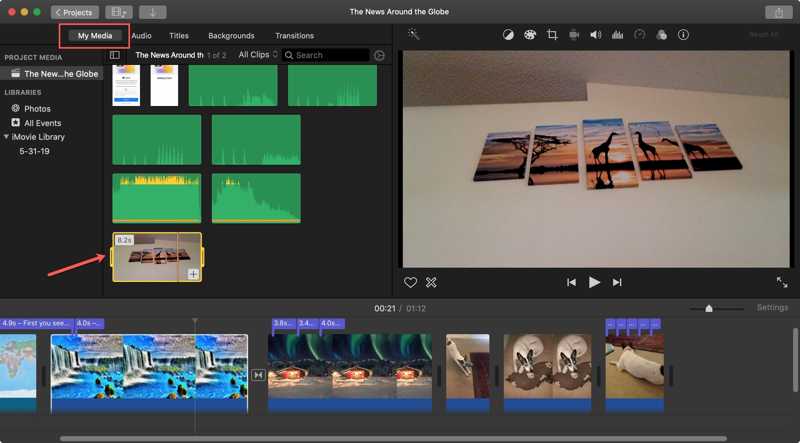
Steg 10. Drag and drop the recording onto the timeline.
How to Record Voiceover in iMovie
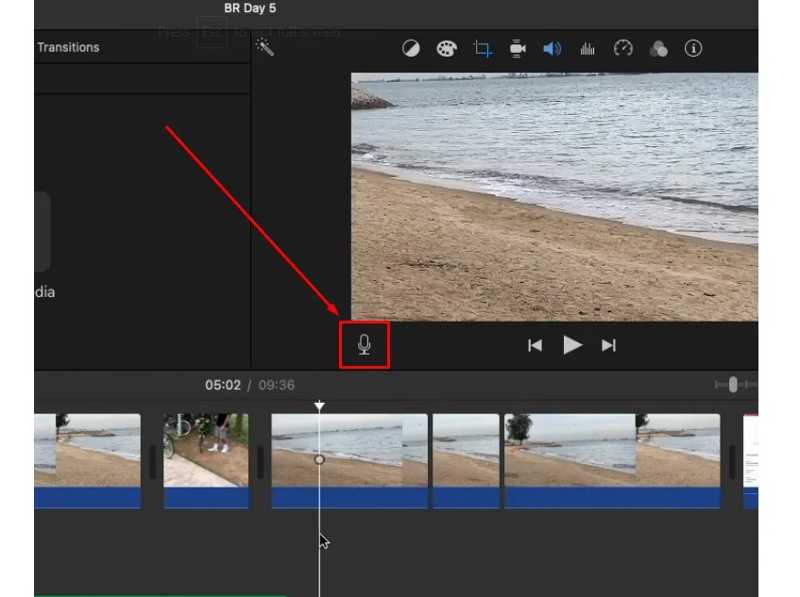
Steg 1. Till spela in en voiceover when editing a project in iMovie, place the playhead at the starting point.
Steg 2. Klicka på Berättarröst button with a microphone icon.
Tips: Om du inte hittar Berättarröst knappen, gå till Windows menyn och välj Spela in Voiceover.
Steg 3. Klicka sedan på Justering knappen bredvid Spela in knapp.
Steg 4. Select your microphone from the Ingångskälla alternativ och justera volymen.
Steg 5. If you want to mute the original background sound, check Tysta projekt.
Steg 6. Klicka på Spela in button to start recording voiceover to the video in iMovie.
Steg 7. När du är klar klickar du på Sluta knapp.
Part 2: How to Record Video in iMovie on iPhone
On an iPhone or iPad, the process to record a video with iMovie is available, but it keeps everything in a different layout. There is no floating window in the Mac version. Here is the process.
Steg 1. Open a project in the iMovie app or create a new project.
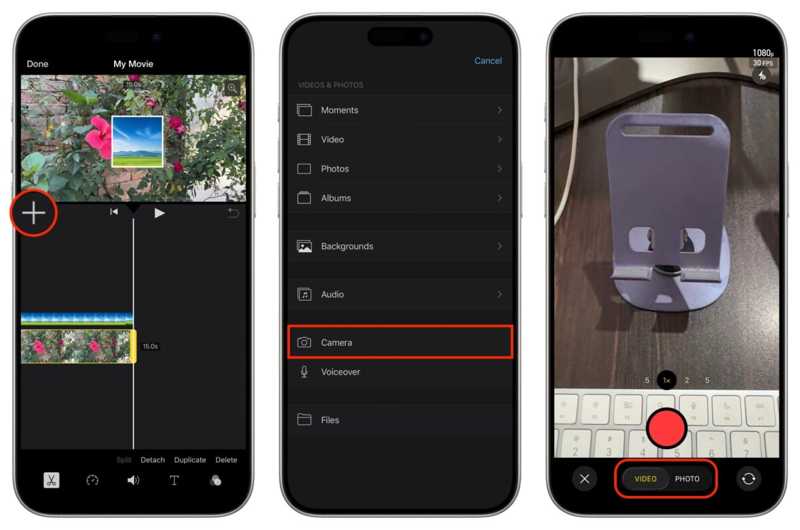
Steg 2. Place the play-head in the right position.
Steg 3. Tryck på + knappen och välj Kamera. To record a voiceover for the video in iMovie, choose Berättarröst.
Steg 4. Välj antingen Video or Bild läge.
Steg 5. Tryck på Spela in för att initiera den.
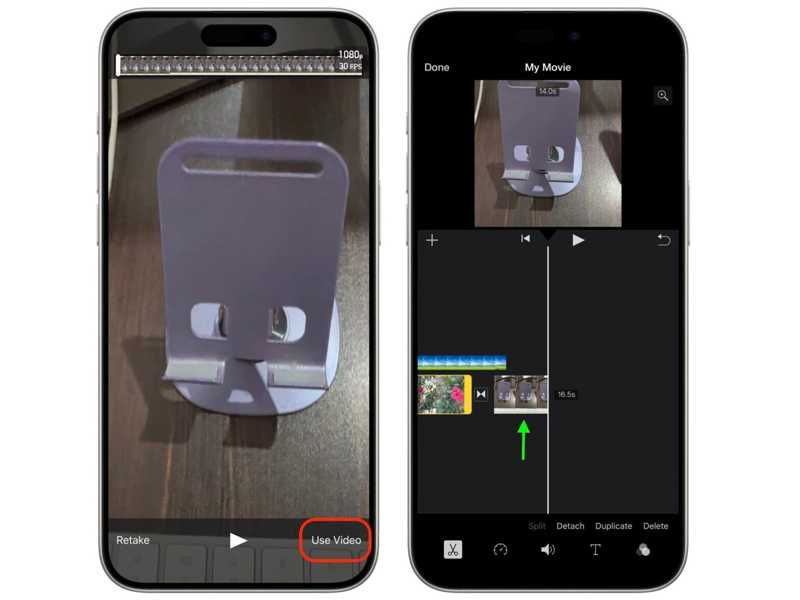
Steg 6. När du är klar trycker du på Använd video or Använd foto för att lägga till den i tidslinjen.
Part 3: How to Record Video in iMovie with a Screen Recorder
iMovie is a simple way to record video or voiceover for a movie project, but it's not perfect. It lacks advanced features and cannot produce high-quality recordings. Fortunately, Apeaksoft skärminspelare offers an alternative solution. It can record any area of your screen or phone screen with audio.

Nedladdad av över 1,000,000 användare
- Record a video with audio with quick and easy presets.
- Support multiple recording sources, like different displays.
- Add voiceover and webcam to the recording in real time.
- Förhandsgranska videoinspelningar med en inbyggd mediaspelare.
- Edit video recordings easily with a dedicated video editor.
How to Record an iMovie Video Smoothly
Steg 1. Install the video recorder
Run the alternative to iMovie after you install it on your computer. It is compatible with Windows 11 and earlier or macOS 10.13 and later. Choose the Screen Recorder mode. To record a voiceover, choose the Spela in ljud mode. If you want to record a video on your phone, connect it to your computer with a cable and choose the Spela in telefon läge.
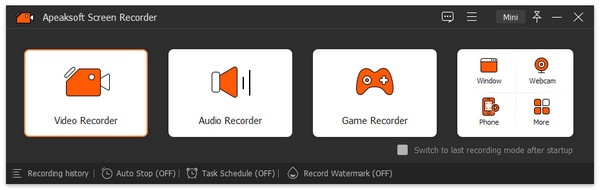
Steg 2. Spela in en video
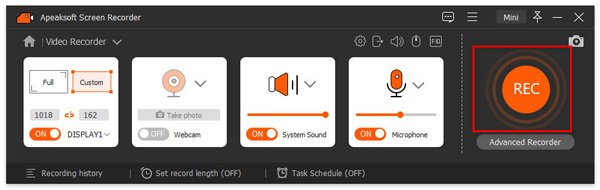
Set the recording area. Turn on Systemljud and adjust the volume. To add your face and voice to the recording, turn on the Webkamera och Mikrofonen. Klicka på REC button to begin recording a video for iMovie. During the process, you can draw on the recording with the toolbar.
Steg 3. Save the video recording
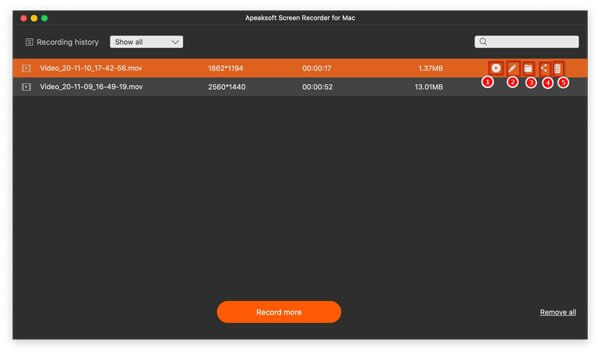
Once recording is complete, click the Sluta button. Then, you can view the result in the preview window. The editing buttons enable you to retouch the recording. Finally, click the Spara för att exportera videon.
Slutsats
Den här guiden delade how to record a video with iMovie. You can record a video through the built-in camera or capture a voiceover for a video clip in the pre-installed video editor app on Mac and iOS devices. We also recommend an alternative solution, Apeaksoft skärminspelare, to record a video with audio.

Relaterade artiklar