

Hur man hämtar raderade textmeddelanden på en Samsung-enhet

Enligt vår undersökning är Samsung fortfarande ett av de mest populära varumärkena för digitala enheter runt om i världen, särskilt på smarttelefonmarknaden. Användare lagrar obegränsad data och filer på sina Samsung-enheter, inklusive viktiga textmeddelanden. Faktum är att Samsungs smartphones lagrar textmeddelanden på olika platser, beroende på dina inställningar. Det ger dig chanser att hämta raderade textmeddelanden på din Samsung telefon. Vi identifierar de beprövade metoderna nedan.
SIDINNEHÅLL:
- Del 1: Hämta raderade SMS på Samsung av Carrier
- Del 2: Hitta borttagna texter på Samsung i papperskorgen
- Del 3: Återställ raderad text från Samsung Cloud
- Del 4: Återställ raderade SMS via Google Drive Backup
- Del 5: Hämta raderade SMS på Samsung med Smart Switch
- Del 6: Ultimat sätt för SMS-återställning på Samsung
Del 1: Hämta raderade SMS på Samsung av Carrier
För att hitta raderade sms på en Samsung Galaxy kan du först prova din operatör. Förutom telefonens minne lagrar även operatörer sms och mms på sina servrar i månader till några år. Verizon, till exempel, lagrar sms i upp till 5 år.
Del 2: Hitta borttagna texter på Samsung i papperskorgen
Samsung har lagt till många förbättringar i Android. Papperskorgen i Meddelanden-appen låter dig till exempel få tillbaka raderade textmeddelanden på Samsung. Det här sättet fungerar för meddelanden som nyligen raderades.
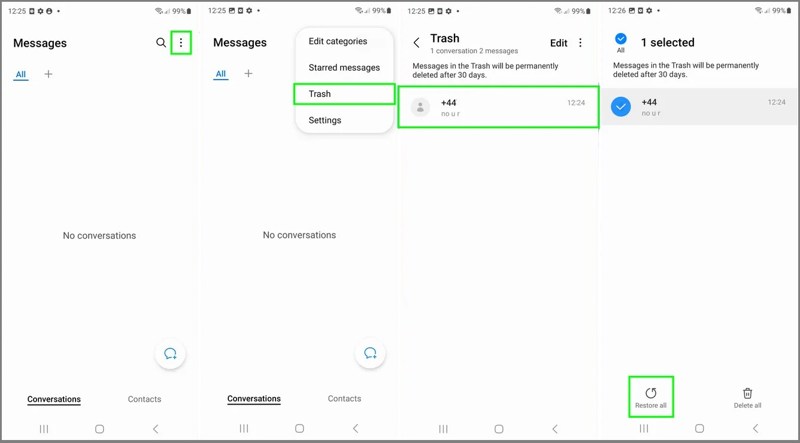
Steg 1. Kör Notiser i appfältet.
Steg 2. Tryck på Montering knapp med en ikon med tre punkter.
Steg 3. Välja trash på snabbmenyn för att visa alla nyligen raderade SMS.
Steg 4. Välj den chatt du vill återgå till och tryck på Återställ alla.
Steg 5. Gå tillbaka till inkorgen Meddelanden och hitta de förlorade meddelandena.
Del 3: Återställ raderad text från Samsung Cloud
Samsung Cloud är molnlagringen som Samsung släppt för att användare ska kunna säkerhetskopiera sina data, inklusive meddelanden. Om du har säkerhetskopierat meddelanden till Samsung Cloud kan du hämta gamla textmeddelanden på Samsung.
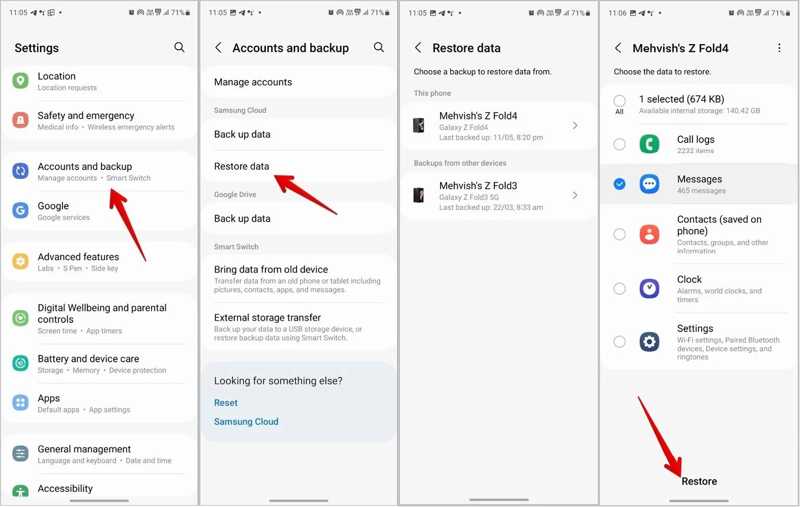
Steg 1. Kör Inställningar app på din telefon.
Steg 2. Välja Konton och säkerhetskopiering, och knacka på Återskapa data under Samsung Cloud.
Steg 3. Nu ser du tillgängliga säkerhetskopior. Välj din enhet och fortsätt.
Steg 4. Markera rutan bredvid Notiser och tryck på återställa knapp.
Del 4: Återställ raderade SMS via Google Drive Backup
Vissa Samsung-användare föredrar att säkerhetskopiera sina enheter med Google Drive. Om du har säkerhetskopierat dina meddelanden till Google Drive kan du återställa raderade meddelanden på din Samsung-telefon från säkerhetskopian. Nackdelen är att du måste fabriksåterställning din telefon först.
Steg 1. Gå till Systemkrav i din Inställningar app.
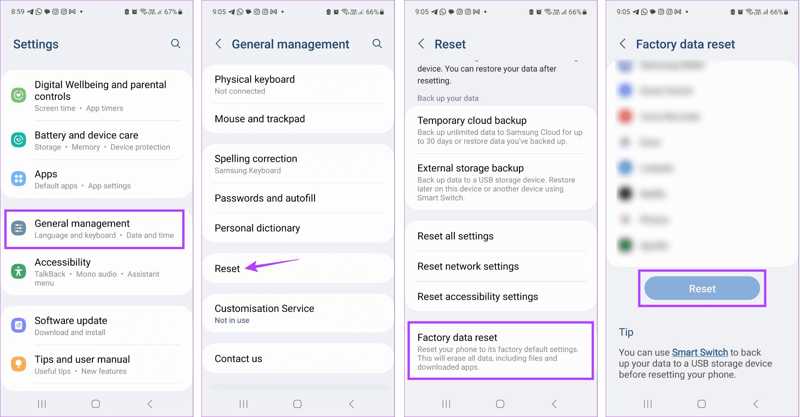
Steg 2. Välja Återställa, och knacka på Radera alla data or fabriksåterställning.
Steg 3. När du uppmanas att göra det anger du ditt telefonlösenord och bekräftar att du vill radera all data.
Steg 4. När din telefon har startats om, konfigurera den som en ny enhet.
Steg 5. Se till att ansluta till ett Wi-Fi-nätverk.
Steg 6. På Kopiera appar och data skärm, tryck Nästa, och välj Kan inte använda gammal enhet.
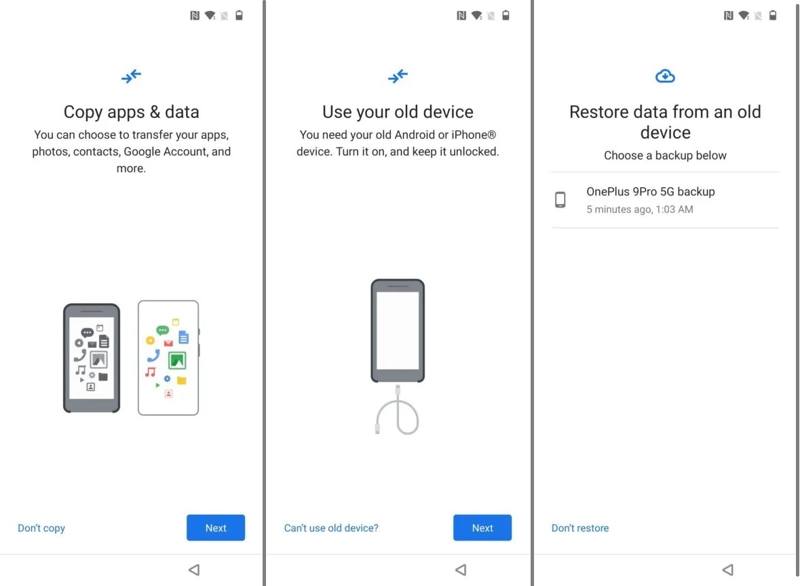
Steg 7. Logga in med dina Google-kontouppgifter.
Steg 8. Välj den senaste tillgängliga säkerhetskopian, välj Notiser och annan önskad data, och tryck på återställa.
Obs: Om du inte vill återställa din Samsung-telefon till fabriksinställningarna installerar du Google Drive-appen på din Samsung-telefon, öppnar den och loggar in på ditt Google-konto. Ladda sedan ner säkerhetskopian och hitta raderade meddelanden.
Del 5: Hämta raderade SMS på Samsung med Smart Switch
Smart Switch är ett kraftfullt verktyg för att hantera data på din Samsung-telefon. Naturligtvis låter det dig se raderade meddelanden på Samsung om du tidigare har skapat en säkerhetskopia för din enhet med Smart Switch.
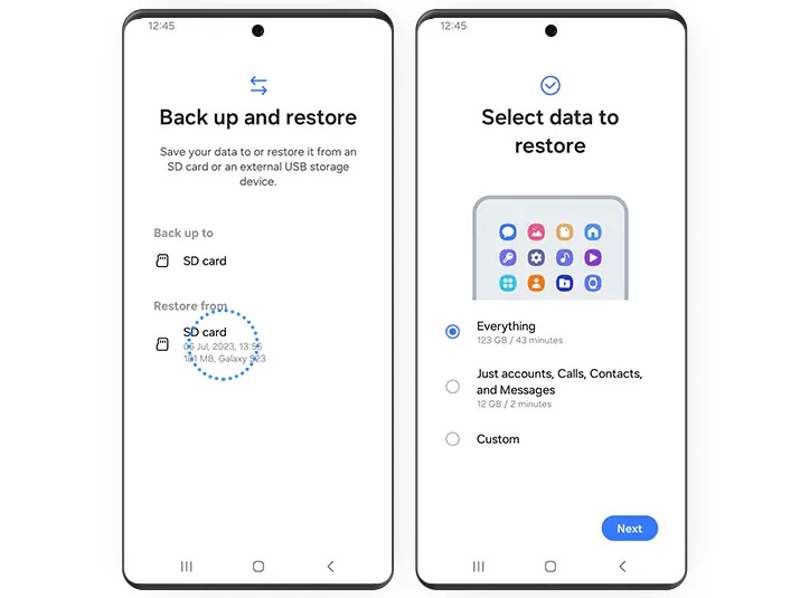
Steg 1. Sätt i säkerhetskopierings-SD-kortet i din Samsung-telefon.
Steg 2. Öppna Smart Switch app.
Steg 3. Välja Säkerhetskopiera och återställ dina data, och träffa Fortsätta.
Steg 4. Klicka sedan på SD-kort under Återställ från sektion.
Steg 5. Sedan läser appen säkerhetskopian på ditt SD-kort.
Steg 6. Pick Allt or Bara konto, samtal, kontakter och meddelanden på skärmen Välj data att återställa.
Steg 7. Slå Nästa knappen för att börja hämta Samsung textåterställning.
Steg 8. När det är klart, mata ut SD-kortet ur telefonen så hittar du de raderade meddelandena på din enhet.
Del 6: Ultimat sätt för SMS-återställning på Samsung
Om metoderna ovan inte är tillgängliga och du inte har en säkerhetskopia behöver du ett kraftfullt dataåterställningsverktyg för att få tillbaka raderade textmeddelanden på din Samsung-telefon. Apeaksoft Android Data Recovery, till exempel, låter dig hitta förlorade SMS från telefonens minne.
Det enklaste sättet att återställa raderade textmeddelanden på Samsung
- Återställa förlorade SMS och MMS på Samsung.
- Extrahera meddelanden från en trasig Samsung-telefon.
- Förhandsgranska raderade textmeddelanden för selektiv återställning.
- Tillgängligt för meddelanden och multimediabilagor.
- Fungerar på nästan alla Android-telefonmärken.

Hur man får SMS-återställning på Samsung utan säkerhetskopia
Steg 1. Anslut till din Samsung
Starta den bästa SMS-återställningsprogramvaran för Samsung efter att du har installerat den på din dator. Aktivera USB-felsökningsläget på din telefon. Anslut den till din dator med en kompatibel USB-kabel. Om du uppmanas att göra det väljer du Överför filer.

Steg 2. Skanna meddelanden på din telefon
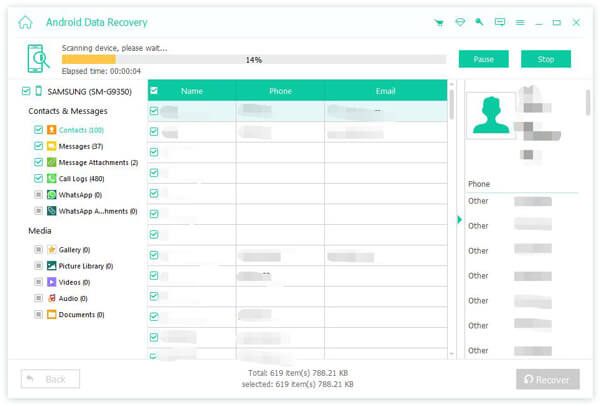
Markera rutorna bredvid Notiser och Meddelanden Bilagor. Klicka på Nästa knappen för att börja skanna meddelanden på din enhet. Följ sedan instruktionerna på skärmen för att auktorisera FoneGo-appen och ge den åtkomst till din information.

Steg 3. Återställ SMS
När SMS-skanningen är klar kan du förhandsgranska alla återställningsbara meddelanden. Om det finns för många meddelanden, aktivera Visa endast de borttagna objekten högst upp på skärmen. Om du inte hittar önskade meddelanden klickar du på Deep ScanMarkera de meddelanden du vill hämta och klicka på RecoverStäll in en utdatamapp och bekräfta den. Det kommer inte att skriva över befintliga data på din telefon.
Slutsats
Den här artikeln delade sex metoder för att hitta raderade sms på Samsung Galaxy-enheter. Om du råkar radera meddelanden av misstag kan du hitta dem från papperskorgen eller din operatör. Med Samsung Cloud, Google Drive-säkerhetskopiering och Smart Switch kan du återställa meddelanden från en säkerhetskopia om du har skapat en. Apeaksoft Android Data Recovery är det bästa alternativet för att hämta dina meddelanden om du inte har en säkerhetskopia.
Relaterade artiklar
Har du förlorat meddelanden, foton och videor på WhatsApp och vill återställa dem? Den här artikeln presenterar tre program för återställning av WhatsApp för Android.
Vet du inte var du hittar papperskorgen på din Android för att återställa raderade foton eller filer? Det här inlägget visar dig i detalj hur du återställer papperskorgen från Android.
Röstmeddelanden kan spara dina viktiga röstmeddelanden. Om du har tappat bort dem kan du läsa den här artikeln för att hämta raderade röstmeddelanden på Android.
Google kan säkerhetskopiera och återställa din enhet och hantera dina data på ett bra sätt. Den här guiden visar hur du hämtar Google Backup på Android.



