


How to Restore iPhone from iTunes Step by Step

iTunes provides a useful way to recover your device when you switch to a new iPhone, encounter iOS system problems, or need to erase and reinstall iOS. Based on your specific needs, you can perform a full backup restore, recover only specific items from your iTunes backup, or repair a problematic iPhone via recovery mode. This article will share in detail how to restore an iPhone from iTunes.
SIDINNEHÅLL:
Part 1: Preparations Before Restoring iPhone from iTunes
Before restoring your iPhone from iTunes, you should first check the following preparations to avoid unnecessary issues:
- Install the latest official version of iTunes on Windows computers. For macOS Catalina and later versions, use Finder directly to perform all the same operations.
- Use an original or MFi-certified cable to ensure a stable connection.
- Ensure a stable computer network and sufficient disk space. Do not disconnect from the network or put the computer to sleep or shut it down during the process.
- Temporarily disable the computer's firewall and antivirus software to prevent interference with device recognition and firmware verification processes.
- Make sure you have a backup available that contains your target data.
- Make sure your iPhone has enough battery.
- Remember the Apple ID account and password associated with the device. If you have enabled Find My, it will trigger the iCloud-aktiveringslås.
Del 2: Hur man återställer iPhone från iTunes-säkerhetskopia
After making full preparations, you can start restoring your iPhone from an iTunes backup. Do remember that the whole process will overwrite the existing device data with the backup. Back up your current iPhone data if necessary.
Steg 1. Connect your iPhone to the computer using a USB cable. Open iTunes, and tap Lita på den här datorn om en snabbprompt dyker upp.
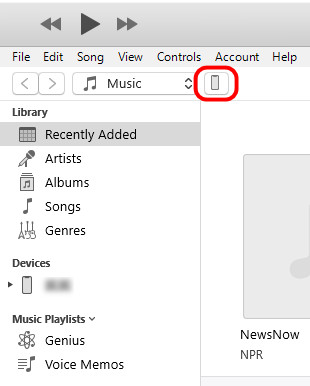
Steg 2. Click the iPhone button in the upper-left corner of iTunes.
Steg 3. Scroll down to the Backups section and click Återställa Backup.
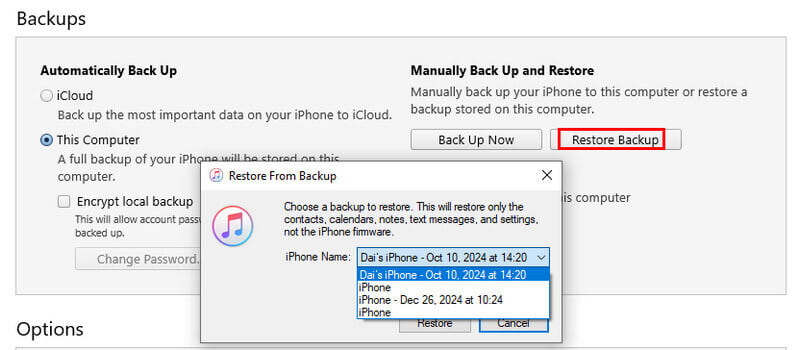
Steg 4. Select the target backup file. For krypterade iTunes-säkerhetskopior, enter the password you originally set.
Steg 5. Wait for the device to automatically sync and restart. Do not disconnect the cable until the restore progress completes.
Part 3: How to Restore iPhone from iTunes Selectively
As mentioned above, when you restore an iPhone from an iTunes backup, iTunes will replace the current data on your iPhone with the previous backup data. This means you cannot choose specific files to restore, and any existing data may be overwritten by the backup version. However, in some cases, you may only want to recover a specific deleted photo, note, or message, instead of restoring the entire backup. At this time, you may need tools like Apeaksoft iPhone Data Recovery to help you selectively restore iPhone from iTunes backup.

Nedladdad av över 1,000,000 användare
- Selectively restore iPhone from iTunes Backup.
- Preview the data details before the recovery.
- Support recovering iPhone data without a backup.
- Support all popular iPhone models and the latest versions.

Steg 1. Free download this iPhone data recovery software for free by clicking the download button above.
Steg 2. Anslut din iPhone till datorn och välj Återställ från iTunes Backup File från vänster panel.
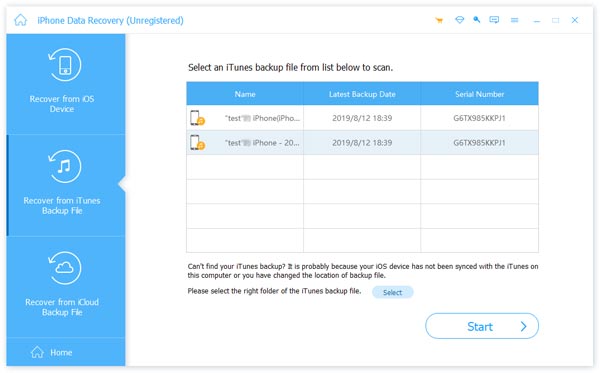
Steg 3. You will see all available iTunes backups you've made here. Choose the right one and click Start. Then, this tool will read your iTunes backup.
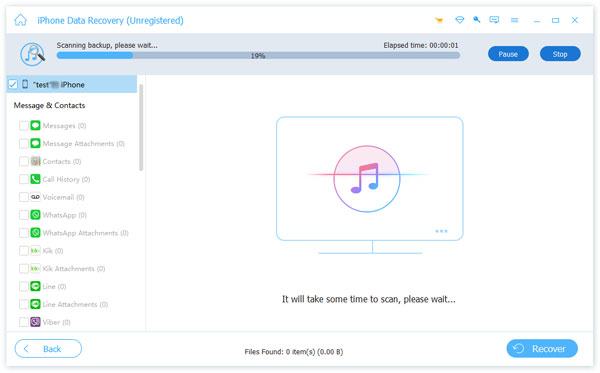
Steg 4. Choose the target data type from the left bar, and you will see the detailed data on the right. You can preview them. The deleted ones are marked in red.
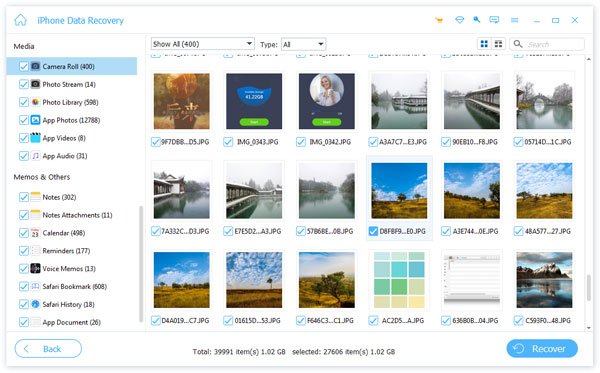
Steg 5. Select the files by checking them. Then, click Recover.
Steg 6. Choose a saving path on your computer. All the recovered files will be saved there.
Tips: Denna programvara kan också hjälpa dig Återställ iPhone utan iTunes.
Part 4: How to Restore iPhone with iTunes (Recovery Mode)
In the previous section, we explained how to restore an iPhone from an iTunes backup to recover your data. However, if your iPhone has serious system problems, shows the iPhone Disabled message, fails to power on, or the computer cannot detect the device, restoring from a backup may not be possible. In this case, you can use iTunes to restore your iPhone to factory settings. This method erases the device and reinstalls iOS, helping fix various software-related issues.
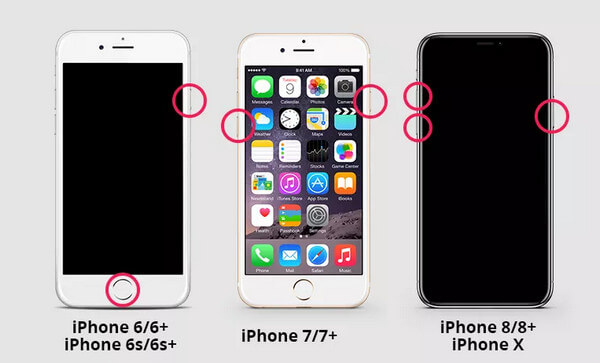
Steg 1. Keep the device connected to the computer. Then, put your iPhone into recovery mode.
iPhone 8 och senare modeller
Tryck snabbt på volymknappen Up och Ner keys, then hold the Sida button until the Connect to iTunes screen appears.
iPhone 7 / 7 Plus
Tryck och håll ned volymen Ner och Effekt knappar samtidigt.
iPhone 6s och tidigare modeller
Tryck och håll ner Hem knappen och Effekt knappen samtidigt.
Steg 2. Once successfully in recovery mode, iTunes will automatically pop up a window indicating that there is a problem with the iPhone.
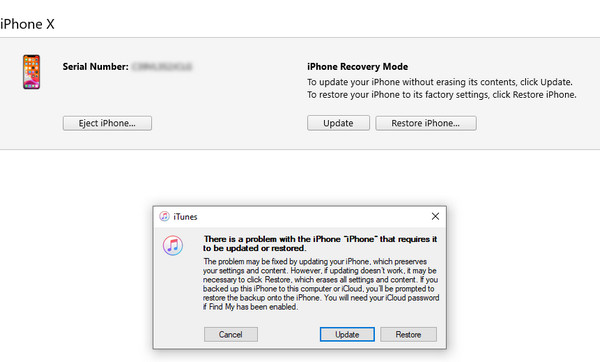
Steg 3. Välja återställa, and iTunes will automatically download the firmware and reinstall the latest compatible iOS version on your iPhone.
Steg 4. After the process completes, your iPhone will restart automatically and enter the setup screen.
Slutsats
How do you restore an iPhone from iTunes? This article provides a detailed guide to show you how to restore your iPhone from an iTunes backup, as well as how to selectively recover iPhone data from iTunes using Apeaksoft iPhone Data Recovery, and restore your iPhone to factory settings with iTunes to fix system issues. Choose the method that suits you best and follow the step-by-step instructions to restore your iPhone safely and efficiently.
 Apeaksoft iPhone Data Recovery
 Återställ raderad eller förlorad data från iOS-enheter, iTunes och iCloud-säkerhetskopia.
Relaterade artiklar




