Hur man åtgärdar felaktig systemkonfigurationsinformation i Windows 10/11

Key Takeaways
- Stoppkoden "Bad system config info" är vanligtvis ett programfel som orsakas av skadade register- eller startfiler.
- Plötsligt strömavbrott och tvingade avstängningar resulterar alltid i BSOD-felet Bad System Config Info.
- Att ta bort de senaste Windows-uppdateringarna eller felaktiga drivrutiner är en vanlig lösning för problem med blåskärmar efter uppdateringar.
Dålig systemkonfigurationsinfo är ett av de vanligaste felen med blåskärm (BSOD) i Windows 10 och Windows 11. Den här koden visas vanligtvis under systemstart eller efter en Windows-uppdatering. När den visas tvingas datorn krascha och starta om oväntat. Om du har fastnat med den här frustrerande blåskärmen, följ vår guide för att åtgärda problemet med dålig systemkonfigurationsinformation steg för steg.
SIDINNEHÅLL:
Varför visas bad_system_config_info
Innan du åtgärdar problemet är det bra att förstå de viktigaste utlösarna. Faktum är att de flesta felmeddelanden om dålig systemkonfigurationsinformation beror på programvaruproblem snarare än hårdvaruskador. Vanliga orsaker inkluderar:
- Inkompatibla drivrutiner
- Korrupta Windows-systemfiler eller inställningar
- Felaktig startkonfigurationsdata (BCD)
- Felaktiga Windows-uppdateringar
- Felaktiga eller avbrutna systemavstängningar
- RAM- eller hårddiskfel
Att identifiera dessa orsaker gör att du kan tillämpa riktade lösningar utan komplicerade åtgärder.
Hur man åtgärdar felaktig systemkonfigurationsinformation i Windows 10/11
Efter en grundläggande förståelse för varför felet "Bad System Config Info" uppstår, låt oss dyka ner i hur man åtgärdar problemet. Det här avsnittet ger 7 möjliga och vanliga metoder som referens. Du kan följa dem en efter en för att felsöka problemet.
Metod 1: Ta bort externa enheter och starta om
I många fall kan en inkompatibel extern enhet eller drivrutin orsaka blåskärmen med felaktig systemkonfigurationsinformation. Vanliga enheter inkluderar USB-enheter, externa hårddiskar och skrivare.
Steg 1. Stäng av datorn först. Koppla sedan bort alla externa enheter. Låt endast musen och tangentbordet vara anslutna.
Steg 2. Starta om datorn och kontrollera om blå skärmfel Om det är normalt kan du återansluta dina enheter en i taget tills du hittar den problematiska.
Metod 2: Starta Windows i felsäkert läge
Om felet kvarstår efter att du har kopplat bort de externa enheterna kan du prova att starta Windows i felsäkert läge. Felsäkert läge laddar bara viktiga grundläggande drivrutiner och systemtjänster, så du kan ytterligare kontrollera om det är en tredjepartsapp eller ett problem med drivrutinen.
Steg 1. Starta datorn. När Windows-logotypen visas trycker du på och håller strömknappen intryckt för att stänga av datorn. Upprepa processen två gånger. Vid tredje uppstarten bör Windows gå in i automatisk Repair skärm. Välj Avancerade alternativ för att gå in i Windows återställningsmiljö.
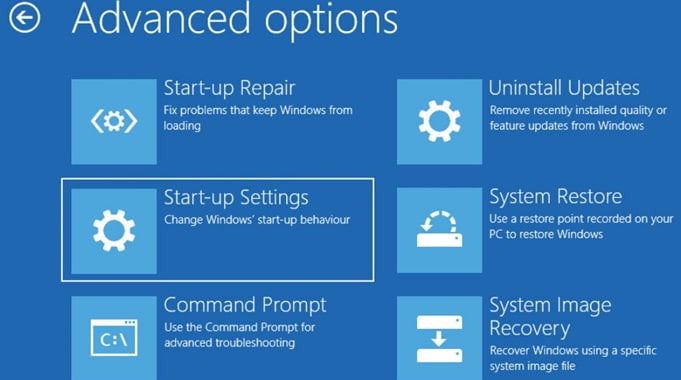
Steg 2. Välja Startinställningar > Omstart.
Steg 3. Efter omstart trycker du på 4 eller F4 för att starta Windows i felsäkert läge. Om datorn fungerar problemfritt i felsäkert läge kan felet "Bad system config info" bero på nyligen installerade appar eller felaktiga drivrutiner.
Metod 3: Reparera skadade systemfiler med SFC och DISM
Ibland, om några av de centrala systemfilerna eller systemavbildningarna i Windows är skadade, kan det orsaka en blå skärm. I det här fallet kan du använda Windows inbyggda verktyg för att skanna och reparera skadade systemavbildningar automatiskt. Till exempel kan SFC skanna skyddade systemfiler, medan DISM kan kontrollera och reparera Windows-systemavbildningen.
Steg 1. Kör kommandotolken som administratör.
Steg 2. Kör först kommandot sfc /scannow för att åtgärda systemfilsfel.
Steg 3. När skanningen är klar, kör följande DISM-kommandon för att reparera Windows-systemavbildningar.
- DISM / Online / Cleanup-Image / CheckHealth
- DISM / Online / Cleanup-Image / ScanHealth
- DISM / Online / Cleanup-Image / RestoreHealth
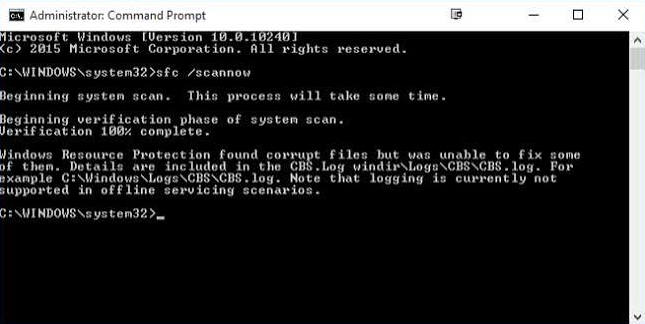
Steg 4. Starta om datorn för att se om problemet finns.
Metod 4: Återskapa startkonfigurationsdata (BCD)
Du kan också felsöka BSOD-felet Bad System Config Info genom att kontrollera startkonfigurationsdata. Ibland kan skadade BCD-inställningar förhindra att Windows startar normalt och utlösa BSOD-fel. Därför kan du åtgärda skadade startfiler via kommandotolken i Windows återställningsläge och därmed åtgärda felet Bad System Config Info.
Steg 1. Gå in i Windows återställningsmiljö.
Steg 2. Gå till felsöka > Avancerade alternativ > kommando~~POS=TRUNC.
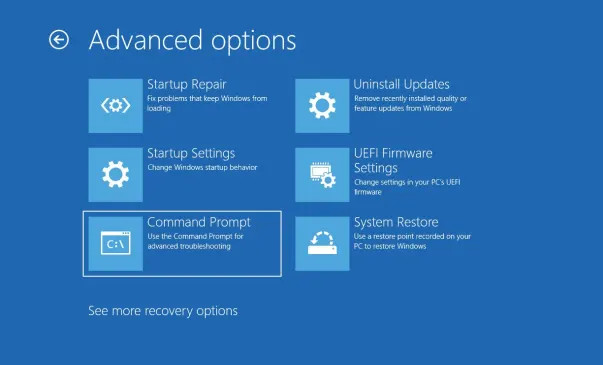
Steg 3. Kör boot reparationskommandon för att återuppbygga BCD och reparera master boot records.
- bootrec / fixmbr
- bootrec / fixboot
- bootrec / scanos
- bootrec / RebuildBcd
Steg 4. När processen är klar startar du om datorn för att kontrollera om problemet med den blå skärmen kvarstår.
Metod 5: Avinstallera felaktiga Windows-uppdateringar
Många användare stöter på felaktig systemkonfigurationsinformation direkt efter en misslyckad Windows-uppdatering. Nya uppdateringsfiler kan komma i konflikt med gamla systemfiler och orsaka att konfigurationsinställningarna inte fungerar.
Steg 1. Gå in i felsäkert läge.
Steg 2. Öppna Windows-inställningar och gå till Windows Update > Uppdateringshistorik.
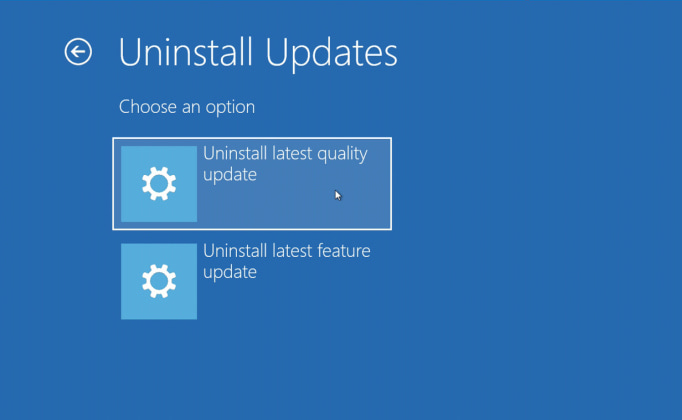
Steg 3. Välj Avinstallera uppdateringar och ta bort den senast installerade systemuppdateringen. Starta om datorn för att bekräfta om felet försvinner.
Metod 6: Testa RAM-minne och hårddiskhälsa
Felaktigt minne eller dåliga disksektorer kan skada systemdata och orsaka kontinuerliga BSOD-krascher.
Steg 1. Kör Windows minnesdiagnostikverktyg för att kontrollera RAM-fel.
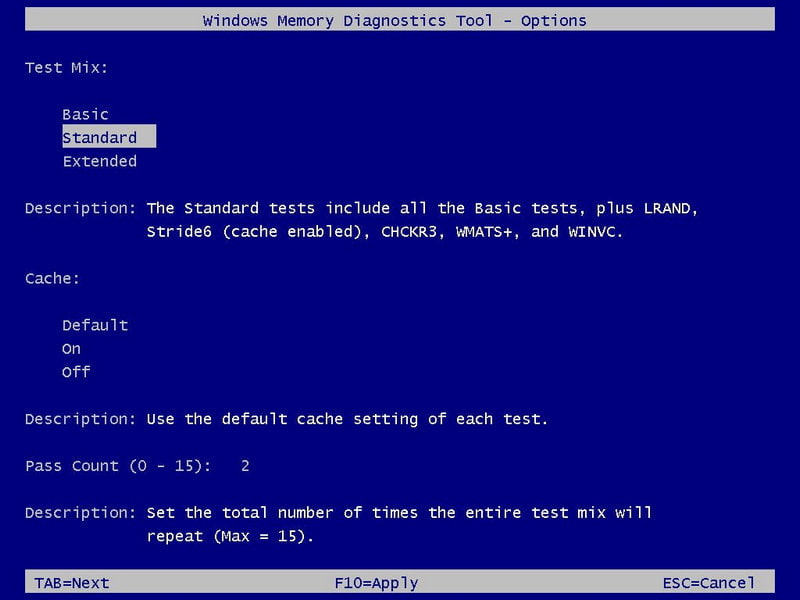
Steg 2. Använd det inbyggda CHKDSK-verktyget för att skanna och reparera hårddiskfel.
Steg 3. Om hårdvaruproblem upptäcks, byt ut eller reparera din lagringsenhet för att lösa felet permanent.
Metod 7: Återställ eller återställ Windows
Om alla tidigare metoder inte fungerar, systemåterställning eller fabriksåterställning kan vara den sista utvägen. Systemåterställning kan återställa datorn till ett tidigare normalt tillstånd utan att radera personliga filer. Om återställningspunkter inte är tillgängliga eller om du fortfarande inte kan åtgärda problemet kan du prova att återställa Windows för att åtgärda loopfelet med dålig systemkonfigurationsinformation i Windows 11.
Bonus: Återställ förlorade filer efter krasch med felaktig systemkonfigurationsinformation
BSOD-felet bad_system_config_info kan orsaka dataförlust, särskilt när du inte har haft möjlighet att spara viktiga filer. För närvarande kan du använda professionell programvara för dataåterställning i Windows, till exempel Apeaksoft Data Recovery, för att återställa förlorad data på ett säkert sätt.

Nedladdad av över 1,000,000 användare
- Återställ förlorade filer efter felet "Bad System Config Info".
- Skanna din hårddisk fullständigt och noggrant.
- Stöd för återställning från både interna hårddiskar och externa hårddiskar.
- Förhandsgranska data före återställningen.
- Fungerar för alla Windows-versioner.

Slutsats
Det här inlägget har gett 7 metoder för att fixa det stoppkod bad_system_config_info fel. Du kan följa dem en efter en för att felsöka din blåskärm i Windows. Om det uppstår dataförlust efter systemkrascher kan professionella återställningsverktyg, till exempel Apeaksoft Data Recovery, kan hjälpa dig att enkelt hämta dina viktiga filer.

Relaterade artiklar