

How to AirDrop Photos and Files from iPhone to MacBook

Apple AirDrop is a swift feature for sharing content on an Apple device with other Apple devices nearby. It employs Bluetooth and Wi-Fi networks to create a peer-to-peer wireless or wired connection for transferring photos, documents, and even links to apps. It is built directly into iOS and macOS’s sharing system. It means that users can AirDrop from an iPhone to a Mac without extra software or hardware. We demonstrate the workflow with steps.
SIDINNEHÅLL:
Part 1: How to AirDrop from iPhone to Mac
Some users complained that AirDrop is becoming more and more difficult. In fact, Apple has added another level of security to this wireless connection on iOS 26.2 or later and iPadOS 26.2 or later. We share the detailed process to use AirDrop from iPhone to Mac.
How to AirDrop from iPhone to Mac Wirelessly
Krav
- A Mac runs macOS Yosemite or later.
- An iPhone runs iOS 7 or later.
- Wi-Fi and Bluetooth are enabled on both devices.
- Place two devices within about 30 feet of each other.
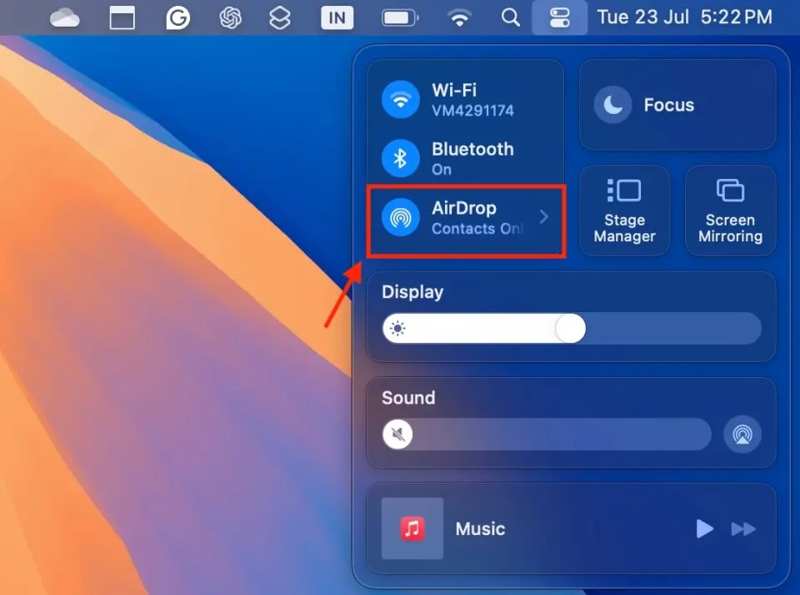
Steg 1. Slå på AirDrop på Mac
Öppet Control Center.
Möjliggöra bluetooth och Wi-Fi.
Next, click AirDrop, and choose Alla i 10 minuter.
Eller öppna Finder app from your Dock bar, select LUFTLANDSÄTTNING on the sidebar, click the Låt mig upptäckas av menu at the bottom, and choose Alla i 10 minuter.
Tips: If the iPhone is on your contact list, choose Endast kontakter.
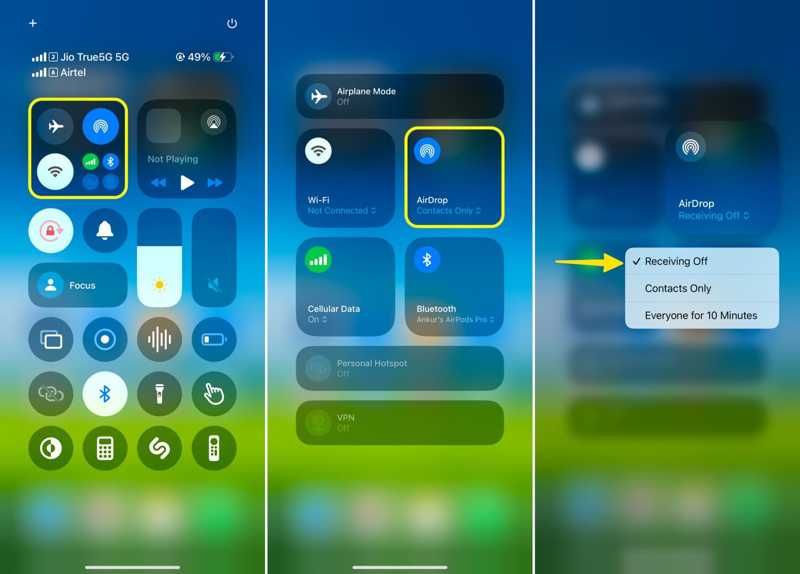
Steg 2. Slå på AirDrop på iPhone
ange Control Center på din iPhone.
Möjliggöra bluetooth och Wi-Fi.
Deeply tap the connection pane, and choose LUFTLANDSÄTTNING.
Välja Alla i 10 minuter. If the Mac is on your contact list, choose Endast kontakter.
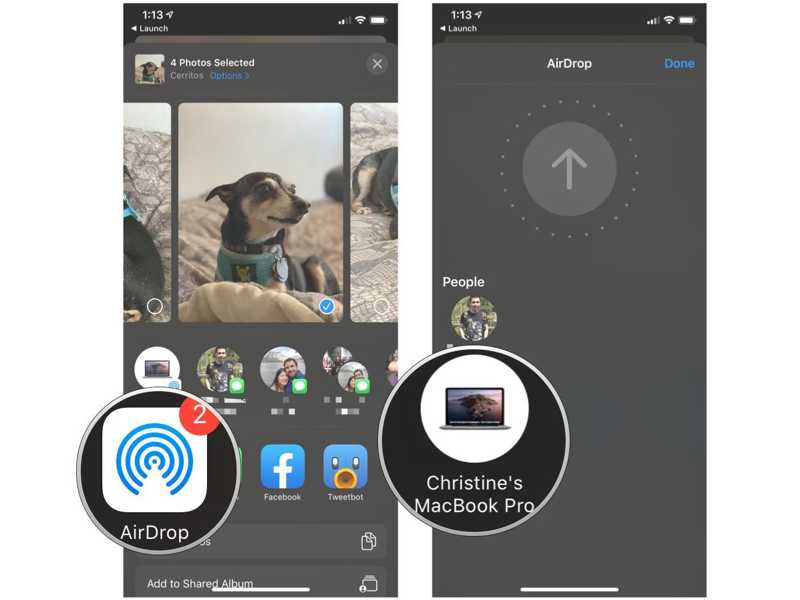
Steg 3. AirDrop photos from iPhone to Mac
Öppna Fotogalleri app på din iPhone.
Gå till album fliken.
Tryck på Välja button, and touch each photo you want to share.
Tryck på Dela knapp, tryck LUFTLANDSÄTTNING, and tap the Mac computer.
Turn to your Mac and the photos should appear in the Finder window.
How to Use Wired-AirDrop from iPhone to Mac
Krav
- A Mac runs macOS Yosemite or later.
- An iPhone runs iOS 7 or later.
- Wi-Fi and Bluetooth are enabled on both devices.
- A USB-C or USB-C to Lightning cable.
Steg 1. Ställ in AirDrop
Connect your iPhone to your Mac with the USB-C to Lightning cable.
Om du uppmanas att trycka på Litar on your iPhone and enter your passcode.
Sätta på bluetooth och Wi-Fi in Control Center on both your iPhone and Mac.
Möjliggöra LUFTLANDSÄTTNING Och välj Endast kontakter or Alla i 10 minuter.
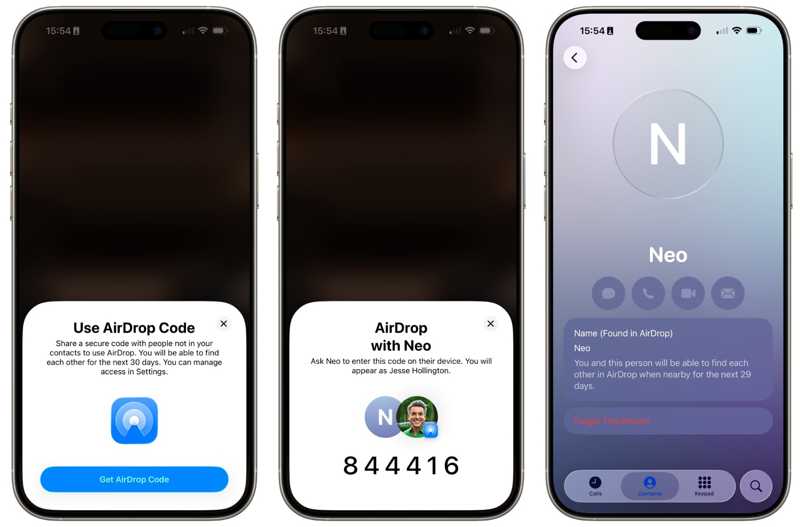
Tips: If you have updated to iOS 26.2 or later, you can only AirDrop an iPhone to a Mac that is on your contact list. Otherwise, you have to generate an AirDrop code for file transfer.
Steg 2. AirDrop från iPhone till Mac
Öppna Fotogalleri or Filer app på din iPhone.
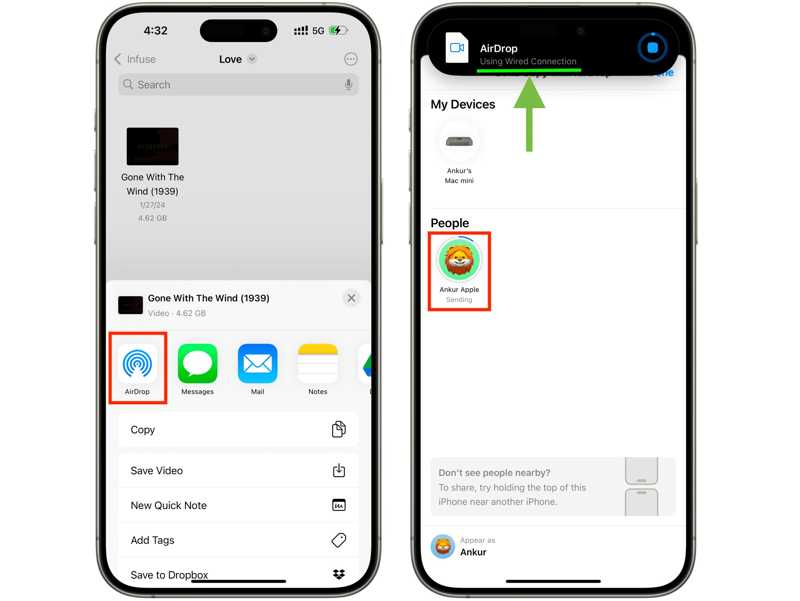
Select the desired file, tap the Dela button, and followed by LUFTLANDSÄTTNING.
Pick your Mac to begin using AirDrop from iPhone to Mac.
You should see a notification saying Using Wired Connection på din skärm.
Ytterligare läsning
Part 2: What to Do If You Can't AirDrop from iPhone to Mac
Some users complained that AirDrop is not working from iPhone to Mac. This problem is usually caused by improper settings. You can try a few methods to fix this problem on your own.
Fix 1: Re-enable Bluetooth and Wi-Fi
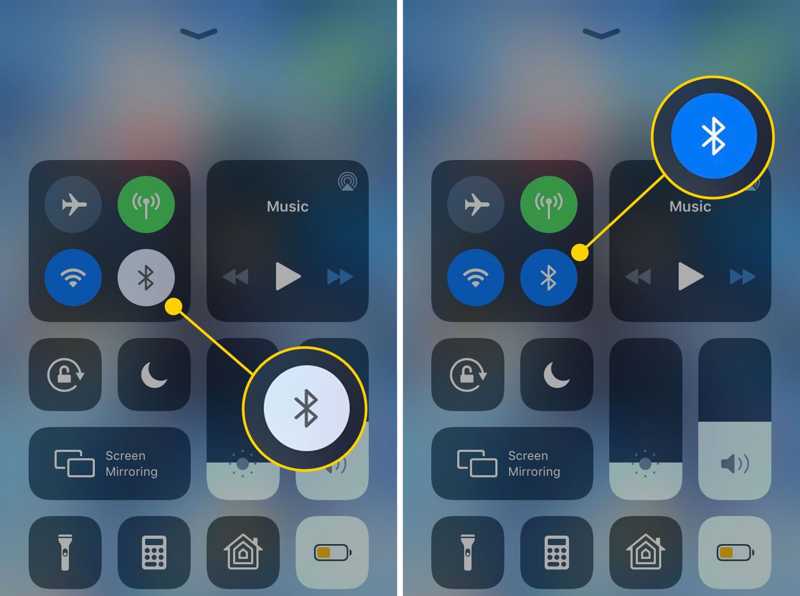
Gå till Control Center på din iPhone trycker du på Bluetooth to disable it. Tap the Wi-Fi and disable it. Restart your iPhone, and turn on bluetooth och Wi-Fi in Control Center.
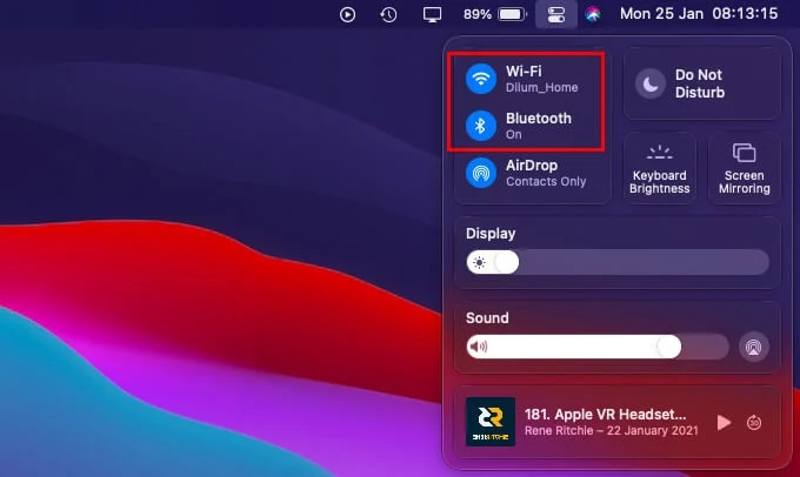
Turn to your Mac, disable bluetooth och Wi-Fi in Control Center. Reboot your Mac and enable bluetooth och Wi-Fi.
Fix 2: Disable Personal Hotspot on iPhone
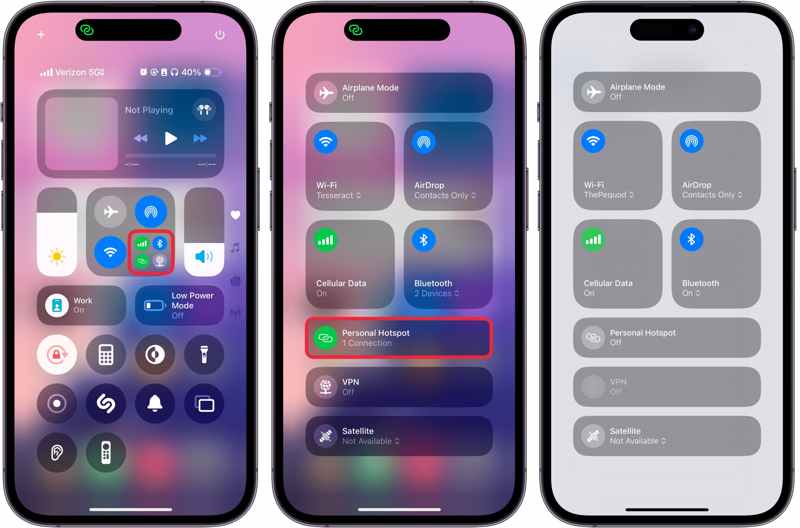
Steg 1. Gå till Control Center på din iPhone.
Steg 2. Long-press the connection pane.
Steg 3. Tryck Personlig Hotspot att stänga av det.
Steg 4. Check if you can AirDrop from iPhone to Mac.
Fix 3: Disable Do Not Disturb on Mac
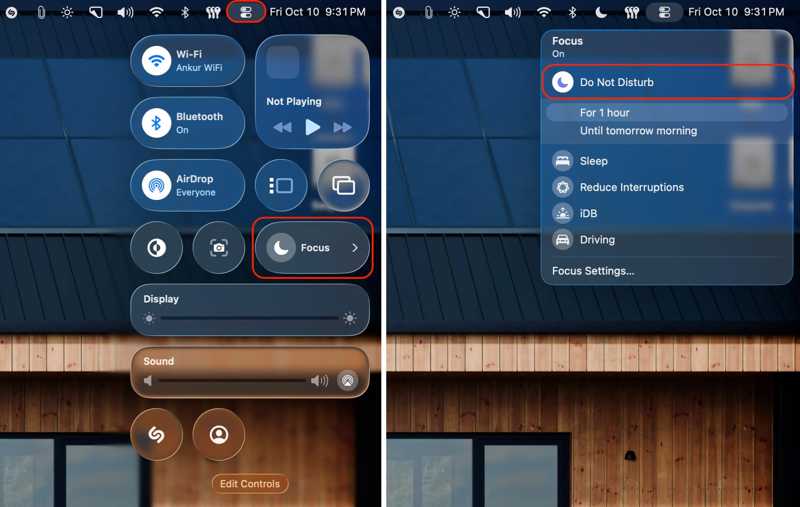
Steg 1. Klicka på Control Center -knappen på den översta menyraden.
Steg 2. Välja Fokus.
Steg 3. Klicka Stör ej.
Fix 4: Restart iPhone and Mac
Starta om iPhone:
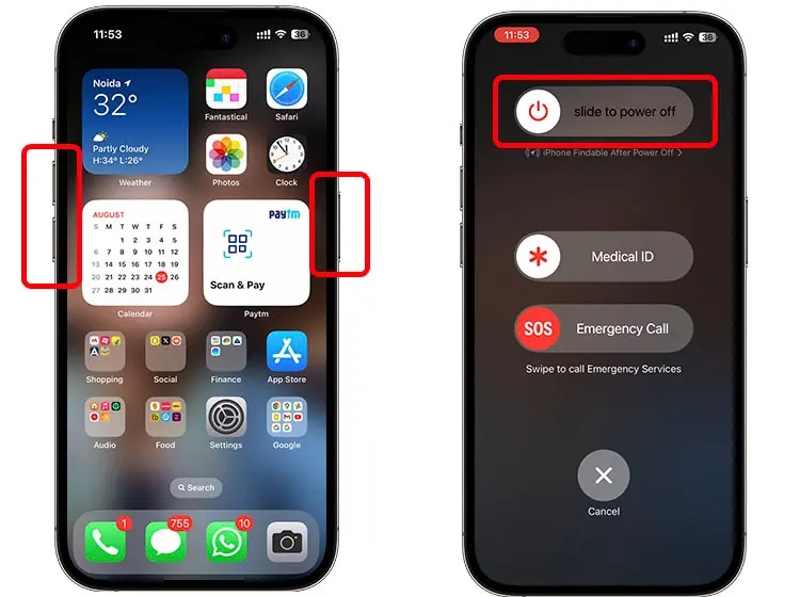
Tryck och håll antingen Volym knapp + Sida knapp.
Flytta reglaget för att stänga av enheten.
Håll sidoknappen intryckt tills du ser Apple-logotypen.
Starta om Mac:
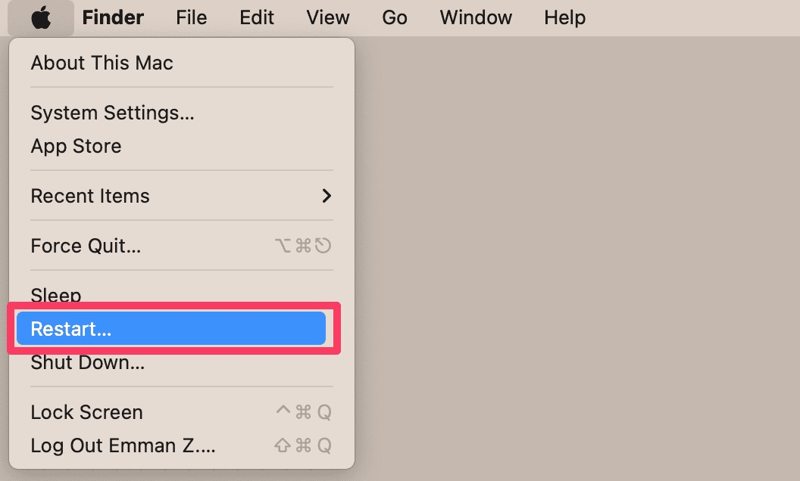
Gå till Apple meny.
Välja Omstart.
When your Mac reboots, check if AirDrop from iPhone to Mac is working now.
Part 3: Best Alternative to AirDrop from iPhone to Mac
If you cannot AirDrop from an iPhone to a Mac, finding an alternative solution is a good option. Apeaksoft iPhone Transfer, for example, enables you to transfer any file from iPhone to Mac with a physical connection.
A Good Alternative to AirDrop from iPhone to Mac
- Transfer files from iPhone to Mac quickly.
- Support almost all file types on iPhone.
- Move multiple files at one time.
- Compatible with the latest editions of iOS and macOS.

How to Send Files from iPhone to Mac Without AirDrop
Steg 1. Anslut iPhone till Mac
Start the alternative to AirDrop after installing it on your computer. Plug your iPhone into your Mac with a Lightning cable. There is another version for PC.
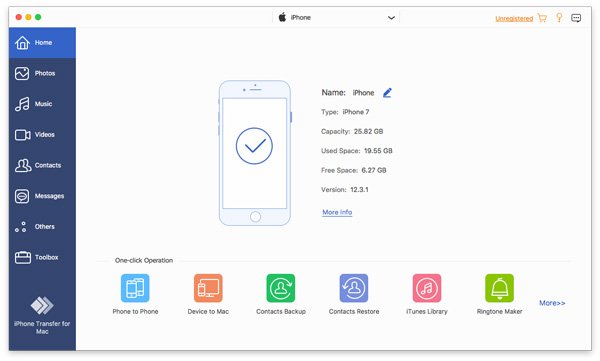
Steg 2. Förhandsgranska dina data
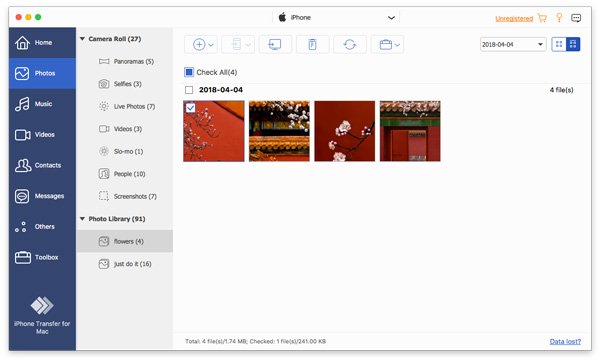
Select the desired data type, such as Fotogalleri, on the sidebar to load all photos on your iOS device.
Steg 3. Överför data från iPhone till Mac
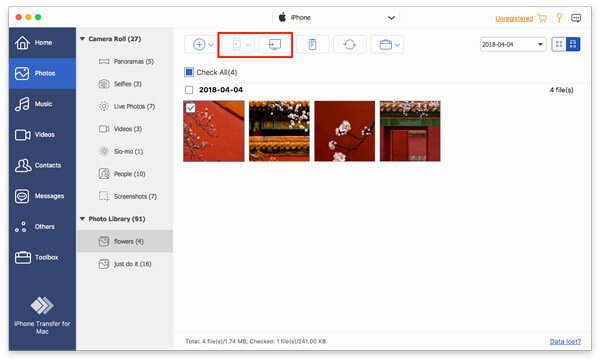
Select all photos you want to move, click the Dator button on the top menu bar, and choose Exportera till Mac.
Slutsats
Denna guide förklaras how to send AirDrop from an iPhone to a Mac mini and other models. You can follow our steps to transfer photos, documents, and files from your iPhone to a Mac computer or laptop. Plus, we listed the proven solutions when your AirDrop is not working. Apeaksoft iPhone Transfer is a good alternative to AirDrop for data transfer between iOS and Mac quickly.
Relaterade artiklar
Synkroniserar du fortfarande dina iPhone-anteckningar till andra iOS-enheter med iCloud? Kom och lär dig fler lätta att ta och praktiska metoder!
Att överföra meddelanden från Android till iPhone är komplicerat på grund av strikta Apple-restriktioner. Men oroa dig inte – den här artikeln har 100 % lösningar.
Synkroniseras inte påminnelser mellan iPhone och Mac? Läs den här artikeln och ta reda på hur du löser det här problemet från andra iPhone-användares erfarenheter.
Läs den här guiden för att lära dig hur du överför filer från Android till iPhone eller vice versa med hjälp av ett stabilt Wi-Fi-nätverk eller USB-kabel.



