

Så här synkroniserar du textmeddelanden och iMessage från iPhone till Mac

För att säkerställa sömlös kommunikation inom Apples ekosystem får användare synkronisera meddelanden från sin iPhone till sin MacDen här funktionen förbättrar bekvämligheten för iPhone-användare. Med andra ord, om du vill visa, skicka eller ta emot meddelanden på din iPhone och Mac behöver du bara slutföra installationsprocessen. I den här informativa artikeln kan du lära dig allt du behöver veta om att synkronisera och ansluta iPhone-meddelanden på en MacBook.
SIDINNEHÅLL:
Del 1: Så här synkroniserar du iPhone-meddelanden till Mac
Med ett Apple ID-konto kan du komma åt alla dina meddelanden och konversationer på både iPhone och Mac om du använder flera enheter. Vi förklarar kraven och arbetsflödet nedan:
Krav
1. Din iPhone ska köra iOS 11.4 eller senare.
2. Din Mac behöver macOS High Sierra eller senare.
3. Båda enheterna ska vara anslutna till internet.
4. Du måste logga in med samma Apple-ID på båda enheterna.
Här är stegen för att synkronisera en iPhone med meddelanden på en Mac:
Steg 1. Öppna appen Inställningar på din iPhone.
Steg 2. Tryck på din profil och välj icloud.
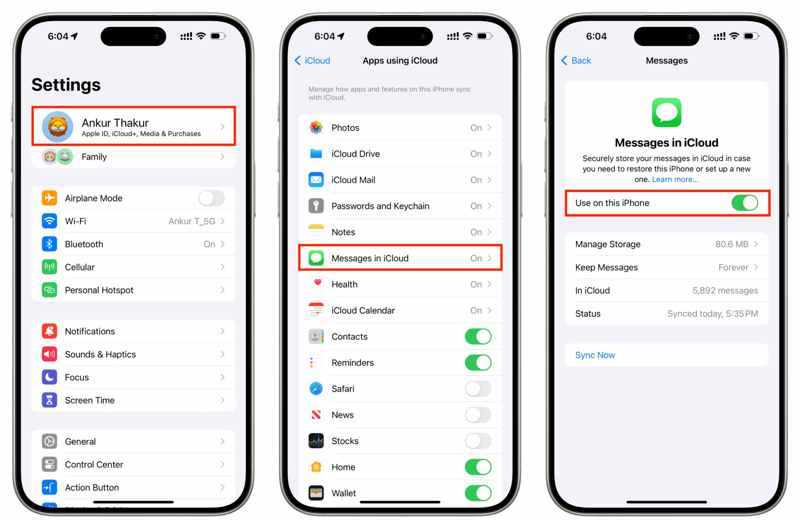
Steg 3. Tryck Meddelanden i iCloudoch slå på Använd på denna iPhone or Synkronisera denna iPhone.
Steg 4. Vänd dig till din Mac.
Steg 5. Klicka på Apple menyn och välj Systeminställningar or Systeminställningar.
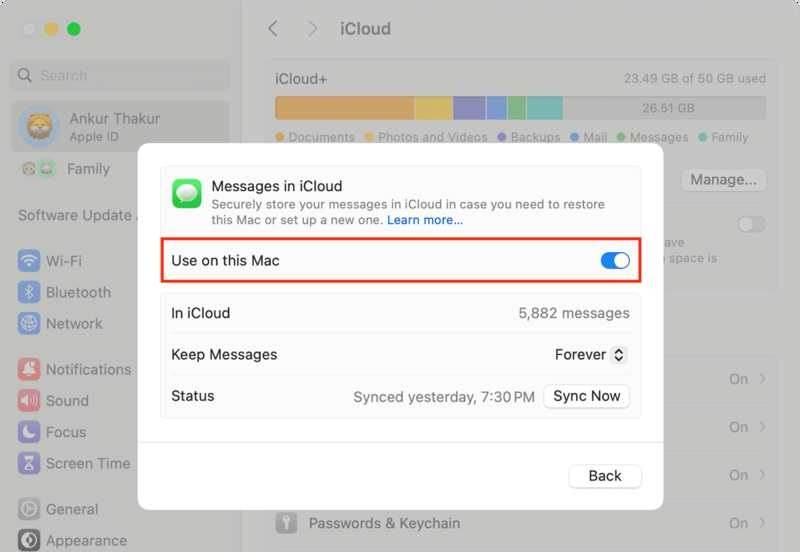
Steg 6. Klicka på ditt Apple-ID och se till att det är samma konto som kontot på din iPhone.
Steg 7. Gå till icloud, och välj Meddelanden i iCloud.
Steg 8. Möjliggöra Använd på den här Mac-datorn.
Steg 9. Kör Meddelanden-appen på din Mac.
Steg 10. Ange Apple-ID:t och lösenordet som du använder på din iPhone.
Steg 11. Tryck Logga in och vänta på att meddelandena ska laddas.
Del 2: Hur man länkar iPhone-meddelanden till Mac
Förutom att visa dina iPhone-meddelanden på din MacBook kan du också ansluta till meddelanden från din iPhone till din Mac. Med andra ord, alla iMessages du tar emot på din iPhone kommer att visas i appen på din Mac och vice versa.
Krav
1. Din iPhone ska köra iOS 8.1 eller senare.
2. Din Mac kör macOS Sonoma 14 eller senare.
3. Båda enheterna loggar in med samma Apple ID-konto.
4. Både din iPhone och Mac är online.
Här är stegen för att länka iPhone-meddelanden till Mac:
Steg 1. Kör Inställningar app på din iPhone.
Steg 2. Bläddra ner och gå till Notiser.
Steg 3. slå på iMessage, och knacka på Skicka ta emot för att ställa in eller kontrollera e-postadressen och telefonnumret.
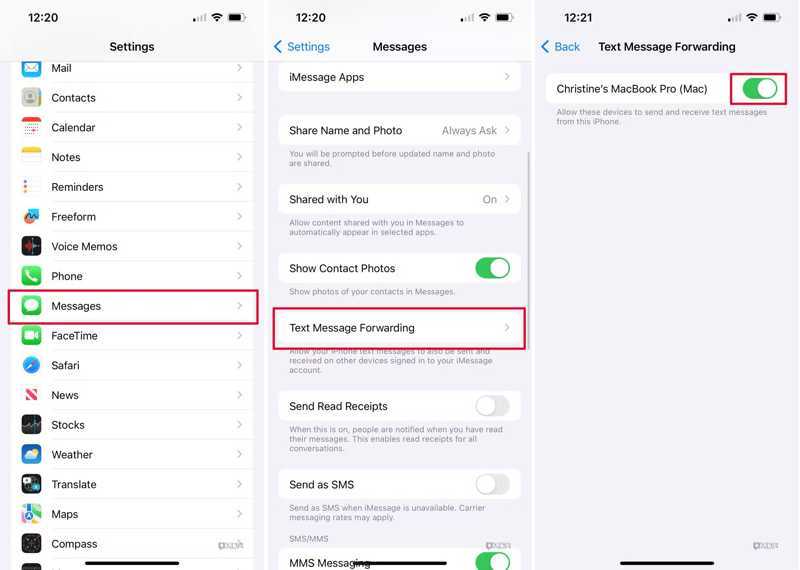
Steg 4. Sedan Välj Textmeddelande vidarebefordran, hitta din Mac och slå på reglaget.
Dricks: Om din Mac och iPhone loggar in med samma Apple-ID visas det i listan.
Steg 5. Om tvåfaktorsautentisering är aktiverad kontrollerar du verifieringskoden på din Mac-skärm.
Steg 6. Ange verifieringskoden på din iPhone och tryck på Tillåt.
Steg 7. Kör Notiser app på din Mac.
Steg 8. Klicka på Notiser menyn och välj Inställningar or preferenser.
Steg 9. Gå till iMessage flik och checka Aktivera meddelanden i iCloud.
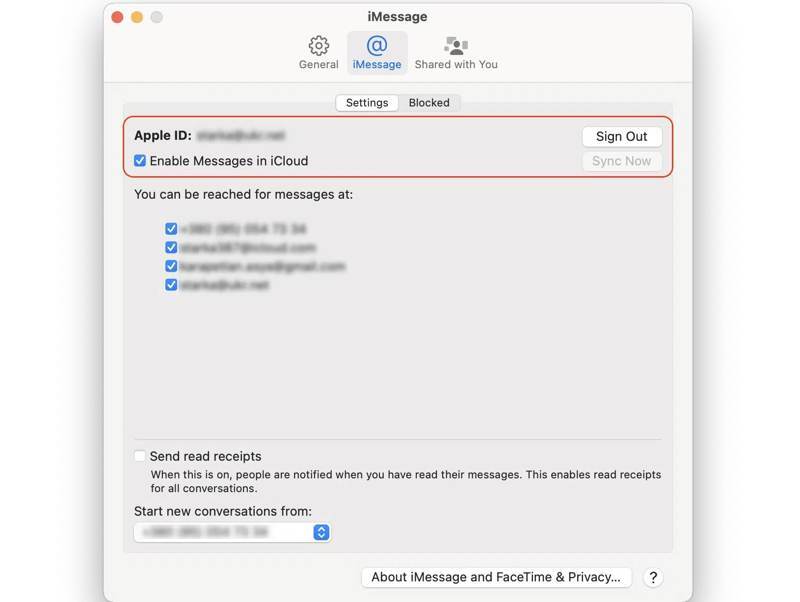
Steg 10. uppsättning Du kan nås för meddelanden kl och Starta nya samtal från enligt inställningarna på din iPhone.
Del 3: Hur man fixar iPhone-meddelanden som inte synkroniseras med Mac
Lösning 1: Kontrollera din internetanslutning
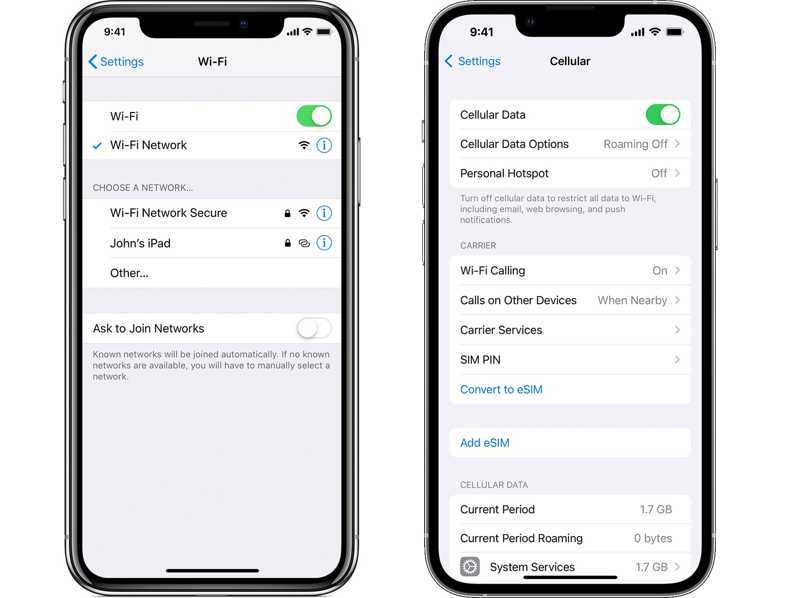
Eftersom konversationer går via en internetanslutning, om iPhone-meddelanden inte synkroniseras med din Mac, är det första du behöver göra att kontrollera ditt nätverk. Titta på internetsignalen längst upp till höger på skärmen. Om du använder dåligt Wi-Fi, byt till mobildata eller vice versa. Se till att använda ett stabilt Wi-Fi på din Mac också.
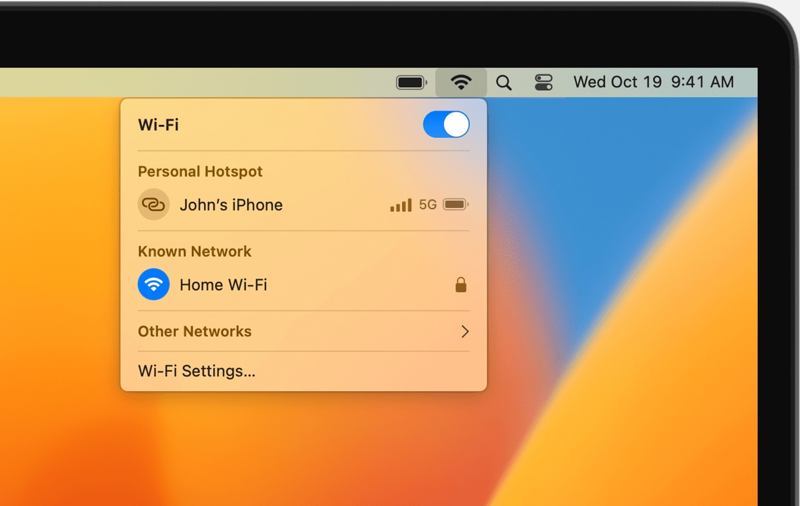
Lösning 2: Kontrollera ditt Apple-ID
Om du inte loggade in med samma Apple-ID kommer meddelanden på iPhone och Mac inte att synkroniseras. Därför bör du kontrollera ditt Apple-ID på båda enheterna innan du synkroniserar meddelanden mellan dina enheter.
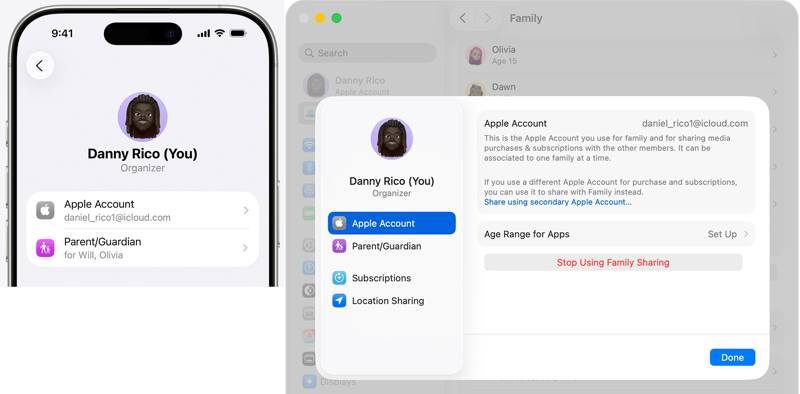
På iPhone
Kör Inställningar appen, tryck på din profil och tryck sedan på Apple-konto.
På Mac
Klicka på Apple meny, välj Systeminställningar, och klicka Apple-ID.
Jämför ditt Apple-ID. Om de är olika, logga ut från kontot på din Mac och logga in med samma Apple-ID. Du bör också ändra Apple-ID i App Store.
Lösning 3: Synkronisera iPhone-meddelanden manuellt
Förutom att automatiskt synkronisera textmeddelanden från iPhone till Mac kan du göra jobbet manuellt på dina enheter. Det tvingar fram synkroniseringar av meddelanden mellan din iPhone och Mac med en internetanslutning.
Steg 1. Tryck på din profil i Inställningar.
Steg 2. Välja icloud, knacka på Meddelanden i iCloud, och knacka på Synkronisera nu.
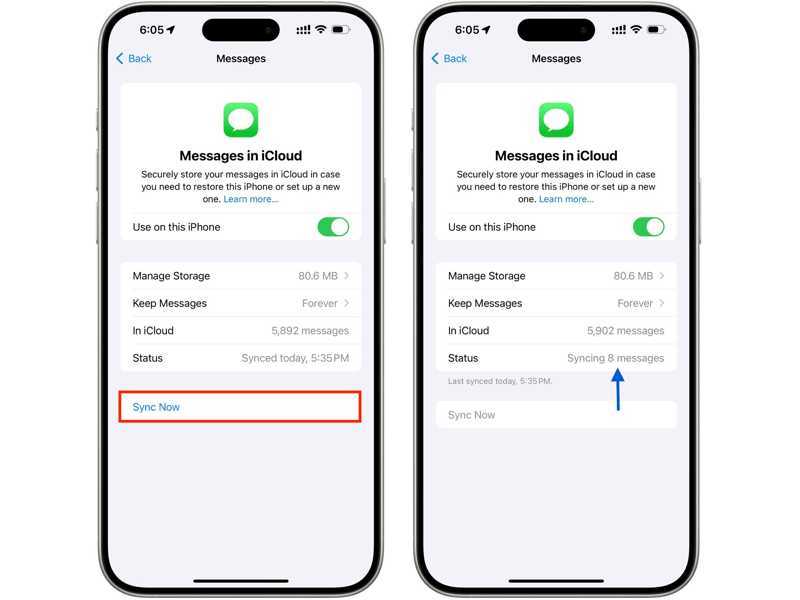
Steg 3. Kontrollera sedan Status.
Steg 4. Slå på din Mac.
Steg 5. Klicka på Apple menyn och välj Systeminställningar.
Steg 6. Träffa Apple-kontoväljer icloudoch plocka Meddelanden i iCloud.
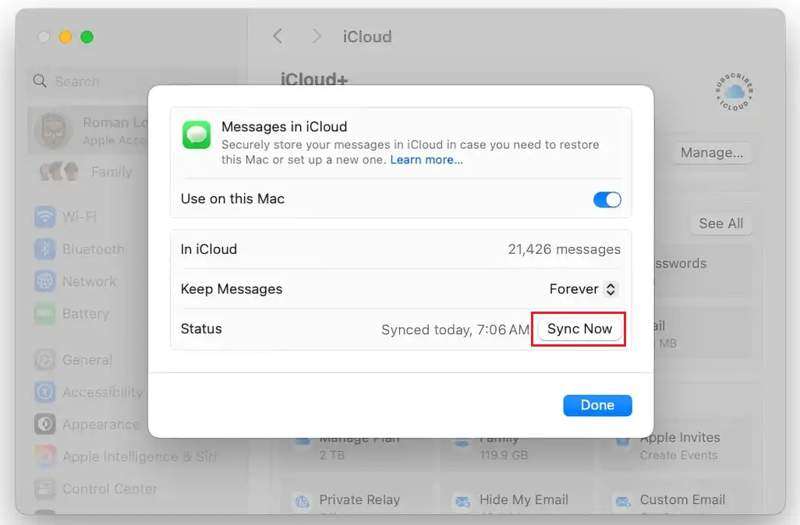
Steg 7. Klicka på Synkronisera nu knapp.
Lösning 4: Leta efter ett alternativt sätt att synkronisera iPhone-meddelanden
Om iPhone-meddelanden fortfarande inte synkroniseras med Mac kan du använda ett alternativt verktyg, till exempel Apeaksoft iPhone TransferDen låter dig synkronisera meddelanden från din iPhone till din Mac utan internetanslutning. Det intuitiva gränssnittet effektiviserar synkroniseringsprocessen.
Ett snabbt sätt att synkronisera iPhone-meddelanden till Mac med en kabel
- Synkronisera meddelanden på iPhone till Mac snabbt.
- Förhandsgranska iPhone-meddelanden för selektiv synkronisering.
- Stöd för SMS, MMS och iMessage.
- Kompatibel med de senaste versionerna av iOS och macOS.

Här är stegen för att synkronisera iPhone-meddelanden till Mac:
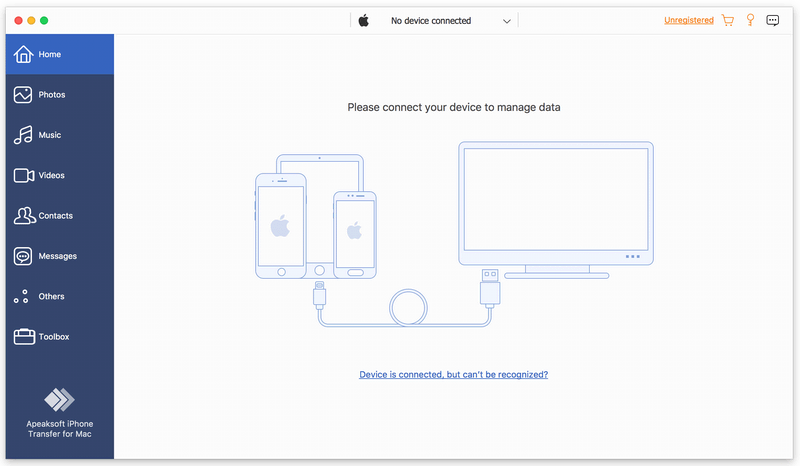
Steg 1. Anslut till din iPhone
Starta iPhone Transfer-programvaran efter att du har installerat den på din Mac. Det finns en annan version för PC. Anslut din iPhone till din Mac med en Lightning-kabel.
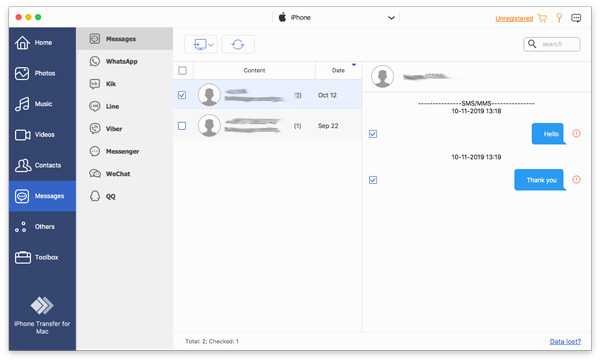
Steg 2. Förhandsgranska iPhone-meddelanden
Gå till Notiser fliken i sidofältet och visa alla meddelanden på din iPhone, inklusive WhatsApp, Messenger med mera.
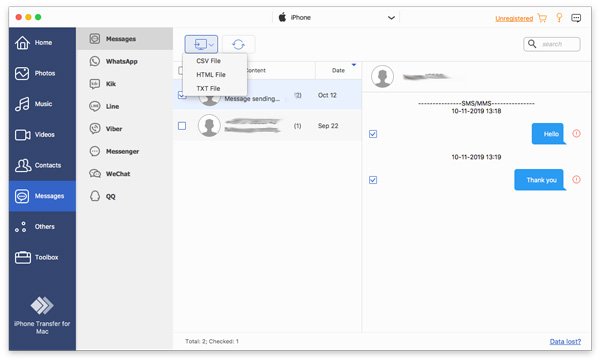
Steg 3. Synkronisera iPhone-meddelanden till Mac
Markera de meddelanden du vill synkronisera, klicka på Övervaka knappen i det övre menyfliksområdet och välj en filtyp. Navigera sedan till en utdatamapp och bekräfta synkroniseringen av iPhone-meddelandet med din Mac. Du kan också synkronisera påminnelser på iPhone och Mac med det här programmet.
Slutsats
Nu borde du förstå hur du gör synkronisera din iPhone med meddelanden på MacDu kan få åtkomst till dina meddelanden på både din iPhone och MacBook med samma Apple-ID. Dessutom berättade vi hur du tar emot och skickar meddelanden på din Mac via din iPhone. Om meddelanden slutar synkroniseras, Apeaksoft iPhone Transfer är ett bra alternativt verktyg för meddelandesynkronisering.
Relaterade artiklar
Letar du efter hur man synkroniserar kontakter från iPhone till Mac? Den här artikeln visar hur du gör det och åtgärdar problemet med att inte synkronisera. Vi introducerar även 3 andra metoder.
Vill du veta hur man överför videor från din iPhone till din dator utan att kompromissa med originalkvaliteten? Här är de mest effektiva av de sex metoderna.
Om du inte längre behöver dem kan du följa vår konkreta handledning för att snabbt ta bort gamla iPhone-säkerhetskopior på din Mac-dator.
För att spegla iPhone till Mac kan du använda Apples inbyggda funktion, AirPlay eller QuickTime Player. Vi introducerar också ett kraftfullt tredjepartsverktyg.



