How to Recover Deleted Files on PCs With or Without Backup
It can be frustrating and stressful if you accidentally delete important files on Windows. It makes sense that Microsoft has added several methods to PCs for recovering deleted files on Windows 11/10 and earlier, such as undoing deletion, the Recycle Bin folder, backup and restore, and more. They can be used in various situations. This article shares the proven methods and tells you the scenarios for each method.
页面内容:
- Part 1: How to Undo a Deleted File on Windows with Buttons
- Part 2: How to Recover Deleted Files from Windows Recycle Bin
- Part 3: How to Retrieve Deleted Files on Windows by File History
- Part 4: How to Restore Deleted Files on Windows via Backup and Restore
- Part 5: How to Recover Deleted Files with Windows File Recovery
- Part 6: How to Restore Deleted Files on Windows Without Backup
Part 1: How to Undo a Deleted File on Windows with Buttons
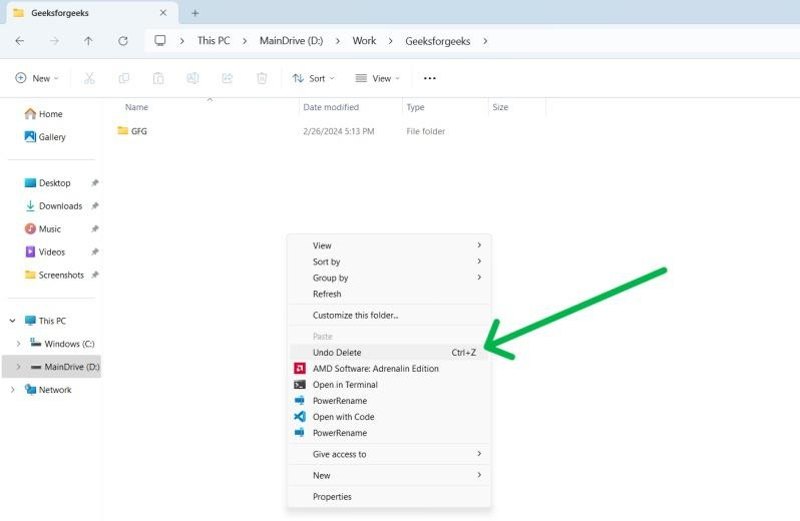
The easiest way to recover Windows deleted files is the 撤销删除 feature. This way is available once you accidentally delete a file or document on your PC. Here, you have two options:
Right-click on an empty area in the folder, and choose 撤销删除.
或按 按Ctrl + Z keys on your keyboard together to undo file deletion.
Part 2: How to Recover Deleted Files from Windows Recycle Bin
The Recycle Bin is a native feature on all Windows. When you delete a file on your PC, it will go to the Recycle Bin folder. Before you empty the Recycle Bin, you can recover deleted files on Windows 11 at any time.
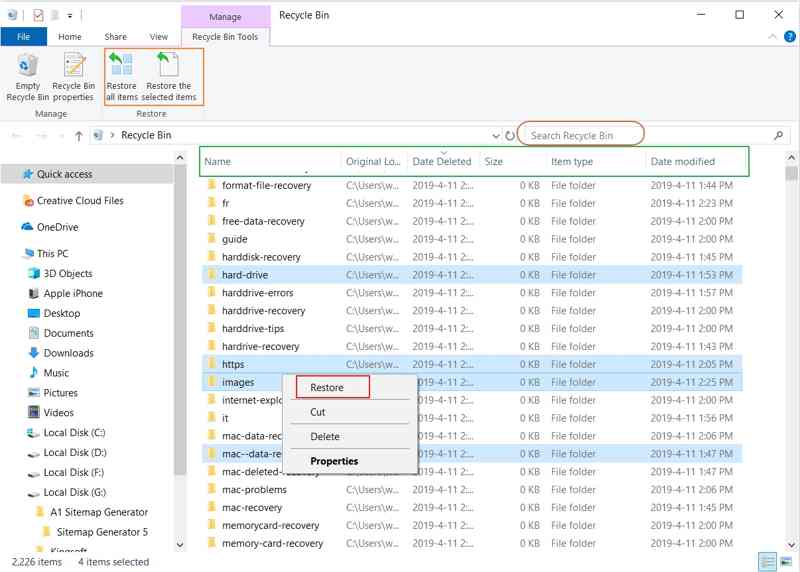
步骤 1。 打开 回收站 folder on your desktop.
提示: If you cannot find it on your desktop, open a File Explorer and choose 回收站.
步骤 2。 Sort deleted files by name, date, and size.
步骤 3。 Select a file you want to recover. To recover multiple files, press the 按Ctrl key on your keyboard and click each file or folder.
步骤 4。 Restore deleted files:
选项1: Right-click on a selected file and choose 恢复.
选项2: Open a new File Explorer and locate the destination folder.
选项3: Drag and drop the desired files from the Recycle Bin to the destination.
选项4: Expand the top ribbon, and click 恢复所选项目 ,在 回收站工具 标签。
Part 3: How to Retrieve Deleted Files on Windows by File History
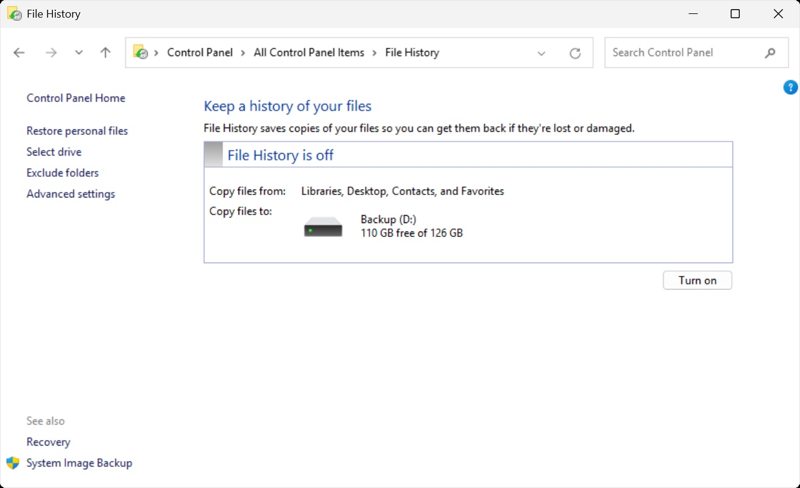
File History is a handy feature on Windows. It protects personal files and folders from accidental loss or damage. Once you turn on this feature, it automatically saves copies of your files. As a result, you can recover recently deleted files on Windows.
Configure File History
步骤 1。 打开 控制面板.
步骤 2。 从我们的数据库中通过 UL Prospector 平台选择 使用文件历史记录保存文件的备份副本 下 系统和安全.
步骤 3。 点击 打开 to enable File History.
Retrieve Deleted Files on Windows
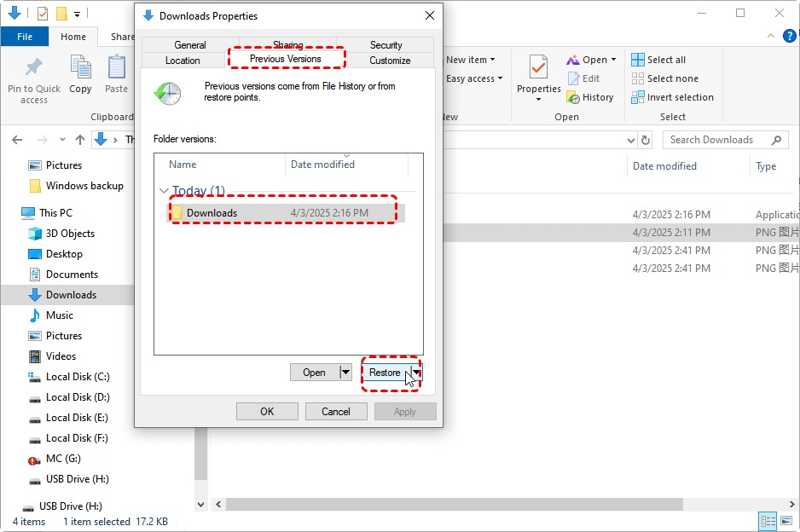
步骤 1。 Run a File Explorer and navigate to the folder that stores the deleted files.
步骤 2。 右键单击该文件夹,然后选择 查看房源.
步骤 3。 切换到 以前的版本 标签。
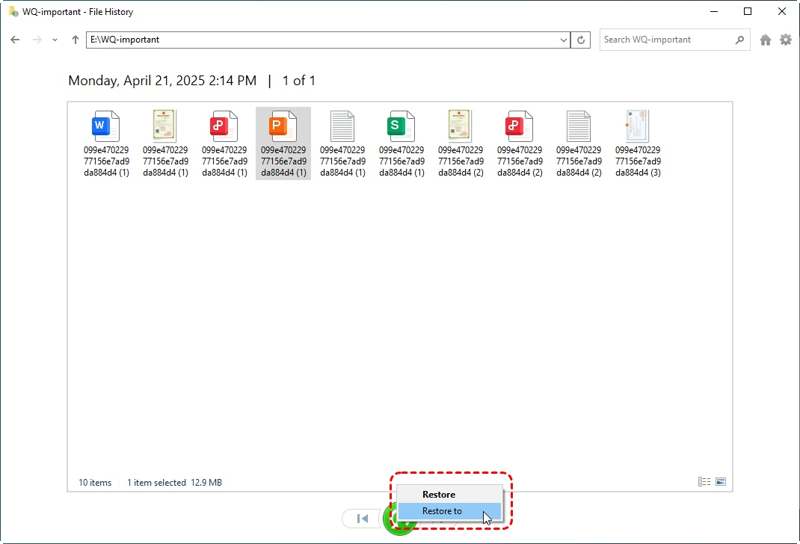
步骤 4。 Select a version of the folder and click the 恢复 button. If you want to restore specific files on Windows, click the 箭头 按钮旁边 可选,并选择 在文件历史记录中打开.
步骤 5。 Select the desired files and click the 恢复 按钮。
Note: If you wish to keep the current version of the deleted files, expand the Restore button and choose 恢复到. Then, select another location.
Part 4: How to Restore Deleted Files on Windows via Backup and Restore
The built-in backup and restore feature enables you to recover deleted files on PCs. It is even available to recover permanently deleted files from the Recycle Bin on Windows. The prerequisite is that you have created a backup.
步骤 1。 按 Win 和 I 键盘上的键打开 个人设置 应用程序。
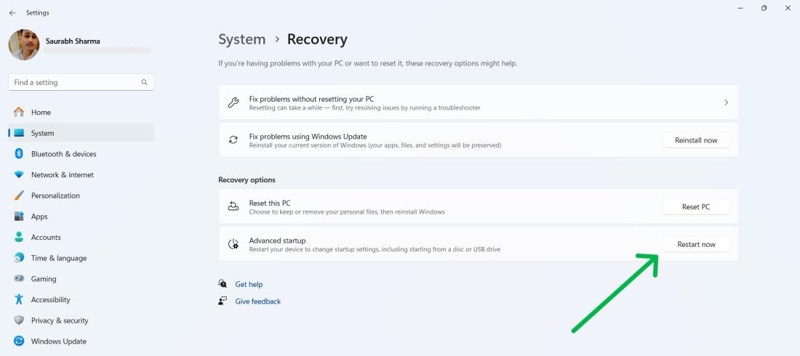
步骤 2。 在MyCAD中点击 软件更新 系统 on the sidebar, and choose 恢复.
步骤 3。 点击 立即重新启动 按钮下 恢复选项 部分。
步骤 4。 导航 疑难解答, 接着 高级选项 on the setup menu screen.
步骤 5。 选择 See more recovery options和点击 系统映像恢复.
Part 5: How to Recover Deleted Files with Windows File Recovery
Windows文件恢复 is an independent tool released by Microsoft for recovering deleted files on Windows 11/10. By default, it is not installed on Windows. You need to download it from the Microsoft Store. Moreover, it works with command lines and requires somewhat technical skills.
步骤 1。 Go to the Microsoft Store, search for Windows文件恢复,然后安装它。
步骤 2。 Run the deleted file recovery tool.
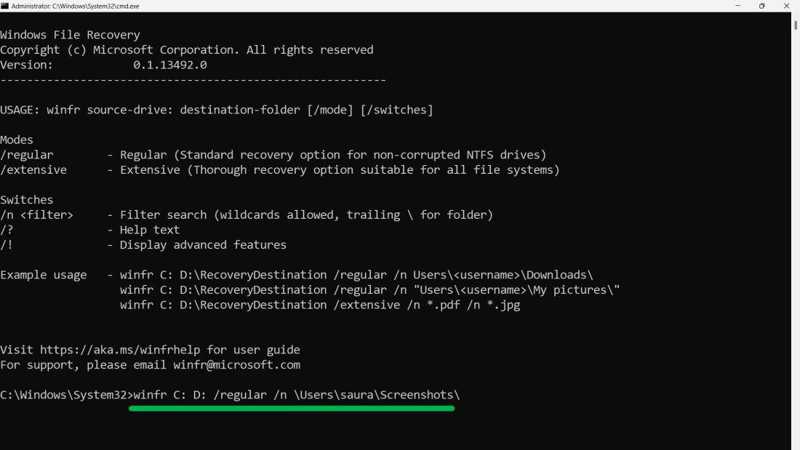
步骤 3。 输入下面的命令并点击 输入 to execute it.
winfr C: D: /regular /n Users
提示: 更换
Part 6: How to Restore Deleted Files on Windows Without Backup
Can you recover deleted files on Windows 11? Yes. If the pre-installed features are unavailable, you have to use a powerful data recovery tool, such as Apeaksoft数据恢复. Plus, the user-friendly interface makes it easy to navigate.
一键访问已删除的 YouTube 视频
- Recover any deleted files on PCs without backup.
- Support a wide range of file types, including emails.
- Work for both local drives and external devices.
- 预览丢失的文件以进行选择性数据恢复。
- 兼容 Windows 11/10/8/7/XP/Vista。

How to Restore Permanently Deleted Files on Windows
步骤 1。 安装最好的数据恢复工具
Start the best data recovery tool after installing it on your PC. Go to the 硬盘恢复 tab, select the desired disk, and click the 开始扫描 按钮。
步骤 2。 预览已删除的文件
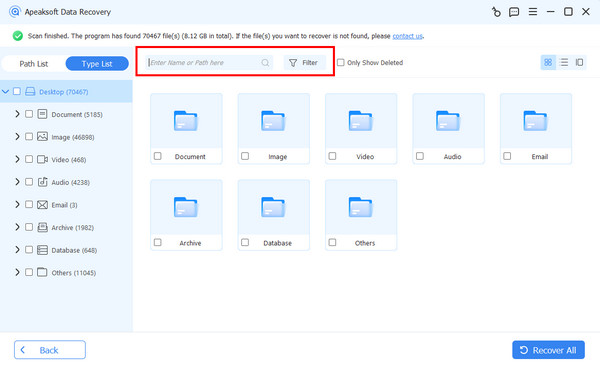
After data scanning, all recoverable files are organized by type and location. Go to the 类型列表 tab, check the data types you want to restore.
步骤 3。 恢复已删除的文件
Select the deleted files you want to recover, and click the 全部恢复 button. Set an output folder and confirm file recovery. If a desktop folder is missing on Windows, you can also use this program to recover it.
结语
Following our guide, you should learn at least six ways to recover Windows deleted files in various situations. The Undo Delete and Recycle Bin are simple ways for recently deleted files. The File History and built-in backup features are available for file recovery on PCs. Apeaksoft数据恢复 allows you to recover any lost files from your machine without a backup.
相关文章
您可以在忘记密码提示和Microsoft帐户时重置Windows 8密码。 以下是获取Windows 8密码恢复的分步指南。
不知道如何在安卓手机上找到回收站来恢复已删除的照片或文件?本文将详细介绍如何从安卓手机恢复回收站。
如果您在没有格式化的情况下升级了Windows安装,则可以通过Windows.old还原将文件从旧系统有效恢复到新系统。
Google 可以备份和恢复您的设备,妥善管理您的数据。本指南将向您展示如何在 Android 设备上恢复 Google 备份。