

如何快速将 MacBook Pro 恢复出厂设置

将 MacBook Pro 恢复出厂设置 恢复出厂设置是指将笔记本电脑恢复到出厂状态。您可能需要对设备进行恢复出厂设置的原因有很多。例如,在出售您的 MacBook Pro 之前,您必须将其恢复出厂设置并清除所有数据以保护您的信息。此外,当您的笔记本电脑被锁定、屏幕冻结或无响应等问题出现时,恢复出厂设置也是重要的故障排除步骤。
页面内容:
第一部分:开始恢复 MacBook Pro 之前
由于将 MacBook Pro 恢复出厂设置会清除笔记本电脑上的所有数据,因此最好使用 Time Machine 备份设备。此外,您还需要注销设备上的所有服务和帐户。
使用 Time Machine 备份 MacBook Pro
步骤 1。 将备份存储设备插入笔记本电脑。
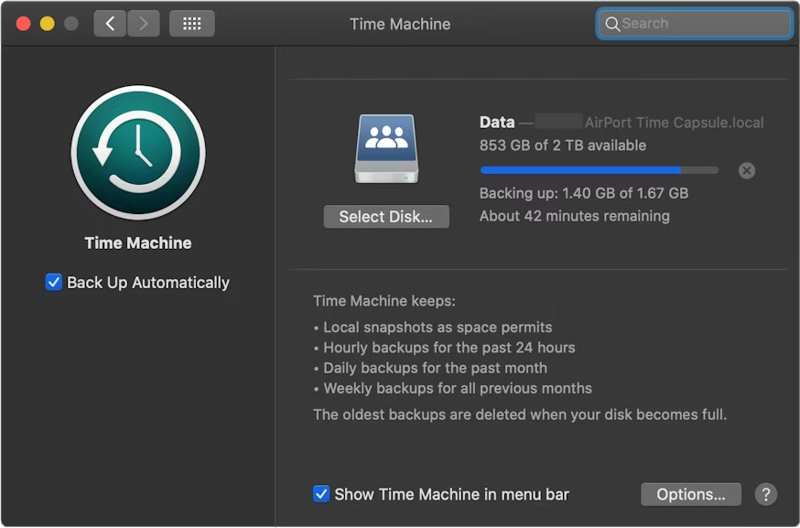
步骤 2。 点击 Apple 菜单并选择 系统设置 or 系统偏好设定.
步骤 3。 点击 常规操作 在侧边栏上,选择 时间机器.
步骤 4。 击中 添加备份磁盘 或打 添加 按钮。
步骤 5。 接下来,选择您的备份存储设备,然后单击 设置磁盘.
步骤 6。 请按照屏幕上的指示设置备份存储设备。
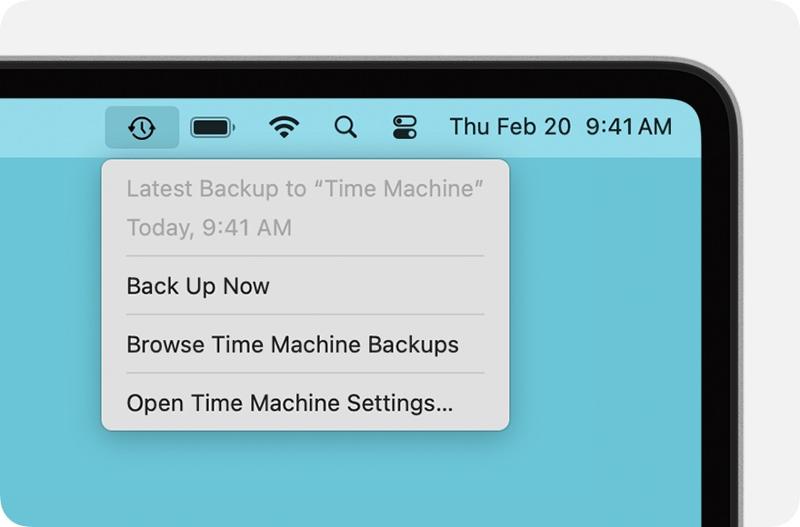
步骤 7。 设置完成后,点击 时间机器 顶部功能区上的菜单,然后选择 立即备份 在将 MacBook Pro 恢复出厂设置之前,请先备份您的数据。
退出帐户
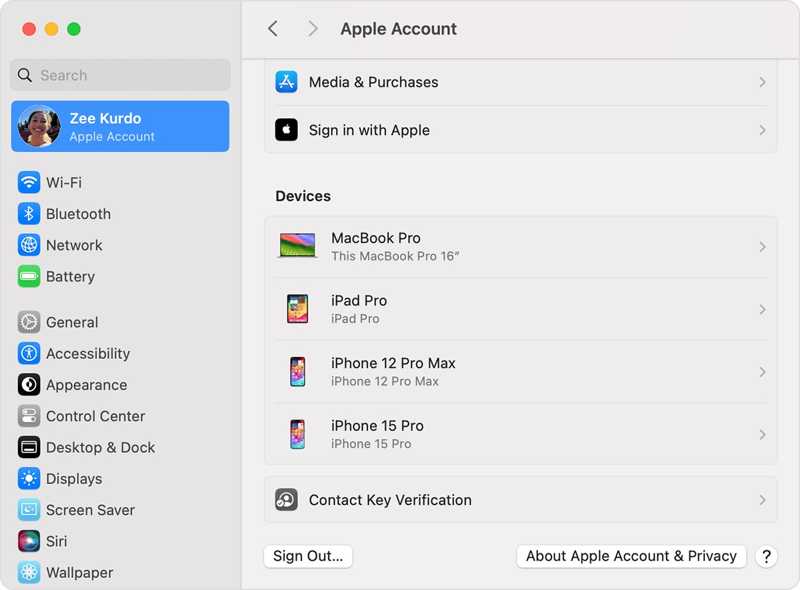
要将 MacBook Pro 完全恢复到出厂默认设置,您必须注销添加到您电脑上的所有帐户。
在 macOS Catalina 或更高版本中,选择 系统设置 or 系统偏好设定 在您的 Apple 菜单。关闭 查找我的Mac。 然后,点击 在 Apple 帐户中,向下滚动并点击 退出登录.
在 macOS Mojave 或更早版本中,选择 系统偏好设定 ,在 Apple 菜单。 请点击 iCloud的,并击中 退出登录.
另外,你最好退出 iMessage、FaceTime 和其他服务。
第二部分:如何从设置中恢复 MacBook Pro
如果您的 MacBook Pro 已更新至 macOS Ventura 或更高版本,恢复出厂设置最简单的方法是使用系统设置中的内置功能。此方法可以在正常模式下完成恢复。
步骤 1。 点击 Apple 任何屏幕上的菜单。
步骤 2。 在MyCAD中点击 软件更新 选择“系统设置” 常规操作和点击 转移或重置.
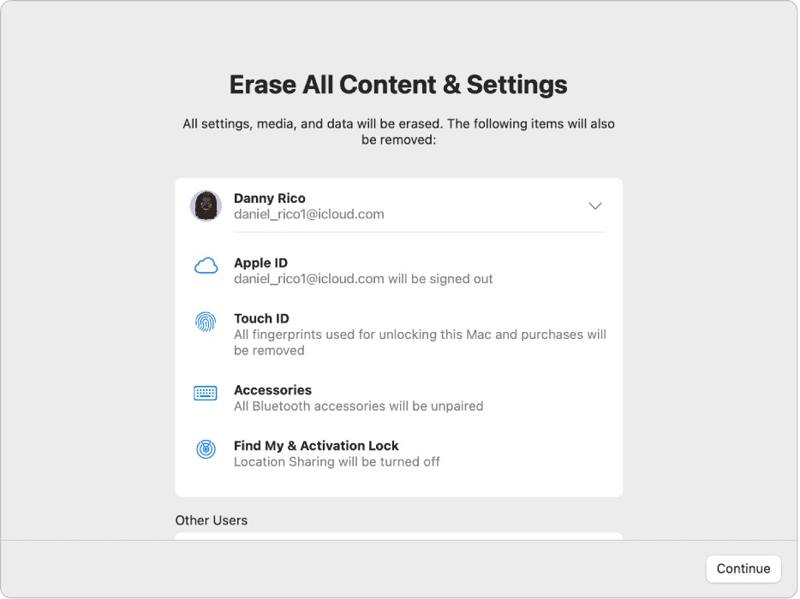
步骤 3。 点击 抹掉所有内容和设置 选项。
步骤 4。 如果系统提示,请输入您的 Apple ID 密码或管理员密码。
步骤 5。 阅读警报并点击 继续 开始恢复您的 MacBook Pro。
第三部分:如何使用磁盘工具将 MacBook Pro 恢复出厂设置
如果无法通过系统设置将 MacBook Pro 恢复出厂设置,或者您使用的是 macOS Monterey 或更早版本,则必须将笔记本电脑置于恢复模式,然后使用磁盘工具重置它。
注意: 你最好确保你已经 已将 MacBook 备份到 iCloud 或提前进行其他储存。
步骤 1。 去 Apple 菜单并选择 关闭 关闭笔记本电脑电源。如果屏幕无响应,请长按 电力 一直按按钮直到它变成黑色。
步骤 2。 按住 电力 按下按钮打开你的Mac,然后立即按下 命令-R 键直到出现 Apple 标志。
提示: 如果您的 MacBook Pro 配备的是 Apple Silicon 或 Apple T2 安全芯片,请按住 电力 笔记本电脑开机后按下按钮。
步骤 3。 出现提示时,请输入您的管理员密码。然后,您将看到两个选项:
选项1:
步骤 4。 点击 磁盘工具 选项一旦 macOS公用程序 窗口弹出。

步骤 5。 点击 继续 按钮继续。
步骤 6。 现在你应该能看到启动磁盘。如果你有数据磁盘,请选择它,然后单击。 编辑,选择 删除APFS卷,并击中 删除.
步骤 7。 接下来,选择启动磁盘。默认情况下,它是: Macintosh HD.
步骤 8。 点击 抹去 按钮。
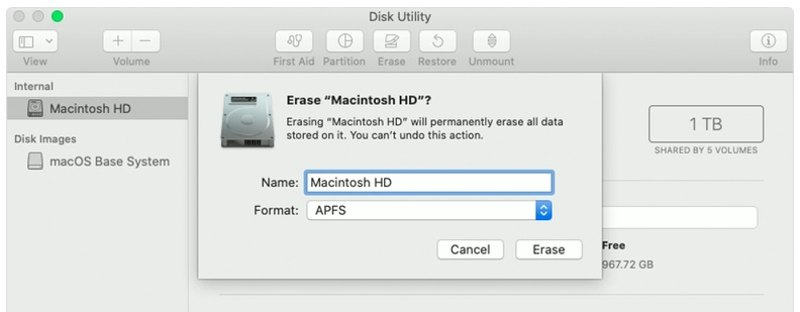
步骤 9。 类型 Macintosh HD 输入名称并选择格式。
步骤 10。 点击 抹去 再次按钮。
步骤 11。 如果系统提示,请输入您的 Apple ID 密码或管理员密码。
步骤 12。 等待 MacBook Pro 恢复出厂设置完成。
步骤 13。 完成后,您将被带到 macOS公用程序 屏幕上。
步骤 14。 选择 重新安装macOS 然后按照屏幕上的指示设置您的笔记本电脑。
选项2:
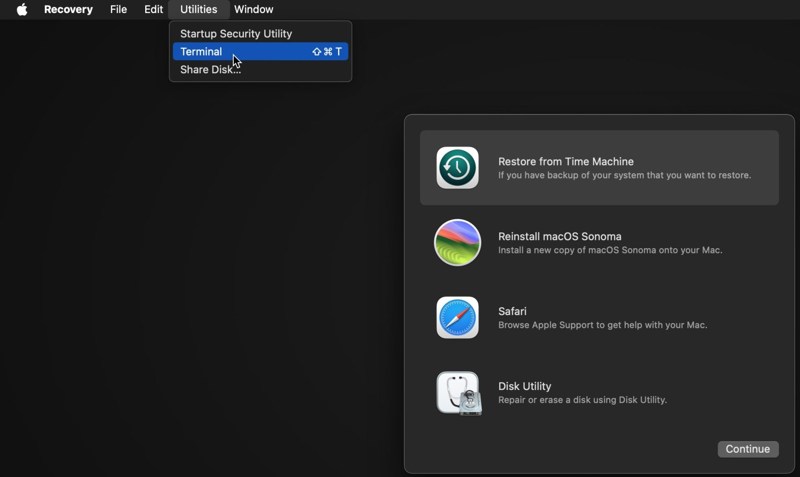
步骤 4。 点击 工具 菜单并选择 终端.
步骤 5。 类型 diskutil列表 然后按 回程 按键盘上的键来识别启动磁盘。
步骤 6。 接下来,执行以下命令:
diskutil eraseDisk APFS "Macintosh HD" disk0
提示: 如果您的 Mac 配备的是机械硬盘而不是固态硬盘,请执行以下命令: diskutil eraseDisk HFS+J "Macintosh HD" disk0.
diskutil eraseDisk HFS+J "Macintosh HD" disk0.
步骤 7。 然后,使用以下命令下载最新版本的 macOS:
softwareupdate --fetch-full-installer --full-installer-version [数字].
步骤 8。 输入 sudo /Applications/Install macOS Sequoia.app/Contents/Resources/startosinstall --eraseinstall --newvolumename "Macintosh HD",并击中 回程 重新安装macOS。
步骤 9。 MacBook Pro 重启后,进行设置。
第四部分:如何在恢复 MacBook Pro 后恢复数据
恢复 MacBook Pro 后,所有数据都将被清除。幸运的是, Apeaksoft数据恢复 它可以帮您解决这个问题。它可以扫描您的硬盘,无需备份即可恢复丢失的数据。
一键访问已删除的 YouTube 视频
- 一键恢复MacBook Pro上丢失的数据。
- 适用于多种情况,例如恢复出厂设置、意外删除等。
- 支持各种数据类型。
- 预览丢失的文件以便选择性恢复。
- 兼容 macOS 10.7 及以上版本。

如何在恢复出厂设置后恢复 MacBook Pro 上的数据
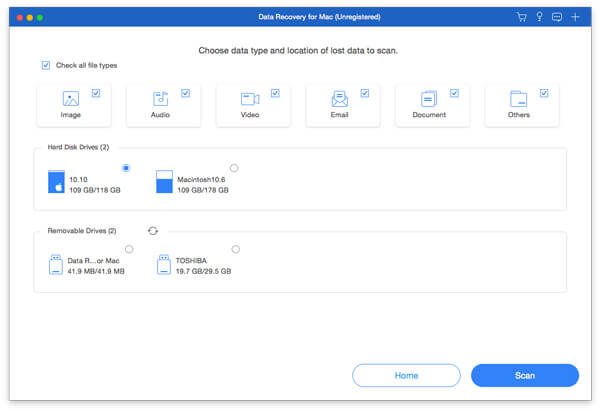
步骤 1。 选择数据类型
在 MacBook Pro 上安装最佳 Mac 数据恢复软件后,启动该软件。选择要恢复的数据类型,例如 图像,音频,视频等等。然后,选择丢失文件所在的磁盘。单击 Scan 扫描 按下按钮开始扫描Mac。
步骤 2。 预览丢失的文件
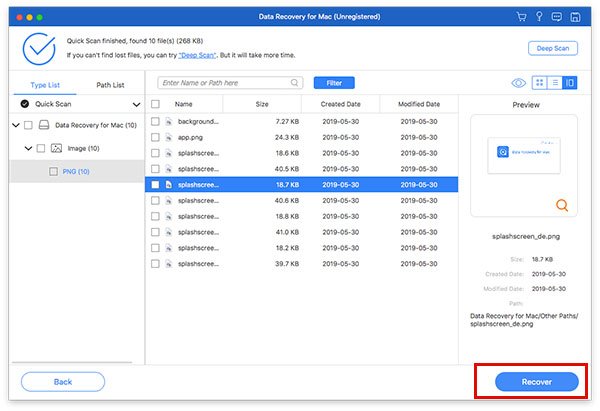
扫描完成后,请前往 类型列表 在选项卡中,按类型预览丢失的数据。您还可以在特定位置找到丢失的数据。 路径列表 选项卡。如果找不到所需文件,请单击“ 深层扫描 按钮执行深度扫描。
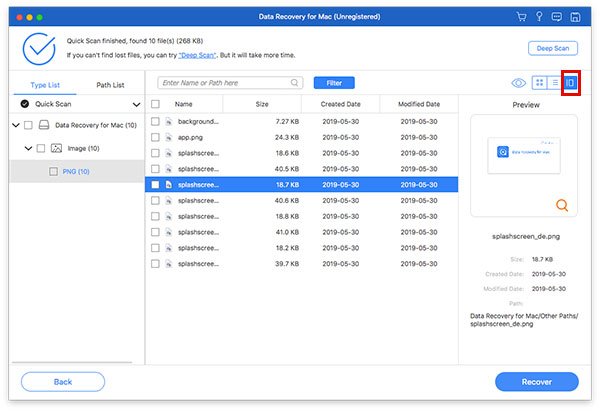
步骤 3。 恢复 MacBook Pro 上的文件
请务必选择所有要恢复的文件和项目,然后单击 恢复 按钮。设置输出文件夹,然后再次点击“恢复”。此程序甚至可以 在 Mac 上恢复已删除的消息.
结语
现在,你应该明白了 如何将MacBook Pro恢复为出厂设置对于较新版本,您可以在“系统设置”应用中执行恢复出厂设置。对于较旧版本,您可以在恢复模式下执行此操作。 Apeaksoft数据恢复 能够在MacBook Pro恢复出厂设置后恢复丢失的数据。无需备份。
相关文章
不小心删除了Mac上你喜欢的照片?别担心。本文将帮助你恢复Mac上已删除的照片。
Mac 上的恢复模式是一种内置模式,专为恢复 Mac 和修复磁盘问题而设计。 在这里您将学习如何在 Mac 上进入和使用恢复模式。
哪款 Mac 数据恢复软件最好?以下是一份包含评论的十大软件列表,旨在帮助您找到最佳软件,安全快速地恢复 Mac 上的数据。
本文详细介绍了Mac上的Internet恢复,如何进入Mac Internet Recovery模式以及解决非工作问题的解决方案。



