關於我們

How to Finish iPhone Messages Indexing: 8 Proven Fixes

Many iPhone users find that their messages keep indexing after an update and show a "More results will be shown once Message finished indexing" message. This is especially normal on older iPhone models updating to a newer iOS version. If you're wondering how to fix the messages indexing issue, read this guide, and it will give you effective solutions.

Part 1: What Does Messages Indexing on iPhone Mean

If you search for a message on your iPhone and see the notification "More results will be shown once Message finished indexing," it means your device is scanning all the texts, messages, and attachments and creating a searchable database in the background. This process is called indexing. iPhone messages indexing usually happens after restoring your iPhone from a backup or updating to a newer iOS version. At this time, if you can't find certain messages, it doesn't mean they're permanently lost, they may appear once the indexing finishes.

Part 2: Why Do My Messages Keep Indexing on iPhone

Normally, the indexing process only takes a few seconds to several minutes. If your iPhone keeps indexing messages for hours or even days, there may be underlying issues. Common issues include:

  • 網絡問題: A poor network will interrupt the messages syncing and delay indexing.
  • 儲存空間不足: If storage is nearly full, the process may get stuck.
  • Large amount of data: Too many messages or media attachments may slow down the indexing process.
  • Incompatible backup: Restoring your iPhone from an incompatible backup, especially if it's from an older iOS version, can lead to indexing problems.

Part 3: How to Finish Indexing Messages on iPhone - 8 Fixes

How to speed up message indexing on iPhone?

Fix 1. Restart your iPhone

The easiest method is always the most efficient solution. The first thing you should do is reboot your iPhone. A quick restart can refresh the system and resolve the minor glitches.

  • iPhones with Face ID: Press and hold the Side and Volume buttons at the same time, then drag the slider to power off your iPhone.
  • iPhones with Touch ID: Press and hold the Side button, then drag the slider to power off your iPhone.

After your iPhone is shut down, wait for 20-30 seconds, then power on your device again.

Fix 2. Adjust Search Indexing Settings

The search indexing settings are closely related to the messages indexing results. If you disable some settings, it may cause the iPhone not indexing messages issue.

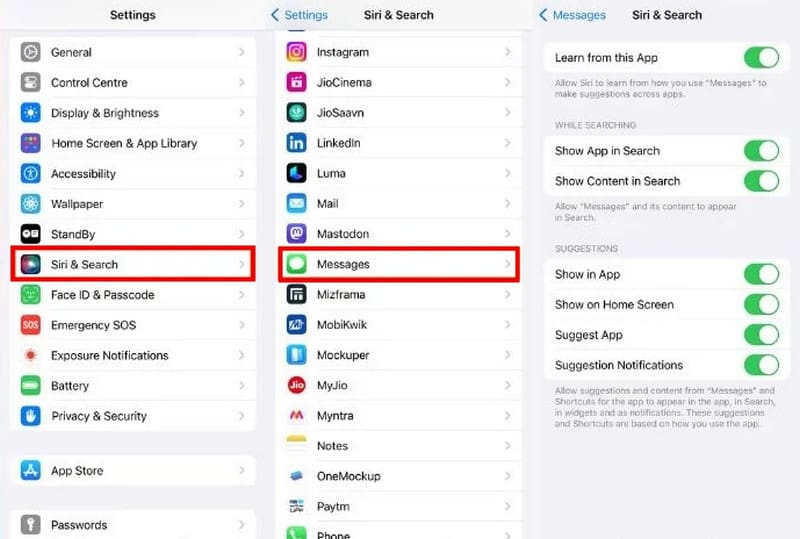
步驟二 造訪 設定 > Siri和搜索.

步驟二 Scroll down to find and select 收件箱.

步驟二 Toggle on all the options on this page. If any settings are disabled, you need to enable them.

Adjust Search Indexing Settings

Fix 3. Turn off and on iCloud Messages

If you use Messages in iCloud, iCloud同步 issues may be the major reason that makes your iPhone messages indexing get stuck. Turning Messages in iCloud off and back on may resolve the problem.

步驟二 造訪 設定 > [你的名字] > iCloud的.

步驟二 發現 收件箱 and toggle it off. Wait a few seconds, then toggle it on again.

步驟二 Make sure your iPhone is connected to Wi-Fi and wait for the sync to complete.

Fix 4. Update the Latest iOS Version

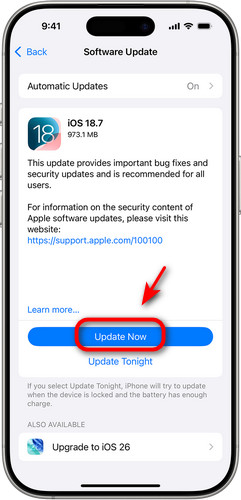
You can upgrade your iPhone to the latest version to fix the messages indexing issue. To do this, open 設定 並選擇 一般規格。 龍頭 軟件更新 to check if there is an available update, then tap 下載並安裝 繼續。

Update the Latest iOS Version

Fix 5. Disable and Enable iCloud Backup

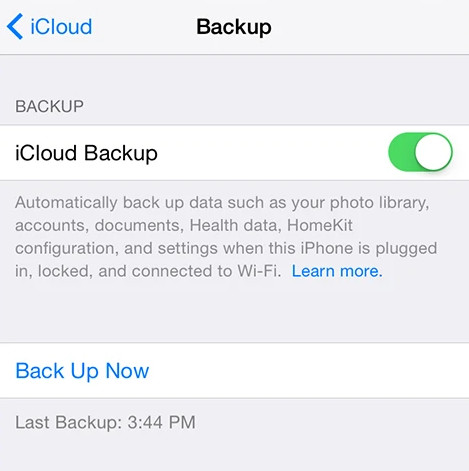
You can turn off iCloud backup temporarily to see if the iPhone messages indexing issue is fixed. Go to 設定 > [你的名字] > iCloud的。 禁用 iCloud的備份 and restart your iPhone. If your problems are solved, enable iCloud的備份 again to avoid accident data loss.

啟用iCloud備份

Fix 6. Check iPhone Language Settings

Incorrect language settings can prevent iPhone messages from indexing.

步驟二 未結案工單 設定 > 一般規格 > 語言和地區.

步驟二 Check whether the current iPhone language is set correctly.

步驟二 返回到 設定 頁面並點擊 Siri和搜索. Tap Languages and make sure Siri is using the same language as your iPhone.

Fix 7. Check iPhone and iCloud Storage

If your iPhone's memory is running slow, it may affect the iPhone messages indexing process. To check your iPhone's storage, open 設定 > 一般規格 > iPhone存儲. If your storage is full, consider deleting large or unused files, photos and apps to free up storage space.

You should also check your iCloud storage space. Go to 設定 > [你的名字] > iCloud的. You'll see a bar showing how much iCloud storage you've used and how much is available. Clear your iCloud storage if it's insufficient.

Fix 8. Reset All Settings

Resetting your settings may help fix this issue. This process will erase all your settings, including network preferences, keyboard settings, and privacy configurations.

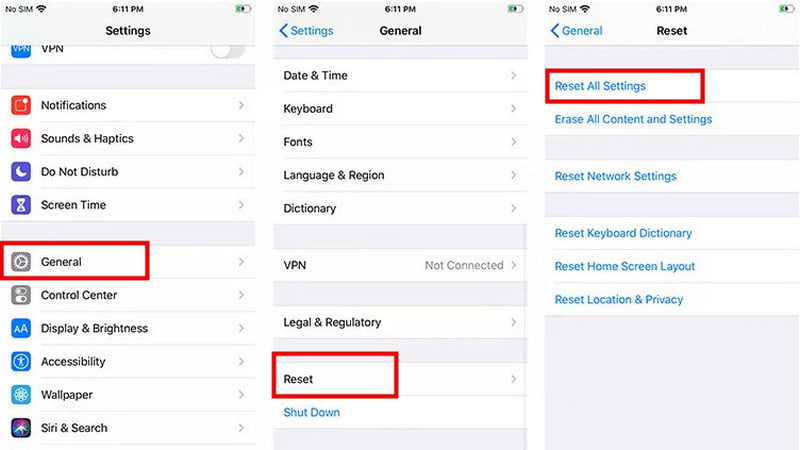
步驟二 未結案工單 設定 > 一般規格 > 重設.

步驟二 選擇 復位所有設置.

步驟二 You may be required to enter your passcode to confirm the action.

復位所有設置

Part 4: How to Recover Messages That Don't Appear After Indexing

If certain messages don't show up after finishing indexing messages on iPhone, does it mean you lost your messages forever? Not yet! Apeaksoft iPhone數據恢復 can help you recover the lost messages after indexing! Whether the data was lost after a factory reset, accidental deletion, or system glitches, this powerful tool can recover it from your iPhone, iPad, or iPod safely.

Apeaksoft iPhone數據恢復 Trustpilot 評論

下載量超過 1,000,000 用戶

  • Recover lost or deleted messages in various scenarios.
  • 從 iOS 裝置或 iTunes/iCloud 備份還原資料。
  • Retrieve photos, documents, notes, and more data types.
  • Support almost all iOS system versions and models.
免費下載

安全下載

免費下載

安全下載

iPhone數據恢復

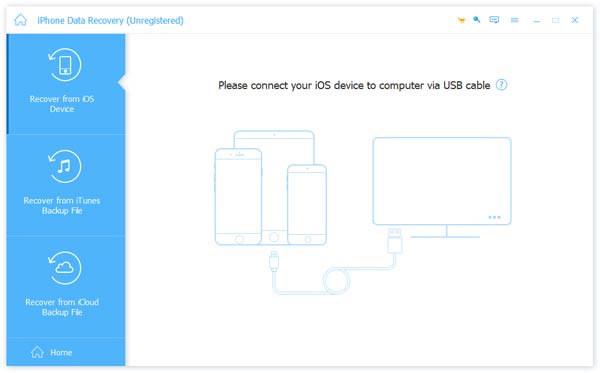
步驟二 Open the program and choose 從iOS設備恢復 from the interface, then connect your iOS devices via USB. Tap 信任 信任你的電腦。

入門

步驟二 在操作欄點擊 開始掃描 按鈕,它將掃描您 iPhone 上的所有資料。

開始掃描

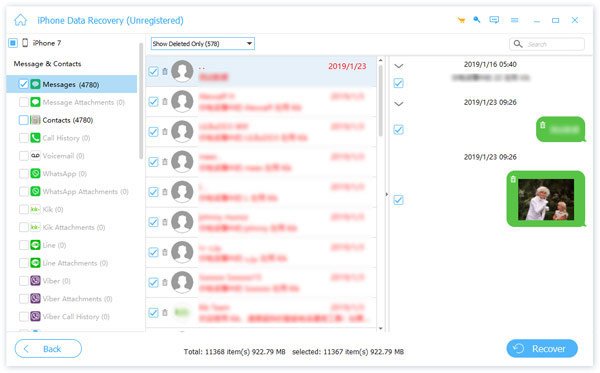
步驟二 After scanning, you can preview all recoverable data. Select the data you want to recover, then click the 恢復 右下角的按鈕。

預覽已刪除的文本消息

結語

日期 messages indexing on iPhone takes too long, it can be really frustrating and make it feel like some messages have disappeared forever. However, in most cases, the issue can be resolved by trying the 8 fixes outlined in this guide. If you've tried them and still can't find certain messages, you can use Apeaksoft iPhone Data Recovery to recover your lost messages!

iPhone數據恢復圖標 Apeaksoft iPhone數據恢復

從 iOS 裝置、iTunes 和 iCloud 備份中還原已刪除或遺失的資料。

免費下載

安全下載

免費下載

安全下載

相關文章

George Connor
George Connor

專長: iOS 問題 · 心智圖 · 更改位置 · 解鎖 iOS

喬治·康納是Apeaksoft的編輯,專門負責iOS故障排除和設備管理工具。他擁有豐富的iOS實用工具測試經驗,並撰寫有關修復iOS問題、解鎖設備和管理位置設定的教學。