

How to Restore Backup to a New iPhone: Step-by-Step Guide

"I just upgraded to iPhone 17, but how do I migrate my data to the new iPhone?"
If you have the same question, you're not alone. Many users are unsure how to restore their data when switching to a new iPhone. Fortunately, Apple provides several ways to bring your existing data to a new device. In this guide, we'll walk you several through these simple ways to restore a backup to a new iPhone 快速安全。
頁面內容:
Part 1: How to Restore iCloud Backup to a New iPhone
iCloud is a cloud service provided by Apple for iOS users to back up and transfer data. Every iPhone user gets 5 GB of free iCloud storage, and you can purchase additional space if needed.
With iCloud, you can easily restore your backup to a new iPhone wirelessly. Before getting started, make sure that a recent iCloud backup is available in your account.
步驟二 Turn on your new iPhone, and you will see the welcome screen. If you have already set it up, go to 設定 > 一般說明 > 轉移或重置 iPhone 並選擇 抹掉所有內容和設置 執行恢復出廠設置。
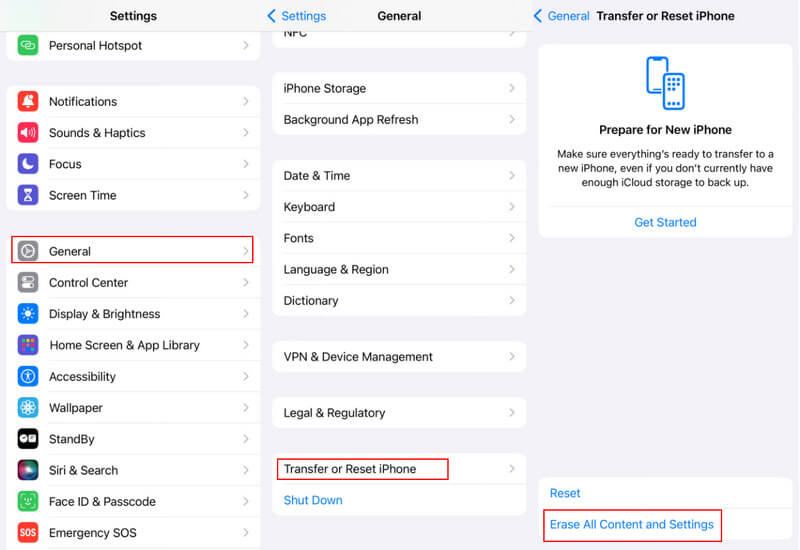
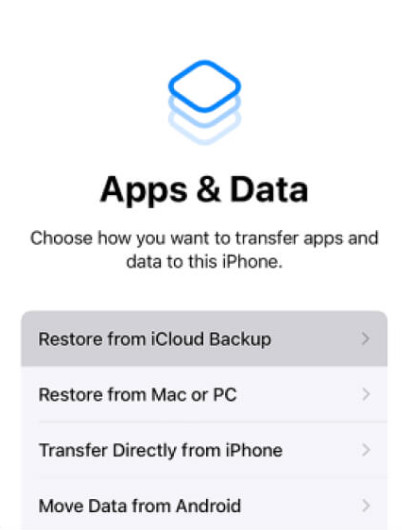
步驟二 上 應用和數據 屏幕,點擊 從iCloud Backup還原 from the options and then sign in to the iCloud account that contains the backup.
步驟二 Next, pick up the relevant iCloud backup you want to restore to the new iPhone. After that, the data will start transferring to the new iPhone.
提示: If you get a message asking you to install the new version of iOS, follow the steps to update.
步驟二 When prompted, sign in with your Apple ID and password to restore apps and purchase content to the new iOS device.
步驟二 After iCloud backup is restored to the new iPhone, finish setup, and you can enjoy the new device.
- Allows wireless restoration without a computer or cable.
- Built-in restore solution.
- Requires stable Wi-Fi.
- Needs enough iCloud storage. You may need to pay for that.
- Data overwriting.
Part 2: How to Restore Backup to a New iPhone Using iTunes/Finder
You can also restore a new iPhone from a previous backup using iTunes or Finder. iTunes works on Windows and older macOS versions, while Finder is used on macOS Catalina and later. Similar to iCloud backup, iTunes will restore all backup data to the new iPhone. However, it relies on a physical connection, but not wireless.
Restore Backup to a New iPhone Using iTunes
步驟二 Hook up the target iPhone to your PC or Mac with a USB cable. Then launch the latest version of iTunes. When prompted, tap Trust This Computer on your iPhone screen.
提示: If iTunes無法檢測到您的iPhone 正確地,斷開iPhone,然後將其重新連接到您的計算機。
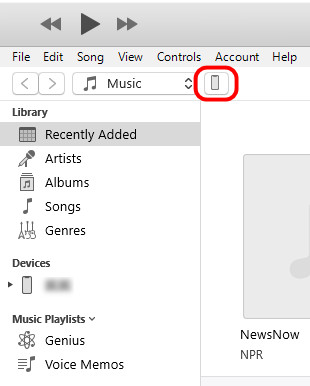
步驟二 Once iTunes recognizes your device, click the iPhone button in the upper left corner.
步驟二 團長 概要 > 備份 並點擊 恢復備份 button to display the backup files available.
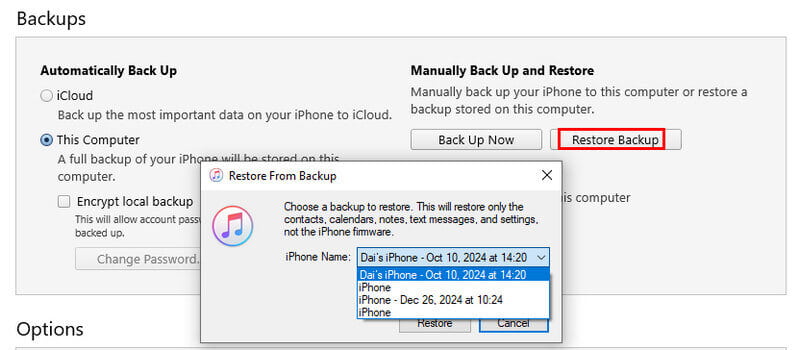
步驟二 Choose the most relevant backup file based on the date and size, and click the 恢復 button to start restoring the iTunes backup to the iPhone.
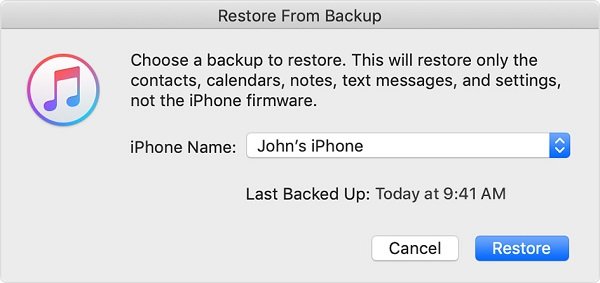
提示: You may be required to enter the iTunes備份密碼 if you have ever encrypted the backup.
步驟二 Keep your iPhone connected to the computer during the process. When it finishes, your iPhone will restart. Then remove iPhone from the machine.
Restore Backup to a New iPhone Using Finder (macOS Catalina+)
步驟二 Connect your iPhone to your Mac, and then open Finder.
步驟二 Select your iPhone under Locations in the sidebar and tap Trust if prompted.
步驟二 選擇 一般說明 選項卡,然後單擊 恢復備份 按鈕。
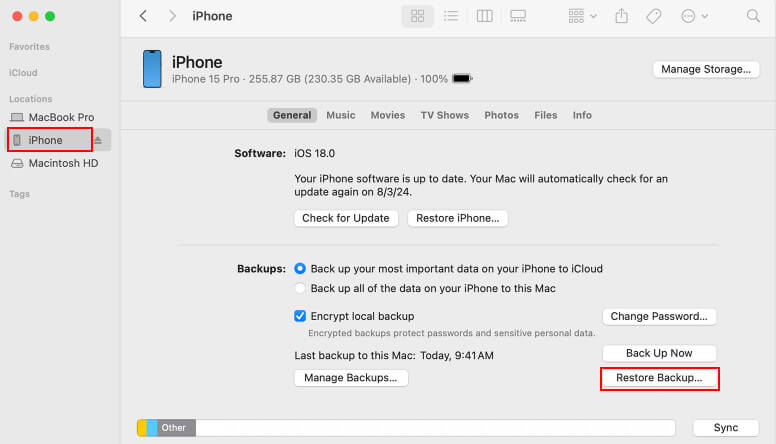
步驟二 Choose the relevant backup and click 恢復.
- 無需互聯網連接
- Fast local restoration
- Backup stored locally on the computer
- Requires a USB cable
- Cannot restore selective data
- Existing data on the iPhone will be overwritten
Part 3: Easiest Way to Back up and Restore iPhone with One Click
Apeaksoft iOS數據備份和還原 is a powerful iOS toolkit that lets you back up and restore your iPhone safely without overwriting existing data. With its intuitive interface and flexible options, you can choose exactly what to save and recover, making the whole process faster, easier, and worry-free.
Backup and Restore iPhone Without Overwriting
- Backup photos, videos, contacts, messages, and more on iPhone.
- 只需單擊一下,即可將iOS備份恢復到iPhone或硬盤驅動器。
- Preview any data in the backup for selectively restoring the iPhone.
- Safe and secure, no data loss.

步驟二 Download and install the right version of this tool onto your computer.
步驟二 Connect your old iPhone to your PC with a Lightning cable. Click the iOS數據備份 button in the home interface after your iOS device is detected.
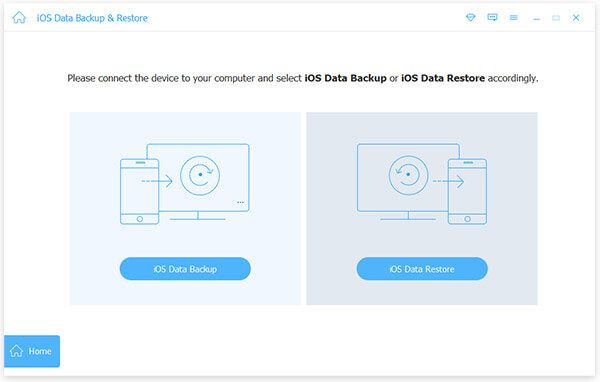
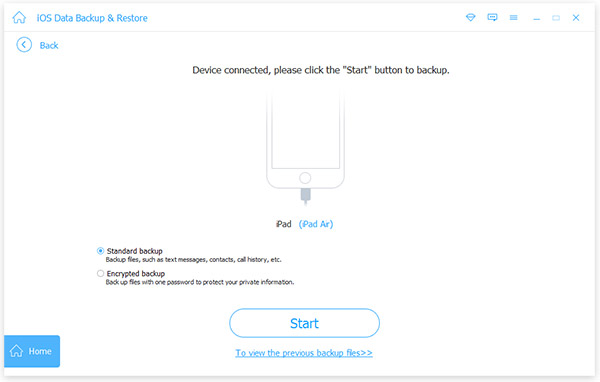
步驟二 之間進行選擇 標準備份 以及 加密備份 based on your needs. Then, click the 開始 按鈕。
步驟二 Next, select what you want to restore to the new iPhone, such as 照片,或檢查 選擇全部 to make a backup of the entire iPhone. Click 下一則.
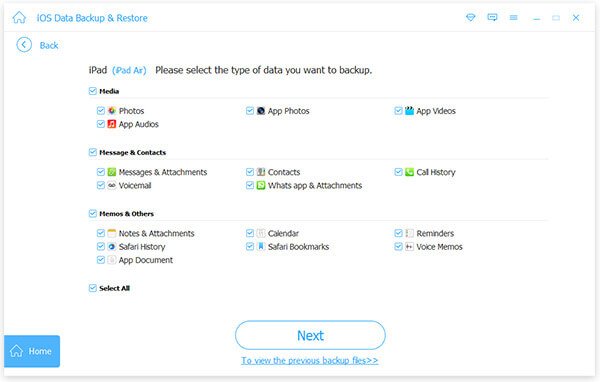
步驟二 When backup is done, disconnect the old iPhone and plug the new iPhone into your computer.
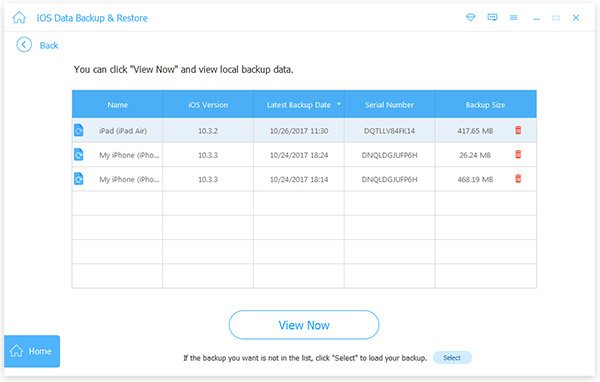
步驟二 Back to the main interface, click the iOS數據還原 button, select the latest backup, and click the 現在查看 按鈕。
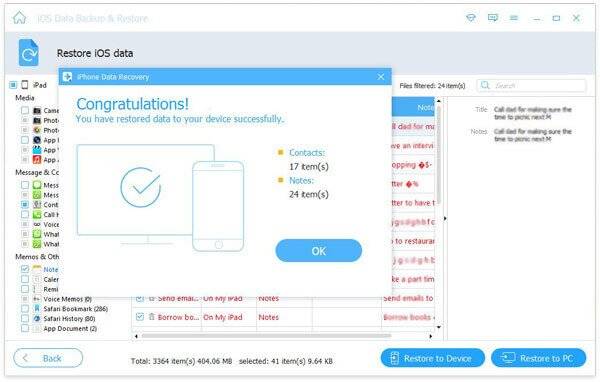
步驟二 彈出預覽窗口時,選擇左側邊欄上的數據類型,如 相機膠卷,並預覽並檢查要傳輸到新iPhone的照片。 選擇其他所需數據並單擊 恢復到設備 button in the bottom right corner to initiate the process of restoring new iPhone from backup.
- Selectively choose which files or apps to restore.
- No Wi-Fi or iCloud storage required.
- Backup and restore with one click.
- 需要安裝第三方軟體。
- Requires a USB connection.
結語
This tutorial has shared three ways to restore a backup to a new iPhone. If you want to restore a backup to a new iPhone without a computer, choose iCloud. If you want to restore a backup from an old iPhone to a new one without a network, choose iTunes. If you want to selectively restore specific data, fully controlling what gets transferred, we recommend Apeaksoft iOS數據備份和還原.
相關文章
本教學將指導您如何正確地將 iPhone 備份到電腦上的 iTunes,以及在 iTunes 不可用時該怎麼辦。
升級到新 iPhone 後,請按照我們的方法和指南複製 iPhone,並將所有資料和應用程式轉移到新裝置。
本文匯總了在 iPhone 或 Android 裝置上備份和恢復 WhatsApp 訊息、圖片、影片等的最佳方法。
如果您無法將 iPhone 備份到 iCloud 或 iTunes,請不要驚慌。我們的文章將為您提供經過驗證的解決方法。



