

如何快速地將聯絡人從一部 iPhone 傳輸到另一部 iPhone

根據我們的研究,大多數iPhone用戶都會在裝置上保存大量的通訊錄。然而, 從 iPhone 傳輸聯絡人 將聯絡人移轉到 iPhone 是一項巨大的挑戰。蘋果不允許用戶將聯絡人儲存到 SIM 卡。因此,您無法透過 SIM 卡在 iOS 裝置之間移轉聯絡人。不過,您可以透過多種方式完成此操作,無論是否使用電腦。本指南將分享一些行之有效的方法。
頁面內容:
第一部分:將聯絡人從 iPhone 傳輸到 iPhone 的終極方法
Apeaksoft iPhone轉移 這是一種使用電腦輕鬆將所有聯絡人從一台 iPhone 傳輸到另一台 iPhone 的方法。它使您能夠在 iOS 裝置之間遷移聯絡人而不會遺失資料。直覺的設計有助於簡化工作流程。

下載量超過 1,000,000 用戶
- 一鍵將聯絡人從一部 iPhone 複製到另一部 iPhone。
- 保留iOS設備上的現有資料。
- 在iPhone上傳輸幾乎所有類型的資料。
- 在 iPhone 和電腦之間傳輸資料。
- 支援最新版本的iOS。
如何使用電腦將所有聯絡人從一台 iPhone 傳輸到另一台 iPhone
步驟二 安裝聯繫人轉移工具
安裝聯絡人傳輸軟體後,即可啟動軟體。軟體支援 Windows 11/10/8/7/XP/Vista 和 Mac OS X 10.7 及更高版本。
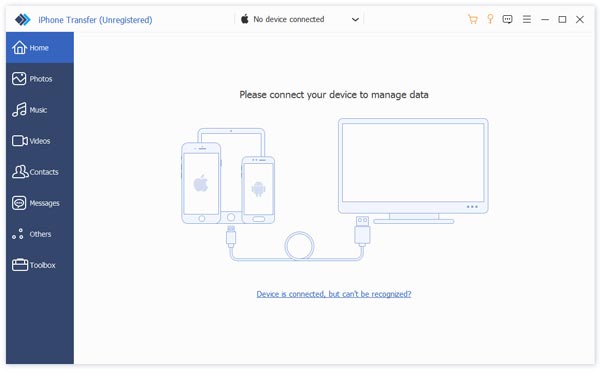
步驟二 連接 iPhone
使用 Lightning 線將兩部 iPhone 連接到電腦。如果出現提示,請點擊螢幕上的「信任」以信任此電腦。軟體將識別您的裝置。
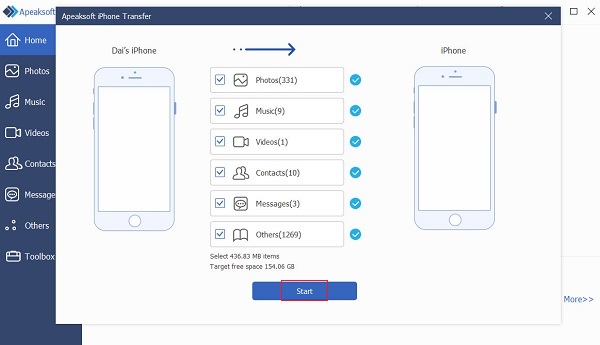
步驟二 將聯絡人從 iPhone 轉移到 iPhone
前往 工具箱 點擊側邊欄上的選項卡,然後選擇 設備到設備 選項。確保來源設備和目標設備顯示在右側。選擇 聯係我們 以及其他所需的資料類型。點選 開始 按下此按鈕即可開始將聯絡人從 iPhone 上傳到另一台 iPhone。您還可以 在 iPhone 上發送語音信息 有了這個程式。
第二部分:如何透過隔空投送將聯絡人從 iPhone 上傳到另一台 iPhone
透過隔空投送 (AirDrop) 將聯絡人從 iPhone 無線傳輸到另一台 iPhone。這種無線連接方式廣泛應用於蘋果生態系統中,可實現資料即時同步。它無需電腦或額外軟體。
步驟二 填入 控制中心 在目標 iPhone 上。
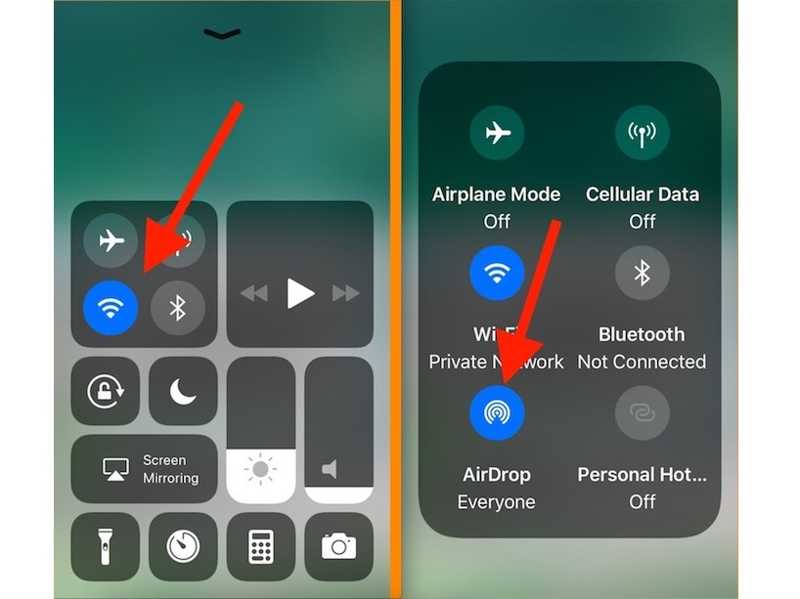
步驟二 點選連接窗格,選擇 空投,並選擇 每個人 10 分鐘 or 每個人.
步驟二 同時在來源 iPhone 上啟用隔空投送功能。
步驟二 打開 聯係我們 來源 iPhone 上的應用程式。
步驟二 用兩根手指選擇一個所需的聯絡人,然後上下拖曳即可選擇多個聯絡人。
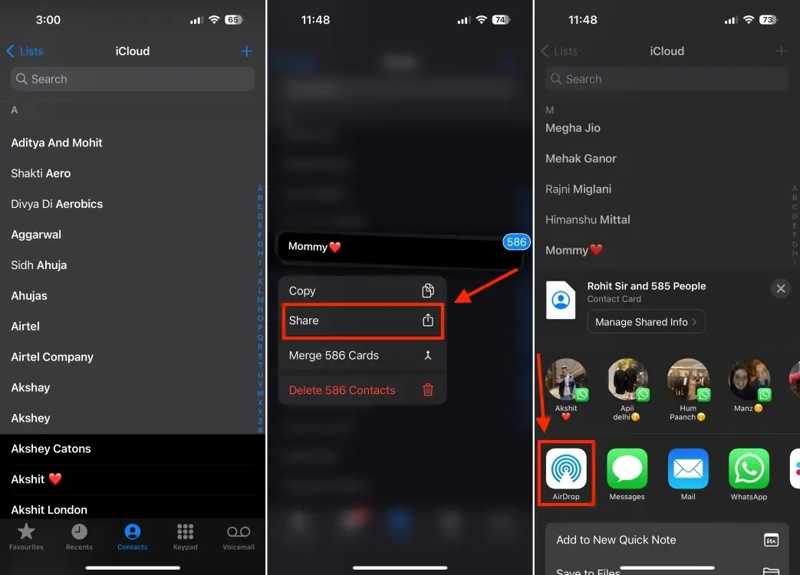
步驟二 接下來,抬起手指並長按選定的項目。
步驟二 選擇 分享到 在上下文菜單上。
步驟二 敲打 空投然後選擇目標 iPhone。
步驟二 轉向目標裝置並點擊 節省 在通知上。
第三部分:如何透過電子郵件將聯絡人從 iPhone 複製到 iPhone
另一種將聯絡人從一台 iPhone 無線傳輸到另一台 iPhone 的方法是透過電子郵件。您可以透過電子郵件共享來源 iPhone 上的聯絡人,然後在目標裝置上開啟電子郵件並建立新聯絡人。
步驟二 跑過 聯係我們 來源 iPhone 上的應用程式。
步驟二 選擇所需的聯絡人,或建立一個群組並將這些聯絡人加入。
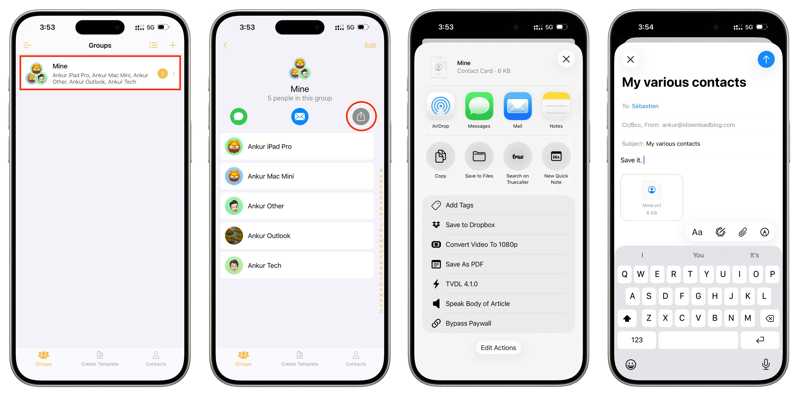
步驟二 點擊 分享到 按鈕並選擇 郵件.
步驟二 在中輸入您的電子郵件地址 至 現場並點擊 發送.
步驟二 切換到目標 iPhone,打開 郵件 應用程序,並閱讀電子郵件。
步驟二 點擊VCF檔。
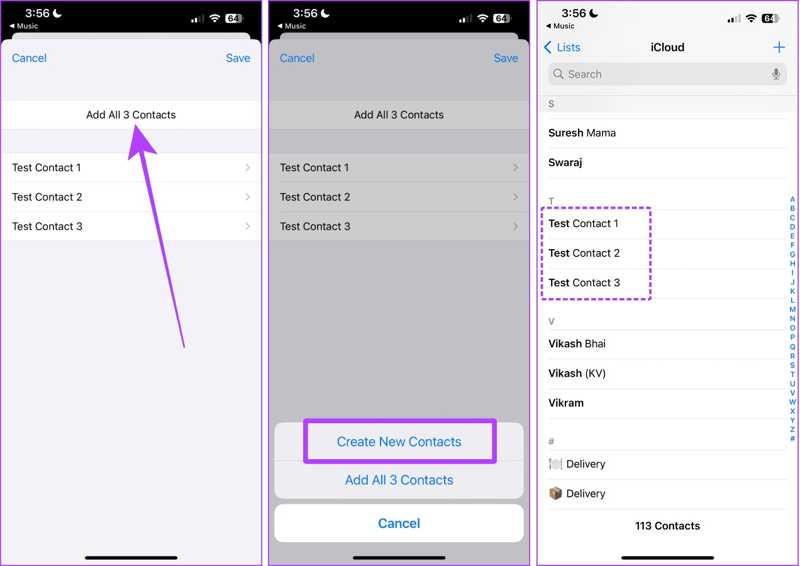
步驟二 敲打 全部加 [數字] 聯絡人並選擇 創建新聯繫人.
步驟二 跑過 聯係我們 用於查看新聯絡人的應用程式。
第四部分:如何透過 iCloud 將 iPhone 上的聯絡人同步到 iPhone
如果兩部 iPhone 使用同一個 Apple ID,則可以使用 iCloud 將聯絡人從一部 iPhone 同步到另一部 iPhone。此方法無需重置 iOS 裝置即可合併目標 iPhone 上的聯絡人。
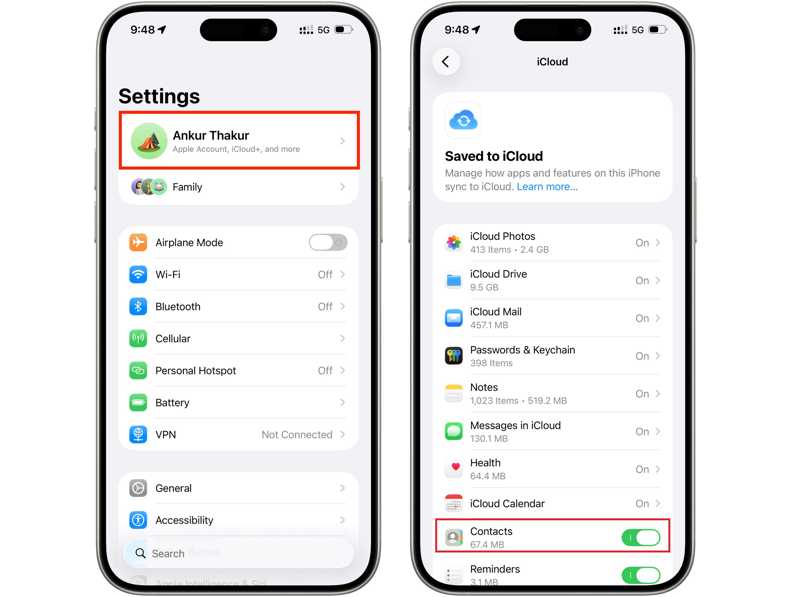
步驟二 跑過 設定 來源 iPhone 上的應用程式。
步驟二 連接到 Wi-Fi 或行動網路。
步驟二 點擊您的個人資料並選擇 iCloud的.
步驟二 敲打 已儲存至 iCloud 並在 聯係我們 選擇
步驟二 聯絡人同步到 iCloud 後,切換到目標裝置。
步驟二 進入“設定”,點擊您的個人資料,然後前往 iCloud的.
提示: 請務必使用同一個 Apple 帳戶登入。
步驟二 切換 聯係我們如果已啟用,請將其關閉,然後再重新啟用。
步驟二 出現提示時,點擊 合併.
第五部分:如何使用 Google 帳號將聯絡人從 iPhone 轉移到 iPhone
使用 Google 帳戶,無需 iCloud 即可在 iPhone 之間傳輸聯絡人。這樣,所有聯絡人都會在 iOS 裝置之間轉移。您只需要一個 Google 帳戶和穩定的網路連線。
步驟二 造訪 設定 在來源 iPhone 上。
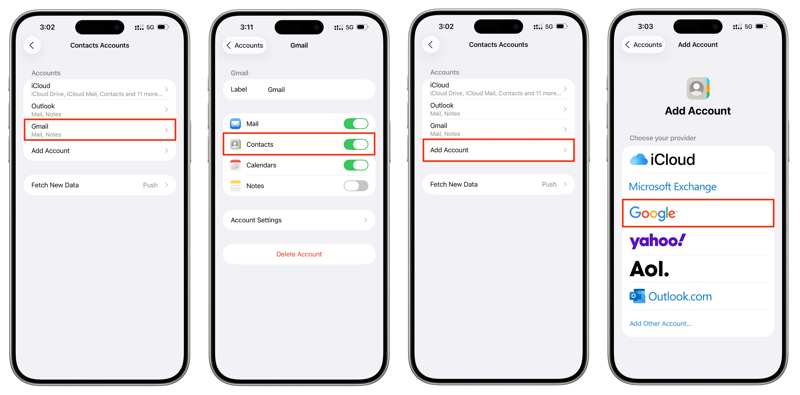
步驟二 選擇 帳號 選項,點擊 新增帳戶,然後選擇 Google.
步驟二 輸入您的Google帳號和密碼。
步驟二 切換 聯係我們 將 iPhone 聯絡人同步到您的帳號。
步驟二 轉向目標 iPhone。
步驟二 打開 設定 應用程序,去 應用程式,並選擇 聯係我們.
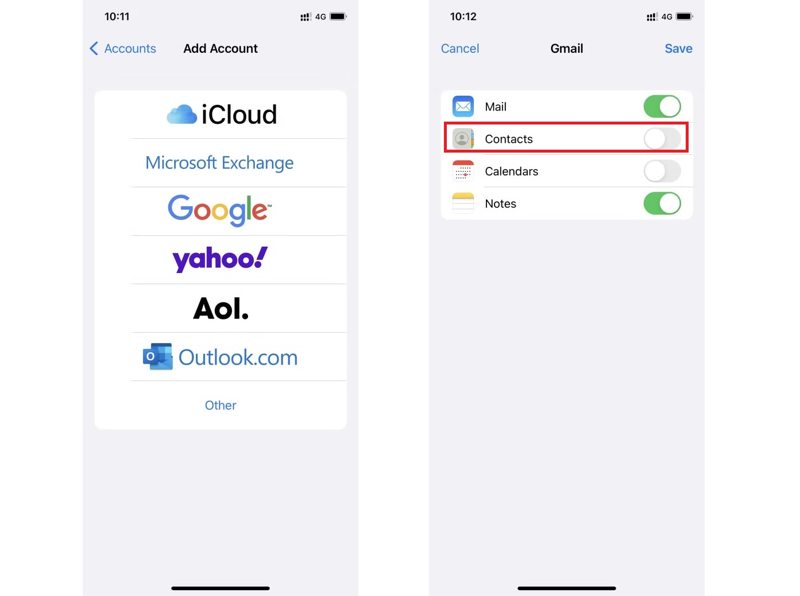
步驟二 敲打 聯絡人帳戶,打 新增帳戶並使用同一個谷歌帳號登入。
步驟二 切換 聯係我們.
第六部分:如何使用 iCloud.com 將聯絡人從 iPhone 傳輸到 iPhone
另一種將聯絡人從一台 iPhone 轉移到另一台 iPhone 的方法是使用 iCloud 資料恢復。您可以將 iPhone 聯絡人備份到 iCloud,然後使用 iCloud 資料還原將其還原到另一台 iPhone。
步驟二 將聯絡人備份到來源 iPhone 上的 iCloud。
步驟二 登出 Apple 帳戶。
步驟二 前往目標設備,並使用您的 Apple 帳戶登入。
步驟二 在瀏覽器中造訪 www.icloud.com。
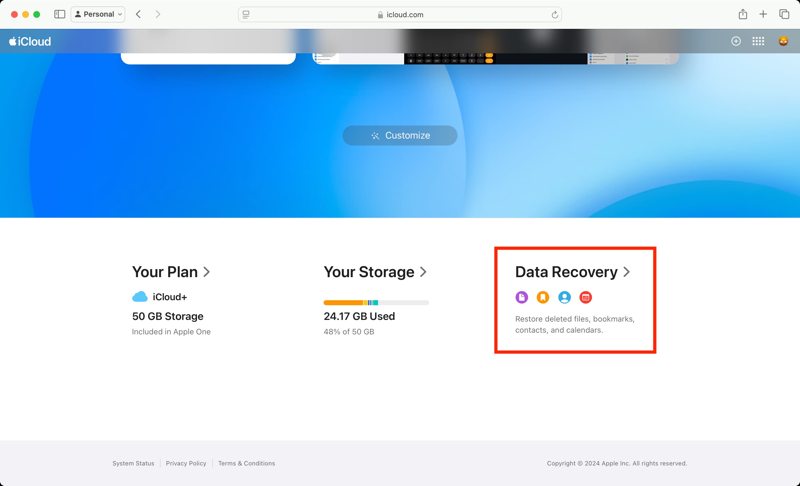
步驟二 使用同一個 Apple 帳號登入。
步驟二 點擊 數據恢復 在底部。
步驟二 選擇 恢復聯繫人 並選擇最後一次備份。
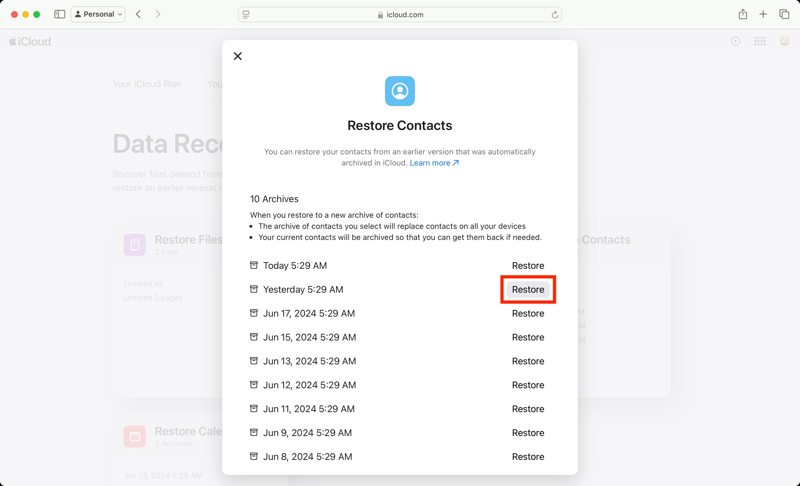
步驟二 在操作欄點擊 恢復 按鈕並選擇 恢復 確認一下。
結語
本指南分享了六種方法 將聯繫人從iPhone轉移到iPhone 在不同情況下,無線連線(例如 AirDrop、iCloud、電子郵件和 Google 帳戶)可讓您存取來源 iOS 裝置和目標 iOS 裝置上的聯絡人。 Apeaksoft iPhone轉移 這是一種利用電腦和線材快速完成工作的方法。
相關文章




