

So stellen Sie verlorene und gelöschte Kontakte auf Ihrem Android-Telefon wieder her

Android-Smartphones bieten einige großartige Funktionen, die Sie in unangenehmen Situationen bewahren können. Eine davon ist die vorinstallierte Kontakte-App. Sie ermöglicht das Speichern unbegrenzter Kontakte und Telefonnummern. Außerdem können Sie diese verwalten, z. B. entfernen, hinzufügen, neue Personen zuweisen, aktualisieren und vieles mehr. Dieser Leitfaden stellt Ihnen mehrere bewährte Methoden vor. Gelöschte Telefonnummern wiederherstellen von Ihrem Android-Telefon in einer Vielzahl von Situationen.
SEITENINHALT:
- Teil 1: So finden Sie Kontakte von einer SIM-Karte auf Android
- Teil 2: So stellen Sie Kontakte aus dem Papierkorb wieder her
- Teil 3: So erhalten Sie Ihre Android-Kontakte von Google zurück
- Teil 4: So stellen Sie Kontakte auf Android aus einem Backup wieder her
- Teil 5: So stellen Sie Kontakte von Android ohne Backup wieder her
Teil 1: So finden Sie Kontakte von einer SIM-Karte auf Android
Wo speichert Android Kontakte? Auf einem Android-Smartphone können Sie Kontakte im internen Speicher und auf der SIM-Karte speichern. Falls Sie lokal gespeicherte Kontakte verlieren, können Sie gelöschte Android-Kontakte von der SIM-Karte wiederherstellen und umgekehrt.
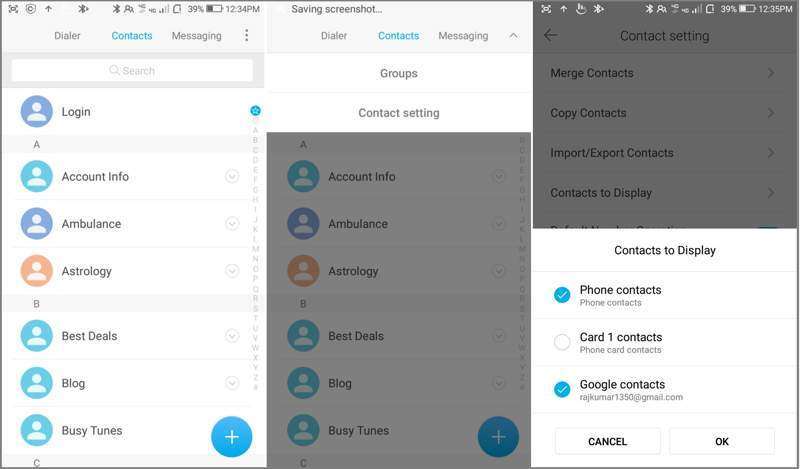
Schritt 1: Öffnen Sie das eingebaute Kontakt App auf Ihrem Handy.
Schritt 2: Tippen Sie auf die Menu Schaltfläche mit einem Drei-Punkte-Symbol.
Schritt 3: Wählen Anzuzeigende Kontakte fortfahren.
Schritt 4: Dann wählen Sie Telefonnummer Falls Sie versehentlich Kontakte auf Ihrer SIM-Karte gelöscht haben, können Sie diese hier auswählen. Oder wählen Sie Ihre SIM-Karte aus, falls Sie Kontakte auf Ihrem Telefon gelöscht haben.
Schritt 5: Tippen Sie auf die OK Mit dieser Schaltfläche können Sie gelöschte Kontakte von der SIM-Karte auf Ihrem Android-Gerät wiederherstellen.
Teil 2: So stellen Sie Kontakte aus dem Papierkorb wieder her
Bei einigen Android-Smartphones können Sie gelöschte Kontakte aus dem Papierkorb wiederherstellen. Die gelöschten Kontakte werden dort bis zu 30 Tage lang gespeichert. Bevor sie endgültig gelöscht werden, können Sie sie direkt auf Ihr Gerät zurückholen.
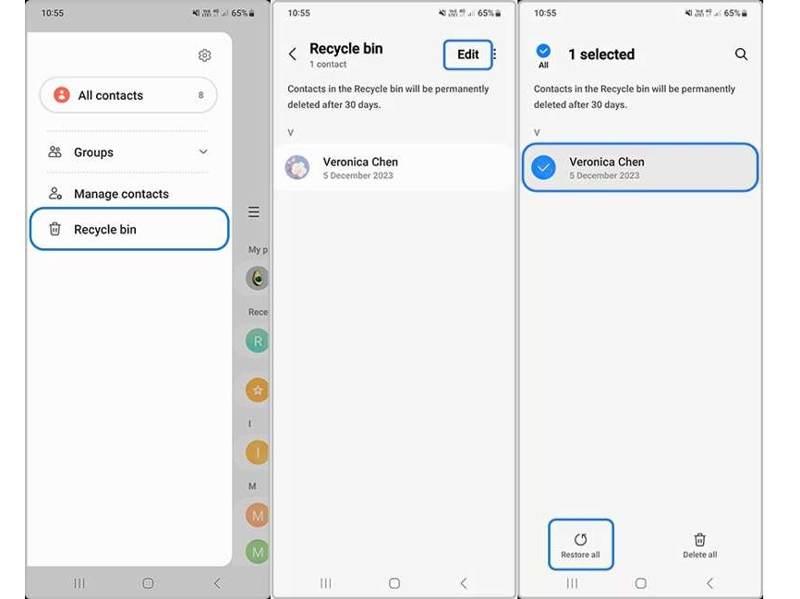
Schritt 1: Öffne die Kontakte-App in deiner App-Übersicht.
Schritt 2: Tippen Sie auf die Hamburger Taste und wählen Sie Papierkorb or Müll.
Schritt 3: Hit the Bearbeiten Klicken Sie auf die Schaltfläche und wählen Sie den Kontakt aus, den Sie abrufen möchten.
Schritt 4: Tippen Sie dann auf Wiederherstellen Schaltfläche zum Wiederherstellen gelöschter Kontakte auf Android.
Schritt 5: Wenn der Vorgang abgeschlossen ist, finden Sie die Kontakte in Ihrer Kontaktliste.
Hinweis: Wir verwenden ein Samsung Galaxy-Smartphone als Beispiel. Der Arbeitsablauf kann bei anderen Smartphone-Marken anders, aber ähnlich sein.
Teil 3: So erhalten Sie Ihre Android-Kontakte von Google zurück
Beim Kauf eines Android-Smartphones müssen Sie es mit einem Google-Konto aktivieren. Gleichzeitig können Sie Kontakte und andere Daten mit Ihrem Konto synchronisieren. Dadurch haben Sie die Möglichkeit, Kontakte von Google auf Ihr Android-Gerät zu übertragen.
So kopieren Sie Google-Kontakte auf Android
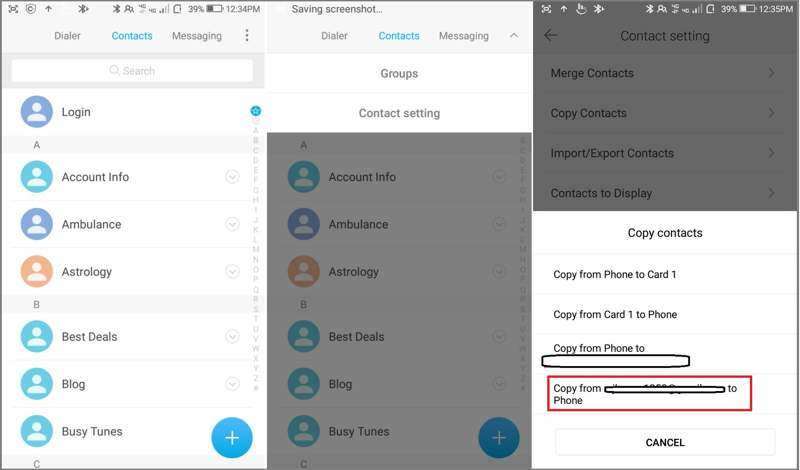
Schritt 1: Öffne die Kontakte-App.
Schritt 2: Tippen Sie auf die Menu Schaltfläche mit einem Drei-Punkte-Symbol.
Schritt 3: Wählen Kontakte kopieren von der Liste.
Schritt 4: Tippen Sie dann auf Kopieren Sie von [Ihrem Google-Konto] auf Ihr Telefon.
Schritt 5: Markieren Sie die Kästchen neben allen verlorenen Kontakten und tippen Sie auf Kopieren.
So stellen Sie Google-Kontakte auf Android in der Kontakte-App wieder her
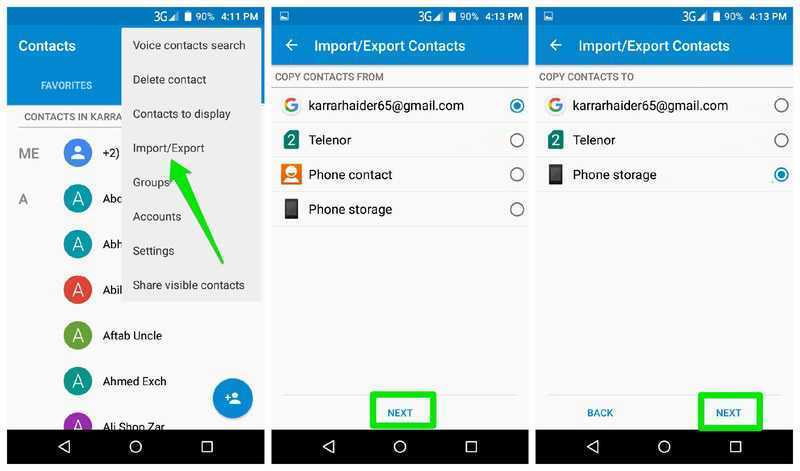
Schritt 1: Tippen Sie auf die Menu Schaltfläche in Ihrem Kontakt App.
Schritt 2: Wählen Import / Export im Kontextmenü.
Schritt 3: Wählen Sie Ihr Google-Konto aus unter KONTAKTE KOPIEREN VONund tippen Sie auf Weiter.
Schritt 4: Wählen Sie anschließend Ihren Telefonspeicher unter KONTAKTE KOPIEREN NACH.
Schritt 5: Tippen Sie abschließend auf „Weiter“ und bestätigen Sie die Wiederherstellung Ihrer Google-Kontakte auf Android.
So stellen Sie Google-Kontakte auf Android in den Einstellungen wieder her
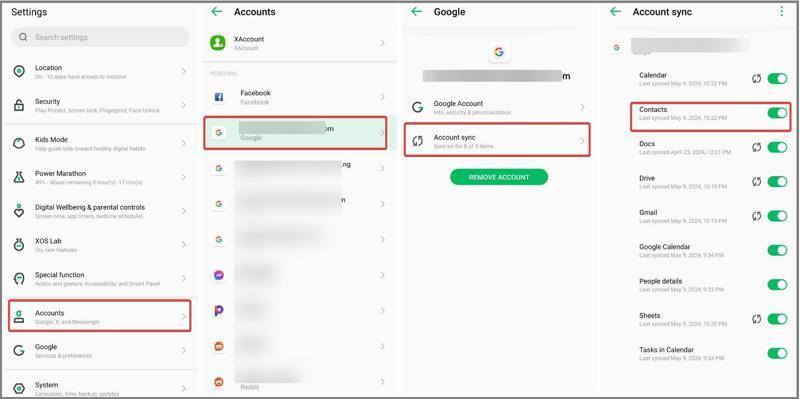
Schritt 1: Sobald Sie Kontakte gelöscht haben, gehen Sie zu Einstellungen Installieren Sie die App und verbinden Sie Ihr Telefon mit dem Internet.
Schritt 2: Wählen Passwörter und Konten und wählen Sie Ihr Google-Konto aus.
Schritt 3: Zylinderkopfschrauben Kontosynchronisierung und ausschalten Kontakt.
Schritt 4: Schalten Sie dann ein Kontakt So stellen Sie gelöschte Kontakte auf Android wieder her.
Teil 4: So stellen Sie Kontakte auf Android aus einem Backup wieder her
Android-Smartphones verfügen über eine integrierte Sicherungs- und Wiederherstellungsfunktion, die Google One zur Sicherung der meisten Daten nutzt. Wenn Sie zuvor ein Backup erstellt haben, wird dieses Backup automatisch wiederhergestellt. Android BackupSie können gelöschte Kontakte auf Android wiederherstellen.
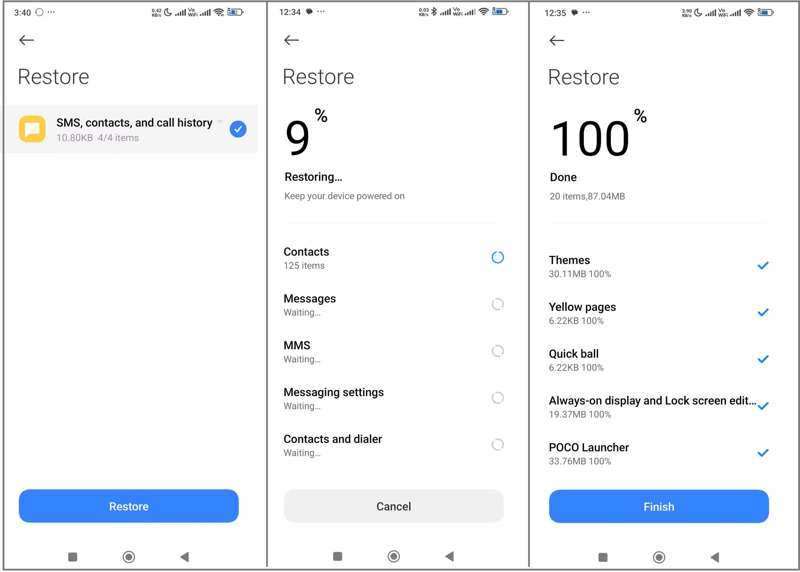
Schritt 1: Führen Sie die Einstellungen App.
Schritt 2: Wählen System or Über Telefon.
Schritt 3: Zylinderkopfschrauben Sichern und Wiederherstellen oder die entsprechende Option.
Schritt 4: Wählen Sie die richtige Sicherung aus, die die gelöschten Kontakte speichert, und tippen Sie auf Wiederherstellen.
Schritt 5: Schritt 5: Wählen Sie anschließend aus SMS, Kontakte und Anrufliste und tippe auf Wiederherstellen erneut.
Schritt 6: Schritt 6: Nach Abschluss des Vorgangs finden Sie Ihre Kontakte auf Ihrem Android-Gerät in der integrierten Kontakte-App.
Teil 5: So stellen Sie Kontakte von Android ohne Backup wieder her
Wenn Sie Ihre Kontakte nicht synchronisiert oder gesichert haben, benötigen Sie ein leistungsstarkes Datenwiederherstellungstool, um gelöschte Kontakte auf Android ohne Backup wiederherzustellen. Apeaksoft Android-Datenwiederherstellung Beispielsweise kann es verlorene Kontakte aus dem Telefonspeicher wiederherstellen, ohne dass eine Datensicherung erforderlich ist.
Die beste Methode, um Kontakte auf Android ohne Backup wiederherzustellen
- Gelöschte Kontakte ohne Datensicherung wiederherstellen.
- Geeignet für verschiedene Situationen, unter anderem bei einem defekten Gerät.
- Vorschau verlorener Kontakte zur selektiven Wiederherstellung.
- Kontaktlinsen im Originalzustand aufbewahren.
- Unterstützt nahezu alle Android-Handymarken und -modelle.
Sicherer Download
Sicherer Download

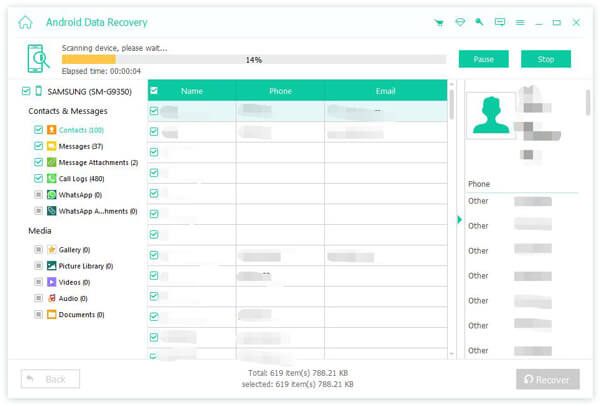
So rufen Sie Kontakte aus dem Speicher Ihres Android-Telefons ab
Schritt 1: Erkennen Sie Ihr Telefon
Starten Sie die beste Software zur Kontaktewiederherstellung, nachdem Sie sie auf Ihrem Computer installiert haben. Schalten Sie Ihr Telefon ein und gehen Sie zu Einstellungen App, wählen Sie Entwickleroptionenund aktivieren USB-Debugging Verbinden Sie anschließend Ihr Telefon mit einem USB-Kabel mit Ihrem Computer. Wählen Sie gegebenenfalls den entsprechenden Modus aus. Dateien übertragen.

Schritt 2: Vorschau der Kontakte
Setzen Sie ein Häkchen in das Kästchen neben Kontakt Und klicken Sie auf die Weiter Klicken Sie auf diese Schaltfläche, um die Suche nach wiederherstellbaren Kontakten auf Ihrem Gerät zu starten. Folgen Sie den Anweisungen auf dem Bildschirm, um die App zu autorisieren und ihr den Zugriff auf Ihr Gerät zu erlauben. Nach dem Scannen aktivieren Sie die Option. Zeige nur die gelöschten Objekte an und gelöschte Kontakte anzeigen.

Schritt 3: Wiederherstellungsgruppen zusammen mit Telefonnummern
Stellen Sie sicher, dass Sie die Kontakte auswählen, die Sie wiederherstellen möchten, und klicken Sie auf die Schaltfläche. Entspannung Klicken Sie auf die Schaltfläche unten. Falls Sie die gewünschten Artikel nicht finden, klicken Sie auf die Schaltfläche unten. Tiefen-Scan um einen Tiefenscan durchzuführen. Legen Sie abschließend einen Ausgabeordner fest und bestätigen Sie die Wiederherstellung der Android-Kontakte. Sie können dieses Programm auch verwenden, um Gelöschte Videos auf Android wiederherstellen.
Fazit
Dieser Leitfaden hat mehrere Möglichkeiten aufgezeigt, Kontakte auf Ihrem Android-Gerät wiederherstellen Nach dem versehentlichen Löschen von Kontakten können Sie diese von Ihrer SIM-Karte wiederherstellen. Wenn Sie Ihre Kontakte mit Ihrem Google-Konto synchronisiert haben, können Sie diese auf Ihr Telefon kopieren, importieren oder herunterladen. Dank eines Backups können Sie Ihre Kontakte zudem schnell wiederherstellen. Apeaksoft Android Datenwiederherstellung ermöglicht es Ihnen, verlorene Kontakte aus dem Telefonspeicher ohne Sicherungsdatei wiederherzustellen.
Ähnliche Artikel




