

So stellen Sie gelöschte SMS auf einem Samsung-Gerät wieder her

Laut unserer Umfrage zählt Samsung nach wie vor zu den beliebtesten Marken für digitale Geräte weltweit, insbesondere auf dem Smartphone-Markt. Nutzer speichern unbegrenzt Daten und Dateien auf ihren Samsung-Geräten, darunter auch wichtige SMS. Tatsächlich speichern Samsung-Smartphones SMS je nach Ihren Einstellungen an verschiedenen Orten. Das bietet Ihnen die Möglichkeit, Gelöschte SMS auf Ihrem Samsung wiederherstellen Telefon. Im Folgenden werden die bewährten Methoden aufgeführt.
SEITENINHALT:
- Teil 1: Gelöschte SMS auf einem Samsung-Gerät mithilfe des Mobilfunkanbieters wiederherstellen
- Teil 2: Gelöschte SMS im Papierkorb auf Samsung-Geräten finden
- Teil 3: Gelöschte Texte aus der Samsung Cloud wiederherstellen
- Teil 4: Gelöschte SMS über ein Google Drive-Backup wiederherstellen
- Teil 5: Gelöschte SMS auf Samsung-Geräten mit Smart Switch wiederherstellen
- Teil 6: Die ultimative Methode zur SMS-Wiederherstellung auf Samsung
Teil 1: Gelöschte SMS auf einem Samsung-Gerät mithilfe des Mobilfunkanbieters wiederherstellen
Um gelöschte SMS auf einem Samsung Galaxy wiederzufinden, sollten Sie sich zunächst an Ihren Mobilfunkanbieter wenden. Neben dem internen Speicher Ihres Telefons speichern Netzbetreiber SMS und MMS auf ihren Servern für Monate bis hin zu einigen Jahren. Verizon beispielsweise bewahrt SMS bis zu 5 Jahre lang auf.
Teil 2: Gelöschte SMS im Papierkorb auf Samsung-Geräten finden
Samsung hat Android um viele Verbesserungen erweitert. Der Papierkorb in der Nachrichten-App ermöglicht es beispielsweise, gelöschte SMS auf Samsung-Geräten wiederherzustellen. Dies funktioniert für kürzlich gelöschte Nachrichten.
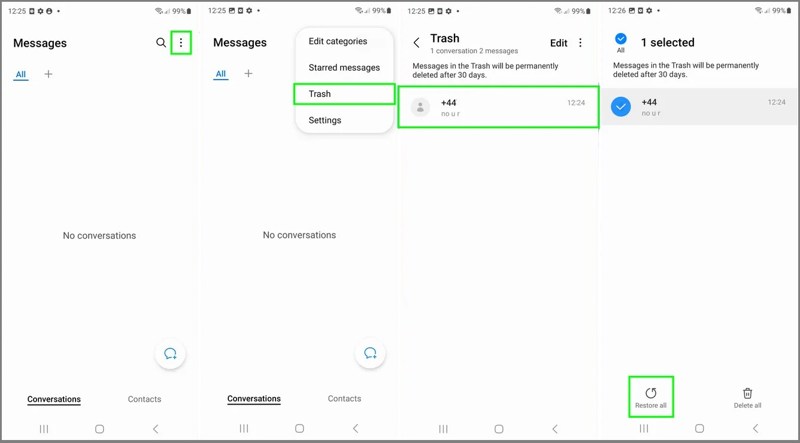
Schritt 1: Führen Sie die Messages in Ihrer App-Übersicht.
Schritt 2: Tippen Sie auf die Optionen Schaltfläche mit einem Drei-Punkte-Symbol.
Schritt 3: Wählen Müll Im Kontextmenü können Sie alle kürzlich gelöschten SMS anzeigen lassen.
Schritt 4: Wählen Sie den Chat aus, zu dem Sie zurückkehren möchten, und tippen Sie auf Alles wiederherstellen.
Schritt 5: Gehe zurück zum Posteingang „Nachrichten“ und suche die verlorenen Nachrichten.
Teil 3: Gelöschte Texte aus der Samsung Cloud wiederherstellen
Samsung Wolke Samsung Cloud ist der Cloud-Speicher von Samsung, mit dem Nutzer ihre Daten, einschließlich Nachrichten, sichern können. Wenn Sie Ihre Nachrichten in Samsung Cloud gesichert haben, können Sie ältere SMS auf Ihrem Samsung-Gerät wiederherstellen.
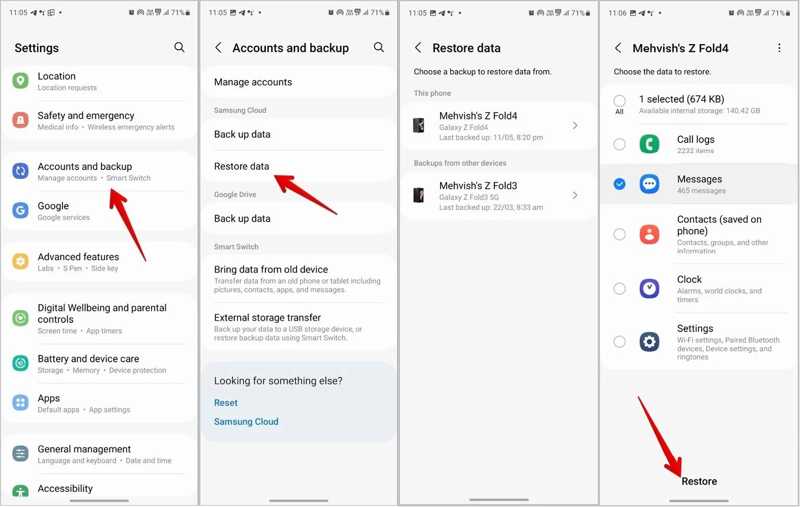
Schritt 1: Führen Sie die Einstellungen App auf Ihrem Handy.
Schritt 2: Wählen Konten und Backupund tippen Sie auf Daten wiederherstellen für Samsung Wolke.
Schritt 3: Nun werden Ihnen die verfügbaren Backups angezeigt. Wählen Sie Ihr Gerät aus und fahren Sie fort.
Schritt 4: Aktivieren Sie das Kontrollkästchen neben Messages und drücken Sie die Wiederherstellen .
Teil 4: Gelöschte SMS über ein Google Drive-Backup wiederherstellen
Manche Samsung-Nutzer sichern ihre Geräte lieber mit Google Drive. Wenn Sie Ihre Nachrichten in Google Drive gesichert haben, können Sie gelöschte Nachrichten auf Ihrem Samsung-Telefon aus der Sicherung wiederherstellen. Der Nachteil ist, dass Sie Factory Reset Zuerst dein Handy.
Schritt 1: Gehe zu System in Ihrem Einstellungen App.
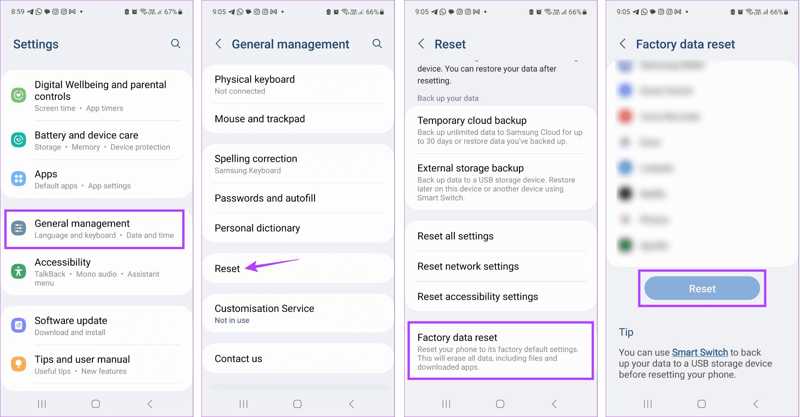
Schritt 2: Wählen Zurücksetzenund tippen Sie auf Alle Daten löschen or Rücksetzen auf Werkseinstellung.
Schritt 3: Geben Sie bei Aufforderung Ihr Telefonpasswort ein und bestätigen Sie das Löschen aller Daten.
Schritt 4: Sobald Ihr Telefon neu gestartet ist, richten Sie es als neues Gerät ein.
Schritt 5: Stellen Sie sicher, dass Sie mit einem WLAN-Netzwerk verbunden sind.
Schritt 6: Auf dem Kopieren Sie Apps und Daten tippen Sie auf Nächster, und wähle Altes Gerät kann nicht verwendet werden.
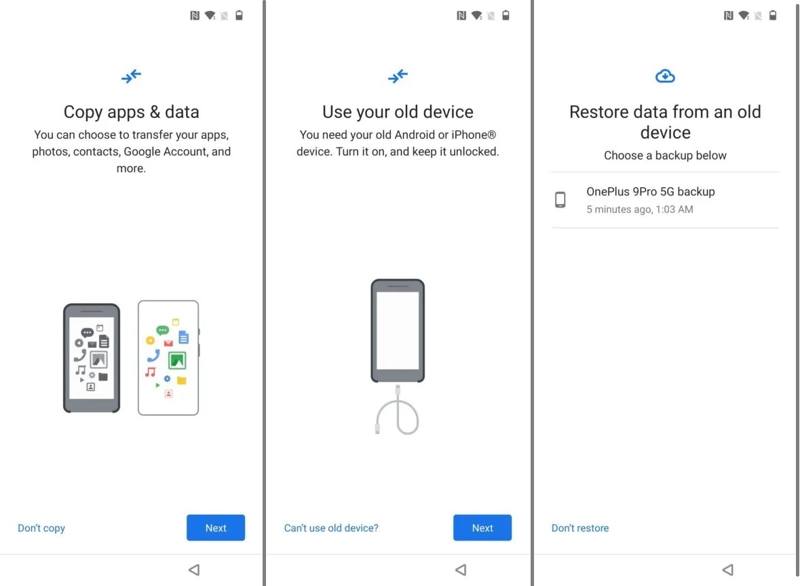
Schritt 7: Melden Sie sich mit Ihren Google-Kontodaten an.
Schritt 8: Wählen Sie die neueste verfügbare Sicherung aus. Messages und andere gewünschte Daten, und Treffer Wiederherstellen.
Hinweis: Wenn Sie Ihr Samsung-Gerät nicht auf Werkseinstellungen zurücksetzen möchten, installieren Sie die Google Drive App auf Ihrem Samsung-Smartphone, öffnen Sie sie und melden Sie sich in Ihrem Google-Konto an. Laden Sie anschließend das Backup herunter und suchen Sie nach gelöschten Nachrichten.
Teil 5: Gelöschte SMS auf Samsung-Geräten mit Smart Switch wiederherstellen
Smart Switch ist ein leistungsstarkes Tool zur Datenverwaltung auf Ihrem Samsung-Smartphone. Selbstverständlich können Sie damit auch gelöschte Nachrichten auf Ihrem Samsung-Gerät anzeigen, sofern Sie zuvor mit Smart Switch ein Backup Ihres Geräts erstellt haben.
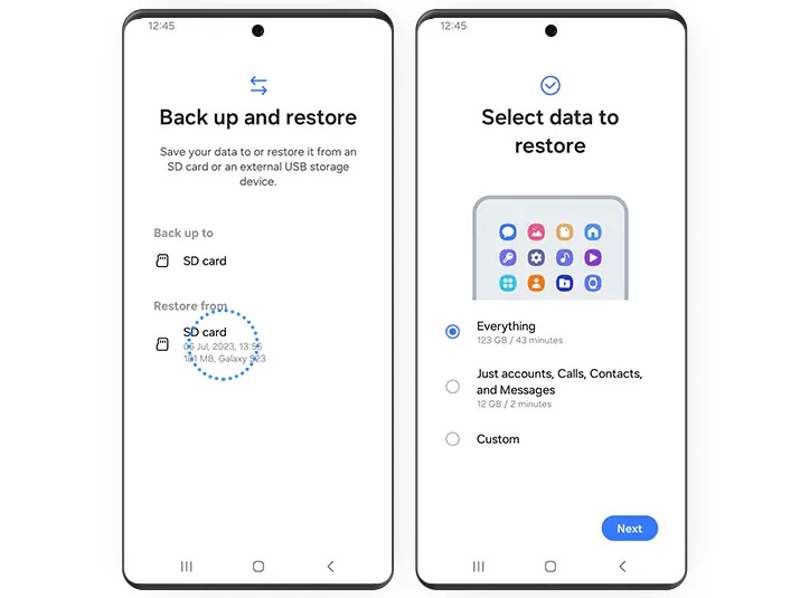
Schritt 1: Legen Sie die Backup-SD-Karte in Ihr Samsung-Telefon ein.
Schritt 2: Öffnen Sie den Microsoft Store auf Ihrem Windows-PC. Smart Switch App.
Schritt 3: Wählen Sichern und stellen Sie Ihre Daten wieder her.und traf Fortfahren.
Schritt 4: Tippen Sie anschließend auf SD-Karte unter dem Wiederherstellen von .
Schritt 5: Anschließend liest die App das Backup auf Ihrer SD-Karte.
Schritt 6: Pick Alles, or Nur Konto, Anrufe, Kontakte und Nachrichten auf dem Bildschirm „Daten zum Wiederherstellen auswählen“.
Schritt 7: Hit the Nächster Schaltfläche zum Starten der Samsung Textwiederherstellung.
Schritt 8: Wenn der Vorgang abgeschlossen ist, werfen Sie die SD-Karte aus Ihrem Telefon aus, und Sie werden die gelöschten Nachrichten auf Ihrem Gerät finden.
Teil 6: Die ultimative Methode zur SMS-Wiederherstellung auf Samsung
Wenn die oben genannten Methoden nicht verfügbar sind und Sie kein Backup haben, benötigen Sie ein leistungsstarkes Datenwiederherstellungstool, um gelöschte Textnachrichten auf Ihrem Samsung-Telefon wiederherzustellen. Apeaksoft Android Datenwiederherstellungermöglicht es Ihnen beispielsweise, verlorene SMS aus dem Speicher Ihres Telefons wiederzufinden.
Der einfachste Weg, gelöschte SMS auf Samsung wiederherzustellen
- Verlorene SMS und MMS auf Samsung wiederherstellen.
- Nachrichten von einem defekten Samsung-Handy extrahieren.
- Vorschau gelöschter Textnachrichten zur selektiven Wiederherstellung.
- Verfügbar für Nachrichten und Multimedia-Anhänge.
- Funktioniert auf nahezu allen Android-Handymarken.
Sicherer Download
Sicherer Download

So stellen Sie SMS auf einem Samsung-Gerät ohne Backup wieder her
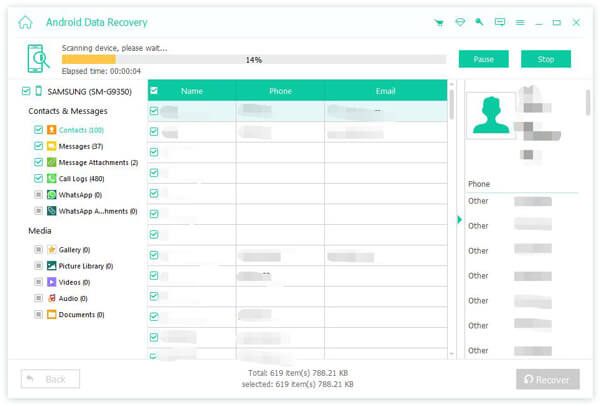
Schritt 1: Verbinden Sie sich mit Ihrem Samsung
Starten Sie die beste SMS-Wiederherstellungssoftware für Samsung, nachdem Sie sie auf Ihrem Computer installiert haben. Aktivieren Sie den USB-Debugging-Modus auf Ihrem Telefon. Verbinden Sie es mit einem kompatiblen USB-Kabel mit Ihrem Computer. Wählen Sie gegebenenfalls die entsprechende Option aus. Dateien übertragen.

Schritt 2: Scannen Sie Nachrichten auf Ihrem Telefon
Aktivieren Sie die Kontrollkästchen neben Messages mit einem Nachrichten Anhänge. Drücke den Nächster Drücken Sie diese Taste, um mit dem Scannen von Nachrichten auf Ihrem Gerät zu beginnen. Folgen Sie anschließend den Anweisungen auf dem Bildschirm, um die FoneGo-App zu autorisieren und ihr den Zugriff auf Ihre Daten zu erlauben.

Schritt 3: SMS wiederherstellen
Nach Abschluss des SMS-Scans können Sie alle wiederherstellbaren Nachrichten in einer Vorschau anzeigen. Falls es zu viele Nachrichten sind, aktivieren Sie die entsprechende Option. Zeige nur die gelöschten Objekte an oben auf Ihrem Bildschirm. Falls Sie die gewünschten Nachrichten nicht finden, klicken Sie auf Tiefen-ScanWählen Sie die Nachrichten aus, die Sie abrufen möchten, und klicken Sie auf EntspannungLegen Sie einen Ausgabeordner fest und bestätigen Sie ihn. Dadurch werden keine vorhandenen Daten auf Ihrem Telefon überschrieben.
Fazit
In diesem Artikel werden sechs Methoden vorgestellt, um Gelöschte Nachrichten auf Samsung finden Galaxy-Geräte. Versehentlich gelöschte Nachrichten können Sie im Papierkorb oder bei Ihrem Mobilfunkanbieter wiederherstellen. Mit Samsung Cloud, Google Drive-Backup und Smart Switch können Sie Nachrichten aus einem Backup wiederherstellen, sofern Sie eines erstellt haben. Apeaksoft Android Datenwiederherstellung ist die beste Option, um Ihre Nachrichten wiederherzustellen, wenn Sie kein Backup haben.
Ähnliche Artikel
Haben Sie Nachrichten, Fotos oder Videos auf WhatsApp verloren und möchten diese wiederherstellen? Dieser Artikel stellt drei Android-WhatsApp-Wiederherstellungsprogramme vor.
Sie wissen nicht, wo Sie den Papierkorb auf Ihrem Android-Gerät finden, um gelöschte Fotos oder Dateien wiederherzustellen? Dieser Beitrag zeigt Ihnen detailliert, wie Sie den Papierkorb auf Ihrem Android-Gerät wiederherstellen.
Ihre wichtigen Sprachnachrichten können auf der Voicemail gespeichert werden. Falls Sie diese verloren haben, finden Sie in diesem Artikel Informationen zur Wiederherstellung gelöschter Voicemails auf Android-Geräten.
Google kann Ihre Gerätedaten sichern und wiederherstellen und verwaltet Ihre Daten zuverlässig. Diese Anleitung zeigt Ihnen, wie Sie ein Google-Backup auf Android wiederherstellen.



