


So stellen Sie Ihr Android-Telefon wieder her – 6 Methoden

Das Wiederherstellen eines Android-Smartphones umfasst zwei Vorgänge: die Wiederherstellung aus einem Google-Backup und das Zurücksetzen auf Werkseinstellungen. Daher herrscht bei manchen Nutzern Verwirrung. Die Wiederherstellung aus einem Google-Backup dient dazu, verlorene Daten wiederherzustellen oder alle Daten von einem Android-Gerät auf ein anderes zu übertragen. Das Zurücksetzen auf Werkseinstellungen wird zur Fehlerbehebung verwendet. Diese praktische Anleitung beschreibt bewährte Methoden und detaillierte Schritte. ein gesperrtes Android-Telefon wiederherstellen und weiteres Wissen.
SEITENINHALT:
Teil 1: So stellen Sie Ihr Android-Telefon aus einem Google-Backup wieder her
Sobald Sie sich auf Ihrem Mobilgerät mit einem Google-Konto angemeldet haben, können Sie Ihr gesamtes Gerät sichern und Ihr Android-Telefon aus der Google-Sicherung wiederherstellen. Wir verwenden ein Google Pixel-Gerät als Beispiel, um Ihnen den Ablauf zu veranschaulichen.
Schritt 1: Führen Sie die Einstellungen App auf Ihrem Handy.
Schritt 2: Tippen Sie auf Ihr Profil.
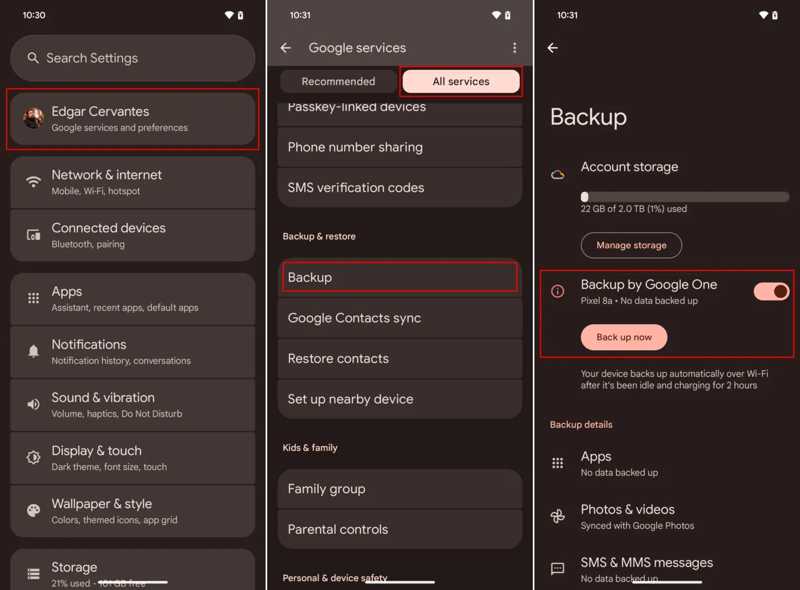
Schritt 3: Zylinderkopfschrauben Alle Dienstleistungen, und wähle Sicherungskopie.
Schritt 4: Wenn Sie kein Backup haben, schalten Sie es ein. Sicherung durch Google Oneund tippen Sie auf Sichern Sie sich jetzt.
Schritt 5: Wenn es fertig ist, kehren Sie zurück zu Einstellungen App.
Schritt 6: Zurück Nach System, und dann Optionen zurücksetzen.
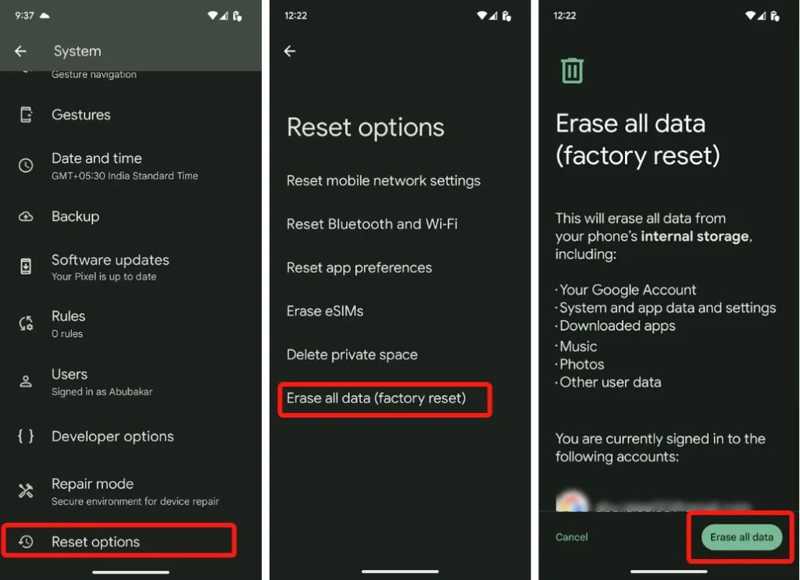
Schritt 7: Zylinderkopfschrauben Alle Daten löschen (Werkseinstellungen zurücksetzen) und schlagen Alle Daten löschen.
Schritt 8: Geben Sie Ihre Telefon-PIN ein, um den Vorgang zu starten.
Schritt 9: Sobald Ihr Telefon neu gestartet ist, tippen Sie Start und den Allgemeinen Geschäftsbedingungen zustimmen.
Schritt 10: Verbinde dein Telefon mit einem WLAN-Netzwerk.
Schritt 11: Zylinderkopfschrauben Weiter auf die Kopieren Sie Apps und Daten Bildschirm.
Schritt 12: Wählen Altes Gerät kann nicht verwendet werden.
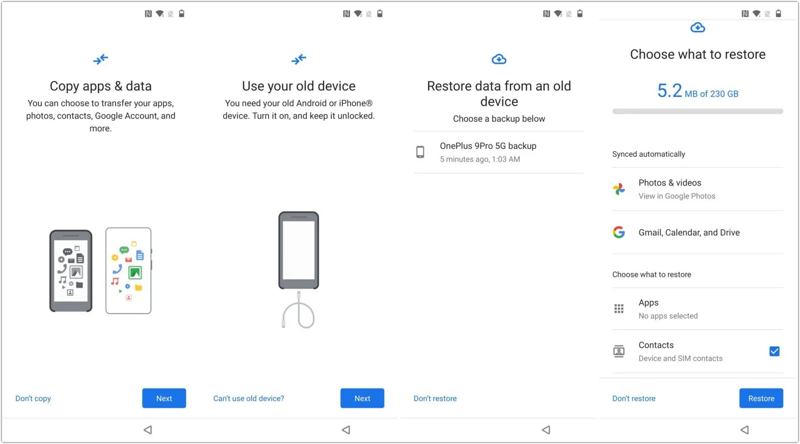
Schritt 13: Melde dich mit demselben Google-Konto an.
Schritt 14: Wählen Sie die letzte Sicherung aus.
Schritt 15: Wählen Sie den gewünschten Datentyp aus. Um beispielsweise verlorene Kontakte auf einem Android-Telefon wiederherzustellen, wählen Sie Kontakt.
Schritt 16: Tippen Sie auf die Wiederherstellen .
Teil 2: So stellen Sie ein Android-Telefon auf Werkseinstellungen zurück
So stellen Sie die Werkseinstellungen Ihres Android-Telefons wieder her
Die einfachste Möglichkeit, ein Android-Smartphone auf die Werkseinstellungen zurückzusetzen, bietet die vorinstallierte Einstellungen-App. Voraussetzung dafür ist, dass Ihr Smartphone noch zugänglich ist und Sie sich an Ihr Sperrbildschirm-Passwort erinnern.
Auf Google Pixel
Schritt 1: Öffnen Sie die native Einstellungen App.
Schritt 2: Head to System und Optionen zurücksetzen.
Schritt 3: Zylinderkopfschrauben Alle Daten löschen (Werkseinstellungen zurücksetzen).
Schritt 4: Hit Alle Daten löschen.
Schritt 5: Geben Sie Ihre PIN zur Bestätigung ein.
Auf Samsung
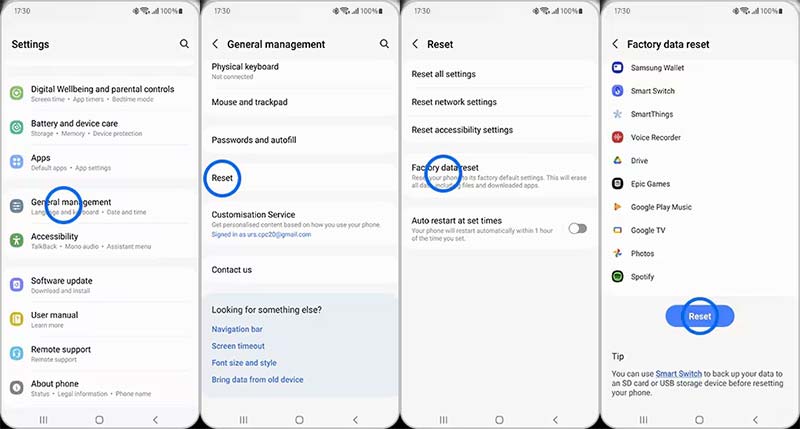
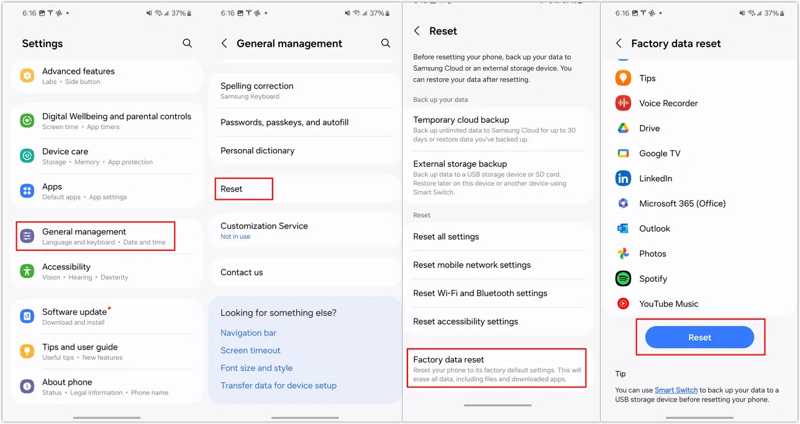
Schritt 1: Navigieren Einstellungen , Allgemeine Verwaltung und Zurücksetzen.
Schritt 2: Zylinderkopfschrauben Zurücksetzen auf Fabrikeinstellungen.
Schritt 3: Scrollen Sie nach unten und tippen Sie auf Zurücksetzen .
Schritt 4: Authentifizieren Sie sich mit Ihrem Passwort oder Fingerabdruck.
So stellen Sie ein gesperrtes Android-Telefon im Wiederherstellungsmodus wieder her
Wenn Sie Ihr Sperrbildschirmpasswort vergessen haben, müssen Sie ein gesperrtes Android-Telefon wiederherstellen. WiederherstellungsmodusDiese Methode funktioniert durch die richtige Tastenkombination und umgeht das Betriebssystem.
Schritt 1: Drücken Sie lange auf Tuning -Taste, bis das Power-Menü erscheint.
Schritt 2: Tippen Sie auf die Power off .
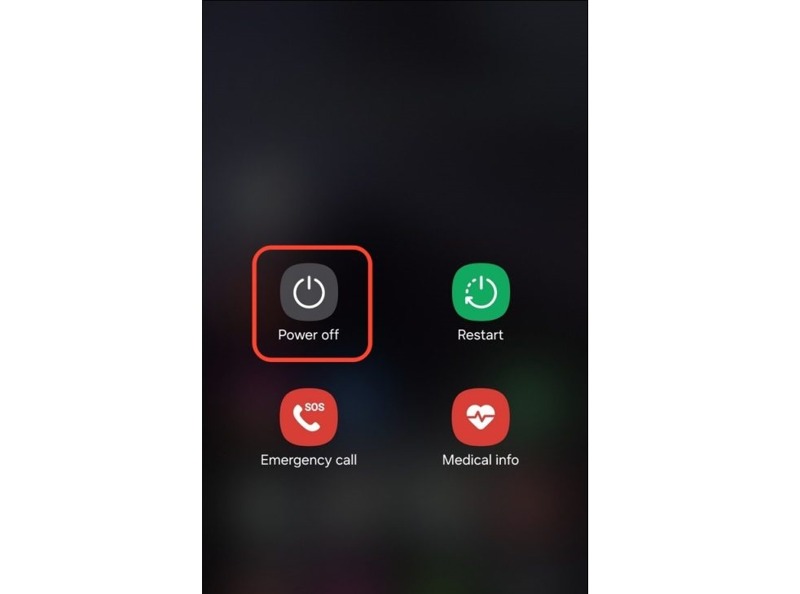
Schritt 3: Bei Pixel-Geräten und den meisten Android-Geräten die Taste gedrückt halten Tuning + Volume Down Tasten.
Bei Samsung-Geräten die Taste gedrückt halten Tuning + Volume Down Tasten zusammen.
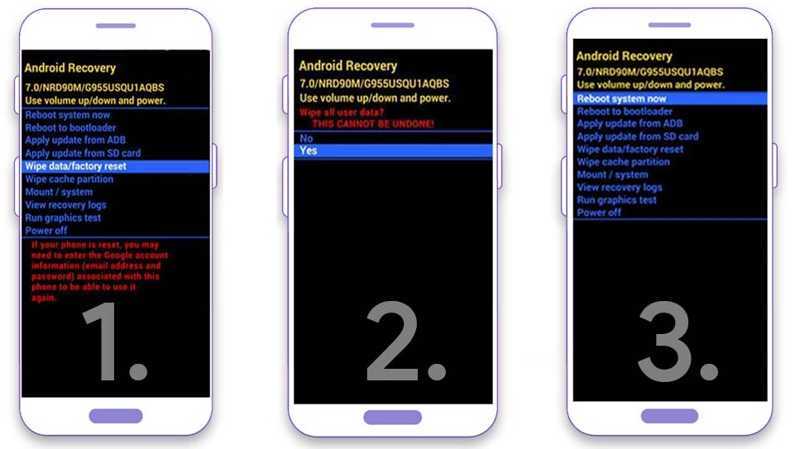
Schritt 4: Sobald der Bootloader-Bildschirm erscheint, lassen Sie die Tasten los.
Schritt 5: Verwenden Sie die Lautstärketasten, um die Daten löschen / Zurücksetzen auf Werkseinstellungen .
Schritt 6: Drücken Sie auf Tuning um fortzufahren.
Schritt 7: Wenn Sie dazu aufgefordert werden, wählen Sie Ja und drücke die Tuning Schaltfläche zum Starten der Werkswiederherstellung des Android-Telefons.
Schritt 8: Wenn es fertig ist, wählen Sie Starten Sie jetzt System und drücke die Tuning .
So stellen Sie ein Android-Telefon mithilfe von „Mein Gerät finden“ wieder her
Eine weitere Möglichkeit, ein gesperrtes Android-Telefon auf die Werkseinstellungen zurückzusetzen, bietet Googles Funktion „Mein Gerät finden“. Voraussetzung dafür ist, dass Sie „Mein Gerät finden“ auf Ihrem Telefon aktiviert hatten, bevor es gesperrt wurde.
Auf Google „Mein Gerät finden“ im Web
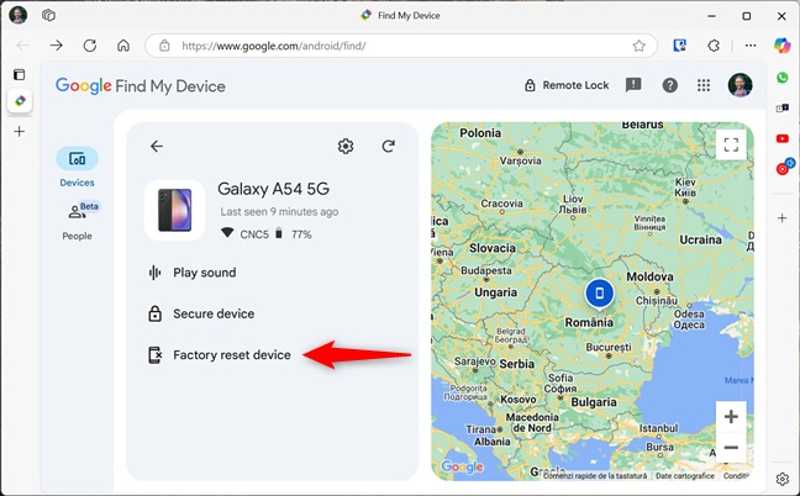
Schritt 1: Melden Sie sich in einem Browser unter www.google.com/android/find an.
Schritt 2: Wählen Sie Ihr Telefon aus der Geräte Tab.
Schritt 3: Klicken Sie auf die Gerät auf Werkseinstellungen zurücksetzen .
Schritt 4: Lesen Sie die Benachrichtigung und klicken Sie Weiter um es zu bestätigen.
In der Google-App „Mein Gerät finden“
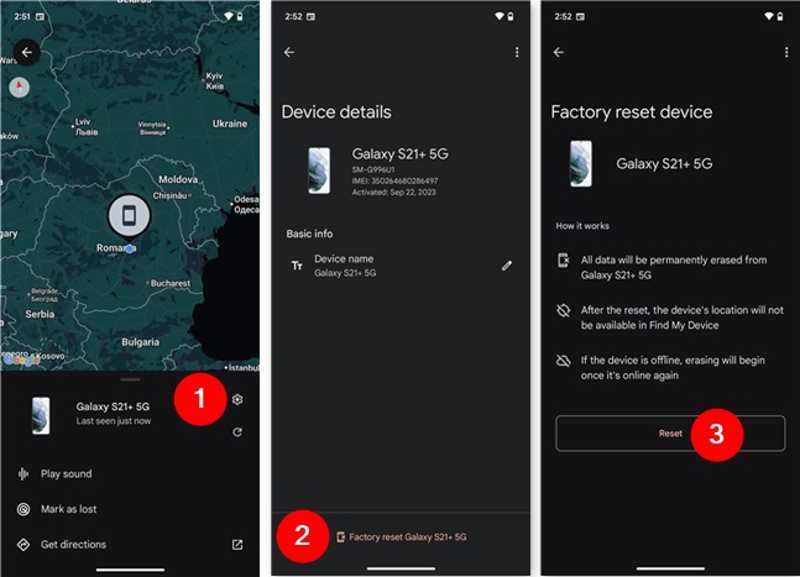
Schritt 1: Öffnen Sie die „Mein Gerät finden“-App von Google auf einem geliehenen Telefon. Sie können sie kostenlos im Play Store installieren.
Schritt 2: Melden Sie sich mit dem zugehörigen Google-Konto an.
Schritt 3: Gehen Sie zur Geräte Tippen Sie auf die entsprechende Schaltfläche und wählen Sie Ihr Telefon aus.
Schritt 4: Tippen Sie auf die Einstellungen .
Schritt 5: Presse [Ihr Telefonname] auf Werkseinstellungen zurücksetzen und schlagen Zurücksetzen.
Weiterführende Literatur
Teil 3: So stellen Sie verlorene Daten auf Android ohne Backup wieder her
Wenn Sie auf Ihrem Telefon keine Datensicherung eingerichtet haben, Apeaksoft Android Datenwiederherstellung kann Ihnen helfen, verlorene Fotos auf Ihrem Android-Smartphone wiederherzustellen. Es funktioniert mit nahezu allen Datentypen auf Android-Geräten. Darüber hinaus kann es Ihren Telefonspeicher scannen und verlorene Daten schnell aufspüren.

wurde von über 1,000,000 Nutzer
- Daten auf Android-Telefonen ohne Backup wiederherstellen.
- Funktioniert mit einer Vielzahl von Datentypen, wie Fotos, SMS, Kontakte usw.
- Vorschau verlorener Daten zur selektiven Wiederherstellung.
- Verfügbar für deaktivierte, eingefrorene und defekte Handys.
- Unterstützt alle Handys von Samsung, Google, Motorola und weiteren Herstellern.
Sicherer Download
Sicherer Download

So stellen Sie Daten auf Android ohne Backup wieder her
Schritt 1: Verbinden Sie sich mit Ihrem Telefon
Starten Sie die Android-Datenwiederherstellungssoftware, nachdem Sie sie auf Ihrem Computer installiert haben. Verbinden Sie Ihr Telefon mit einem USB-Kabel mit dem Computer. Folgen Sie den Anweisungen auf dem Bildschirm, um die Software zu aktivieren. USB Debugging Modus auf Ihrem Telefon.

Schritt 2: Vorschau verlorener Daten
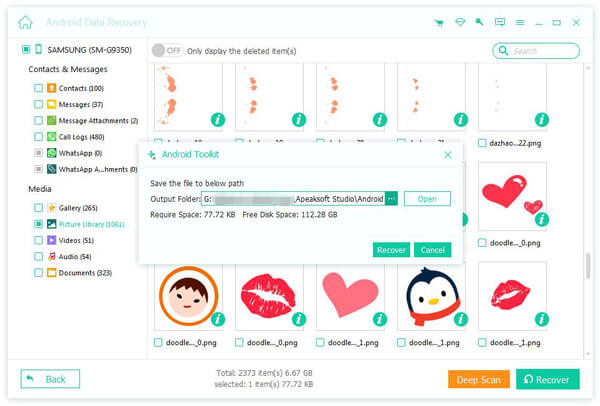
Sobald Ihr Telefon erkannt wurde, wählen Sie die Datentypen aus, die Sie wiederherstellen möchten. Um beispielsweise SMS auf einem Android-Telefon wiederherzustellen, wählen Sie Messages. Klicken Sie auf Weiter Klicken Sie auf diese Schaltfläche, um den Speicher Ihres Telefons zu scannen. Anschließend können Sie die Daten auf Ihrem Telefon in einer Vorschau anzeigen.

Schritt 3: Daten auf Android wiederherstellen
Wählen Sie die verlorenen Dateien und Daten aus, die Sie wiederherstellen möchten, und klicken Sie auf die Schaltfläche. Entspannung Schaltfläche. Legen Sie einen Ausgabeordner fest und bestätigen Sie die Wiederherstellung des Android-Telefons ohne Backup.
Fazit
In diesem Handbuch wird erklärt, wie Sie Android-Telefon aus Google-Backup wiederherstellen Oder Sie stellen das Gerät auf die Werkseinstellungen zurück. Wählen Sie die passende Methode und folgen Sie unserer detaillierten Anleitung, um verlorene Daten wiederherzustellen oder Softwarefehler zu beheben. Apeaksoft Android Datenwiederherstellung ist die ultimative Option, um verlorene Daten von einem Android-Telefon oder -Tablet schnell und ohne Backup wiederherzustellen.
 Apeaksoft Android Datenwiederherstellung
 Stellen Sie verschiedene gelöschte oder verlorene Daten von allen gängigen Android-Geräten wieder her.
Sicherer Download
Sicherer Download
Ähnliche Artikel




