

So synchronisieren Sie iPhone-Kalender und -Ereignisse schnell mit dem iPad

Die Organisation Ihrer Termine und Veranstaltungen auf all Ihren Apple-Geräten ist unerlässlich, insbesondere wenn Sie Kalender sowohl auf Ihrem iPhone als auch auf Ihrem iPad verwalten. Die gute Nachricht: Der Vorgang ist ganz einfach, sobald Sie die einzelnen Schritte verstanden haben. Ob Sie dieselbe Apple-ID oder verschiedene Accounts verwenden – die Einrichtung ist problemlos möglich. Dieses Tutorial beschreibt bewährte Methoden und zeigt die einzelnen Arbeitsabläufe. Kalender zwischen iPhone und iPad synchronisieren.
SEITENINHALT:
- Teil 1: So synchronisieren Sie Kalender zwischen iPhone und iPad über iCloud
- Teil 2: So synchronisieren Sie Ihren iPad-Kalender mit Ihrem iPhone über iTunes/Finder
- Teil 3: So synchronisieren Sie Ihren iPhone-Kalender mit dem Google-Kalender auf dem iPad
- Teil 4: So synchronisieren Sie bestimmte Kalender zwischen iPhone und iPad
Teil 1: So synchronisieren Sie Kalender zwischen iPhone und iPad über iCloud
Eine einfache Möglichkeit, den Kalender mit iPhone und iPad zu synchronisieren, bietet Ihr iCloud-Konto. Das heißt, Sie können Kalender mit iCloud synchronisieren und auf allen iOS-Geräten, die mit demselben Konto verknüpft sind, darauf zugreifen.
Schritt 1: Schalten Sie das Quellgerät ein.
Schritt 2: Öffnen Sie den Microsoft Store auf Ihrem Windows-PC Einstellungen App, verbinde dich mit einem Netzwerk und tippe auf dein Profil.
Schritt 3: Zurück Nach iCloud, Zapfhahn Alles Anzeigen, und wähle icloud Kalender.
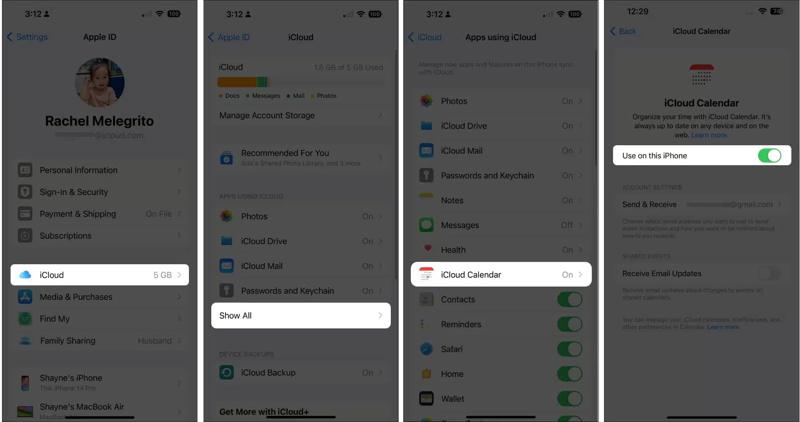
Schritt 4: Umschalten Auf diesem iPhone verwenden und wählen Sie Auf meinem iPhone behalten wenn aufgefordert.
Tipps: Wenn Sie eine ältere iOS-Version verwenden, aktivieren Sie diese Option. Kalender nach dem Besuch iCloud.
Schritt 5: Überprüfen Sie Ihre Apple-ID.
Schritt 6: Wechseln Sie anschließend zum Zielgerät und tippen Sie auf Ihr Profil in der Einstellungen App.
Schritt 7: Überprüfen Sie die Apple-ID. Wenn sie sich von dem Konto auf dem Quellgerät unterscheidet, melden Sie sich ab und melden Sie sich mit derselben Apple-ID wieder an.
Schritt 8: Mit dem Internet verbinden.
Schritt 9: Zurück Nach iCloud und tippe auf icloud Kalender.
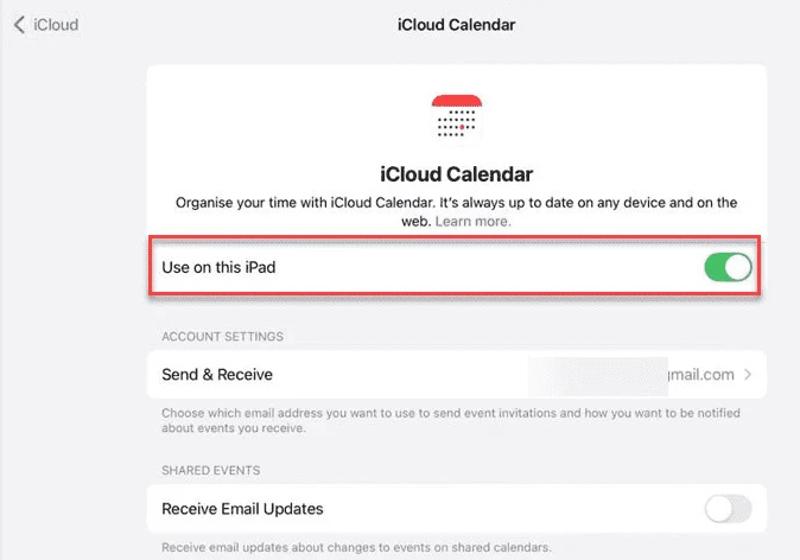
Schritt 10: Umschalten Auf diesem iPad verwendenWenn diese Option aktiviert ist, der iPad-Kalender aber nicht mit dem iPhone synchronisiert wird, schalten Sie sie aus und wieder ein.
Teil 2: So synchronisieren Sie Ihren iPad-Kalender mit Ihrem iPhone über iTunes/Finder
Wenn iPhone und iPad unterschiedliche Apple-IDs verwenden, müssen Sie den iPad-Kalender mithilfe von iTunes oder dem Finder mit dem iPhone verknüpfen. Dazu benötigen Sie einen Computer, die neueste Version von iTunes oder dem Finder sowie ein kompatibles Kabel.
Schritt 1: Verbinden Sie Ihr iPad mit einem kompatiblen Kabel mit Ihrem Computer.
Situation 1: Unter Windows und macOS Mojave oder älter
Schritt 2: Öffnen Sie iTunes und klicken Sie auf die Telefonnummer Schaltfläche, nachdem Ihr Gerät erkannt wurde.
Schritt 3: Gehen Sie zur Infos Registerkarte in der Seitenleiste.
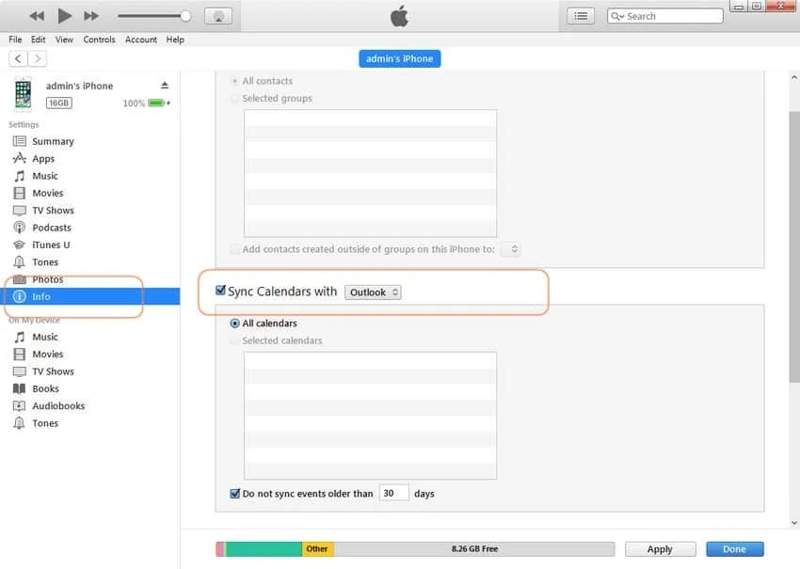
Schritt 4: Einblick in das Kalender synchronisieren mit, und wählen Sie Outlook.
Schritt 5: Pick Alle Kalender or Ausgewählte Kalender und wählen Sie die gewünschten Kalender aus.
Situation 2: Unter macOS Catalina oder neuer
Schritt 2: Klicken Sie in der Seitenleiste auf den Namen Ihres iPads.
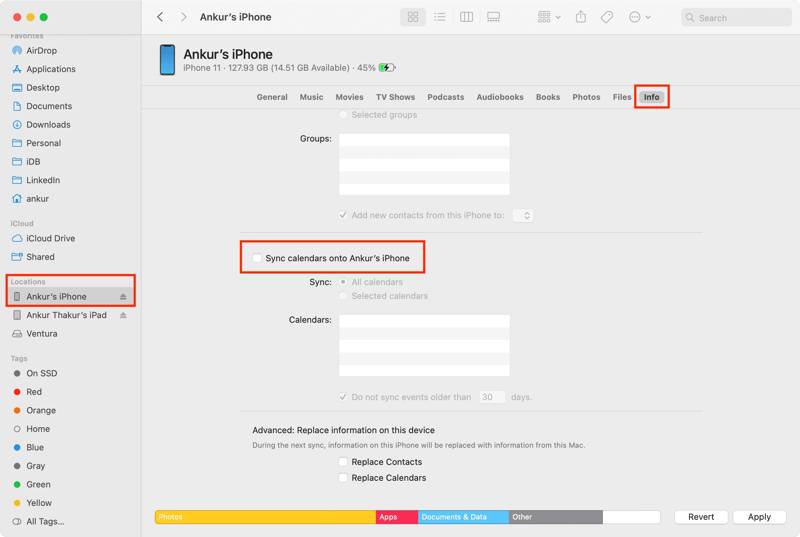
Schritt 3: Gehen Sie zur Infos Tab und überprüfen Synchronisieren Sie Ihre Kalender mit [Ihr Name] iPad.
Schritt 4: Wählen Sie anschließend „Alle Kalender“ oder „Ausgewählte Kalender“ und wählen Sie die gewünschten Kalender aus.
Schritt 6: Klicken Sie auf die Tragen Sie .
Schritt 7: Wenn der Vorgang abgeschlossen ist, trennen Sie Ihr iPad und verbinden Sie das iPhone mit demselben Gerät über ein USB-Kabel.
Schritt 8: Als Nächstes synchronisieren Sie die Kalender zwischen iPhone und iPad.
Teil 3: So synchronisieren Sie Ihren iPhone-Kalender mit dem Google-Kalender auf dem iPad
Wenn Sie auf Ihrem iPhone und iPad unterschiedliche Apple-IDs verwenden möchten, können Sie den iPhone-Kalender auch mithilfe eines Google-Kontos mit dem iPad synchronisieren. Mit den richtigen Einstellungen können Sie so auf beiden Geräten auf Ihre Termine zugreifen.
Schritt 1: Stellen Sie sicher, dass beide Geräte online sind.
Schritt 2: Öffnen Sie den Microsoft Store auf Ihrem Windows-PC Einstellungen App auf Ihrem iPhone.
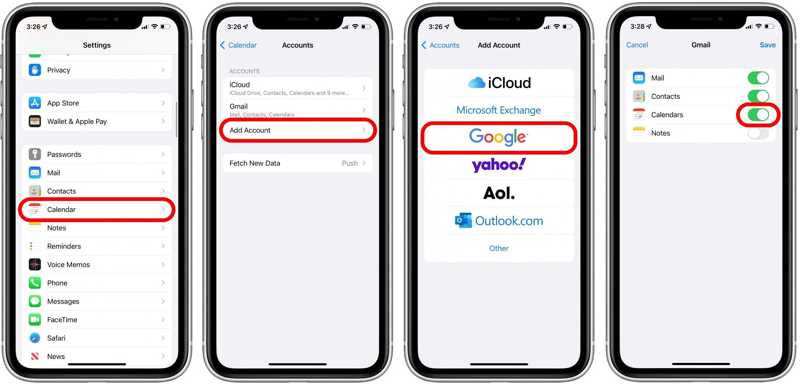
Schritt 3: Scrollen Sie nach unten und wählen Sie Kalender.
Schritt 4: Zylinderkopfschrauben Konto, wählen Konto hinzufügen, und wähle Google.
Schritt 5: Geben Sie Ihre Google-Kontodaten ein.
Schritt 6: Umschalten Kalender um Ihre Kalender hochzuladen.
Schritt 7: Wenden Sie sich nun dem Zielgerät zu.
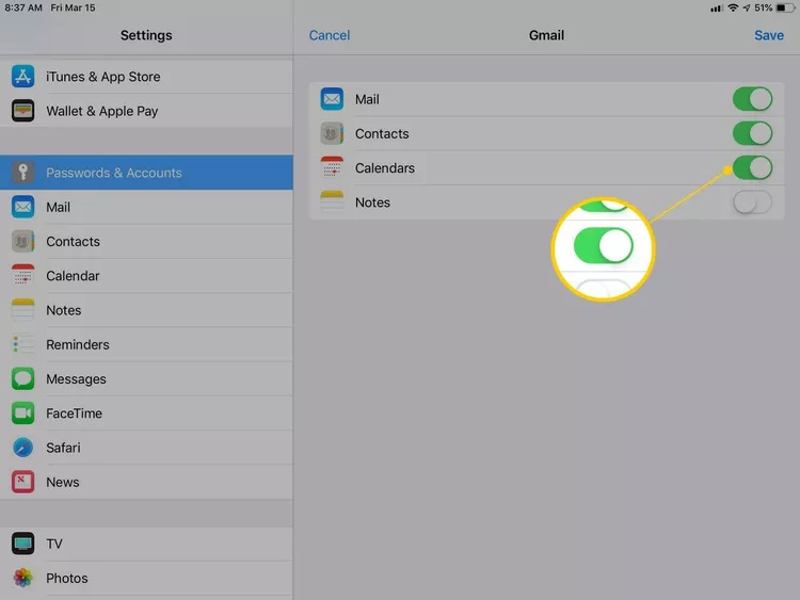
Schritt 8: Wiederholen Sie die oben genannten Schritte, um iPhone-Kalender mit iPad-Kalendern zu synchronisieren oder umgekehrt.
Teil 4: So synchronisieren Sie bestimmte Kalender zwischen iPhone und iPad
Wenn Ihnen die oben genannten Methoden nicht zur Verfügung stehen, Apeaksoft iPhone Transfer Dies ist eine weitere Möglichkeit, Kalender zwischen iPhone und iPad zu synchronisieren. Die benutzerfreundliche Oberfläche vereinfacht den Ablauf der Kalendersynchronisierung.
Eine schnelle Möglichkeit, Kalender zwischen iPhone und iPad zu synchronisieren
- Synchronisieren Sie iPhone-Kalender mit dem iPad oder umgekehrt.
- iOS-Kalender auf dem Computer in der Vorschau anzeigen.
- Arbeit für Veranstaltungen und Anhänge.
- Unterstützt die neuesten iPhone- und iPad-Modelle.
Sicherer Download
Sicherer Download

So synchronisieren Sie Kalender vom iPhone mit dem iPad
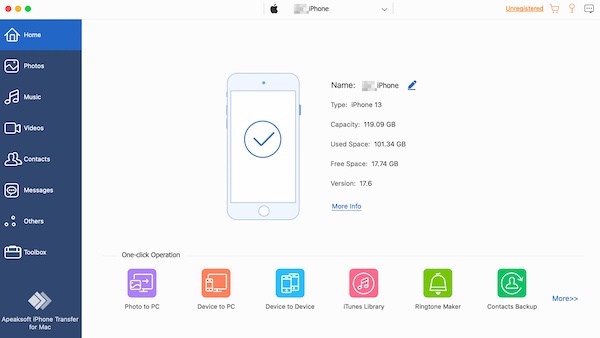
Schritt 1: Verbinden Sie sich mit Ihrem Gerät
Starten Sie iPhone Transfer, nachdem Sie es auf Ihrem Computer installiert haben. Es ist mit Windows und Mac kompatibel. Verbinden Sie das Quellgerät mit einem Lightning-Kabel mit Ihrem Computer.
Schritt 2: Kalender exportieren
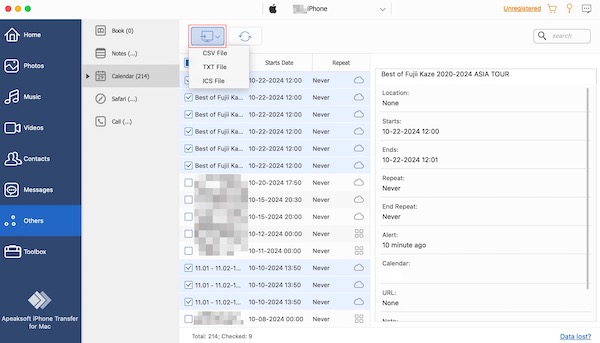
Gehen Sie zur Sonstiges Registerkarte, und wählen Sie Kalender Um alle Kalender auf Ihrem Gerät anzuzeigen, wählen Sie die gewünschten Elemente aus und klicken Sie auf die Schaltfläche. Export und wählen Sie ICS-DateiLegen Sie einen Ausgabeordner fest und bestätigen Sie diesen. Senden Sie anschließend die ICS-Datei per E-Mail an Ihre E-Mail-Adresse.
Schritt 3: Kalender importieren
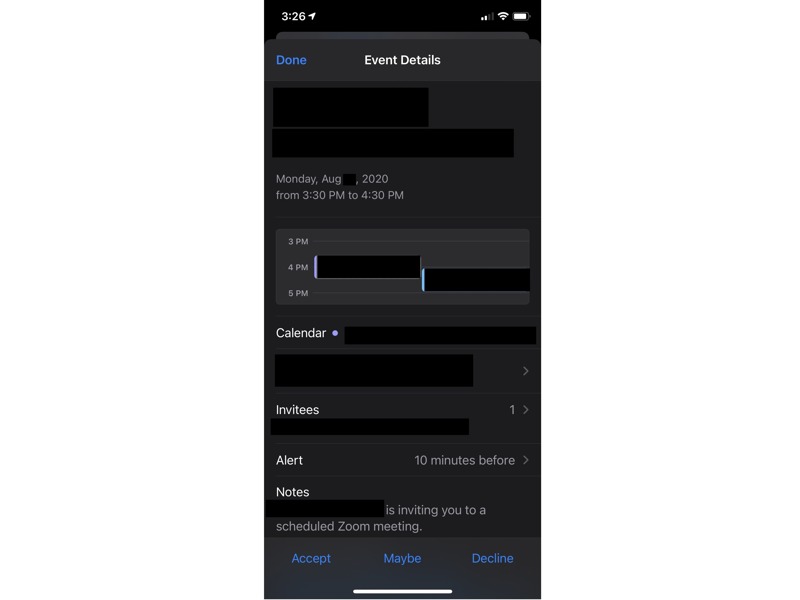
Öffnen Sie den Microsoft Store auf Ihrem Windows-PC Mail App auf dem Zielgerät. Öffnen Sie die neue Nachricht und tippen Sie auf die ICS-Datei. Tippen Sie Akzeptieren or Zum Kalender hinzufügen Kalender zwischen iPhone und iPad synchronisieren. Sie können auch Übertragen Sie Fotos vom iPhone auf das iPadDieses Programm unterstützt Live-Fotos und -Videos.
Weiterführende Literatur
Fazit
Dieser Leitfaden stellte vier effiziente Wege vor, Synchronisiere den Kalender mit iPhone und iPadMit demselben iCloud-, Google- oder Outlook-Konto können Sie – nach entsprechender Einrichtung – auf Ihrem iPhone und iPad auf Ihre Kalender zugreifen. Alternativ können Sie die Kalendersynchronisierung auch per Kabel an einem Computer durchführen. Apeaksoft iPhone Transfer ist eine schnelle Möglichkeit, auf jedem Gerät auf Ihre Kalender zuzugreifen.
Ähnliche Artikel




