


[Λύθηκε] 4 Αποδεδειγμένοι Τρόποι για το Πώς να Διαγράψετε Ημερολόγια σε iPhone/iPad

Βασικά Συμπεράσματα
Υπάρχουν 3 βασικοί τρόποι για να διαγράψετε ημερολόγια στο iPhone: στην εφαρμογή Ημερολόγιο, στις Ρυθμίσεις ή μέσω του iCloud.com.
- Μπορείτε να διαγράψετε ή να διαγραφείτε από τα ανεπιθύμητα ημερολόγια απευθείας από την εφαρμογή Ημερολόγιο.
- Εάν διαγράψετε το Ημερολόγιο στο οποίο έχετε εγγραφεί στις Ρυθμίσεις, ολόκληρη η πηγή συνδρομής και όλα τα σχετικά συμβάντα ημερολογίου θα καταργηθούν.
- Μπορείτε επίσης να διαγράψετε το κοινόχρηστο ημερολόγιο από το iCloud. Οι αλλαγές θα συγχρονιστούν σε όλες τις συσκευές Apple.
- Εάν τα ημερολόγια δεν μπορούν να διαγραφούν ή εμφανίζονται ξανά και ξανά, μπορείτε να δοκιμάσετε το iPhone Eraser για πιο λεπτομερή αφαίρεση.
Αν δεν χρησιμοποιείτε τακτικά ορισμένα ημερολόγια, μπορείτε να τα αποκρύψετε ή να τα διαγράψετε στο iPhone σας για να παραμείνετε καλά οργανωμένοι. Ωστόσο, πολλοί άνθρωποι αντιμετωπίζουν προβλήματα με τη διαγραφή ανεπιθύμητων συμβάντων ή προσκλήσεων ημερολογίου στο iPhone.
"Πώς μπορώ να διαγράψω όλα τα συμβάντα ημερολογίου iCloud;"
"Πώς να διαγράψετε ένα συμβάν ημερολογίου iPhone χωρίς κουμπί επεξεργασίας;"
"Τι να κάνετε εάν δεν υπάρχει επιλογή διαγραφής ημερολογίου σε iPhone;"
"Πώς μπορώ να διαγράψω ημερολόγια σε iOS 10 και νεότερες εκδόσεις;"
Αν έχετε κολλήσει με την ίδια ερώτηση, είστε τυχεροί που βρήκατε αυτό το άρθρο. Εδώ μπορείτε να μάθετε πώς να διαγράψετε το ημερολόγιο στο iPhone προσωρινά ή μόνιμα. Ναι, αν θέλετε να διαγράψετε κάτι πραγματικά προσωπικό, μπορείτε επίσης να λάβετε το λεπτομερές σεμινάριο. Τώρα, ας διαβάσουμε και ας διαγράψουμε μαζί παλιά συμβάντα ημερολογίου σε διαφορετικές περιπτώσεις.
ΠΕΡΙΕΧΟΜΕΝΟ ΣΕΛΙΔΑΣ:
- Μέρος 1: Πώς να διαγράψετε ένα παλιό συμβάν ημερολογίου στο iPhone μέσω της εφαρμογής Ημερολόγιο
- Μέρος 2: Πώς να διαγράψετε τα εγγεγραμμένα ημερολόγια στο iOS 11 και νεότερες εκδόσεις
- Μέρος 3: Πώς να διαγράψετε ένα κοινόχρηστο ημερολόγιο από τη λίστα ημερολογίων iCloud
- Μέρος 4: Δεν μπορείτε να διαγράψετε ένα ημερολόγιο ή ένα συμβάν; Δοκιμάστε αυτήν τη γόμα iPhone
- Μέρος 5: Συχνές ερωτήσεις σχετικά με τη διαγραφή ημερολογίου στο iPhone
Μέρος 1: Πώς να διαγράψετε ένα παλιό συμβάν ημερολογίου στο iPhone μέσω της εφαρμογής Ημερολόγιο
Αυτός είναι ο παραδοσιακός τρόπος για να διαγράψετε συμβάντα iCloud, ανεπιθύμητα μηνύματα ή επαγγελματικά ημερολόγια στο iOS 10 και σε παλαιότερες εκδόσεις. Μπορείτε να δείτε όλα τα προηγούμενα ημερολόγια και συμβάντα σας στην εφαρμογή Ημερολόγιο. Μπορείτε επίσης να επιλέξετε ένα συγκεκριμένο χρώμα για γρήγορη πρόσβαση σε ημερολόγια με παρόμοια θέματα.
Βήμα 1. Εκκίνηση του Ημερολόγια app.
Βήμα 2. Επιλέξτε Ημερολόγια στο κάτω μέρος της οθόνης του iPhone σας.
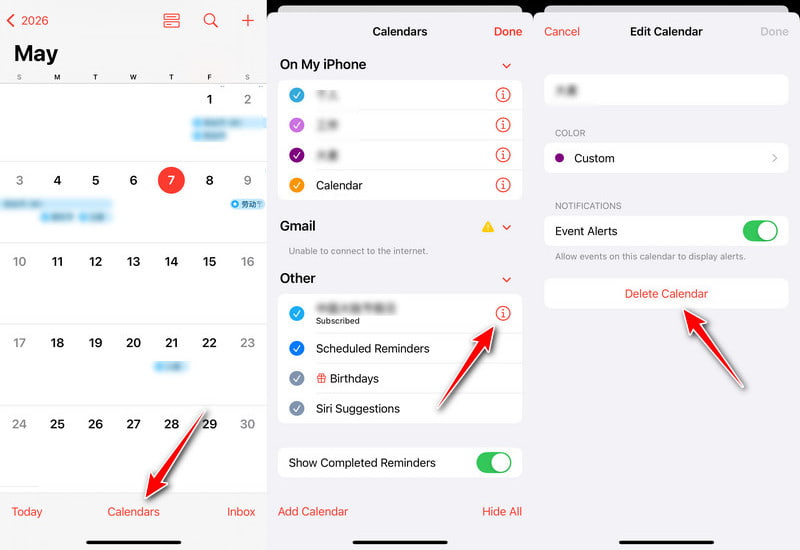
Βήμα 3. Βρείτε και επιλέξτε τα ανεπιθύμητα ημερολόγια iPhone. Πατήστε το πληροφορίες κουμπί (i σε κύκλο) δίπλα του.
Βήμα 4. Επιλέξτε Διαγραφή ημερολογίου και επιβεβαιώστε τη διαγραφή.
Μέρος 2: Πώς να διαγράψετε τα εγγεγραμμένα ημερολόγια στο iOS 11 και νεότερες εκδόσεις
Μερικοί χρήστες παραπονιούνται ότι είναι δύσκολο να διαγράψουν τα ημερολόγια iPhone στα οποία έχετε εγγραφεί μετά την ενημέρωση του iOS 11. Για ορισμένα συγκεκριμένα συμβάντα ημερολογίου από το Exchange, το Yahoo, το Outlook κ.λπ., υπάρχει η επιλογή Διαγραφή ημερολογίου στην εφαρμογή Ημερολόγιο. Στην πραγματικότητα, μπορείτε να μεταβείτε στις Ρυθμίσεις iPhone για να καταργήσετε τα ανεπιθύμητα ημερολόγια από τη συσκευή σας iOS 11 ή νεότερη έκδοση ως εφαρμογές. Αυτή η μέθοδος είναι επίσης ο πιο αποτελεσματικός τρόπος για να καταργήσετε τα ανεπιθύμητα ή τα ανεπιθύμητα ημερολόγια που προστέθηκαν μέσω συνδέσμων ή συνδρομών.
Διαγραφή ημερολογίου στο iPhone στο iOS 11/12
Βήμα 1. Ενεργοποιήστε το iPhone σας και ανοίξτε το Ρυθμίσεις.
Βήμα 2. Κάντε κύλιση προς τα κάτω για να βρείτε Λογαριασμοί και κωδικοί πρόσβασης.
Βήμα 3. Πατήστε Εγγεγραμμένα ημερολόγια στην ενότητα Λογαριασμοί.
Βήμα 4. Επιλέξτε το Ημερολόγιο που θέλετε να διαγράψετε.
Βήμα 5. Πατήστε Διαγραφή Λογαριασμού.
Διαγραφή ανεπιθύμητων συμβάντων ημερολογίου σε iPhone σε iOS 13 και νεότερες εκδόσεις
Βήμα 1. Ανοικτό Ρυθμίσεις.
Βήμα 2. Πηγαίνετε στο Ημερολογιο.
Συμβουλές: Σε iOS 18 και νεότερες εκδόσεις, κάντε κύλιση προς τα κάτω, πατήστε Αιτήσεις, στη συνέχεια αναζητήστε Ημερολογιο στην επόμενη σελίδα.
Βήμα 3. Πατήστε Λογαριασμοίκαι, στη συνέχεια, πατήστε Εγγεγραμμένα ημερολόγια.
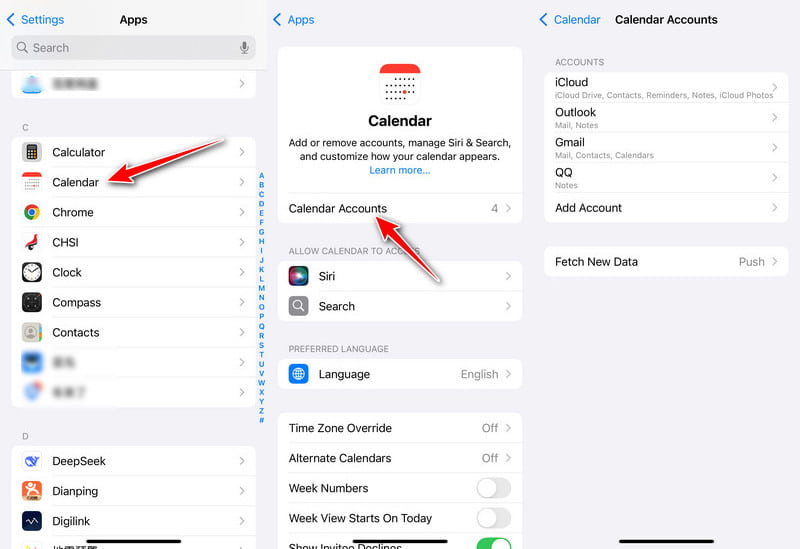
Βήμα 4. Εναλλαγή Ημερολόγια και κάντε κλικ στο κουμπί Διαγραφή από το iPhone μουΉ, απλώς κάντε κλικ Διαγραφή Λογαριασμού.
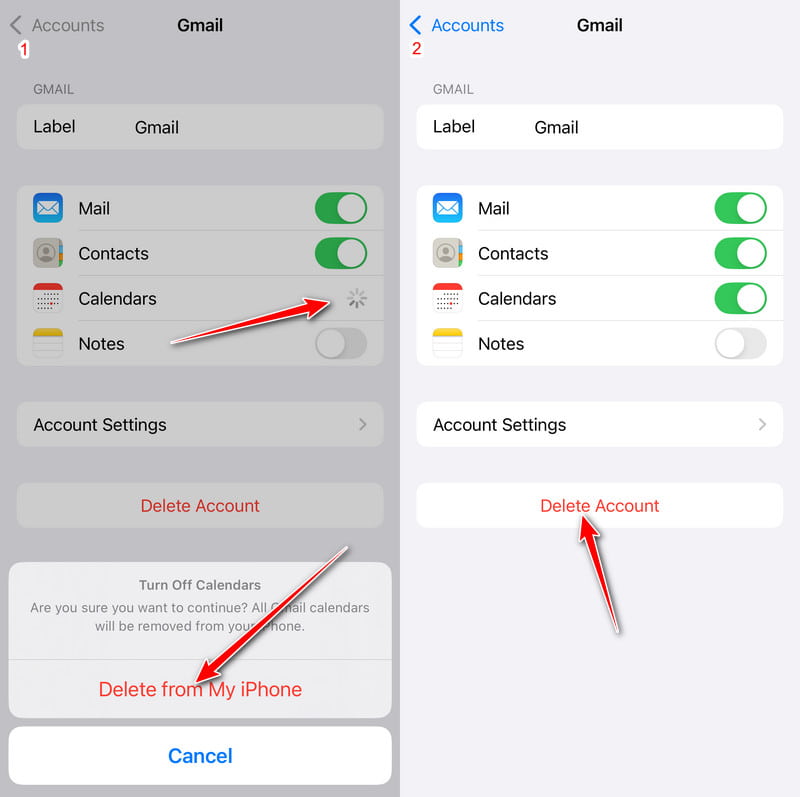
Πριν διαγράψετε μονίμως τα ημερολόγια, είχατε καλύτερα συγχρονίστε το ημερολόγιο iPhone με Mac, μόνο σε περίπτωση απώλειας δεδομένων.
Μέρος 3: Πώς να διαγράψετε ένα κοινόχρηστο ημερολόγιο από τη λίστα ημερολογίων iCloud
Αν έχετε συγχρονίσει ημερολόγια iPhone με το iCloud στο παρελθόν, θα πρέπει επίσης να διαγράψετε το ημερολόγιο iCloud χειροκίνητα. Συνεπώς, όλα τα συμβάντα που σχετίζονται με αυτό το ημερολόγιο θα καταργηθούν ταυτόχρονα. Λάβετε υπόψη ότι δεν μπορείτε να διαγράψετε όλα τα ημερολόγια από τη λίστα. Το iCloud απαιτεί τουλάχιστον ένα ημερολόγιο. Επιπλέον, όλες οι συσκευές Apple σας δεν μπορούν να βρουν αυτό το διαγραμμένο ημερολόγιο μέσω του iCloud.
Βήμα 1. Επισκεφθείτε το iCloud.com στο πρόγραμμα περιήγησης ιστού σας. Συνδεθείτε στον λογαριασμό σας iCloud.
Βήμα 2. Επιλέξτε Ημερολογιο από τις διάφορες επιλογές.
Βήμα 3. Επιλέξτε το κουμπί ··· σε έναν κύκλο δίπλα στο όνομα του παλιού ημερολογίου iPhone.
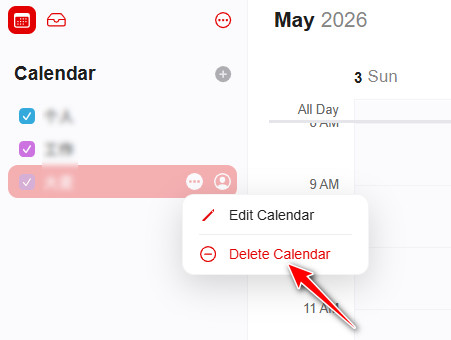
Βήμα 4. Επιλέξτε Διαγραφή ημερολογίου για να διαγράψετε ένα ημερολόγιο iCloud στο iPhone.
Μέρος 4: Δεν μπορείτε να διαγράψετε ένα ημερολόγιο ή ένα συμβάν; Δοκιμάστε αυτήν τη γόμα iPhone
Αν δεν θέλετε να γνωρίζουν οι άλλοι το ημερολόγιό σας, ο πιο αποτελεσματικός τρόπος είναι να καθαρίσετε το iPhone σας. Η διαγραφή ημερολογίων σε ένα iPhone δεν είναι αρκετά ασφαλής. Ακριβώς όπως πετάτε τα χαρτιά στον κάδο απορριμμάτων, ακόμα κι αν αδειάσετε τον κάδο, κάποιος μπορεί να βρει τα χαρτιά. Σε αυτό το διάστημα, χρειάζεστε έναν "τεμαχιστή", ο οποίος είναι... Apeaksoft iPhone Γόμα.
Μπορείτε να διαγράψετε όλα τα αποθηκευμένα αρχεία και τις ρυθμίσεις από τη συσκευή σας iOS χωρίς δυνατότητα ανάκτησης. Άλλοι δεν μπορούν να παρακολουθήσουν τα προσωπικά σας στοιχεία με το παλιό iPhone. Έτσι, το iPhone Eraser είναι επίσης μια απαραίτητη εφαρμογή που μπορεί να προστατεύσει τα δεδομένα του τηλεφώνου σας. Πρέπει πραγματικά να καθαρίσετε το iPhone σας πριν το πουλήσετε ή το χαρίσετε. Επομένως, μπορείτε να διαγράψετε με ασφάλεια το ημερολόγιο στο iPhone, καθώς και άλλες ευαίσθητες πληροφορίες.

Λήψη από πάνω από 1,000,000 Χρήστες
- Διαγράψτε τα επίμονα ή ανεπιθύμητα ημερολόγια που επανεμφανίζονται συνεχώς.
- Αποφύγετε τη σύγχυση που προκαλείται από διαφορετικές εκδόσεις iOS και κρυφές ρυθμίσεις.
- Εκτελέστε μια πιο βαθιά διαγραφή των ημερολογίων iPhone.
- Συμβατό με όλα τα μοντέλα και τις εκδόσεις iOS.
Ασφαλής λήψη
Ασφαλής λήψη
Βήματα για τη μόνιμη διαγραφή ημερολογίων iPhone χωρίς δυνατότητα ανάκτησης
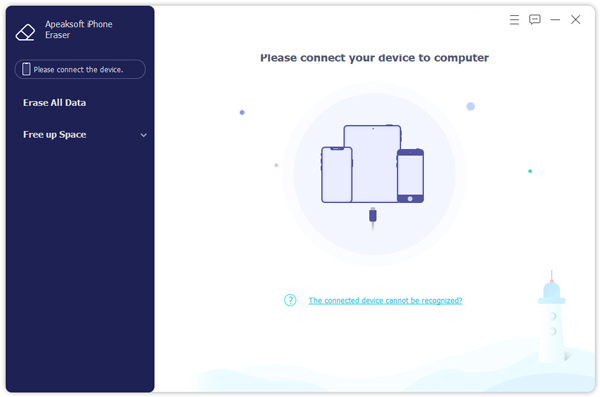
Βήμα 1. Συνδέστε το iPhone με το iPhone Eraser
Δωρεάν λήψη και εγκατάσταση του iPhone Eraser. Χρησιμοποιήστε ένα καλώδιο USB Apple Lightning για να συνδέσετε το iPhone σας στον υπολογιστή σας. Σύντομα, ο υπολογιστής θα εντοπίσει τη συσκευή iOS σας.
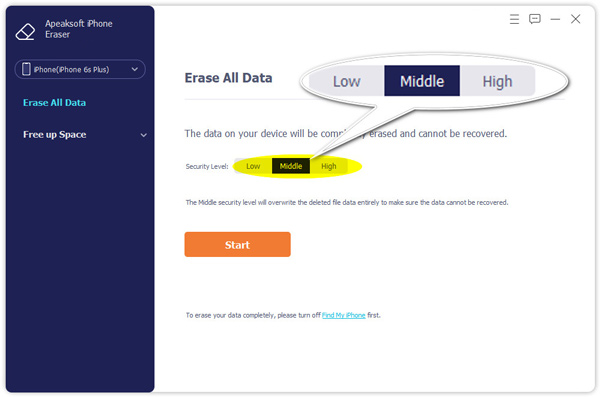
Βήμα 2. Ορισμός επιπέδου διαγραφής iPhone
Θα σας ζητηθεί να επιλέξετε το επίπεδο διαγραφής του iPhone. Συνεπώς, μπορείτε να αντικαταστήσετε όλα τα δεδομένα και τα ανεπιθύμητα αρχεία του iPhone δύο ή τρεις φορές. Κατά τη διάρκεια αυτής της περιόδου, το προεπιλεγμένο Χαμηλό επίπεδο είναι αρκετό.
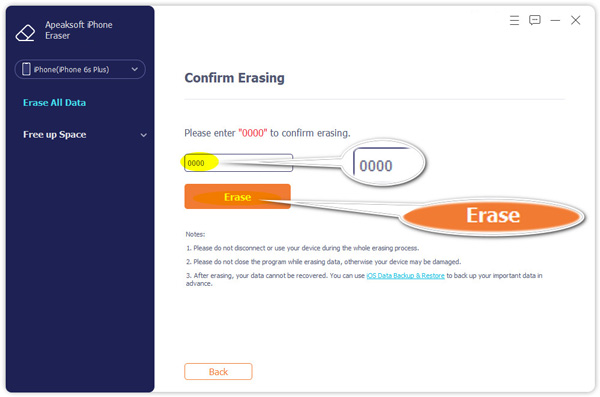
Βήμα 3. Διαγράψτε το ημερολόγιο στο iPhone με ασφάλεια
Πατήστε Αρχική για να ξεκινήσετε τη διαγραφή των συμβάντων του iPhone και άλλων αρχείων. Πρέπει να περιμένετε λίγο για να ολοκληρωθεί η διαδικασία. Αργότερα, μπορείτε να επανεκκινήσετε το iPhone σας για έλεγχο.
Μέρος 5: Συχνές ερωτήσεις σχετικά με τη διαγραφή ημερολογίου στο iPhone
Γιατί έχω πολλά ημερολόγια στο iPhone μου;
Η δυνατότητα ημερολογίου του iPhone σάς βοηθά να ρυθμίσετε πολλά ημερολόγια για να παρακολουθείτε διαφορετικούς τύπους χρονοδιαγραμμάτων και να τα κατηγοριοποιείτε. Για παράδειγμα, χρονοδιαγράμματα εργασίας, οικογενειακά θέματα, σχολικά προγράμματα κ.λπ. Μπορείτε επίσης να ρυθμίσετε ώστε να παρακολουθείτε όλα τα προγράμματά σας σε ένα ημερολόγιο.
Τι σημαίνει η συγχώνευση ημερολογίων σε ένα iPhone;
Η συγχώνευση ημερολογίων σημαίνει γενικά τη μίξη του ημερολογίου στο iPhone σας με το ημερολόγιο στο iCloud. Εάν δεν έχετε χρησιμοποιήσει ημερολόγια iCloud, το ημερολόγιό σας θα μεταφορτωθεί στο iCloud και θα συγχωνευθεί με ένα κενό.
Είναι το Ημερολόγιο iCloud το ίδιο με το Ημερολόγιο iPhone;
Ενώ και τα δύο δεν διαφέρουν πολύ στη λειτουργικότητα, αποθηκεύονται διαφορετικά. Το Ημερολόγιο iPhone θα αποθηκευτεί μόνο στη συσκευή σας, αλλά το Ημερολόγιο iCloud αποθηκεύεται στο cloud. Μπορείτε να προβάλετε αυτά τα ημερολόγια σε οποιαδήποτε συσκευή είναι συνδεδεμένη στο iCloud. Φυσικά, μπορείτε επίσης να συγχωνεύσετε τα δύο.
Πώς μπορώ να δημιουργήσω ένα οικογενειακό ημερολόγιο στο iPhone μου;
Ανοικτό Ημερολογιο στο iPhone σας και πατήστε Ημερολογιοs στο κάτω μέρος της οθόνης για να μεταβείτε στην επόμενη οθόνη. Στη συνέχεια, επιλέξτε Προσθήκη Ημερολογίου κάτω αριστερά στην οθόνη. Τώρα, μπορείτε να δημιουργήσετε ένα νέο ημερολόγιο ή να προσθέσετε ένα ημερολόγιο συνδρομής.
Πόσο πίσω κρατά τα συμβάντα το ημερολόγιο του iPhone;
Από προεπιλογή, το iPhone θα αποθηκεύσει το ημερολόγιό σας για έως και ένα μήνα. Ωστόσο, μπορείτε να αλλάξετε το χρονικό όριο του ημερολογίου. Ανοιξε Ρυθμίσεις και πατήστε Ημερολογιο. Μπορείτε να προσαρμόσετε το εύρος σε Εκδηλώσεις πριν από 3 μήνες, Εκδηλώσεις πριν από 6 μήνεςΤο HIFU, ή Υψηλής Έντασης Εστιασμένος Υπέρηχος, στοχεύει επίσης στο πρόσωπο και τον λαιμό. Προσφέρει θεραπεία σε γρήγορες εκπομπές, γεγονός που κάνει τις συνεδρίες θεραπείας συντομότερες. Δραστηριότητες.
Συμπέρασμα
Μπορείτε να διαγραφή ημερολογίου στο iPhone τώρα; Ας ελπίσουμε ότι αυτός ο οδηγός σας βοήθησε να καταργήσετε ανεπιθύμητα, παλιά ή ανεπιθύμητα ημερολόγια πιο εύκολα, είτε επιλέξετε να διαγράψετε ημερολόγια μέσω της εφαρμογής Ημερολόγιο, των Ρυθμίσεων ή του iCloud.com.
Επιπλέον, χρησιμοποιώντας το iPhone Eraser, μπορείτε να προστατεύσετε το απόρρητό σας και να ελευθερώσετε περισσότερο χώρο. Με άλλα λόγια, ανεξάρτητα από το πόσα αρχεία έχετε αποθηκεύσει, μπορείτε να μετατρέψετε το iPhone σας σε ένα νέο.
 Apeaksoft iPhone Γόμα
 Διαγράψτε μόνιμα δεδομένα και ρυθμίσεις από συσκευές iOS.
Ασφαλής λήψη
Ασφαλής λήψη
Σχετικά άρθρα




