


Cómo recuperar notas adhesivas en Windows 11: 5 métodos

Sticky Notes is a convenient Windows app for saving reminders, password hints, work notes, and quick ideas. However, your notes may disappear after an accidental deletion, an app update, a sign-in change, or a system issue. Wondering how to recover deleted Sticky Notes? The right solution depends on whether the notes were deleted permanently or are simply lost.
Este artículo explica Cómo recuperar notas adhesivas on Windows 11 using account synchronization, existing backups, and local database files. It also covers what to do when a note is closed rather than deleted and how to prevent future note loss.
CONTENIDO DE LA PAGINA:
- Part 1: Check the Sticky Notes List First
- Part 2: Recover Sticky Notes Through Your Microsoft Account
- Part 3: Restore Sticky Notes From a Local Backup
- Part 4: Recover Sticky Notes From Windows File History or Another Backup
- Part 5: What If You Cannot Recover Deleted Sticky Notes?
- Part 6: How to Prevent Sticky Notes From Disappearing Again
- Part 7: FAQs About Recovering Sticky Notes
Part 1. Check the Sticky Notes List First
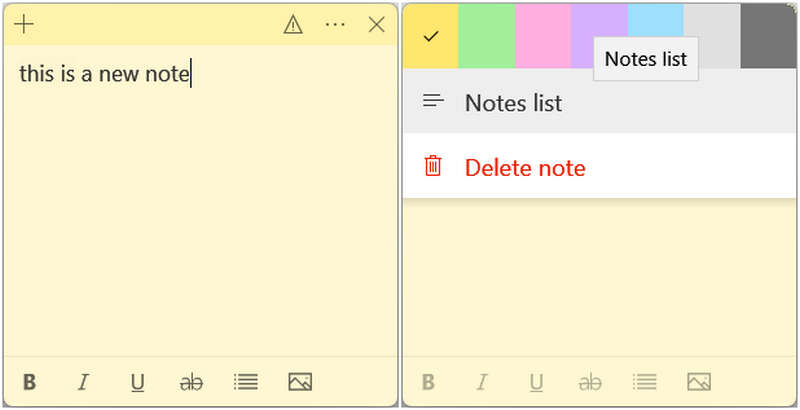
Before trying advanced recovery methods below, make sure the notes have actually been deleted. For example, closing a note does not necessarily delete it. Sticky Notes can keep closed notes in the notes list, allowing you to open them again.
Follow these steps to recover a missing sticky note:
- Abra el panel de Comenzar menú y búsqueda de Sticky Notes.
- Launch Sticky Notes app and look for the notes list.
- If only one note appears, click the Más menu (with a three-dot icon) and select Lista de notas, si está disponible.
- Search or scroll through the list to find if there is the missing note.
- Double-click the note to open it again to check it further.
If you cannot find your desired note, check whether Sticky Notes is signed in to the correct Microsoft account.
Part 2. Recover Sticky Notes Through Your Microsoft Account
If you previously signed in to Sticky Notes and enabled synchronization, your notes may be available through your Microsoft account on another computer or in Outlook clound storage on the web.
Check your account and synchronization:
- 1.Open Sticky Notes and select Configuración.
- 2.Comprueba qué cuenta ha iniciado sesión.
- 3.Sign in with the Microsoft account you used before the notes disappeared.
- 4.If your notes still do not appear, check the app's synchronization settings and use Sincronizar ahora, si está disponible.
You can also sign in to Outlook on the web browser with the same account and check whether your synchronized notes are available.
Keep in mind that account and data synchronization does not guarantee recovery of deleted Sticky Notes. Microsoft states that deleting a Sticky Note is permanent and cannot be undone through the app. If the note you want was actually deleted, check whether another copy or backup exists before assuming it can be restored.
Part 3. Restore Sticky Notes From a Local Backup
If your Windows Sticky Notes were stored locally, a backup of the Sticky Notes database may help you recover them. This method is particularly useful if you backed up your Windows user data before deleting or losing a note.
Paso 1: Locate the Sticky Notes database
For supported versions of the Windows Sticky Notes app, local data is commonly stored in a folder similar to this:
%LocalAppData%PackagesMicrosoft.MicrosoftStickyNotes_8wekyb3d8bbweLocalState
To open the folder:
- 1.Prensa Win + R para abrir el cuadro de diálogo Ejecutar.
- 2.Enter the folder path above and press Enter.
- 3.Look for a file named plum.sqlite.
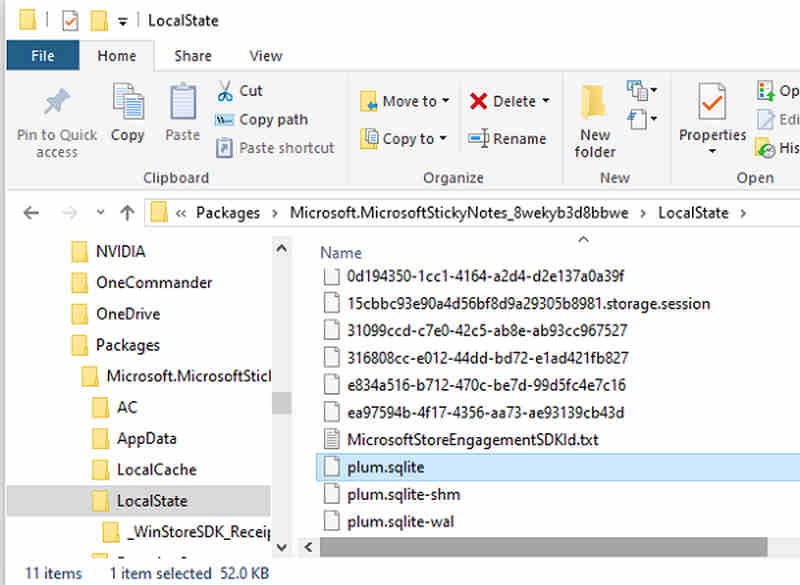
The database file contains Sticky Notes data, but it is not a recycle bin or a complete history of previous note versions. Simply opening the current database will not necessarily restore deleted notes.
Paso 2: Replace the database with a backup
If you have an older copy of plum.sqlite, take these precautions:
- 1.Close Sticky Notes completely.
- 2.Copy the current database to a separate folder as a safety copy.
- 3.Keep the original backup unchanged and work with a duplicate.
- 4.Only replace the current database if you understand the consequences and have confirmed that the backup belongs to the same app and account setup.
- 5.Reabrir Sticky Notes and check whether the expected notes appear.
Restoring an older database may replace newer notes or display incomplete data. If you do not have a backup created before the loss, this method may not recover the missing content.
Part 4. Recover Sticky Notes From Windows File History or Another Backup
Windows backup tools may make a difference if the Sticky Notes data was included in a backup before the problem occurred.
Use File History
If File History was enabled and the relevant folder was included in the backup:
- 1.Open Control Panel and search for Historial del archivo.
- 2.Seleccionar Restaurar archivos personales.
- 3.Browse available backup dates and folders.
- 4.Look for a previous copy of the Sticky Notes database or related application data.
- 5.Restore the required file to a separate location first, if possible, so you can preserve the current data.
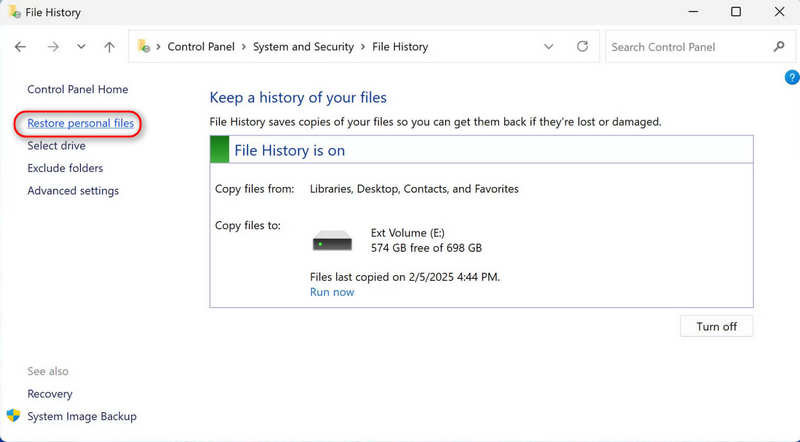
The exact recovery options depend on your Windows configuration and what was backed up. File History cannot restore a file that was never included in its backup.
Check other backup sources
You can also look for copies in Windows backup locations, external drives, or previously created system backups. If you recently moved to a new computer, check whether the old computer still contains the original notes.
Avoid resetting or uninstalling Sticky Notes before checking your backup options. Depending on the app version and whether synchronization was enabled, these actions may remove local data.
OTRAS LECTURAS
Part 5. What If You Cannot Recover Deleted Sticky Notes?
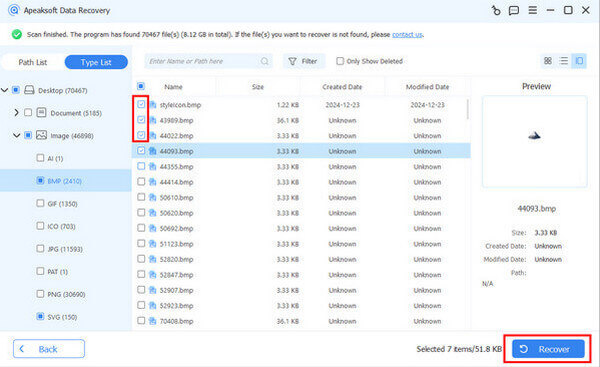
If you have checked the notes list, confirmed the account, reviewed synchronized notes, and searched available backups, but still cannot find your desired Sticky Notes, that means your recovery options may be limited, and what you really need is recovery Sticky Notes without previous backup.
Recuperación de datos de Apeaksoft is a good choice for you to recover lost files, like Sticky Notes, videos, photos, Word files, Excel files, and many other types of files on Windows 11 or 10. You don't need to consider whether you have backup files, just use this program to detect your computer and retrieve them easily.
Paso 1: Obtenga Apeaksoft Data Recovery
Haga clic en el botón Descargar gratis button below to download, install, and launch Apeaksoft Data Recovery.
Descarga segura
Descarga segura
Paso 2: Escanee su computadora
Now, you can choose a hard disk where your Sticky Notes were ever stored. Then, click the Iniciar escaneado .
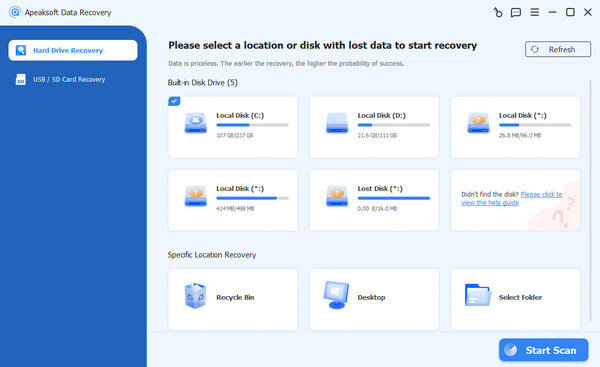
Paso 3: Check and Recover Lost Sticky Notes
This program will scan your device. During the scanning process, you can see lost files are gradually displayed. You can choose your desired lost Sticky Notes and click the Recuperar Botón para recuperarlos.
Part 6: FAQs About Recovering Sticky Notes
Can I recover Sticky Notes deleted a long time ago?
Possibly, if an older backup or synchronized copy still contains the notes. Without a backup, recovery is much less likely because the app's local database doesn't automatically preserve a complete history of deleted content.
Where are Sticky Notes stored in Windows 11?
The Windows app commonly stores local data in its package's LocalState folder, with plum.sqlite serving as a key database file. The exact storage arrangement can vary by app version and configuration.
Does uninstalling Sticky Notes delete my notes?
It can. The result depends on the app version, account synchronization, and whether local data is preserved. Check synchronization and create a backup before uninstalling or resetting the app.
Why did my Sticky Notes disappear after a Windows update?
The notes may be missing because the app signed out, the wrong account is active, synchronization failed, or local application data was affected. Check your account and notes list before attempting database recovery.
Conclusión
A recuperar notas adhesivas en Windows 11, start by checking the notes list and confirming your Microsoft account. Then look for synchronized copies and existing backups. If a note was permanently deleted and no earlier copy exists, recovery may not be possible. Regular synchronization, backups, and deletion confirmation are the most reliable ways to protect your notes in the future. If all the methods above cannot find your notes, that means your backups and cloud storage don't have them. You'll need Recuperación de datos de Apeaksoft to help you easily and quickly find them all and bring them back. This program can also help you recover other lost files, info, and data without a backup.
 Recuperación de datos de Apeaksoft
 Recupere datos eliminados o perdidos en computadoras Windows y Mac.
Descarga segura
Descarga segura
Artículos Relacionados




