How to Share Notes on iPhone: A Complete Sharing Guide

The Notes app on your iPhone makes it easy to share your notes with others. Depending on your needs, you can either send a copy of a note or collaborate with others in real time. If you need to share or transfer multiple notes across Apple devices, you can also use a dedicated iPhone transfer tool. This post explains cómo compartir notas en iPhone using these methods.
CONTENIDO DE LA PAGINA:
Part 1: Collaborate vs Send a Copy - How to Choose
As Apple explains, you can share a note using Collaborate or Send a Copy. This section compares the two methods to help you choose the right option for your needs.
| Consideración | Colabore | Enviar una copia |
| Ideal para | Teamwork, shared checklists, and ongoing projects | Sending a note by AirDrop, Mail, Messages, or exporting it for viewing or saving |
| Can others edit | Sí: | No |
| Changes sync in real time | Sí: | No |
| Original note affected | Yes, collaborators can edit it | No, a separate copy is shared |
| Need iCloud | Sí: | No |
Part 2: How to Share Notes on iPhone with Collaborate
If you want other people to view and edit the note in real time, you can choose the Collaborate option.
Antes de empezar
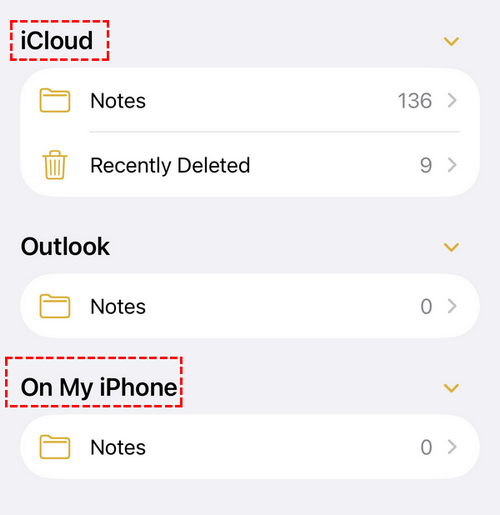
Store the note in iCloud. Make sure the note is stored in iCloud before you start collaborating. You should know that you can't collaborate in the Notes app if notes are saved under En mi iPhone.
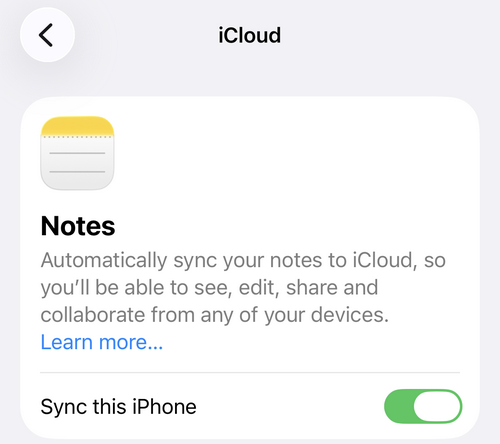
Turn on Notes in iCloud. Collaboration requires Notes to be enabled in iCloud. Go to Configuración > tu nombre > iCloud > Notas and turn on syncing.
Sign in to an Apple Account. Make sure you and others are signed in to your Apple Account.
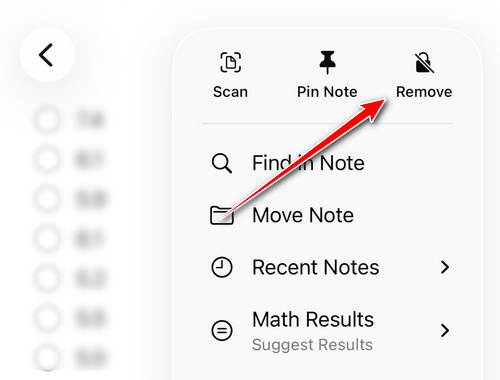
Use an unlocked note. Make sure the note isn't locked before you start collaborating.
How to Collaborate on a Note on iPhone
Paso 1: Abra el panel de Notas app and find the note you want to share.
Paso 2: Toque en el Compartir .
Paso 3: Under the note title, tap Share a Link to start a collaboration. If you are using iOS 26 or earlier versions, the option is named Colabore.
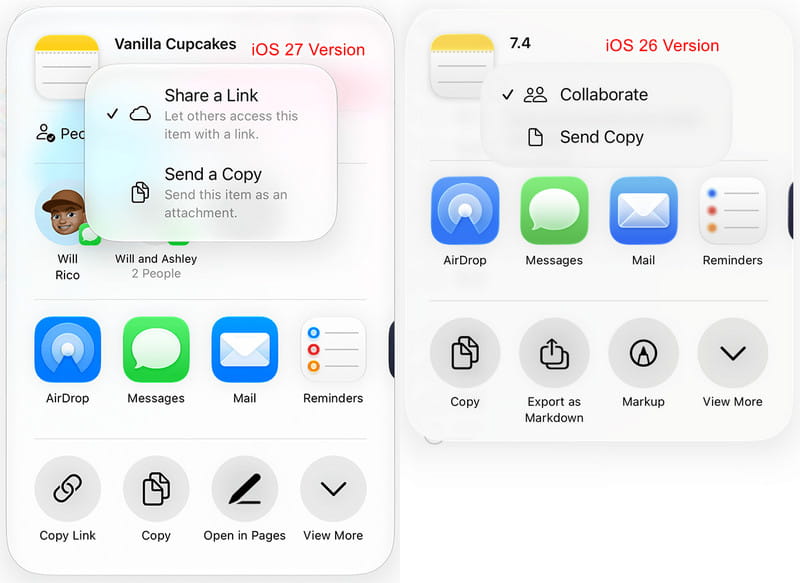
Paso 4: Set who can access the note and what they can do. Choose People you choose or Cualquiera con el link, A continuación, seleccione Editar or View and Download Only. The option names differ slightly on iOS 26 and earlier.
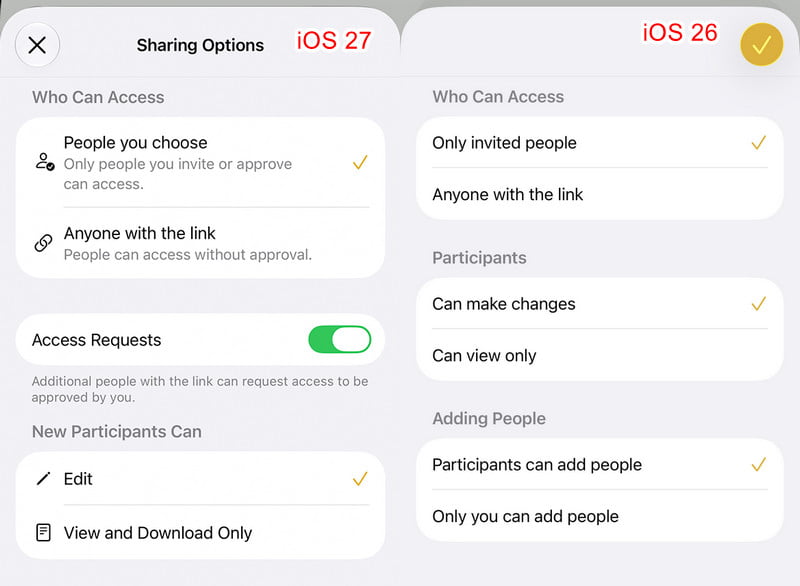
Paso 5: Choose how you want to send the invitation, such as Messages. When the other person accepts the invitation, you can collaborate on the note and see changes in real time.
How to Manage or Stop Sharing a Note on iPhone
After sharing a note, you can change its permissions, remove participants, or stop sharing it entirely.
Paso 1: Open the shared note and tap the Compartir .
Paso 2: Pulsa para buscar Manage Shared Note to manage relevant permissions or participants.
Paso 3: Elija Deja de compartir if you want to end access to the note.
Part 3: How to Send a Copy of a Note on iPhone
If you don't need others to edit your note, you can send a copy instead. This lets you share the note without allowing others to change your note content, through AirDrop, Messages, Reminders, or some commonly used apps, including Facebook, Twitter, and more. You can follow the steps below to send your iPhone notes.
Paso 1: Abra el panel de Notas app to find the note and open it.
Paso 2: Toque en el Compartir button in the upper-right corner of the screen to display various options.
Paso 3: Under the note title, tap Enviar una copia.
Paso 4: As you can see, you are allowed to share iPhone notes through AirDrop and social apps, including Facebook, Instagram, Snapchat, Messages, and more. You can pick a preferred way to share it.
| Opción | Ideal para |
| Lanzamiento desde el aire | Quickly sending a note to a nearby Apple device |
| Mensajes | Sharing a note through a message |
| Correo | Sending a note by email |
| Guardar en archivos | Saving a copy for later use |
| Sharing the note as a fixed-format document | |
| Reducción | Exporting the note in Markdown format |
| Páginas | Continuing to edit the content as a Pages document |
Part 4: How to Share Multiple Notes Across Apple Devices
You can share or sync iPhone notes across Apple devices using built-in options such as AirDrop or iCloud. However, when you need to transfer multiple notes at once, it is not a wise decision to share them one by one. At this point, software like Apeaksoft iPhone Transfer may make the process easier. It lets you preview, select, and share multiple iPhone notes at once.

Descargado por más de 1,000,000 usuarios
- Share notes from iPhone in bulk.
- Transfer notes between iPhone, iPad, and computers.
- Manage iPhone notes on the computer easily.
- Preview notes before transferring to select the content you need.
Descarga segura
Descarga segura

Paso 1: Download and install this tool when you want to share notes on your iPhone. Connect your iPhone to your computer.
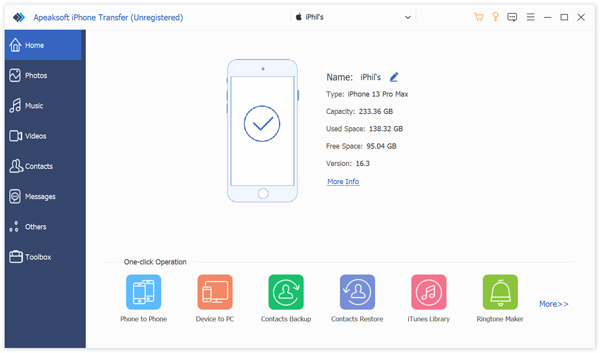
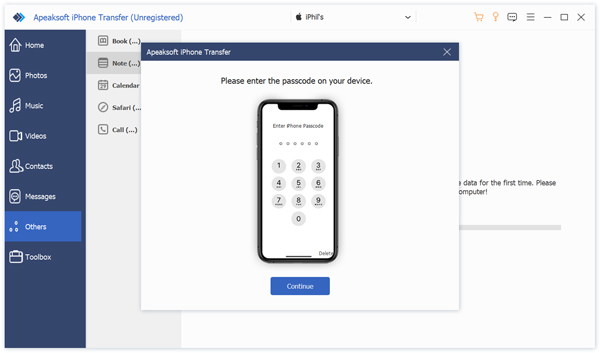
Paso 2: Your iPhone data will be listed in categories on the left panel. Click Others and select Note. This iPhone Transfer will start to scan all your iPhone notes. You need to enter your passcode on the iPhone screen to confirm that.
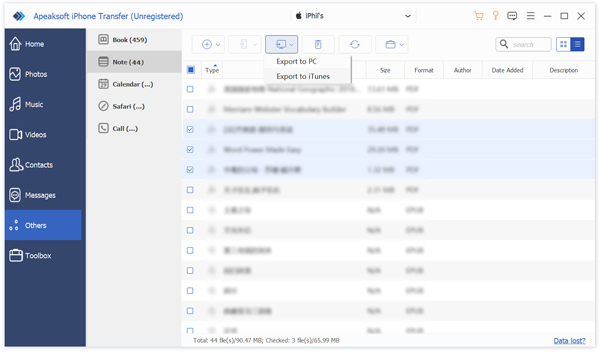
Paso 3: Select the notes you want to transfer to another device. Click the computadora button if you want to transfer notes from iPhone to computer, or choose the connected device as the transfer destination. Your selected notes will then be transferred to the connected device.
Conclusión
Ahora sabes como compartir notas en iPhone in different ways. You can use Enviar una copia for quick sharing. If you want to collaborate with others, you can use Colabore or Compartir un enlace for real-time editing. If you want to share multiple notes at once across different devices, Apeaksoft iPhone Transfer es una opción ideal.
 Apeaksoft iPhone Transfer
Transfiere datos de iOS entre dispositivos iOS, computadora e iTunes.
Descarga segura
Descarga segura
Artículos Relacionados