

How to Recover Deleted Emails on iPhone in 4 Methods

"I deleted some important emails by mistake. How to retrieve deleted emails on an iPhone?" According to our research, the majority of iOS users read, receive, and send emails on their iOS devices. That brings a new problem: the email is missing. Thankfully, there are methods to get back your lost emails in various situations. Our tutorial shares the proven methods and demonstrates the workflows to help you find the important messages.
SIVUN SISÄLTÖ:
Part 1: How to Recover Deleted Emails on iPhone from Trash
Both the Apple Mail app and third-party mail apps equip the Trash folder. It saves the deleted emails for a specific period. Before they are permanently erased, you can get deleted emails back on your iPhone quickly.
How to Recover Deleted Emails on iPhone in Apple Mail
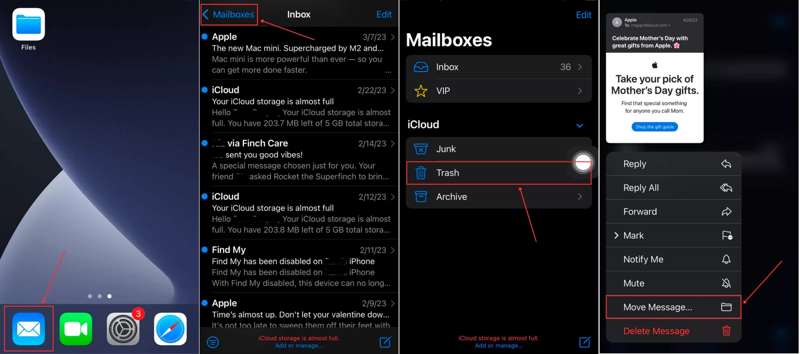
Vaihe 1. Avaa iOS posti app iPhone-laitteellasi.
Vaihe 2. Napauttaa postilaatikot Ja valitse Roskakori listalla.
Vaihe 3. View the recently deleted emails and long-press the message you want to recover.
Vaihe 4. Valitse sitten Siirrä viesti kontekstivalikosta.
Vaihe 5. Set the receiver folder, like the Saapuneet.
Vaihe 6. Now, you can find the deleted iPhone emails in the receiver location.
How to Recover Deleted Emails from Gmail on iPhone
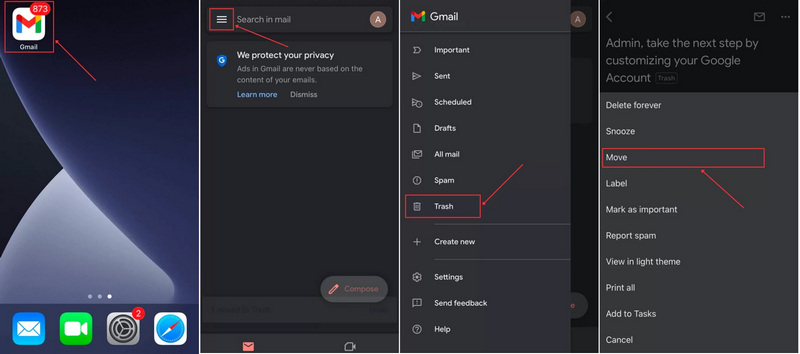
Vaihe 1. Suorita gmail App.
Vaihe 2. Napauta Hamburger button and choose Roskakori.
Vaihe 3. Select the email you wish to retrieve, and press the Lisää: painiketta kolmen pisteen kuvakkeella.
Vaihe 4. Valita Liikkua and select the location where you want to save the recovered email from Gmail on your iPhone.
How to Retrieve Deleted Emails on iPhone from Yahoo
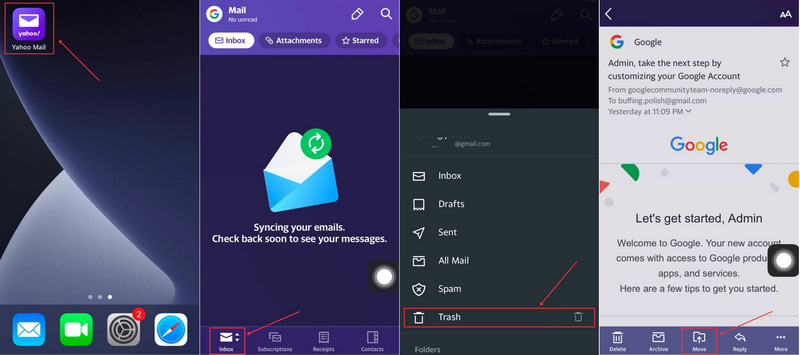
Vaihe 1. Suorita Yahoo App.
Vaihe 2. Napauta Saapuneet -painiketta alareunassa ja valitse Roskakori.
Vaihe 3. Open the email you want to restore by tapping it.
Vaihe 4. Napauta Liikkua button at the bottom and choose a location to save the email. If you want to manage the recovered emails independently, choose Luo uusi kansio and leave a name.
Part 2: How to Retrieve Deleted Emails on iPhone by Shake Undo
Since iOS 3, Apple has added the Shake-to-undo gesture to iPhones. It allows you to retrieve deleted emails from your iPhone immediately once you remove an email. In other words, it only works if you have just deleted an email and haven’t closed the Mail app.
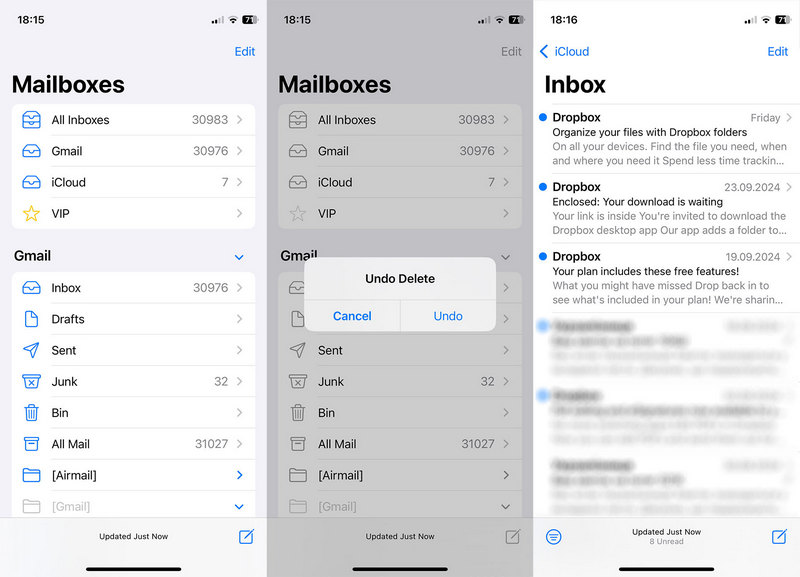
Vaihe 1. As long as you accidentally delete an email, shake your iPhone immediately.
Vaihe 2. Napauta sitten purkaa -painiketta ponnahdusikkunassa.
Vaihe 3. Now, you will find the email goes back to your Inbox.
Part 3: How to Find Deleted Email on iPhone from iCloud
As the official cloud service, iCloud keeps your emails in either your account or a backup. It means that you can get back deleted emails on iPhone from your iCloud account or iCloud backup, depending on your situation.
How to Find Deleted iPhone Email from iCloud.com
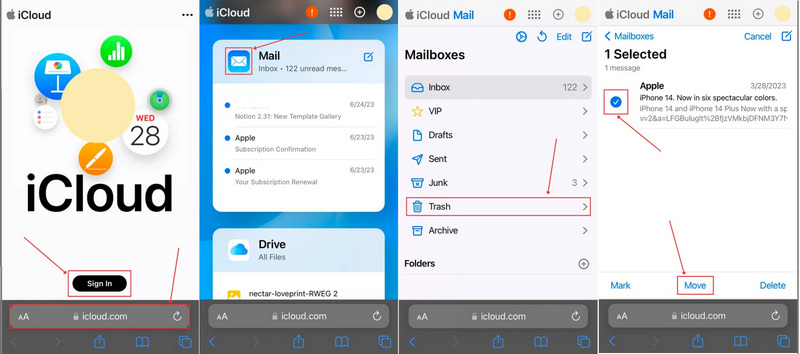
Vaihe 1. Open your web browser, go to www.icloud.com, and sign in with your account.
Vaihe 2. Valitse lisääl app.
Vaihe 3. Napauttaa postilaatikot Ja valitse Roskakori.
Vaihe 4. Check the desired emails and tap the Liikkua painiketta.
Vaihe 5. Set the desired location and hit Liikkua.
How to Restore Deleted Emails on iPhone from iCloud Backup
Vaihe 1. If you cannot find deleted emails on iCloud.com, run your Asetukset App.
Vaihe 2. Navigoida johonkin generalja Siirrä tai nollaa iPhone.
Vaihe 3. Valita Poista kaikki sisältö ja asetukset. This process will poista iPhone.
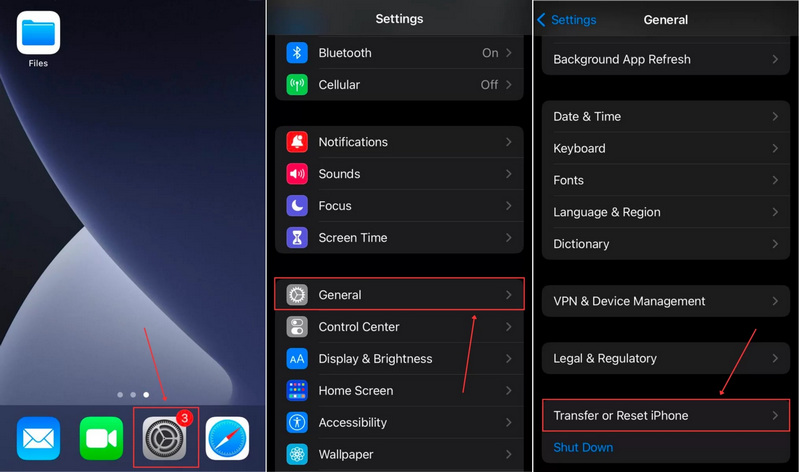
Vaihe 4. Anna pyydettäessä iPhone-salasanasi tai Apple ID -salasanasi.
Vaihe 5. Follow the onscreen instructions to erase your device.
Vaihe 6. Kun iPhone käynnistyy uudelleen, ota se käyttöön ja muodosta yhteys Wi-Fi-verkkoon.
Vaihe 7. Valita iCloud Backupista på den Sovellukset ja tiedot -näyttöön.
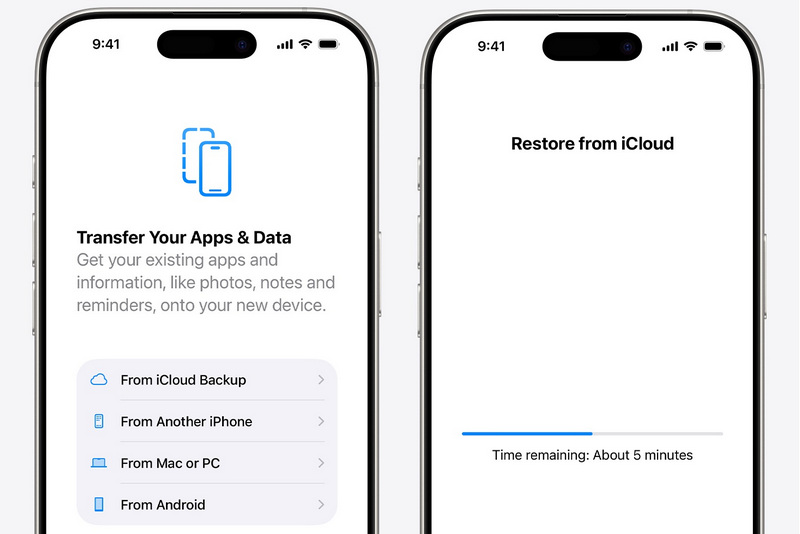
Vaihe 8. Syötä Apple ID:si ja salasanasi.
Vaihe 9. Pick the backup that may include the lost emails.
Vaihe 10. When it is done, complete the setup.
Huomautus: Recovering permanently deleted emails on iPhone from iCloud backup requires you to erase your device first.
Part 4: How to Restore Deleted Emails on iPhone Without Backup
Even if you don’t have a backup, it is possible to recover permanently deleted emails on your iPhone. All you need is a powerful data recovery tool for iPhones, such as Apeaksoft iPhone Data Recovery. It provides three modes for email recovery on your iPhone, iTunes backup, and iCloud backup. More importantly, it is easy to use, especially for novice users.
The Best Way to Restore Deleted Emails on iPhones Without Backup
- Recover deleted emails from your iPhone memory.
- Extract emails from backups without erasing your device.
- Preview the lost data on your iPhone.
- Tuki monenlaisia tietotyyppejä.
- Yhteensopiva iOS:n ja iPadOS:n uusimpien versioiden kanssa.
Suojattu lataus
Suojattu lataus

How to Restore Deleted Emails on Your iPhone Without Backup
Vaihe 1. Skannaa iPhone
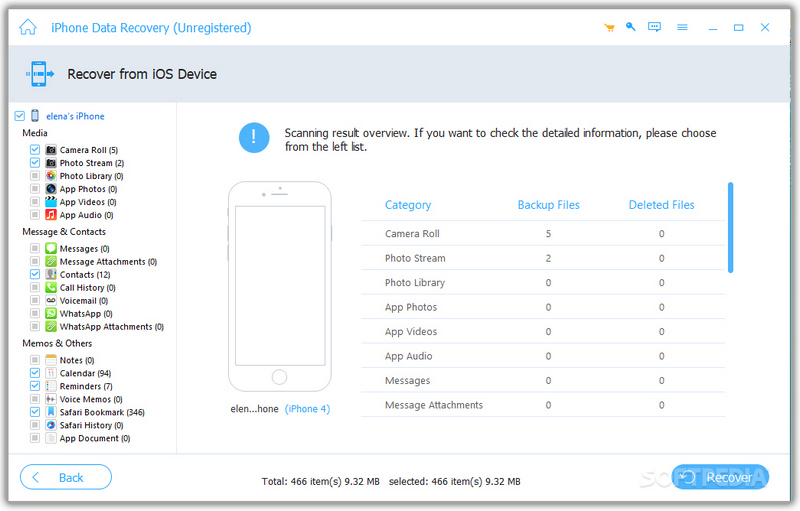
Launch the best data recovery software for iPhone after installing it on your computer. Connect your iPhone to your computer with a Lightning cable. Once your device is detected, go to the Palauta iOS-laitteesta Välilehteä ja napsauta sitten Aloita haku button to begin scanning your memory.
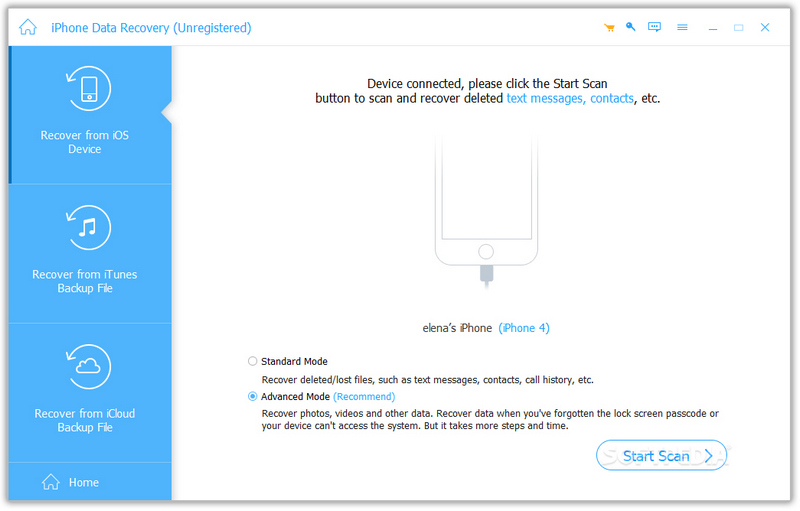
Vaihe 2. Esikatsele kadonneet tiedot
When scanning is complete, choose the data types you want to get back. Then, view the lost files, like deleted email attachments.
Vaihe 3. iPhonen tietojen palautus
Select the files and items you wish to retrieve and click the toipua button. Then, set an output folder, and hit toipua again to confirm it. You can also palauttaa poistetut valokuvat iPhonessa.
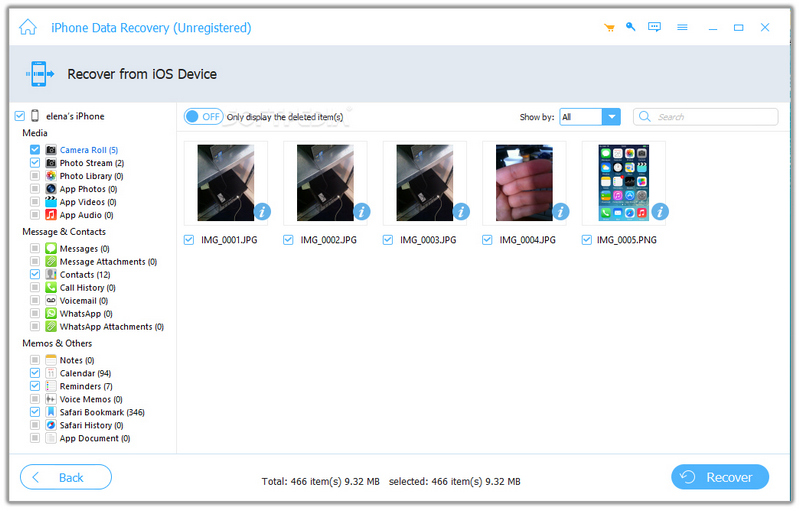
Huomautus: The software will recover deleted emails and attachments to your hard disk. It won’t interrupt existing data on your device.
Yhteenveto
Nyt sinun pitäisi ymmärtää how to retrieve deleted emails on your iPhone. The Trash folder in the Apple Mail app or third-party email apps allows you to find lost emails quickly. Plus, you can access your iCloud account or iCloud backup to restore your emails. Apeaksoft iPhone Data Recovery is the easiest way to restore lost emails from your iPhone. It is easy to navigate and doesn’t require any technical skills.
Aiheeseen liittyvät artikkelit
Etsitkö tapaa nähdä poistettu historia iPhonessa? Tule ja katso, kuinka löydät poistetun historian iPhonesta kuudella eri tavalla, jopa ilman varmuuskopioita!
Tässä oppaassa kerrotaan, kuinka voit palauttaa iPhonesi iCloud- tai iTunes-varmuuskopiosta ja kuinka palauttaa iPhonesi tehdasasetuksiin.
Haluatko palauttaa poistetut äänimuistiot iPhonestasi ilman rajoituksia? Jos teet niin, tämä opas tutkii 3 tapaa puolestasi.
Voit löytää poistetut Viber-viestit iPhonesta käyttämällä Viber/iCloud/iTunes-varmuuskopiota. Jos sinulla ei ole varmuuskopiota, voit käyttää Apeaksoft iPhone Data Recovery -ohjelmaa.



