


Why Apple ID Password Is Not Working and How to Fix It

"A few weeks ago, my Apple ID password suddenly didn't work. Yesterday, it wouldn't work again. Why is my Apple ID salasana ei toimi?" It is well known that the Apple Account plays a key role in the Apple ecosystem. It links almost every Apple service on iPhone, iPad, iPod, Apple Watch, and more. This article explains why this error happens and provides effective solutions to fix this problem quickly.
SIVUN SISÄLTÖ:
Part 1: Why Is My Apple ID Password Not Working
An Apple ID password is necessary when you activate and use an Apple device, as well as access Apple services, such as FaceTime, iMessage, iCloud, Find My, and more. The main causes why my Apple ID password does not work sisältää:
- 1.iOS loads incorrectly.
- 2.Outdated Apple Account information.
- 3.Applen palvelimet ovat alhaalla.
- 4.Something is wrong with your account.
- 5.Wrong date and time.
- 6.Outdated Apple Account password.
- 7.Ohjelmistohäiriöt.
Part 2: What to Do If Apple ID Password Not Working
Ratkaisu 1: Käynnistä iPhone uudelleen
When your Apple ID password is not working, the first thing you can do is restart your iPhone or iPad. That can reload the operating system and read your Apple Account and password.
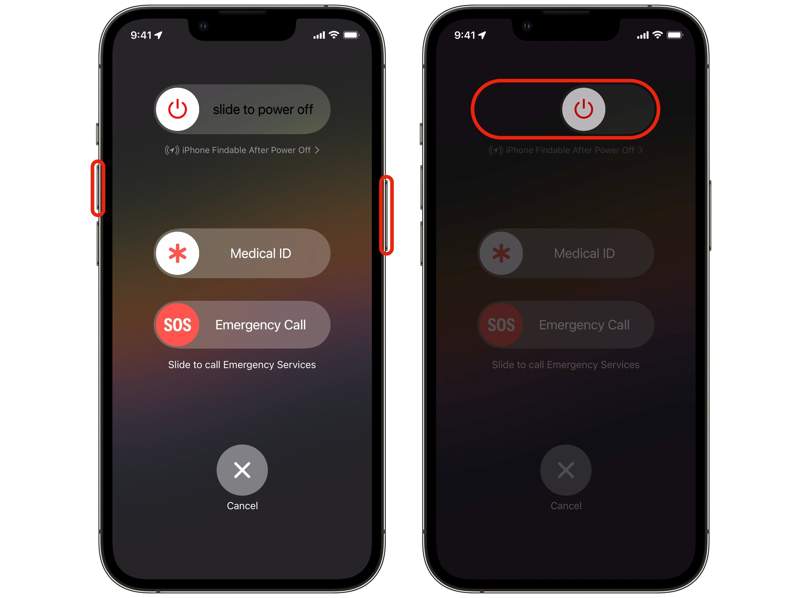
Vaihe 1. For an iPhone with Face ID, press and hold one of the volume buttons + the Puoli painiketta.
For older iPhones, hold down the Puoli or Uni / painiketta.
Vaihe 2. Kun virrankatkaisunäyttö tulee näkyviin, vapauta painikkeet tai -painike.
Vaihe 3. Siirrä liukusäädintä sulkeaksesi sen.
Vaihe 4. Muutaman minuutin kuluttua pidä painiketta painettuna Puoli or Uni / -painiketta, kunnes näet Apple-logon.
Ratkaisu 2: Kirjaudu ulos ja sisään Apple-tililtä
If you have changed Apple Account on other devices, you'd better update it on your iPhone to fix Apple ID password does not work. The process is simple: sign out of your account and sign in again.
Vaihe 1. Avaa Asetukset App.
Vaihe 2. Napauta profiiliasi.
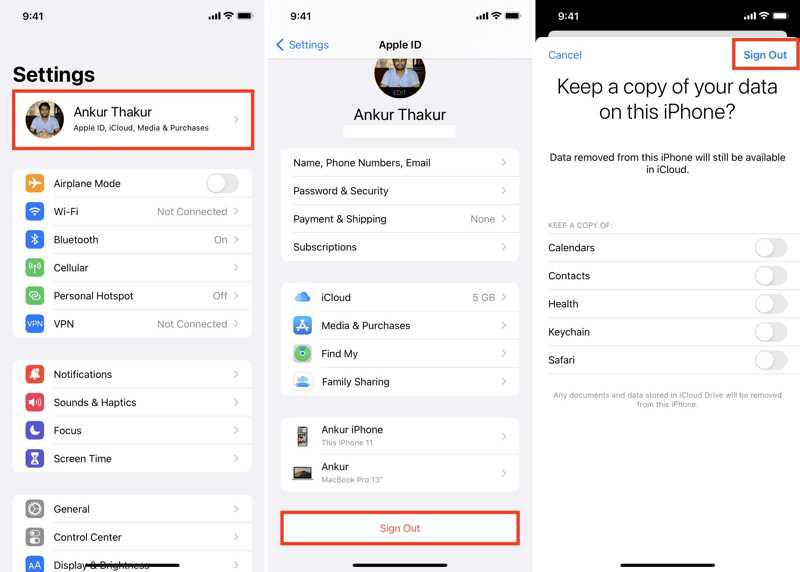
Vaihe 3. Vieritä alaspäin ja napauta Ilmoittaa lähtevänsä pohjalla.
Vaihe 4. Anna Apple-tilisi salasana ja napauta Sammuta Poista Find My käytöstä.
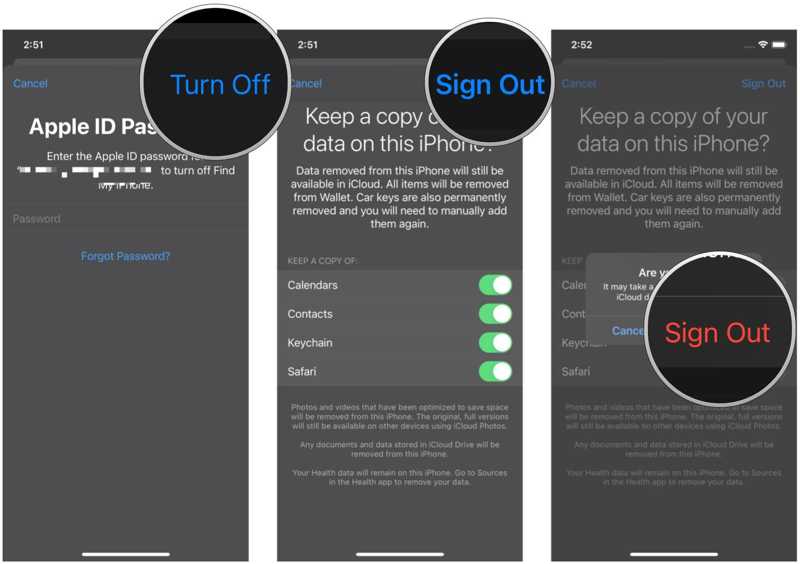
Vaihe 5. Käynnistä iPhone uudelleen.
Vaihe 6. Takaisin Asetukset App.
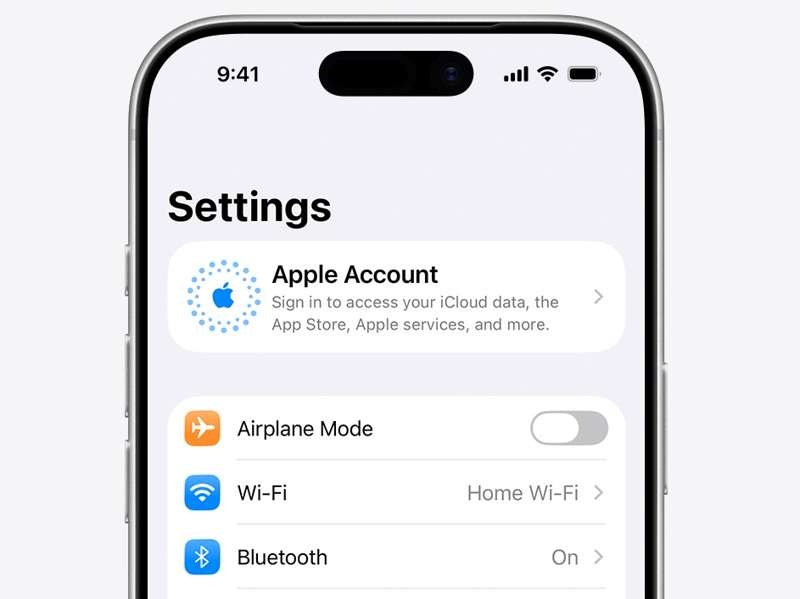
Vaihe 7. Napauttaa Apple-tili, ja valitse Kirjaudu sisään manuaalisesti.
Vaihe 8. Type in your Apple Account and password.
Ratkaisu 3: Oikea päivämäärä ja aika
Apple adjusts the date and time automatically. However, if you set it manually, the password for the Apple ID does not work. The solution is simple: correct your date and time on your iPhone or iPad.
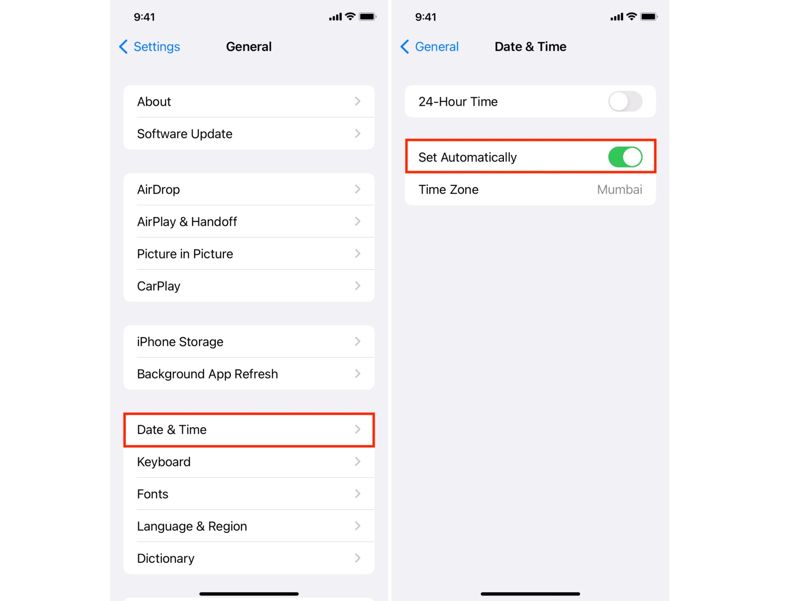
Vaihe 1. Suorita Asetukset App.
Vaihe 2. Mene general ja Treffiaika.
Vaihe 3. Vaihda Aseta automaattisesti.
Vaihe 4. Yhdistä iPhonesi Internet-yhteyteen.
Ratkaisu 4: Tarkista Applen palvelimet
When you are using your Apple Account, it sends a request to Apple Servers. After matching, you can access the Apple services. When your Apple ID password is not working, you should check the relevant Apple servers.
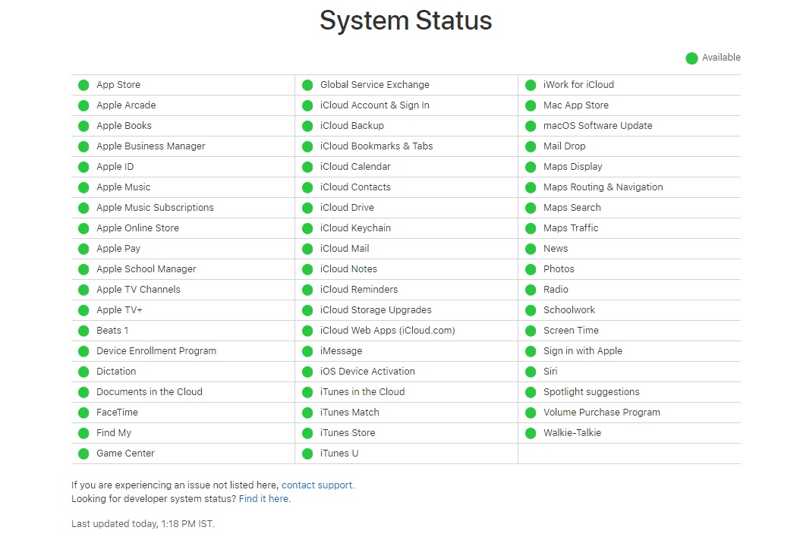
Vaihe 1. Go to https://www.apple.com/support/systemstatus/ in a browser.
Vaihe 2. Tarkista Applen palvelimien tila.
Vaihe 3. If any item is down, wait for it to work again.
Solution 5: Reset Apple ID password
Another solution to fix Apple ID and password not working on your iPhone is resetting the password. Apple's iForgot website allows you to reset your Apple ID password after authenticating with the right channel.
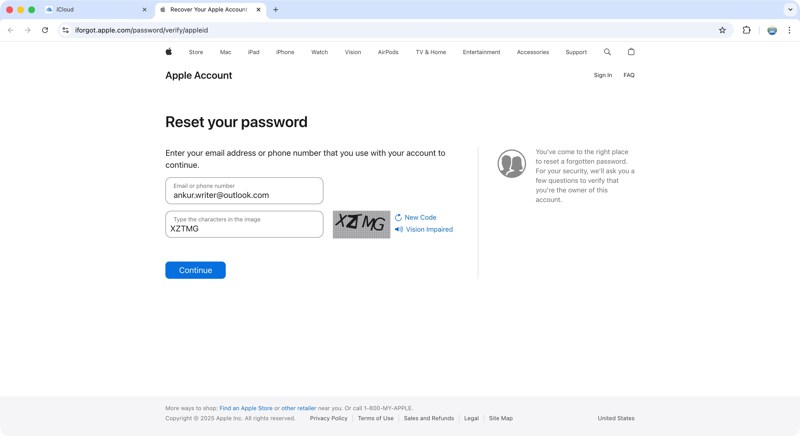
Vaihe 1. Visit www.iforgot.apple.com in a browser.
Vaihe 2. Valitse Nollaa salasana painiketta.
Vaihe 3. Input your Apple Account, type the characters in the image, and click jatkaa.
Vaihe 4. Enter the trusted phone number and click jatkaa.
Vaihe 5. Todenna noudattamalla näytön ohjeita.
Vaihe 6. Leave a new password, verify it, and confirm it.
Vaihe 7. Now, update the new password on your device.
Kirjallisuutta
Part 3: One-stop Solution to Fix Apple ID Password Not Working
If the above solutions are unavailable and your Apple ID password is still not working, try Apeaksoft iFoneKit iOS:n lukituksen avaaja. It enables you to remove an Apple Account without the password. Then, you can create a new account and password.

Ladannut yli 1,000,000 Käyttäjät
- Remove an old Apple Account from an iOS device in 3 steps.
- Don't ask your iPhone passcode or Apple Account password.
- Offer bonus features, like unlocking Screen Time.
- Work for almost all iPhone and iPad models.
Suojattu lataus
Suojattu lataus

How to Fix Apple ID Password Not Working
Vaihe 1. Asenna Apple ID -poistotyökalu
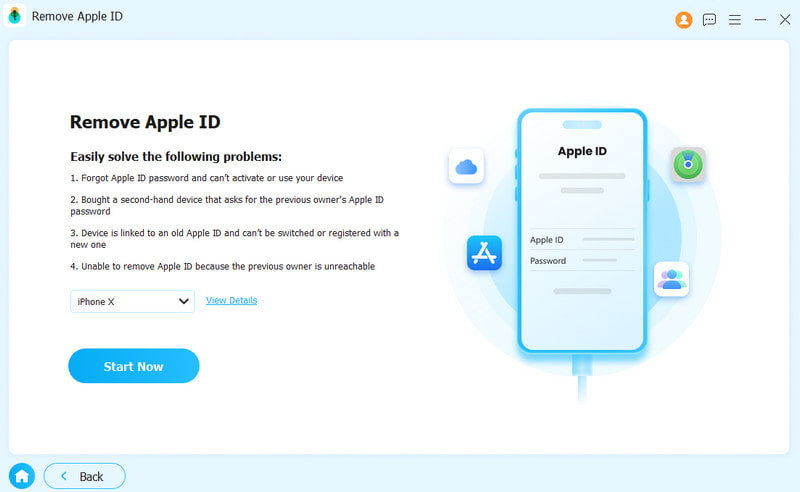
Run the Apple ID removal tool after installing it on your computer. It is compatible with Windows 11 to XP and Mac OS X 10.7 or above. Choose the Poista Apple ID tila jatkaaksesi.
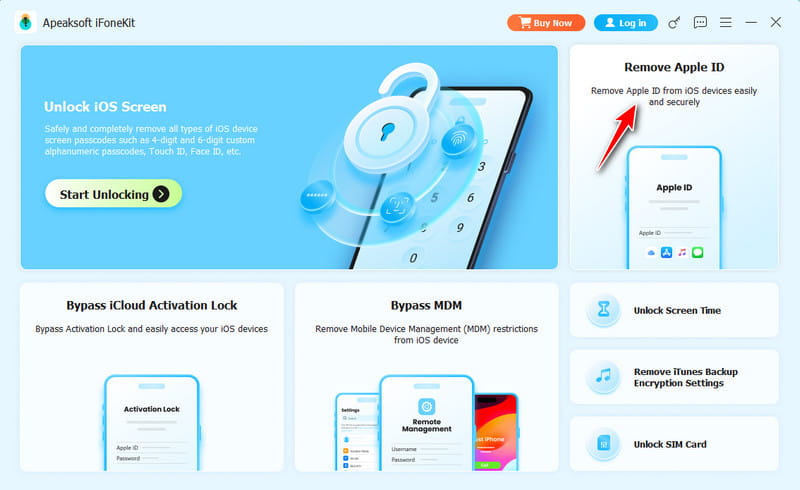
Vaihe 2. Linkitä laitteeseesi
Connect your iPhone to your computer with a Lightning cable and trust this computer. Once it is recognized, click the Aloita nyt painiketta.
Vaihe 3. Poista Apple ID
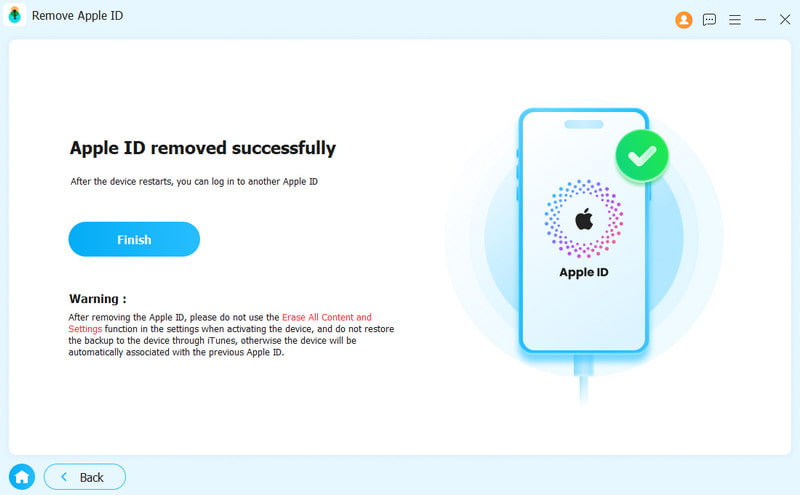
If Find My iPhone is disabled, the software will initiate Apple ID removal. If Find My iPhone is enabled, reset all settings on your device. Then, click OK ja osuma Vahvista uudelleen aloittaa prosessi.
Yhteenveto
Following our troubleshooting, you should understand the main causes for the Apple ID salasana ei toimi on your iPhone or iPad. More importantly, you can follow our solutions to fix this problem and use your account as usual. Apeaksoft iFoneKit iOS:n lukituksen avaaja is the ultimate solution to get rid of any software glitches.
 Apeaksoft iFoneKit
 Avaa kaikentyyppiset iOS-salasanat iPhonesta, iPadista ja iPodista.
Suojattu lataus
Suojattu lataus
Aiheeseen liittyvät artikkelit




