– « J'ai un iPad qui reste bloqué sur le logo Apple. J'ai essayé de le restaurer en mode DFU, en mode de récupération et avec un micrologiciel personnalisé. Cependant, l'écran continue de s'allumer et de s'éteindre sur le logo Apple. Et le téléphone continue de renvoyer l'erreur iTunes 9. Toute aide serait appréciée. »
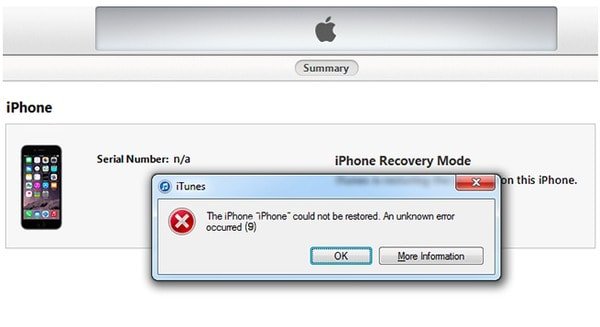
De nombreux utilisateurs signalent l'erreur iTunes 9 lors de la mise à jour vers iOS 26/27 ou de la restauration d'une sauvegarde iTunes. Le message « Impossible de restaurer l'iPhone [nom de l'appareil] : une erreur inconnue s'est produite (9) » s'affiche. Le processus de mise à jour ou de restauration iOS est alors interrompu. Il est donc important de résoudre cette erreur iTunes 9 au plus vite. Vous pourrez ensuite poursuivre la mise à jour ou la restauration de votre appareil iOS.

- Partie 1: Qu'est-ce que l'erreur 9 Imply et pourquoi cela arriverait-il?
- Partie 2: Solutions courantes pour corriger l'erreur iTunes 9
Partie 1: Qu'est-ce que Error 9 Imply et pourquoi cela arriverait-il?
Alors, que signifie le message "L'iPhone [nom de l'appareil] n'a pas pu être restauré. Une erreur inconnue s'est produite (9)." signifier? L'erreur 9 est un Erreur iTunes qui se produit pendant les mises à jour du micrologiciel ou les restaurations du système sur iPhone ou iPad à l'aide d'iTunes. De plus, l'erreur iTunes 9 est toujours associée au message "iPhone a expiré". Au moment où l'erreur iTunes 9 apparaît, il y a un problème avec votre appareil iOS ou d'autres facteurs. Ainsi, vous devez trouver la vraie raison avant de corriger le code d'erreur 9 de l'iPhone.
Plusieurs raisons peuvent déclencher une erreur 9 dans iTunes. Le premier concerne la prévention des logiciels de sécurité et du pare-feu. Le processus d'accès aux serveurs Apple est bloqué par ces deux facteurs. De plus, votre iPhone ou iPad jailbreaké peut également provoquer une erreur inattendue de 9 et d’autres codes iTunes. En outre, vous devez vérifier l'état d'Internet et la connexion USB, car une mauvaise connexion Wi-Fi peut entraîner une erreur 9 pour l'iPhone ou l'iPad. Eh bien, la base de données réseau de l'ordinateur précédemment utilisé pour pirater ou jailbreaker un autre iPhone ou iPad et qui était corrompue peut également expliquer pourquoi l'erreur 9 se produit.
Partie 2: Solutions communes pour corriger l'erreur iTunes 9
Vous pouvez essayer les solutions suivantes pour corriger facilement l’erreur iTunes 9 sur iPhone ou iPad. Il suffit de localiser la certaine partie pour trouver la méthode la plus liée. Sinon, vous pouvez également essayer ces solutions pour tester la cause réelle de l'erreur iTunes 9.
Méthode 1: Réinitialisation matérielle du périphérique iOS pour corriger l'erreur 9 d'iTunes
Étape 1. Appuyez et maintenez le bouton "Sleep / Wake" et le bouton "Home" ensemble.
Étape 2. Continuez à appuyer sur deux boutons pendant environ 10 secondes.
Étape 3. Ne les libérez pas avant que le logo Apple ne soit visible.
Étape 4. Réinitialisation matérielle de l'iPhone ou de l'iPad pour voir si l'erreur iTunes 9 est corrigée.
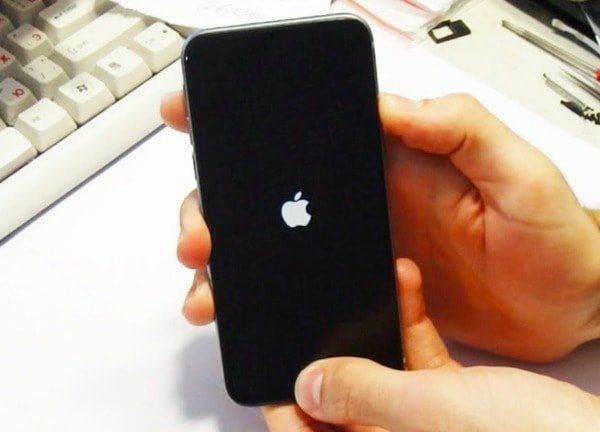
Réinitialiser l'iPhone est toujours un moyen simple de corriger tous les types d'erreurs iTunes. Par exemple, vous pouvez également l'utiliser pour corriger Erreur iTunes 14.
Méthode 2: Mettez à jour votre iTunes pour corriger l'erreur 9
Étape 1. Ouvrez iTunes sur votre ordinateur Windows ou Mac.
Étape 2. Obtenez la dernière version pour mettre à jour iTunes.
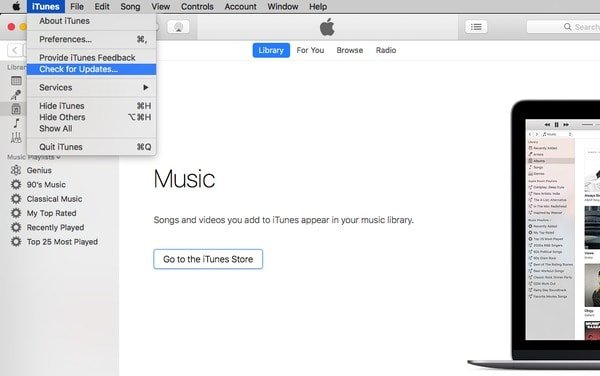
Les utilisateurs de Mac: Choisissez "iTunes" dans la barre d'outils en haut. Cliquez sur "Vérifier les mises à jour" et suivez les instructions pour mettre à jour iTunes.
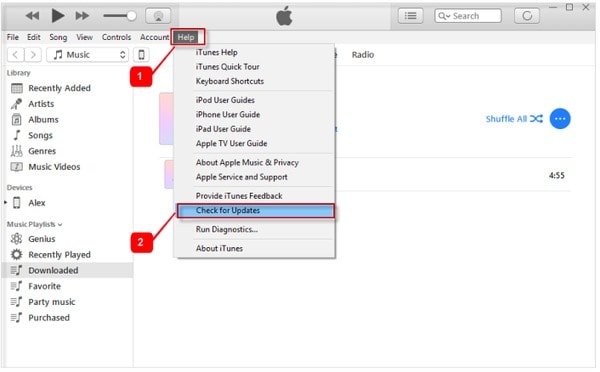
Utilisateurs Windows: Cliquez sur "Aide" dans la barre de menu et sélectionnez "Vérifier les mises à jour". Choisissez la dernière version d'iTunes à mettre à jour.
Plus tard, vous pourrez mettre à jour ou restaurer votre iPhone avec iTunes. Si l'erreur iTunes 9 apparaît toujours, vous pouvez essayer la solution suivante.
Méthode 3: Changer un autre ordinateur
Si l'erreur iTunes 9 se produit tout le temps, vous pouvez emprunter un ordinateur à votre ami. Ensuite, vous pouvez essayer de mettre à jour ou de restaurer un appareil iOS en utilisant iTunes. En outre, vous pouvez essayer un autre ordinateur lorsque vous rencontrez l’erreur 4013 iTunes et d’autres codes d’erreur iTunes.

Méthode 4: Vérifiez le câble et les ports USB
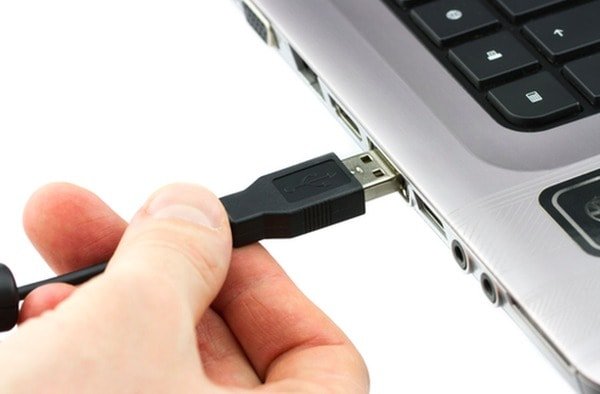
Étape 1. Vérifiez si vous utilisez le câble USB standard d'origine.
Étape 2. Déconnectez et reconnectez votre iPhone ou iPad de l'ordinateur.
Étape 3. Branchez le câble USB sur un autre port USB de l'ordinateur.
Méthode 5: Vérifiez votre logiciel de sécurité et votre pare-feu
Étape 1. Ouvrez votre logiciel anti-virus pour voir si iTunes est bloqué ou non inclus dans la liste des exceptions.
Étape 2. Localisez le pare-feu Windows et assurez-vous qu'iTunes figure dans la liste des applications exemptées.
Étape 3. Désactivez les applications de virtualisation et mettez à jour la version de votre système d'exploitation Windows ou Mac.

Solution 6: Obtenez la meilleure alternative iTunes: Récupération de données sur iPhone
En utilisant Apeaksoft Récupération de Données iPhone, vous pouvez vous débarrasser des inconvénients iTunes et restaurer l'iphone ou iPad à partir de iTunes sauvegarder en toute sécurité et de manière sélective. En d'autres termes, vous pouvez restaurer et extraire des données de la sauvegarde iTunes sans aucune perte de données. Même si vous n'avez pas encore sauvegardé iPhone avec iTunes, iPhone Data Recovery permet également aux utilisateurs de récupérer les données de l'iPhone lui-même ou de la sauvegarde iCloud sans effacer les fichiers d'origine. En un mot, cet iPhone Data Recovery est votre meilleur choix pour éviter l’erreur iTunes 9 et récupérer facilement les données iOS perdues.
Récupération de Données iPhone
- Récupérez les données de la sauvegarde iTunes en un instant.
- Récupérez directement les données perdues de l'iPhone, de l'iPad et de l'iPod.
- Extrayez et téléchargez des fichiers depuis iCloud.
- Numérisez et prévisualisez les fichiers supprimés et existants en détail.
- Prend en charge plus de différents types de fichiers 20 tels que contacts, messages, photos, etc.
- Hautement compatible avec les dernières versions d'iOS 26/27 et iPhone 18 Pro/17/16, etc.
Étape 1. Accéder aux fichiers de sauvegarde iTunes
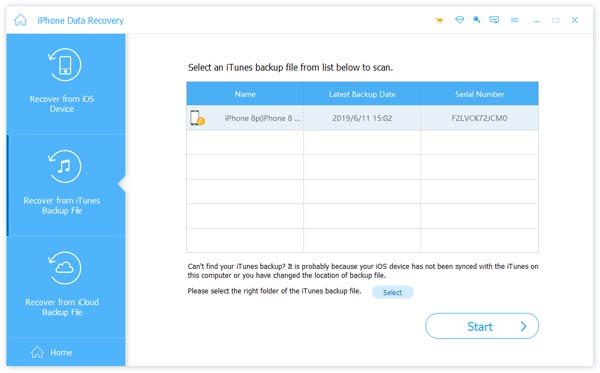
Téléchargez et installez le logiciel alternatif iTunes sur votre ordinateur Windows ou Mac. Assurez-vous que vous avez déjà synchronisé l'iPhone ou l'iPad avec iTunes sur cet ordinateur. Choisissez "Récupérer à partir du fichier de sauvegarde iTunes" pour voir automatiquement tous vos fichiers de sauvegarde iTunes.
Étape 2. Scannez votre sauvegarde iTunes
Choisissez la sauvegarde iTunes la plus pertinente, puis cliquez sur le bouton "Démarrer l'analyse" dans le coin inférieur droit. L'analyse de votre sauvegarde iTunes prend quelques minutes. Plus tard, vous pouvez voir toutes les catégories affichées dans le panneau de gauche.
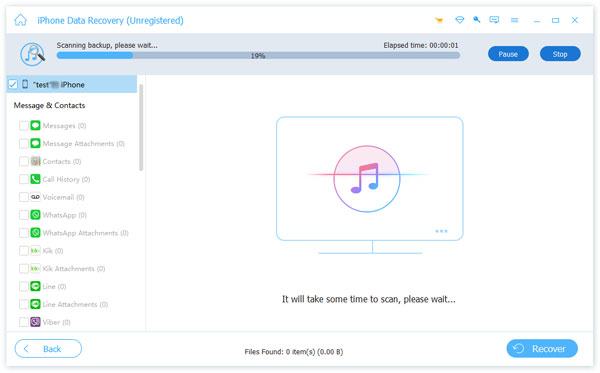
Étape 3. Prévisualiser et récupérer des données à partir d'iTunes
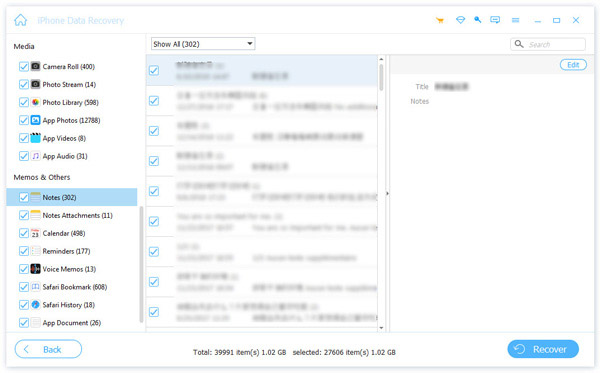
Choisissez le type de fichier pour voir les fichiers contenant. Vous pouvez cliquer sur un élément, puis prévisualiser les informations détaillées dans la partie droite. Marquez toutes les données iOS que vous souhaitez restaurer. Plus tard, cliquez sur «Récupérer» pour restaurer la sauvegarde iTunes sur PC sans perte de données.
Avec les solutions ci-dessus d'erreur 9 fix d'iTunes et le logiciel alternatif iTunes, vous pouvez obtenir une meilleure expérience de la mise à jour et de la restauration de l'iPhone qu'auparavant. Si vous avez d'autres erreurs iTunes telles que Erreur iTunes 3194, n'hésitez pas à nous contacter.