


Comment retirer une carte SIM de votre iPhone et en utiliser une nouvelle

Une carte SIM est une petite puce que vous insérez dans votre iPhone ou votre téléphone. Elle vous permet de vous connecter au réseau d'un opérateur. Vous pouvez ensuite passer des appels, envoyer des SMS et accéder à Internet grâce aux données mobiles. Si vous souhaitez changer de carte SIM, d'opérateur ou donner votre smartphone à quelqu'un d'autre, vous devez… Retirez la carte SIM de votre iPhoneCe guide détaille les étapes.
CONTENU DE LA PAGE :
Partie 1 : Avant de retirer une carte SIM d'un iPhone
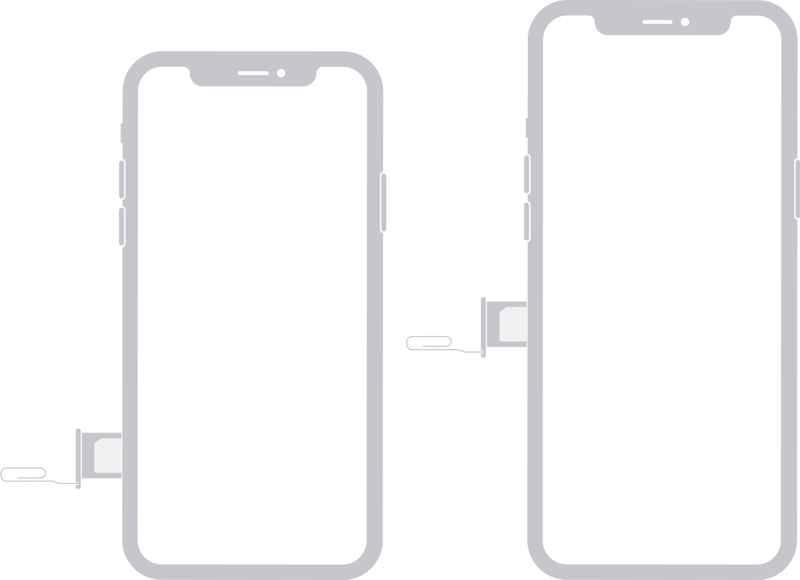
Pour retirer une carte SIM d'un iPhone, insérez-la dans son tiroir SIM. Autrement dit, vous devez localiser le tiroir SIM sur votre appareil. L'emplacement du tiroir SIM dépend du modèle de votre iPhone.
Le tiroir SIM se trouve sur le côté gauche de l'iPhone 12 et des modèles suivants.
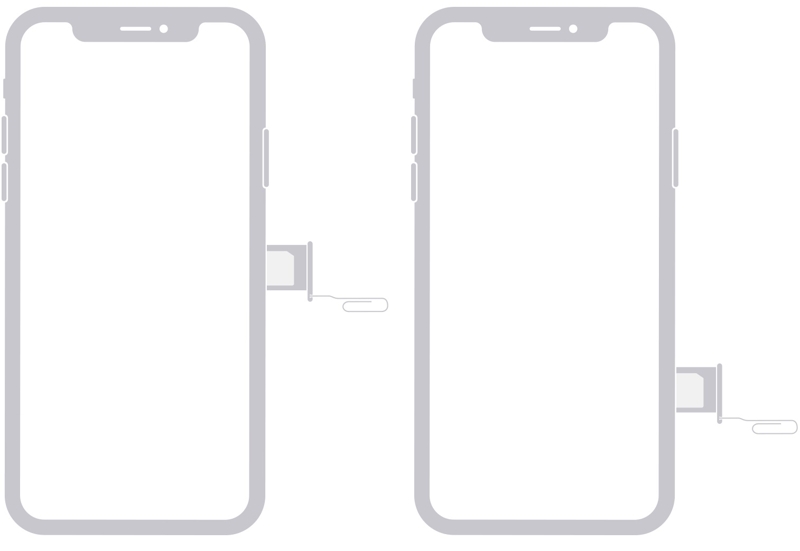
Sur les iPhone 4 à 11, le tiroir SIM se trouve sur le côté droit.
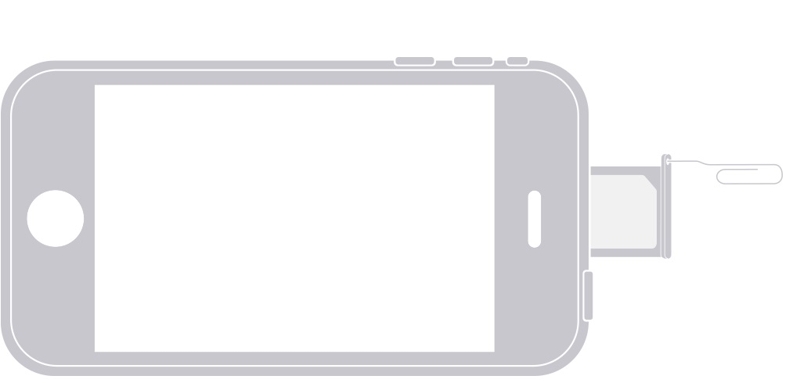
Le tiroir SIM se trouve sur le dessus de l'iPhone 3G/3GS.
Depuis le lancement de l'iPhone 14, les clients américains d'iPhone n'ont plus accès à un tiroir SIM, contrairement aux utilisateurs du reste du monde.
Sauvegardez votre iPhone avant de retirer la carte SIM
Bien qu'un iPhone ne sauvegarde aucune donnée sur la carte SIM, il est fortement conseillé de sauvegarder vos données avant de retirer cette dernière afin d'éviter toute perte. Vous pouvez effectuer cette sauvegarde sur iCloud ou sur un ordinateur.
Sauvegarder votre iPhone sur iCloud
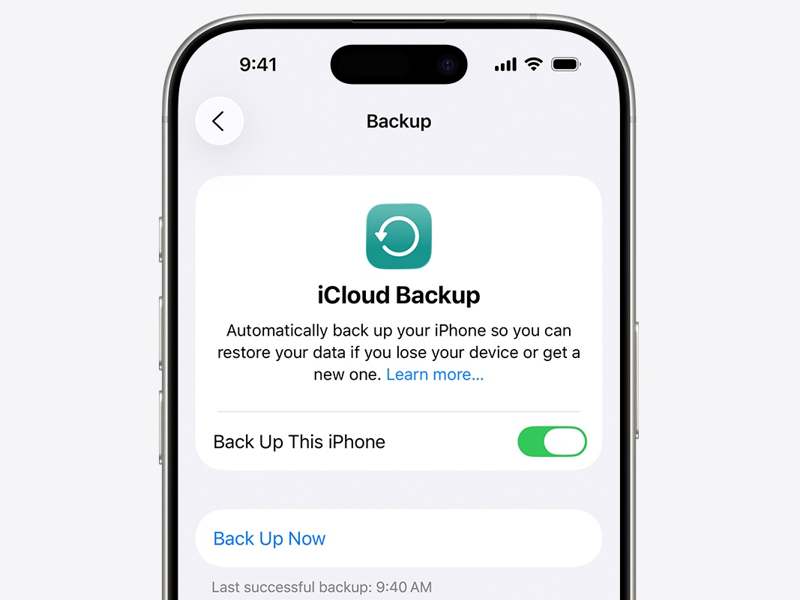
Étape 1 : Ouvrez le Paramètres app.
Étape 2 : Connectez votre iPhone à une connexion Internet.
Étape 3 : Appuyez sur votre profil.
Étape 4 : Choisissez iCloud et touchez Sauvegarder maintenant.
Étape 5 : Une fois la sauvegarde terminée, vous verrez le message de confirmation.
Sauvegarder l'iPhone sur l'ordinateur
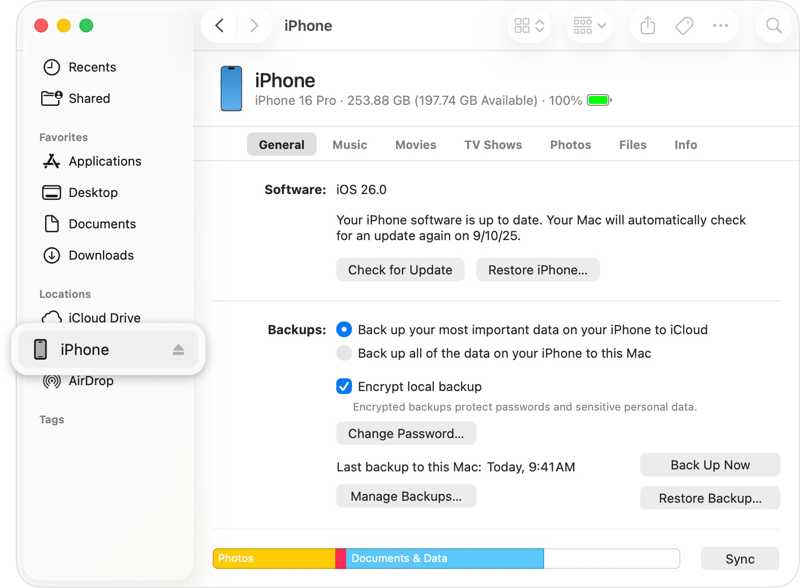
Étape 1 : Connectez votre iPhone à un ordinateur avec un câble USB.
Étape 2 : Ouvrez iTunes sur Windows et macOS Mojave ou version antérieure.
Ouvrez le Finder sur macOS Catalina ou version ultérieure.
Étape 3 : Cliquez sur Téléphone bouton dans iTunes et allez à RésuméOu cliquez sur le numéro de votre iPhone dans le Finder et accédez à Généralités.
Étape 4 : Cliquez sur Sauvegarder maintenant bouton sous sauvegardes section. Vous pouvez également définir une mot de passe de sauvegarde iTunesIl permet de chiffrer de manière très efficace vos données de sauvegarde et de garantir ainsi la confidentialité de vos informations.
Partie 2 : Comment retirer la carte SIM d’un iPhone
Retirer une carte SIM d'un iPhone est simple. Il vous suffit d'un outil d'éjection de carte SIM. C'est un petit outil métallique fin, généralement fourni avec votre iPhone. Si vous n'en avez pas, un trombone fera l'affaire. Dans ce cas, n'oubliez pas de déplier l'extrémité la plus longue pour qu'elle dépasse.
Comment retirer une carte SIM d'un iPhone
Étape 1 : Retirez la coque de votre iPhone si vous en utilisez une.
Étape 2 : Appuyez et maintenez soit le volume bouton + Côté bouton sur un iPhone avec Face ID. Maintenez enfoncé le bouton Côté or Tuning Moteur bouton sur un iPhone sans Face ID.
Étape 3 : Lorsque l'écran d'arrêt apparaît, relâchez les boutons ou le bouton.
Étape 4 : Déplacez le curseur pour éteindre votre appareil.
Étape 5 : Attendez que l'écran de votre iPhone devienne noir.
Étape 6 : Insérez l'outil d'éjection de la carte SIM dans le petit trou situé à côté du tiroir SIM. Poussez-le délicatement jusqu'à ce que le tiroir s'éjecte.
Étape 7 : Retirez le tiroir et enlevez la carte SIM de votre iPhone.
Comment insérer une autre carte SIM dans un iPhone
Étape 1 : Si vous souhaitez utiliser une autre carte SIM, insérez-la dans l'emplacement vide à l'intérieur du tiroir SIM.
Étape 2 : Insérez le tiroir SIM dans votre iPhone et repoussez-le vers l'arrière.
Étape 3 : Maintenez la touche Côté or Tuning Moteur jusqu'à ce que vous voyiez le logo Apple.
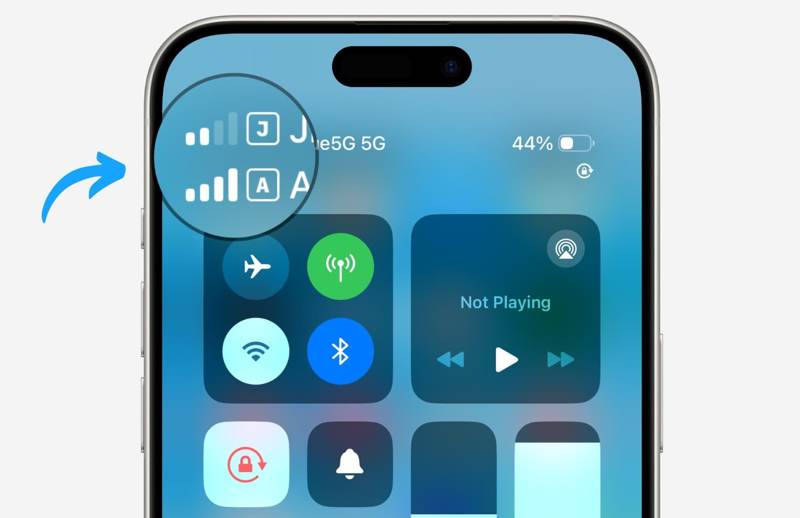
Étape 4 : Lorsque votre iPhone détectera correctement la carte SIM, vous verrez le signal en haut de votre écran.
Comment importer des contacts de la SIM vers l'iPhone
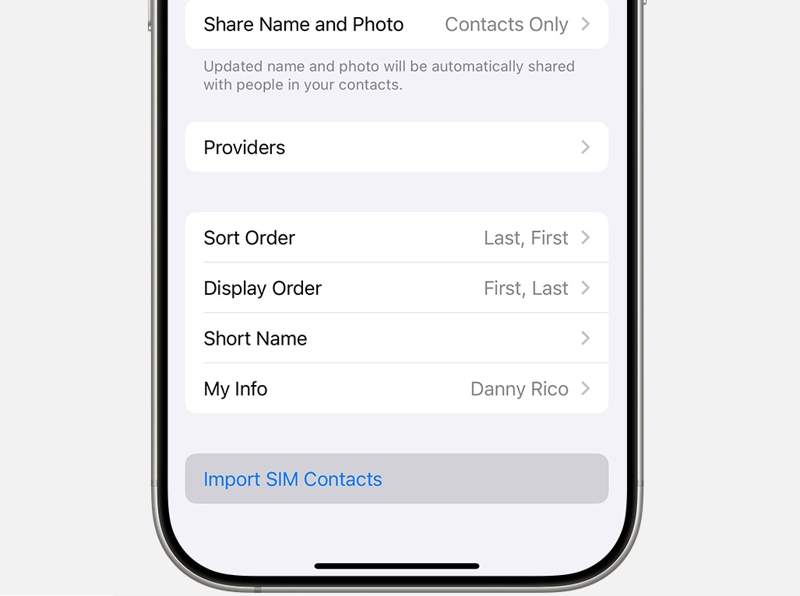
Étape 1 : Ouvrez le Paramètres l'application après avoir retiré la carte SIM de votre iPhone.
Étape 2 : Allez dans Apps et touchez Contacts.
Étape 3 : Faites défiler et appuyez sur le Importer les contacts de la carte SIM .
Étape 4 : Si on vous le demande, choisissez où vous souhaitez placer les contacts de la carte SIM.
Étape 5 : Une fois que c'est terminé, allez à Contacts L'application et vérifiez vos contacts.
Partie 3 : Comment supprimer le verrouillage de la carte SIM d’un iPhone
Si votre appareil ne le détecte plus après avoir retiré la carte SIM de votre iPhone et utilisé un autre opérateur, il est probable que votre appareil soit verrouillé par l'opérateur. Heureusement, Déverrouillage iOS Apeaksoft iFoneKit peut vous aider à supprimer le verrouillage de la carte SIM de votre iPhone sans aucune restriction.

Téléchargé par plus de 1,000,000 des opportunités
- Déverrouillez rapidement le verrouillage SIM des appareils iOS.
- Ne nécessite pas le code d'accès de votre iPhone ou le mot de passe de votre identifiant Apple.
- Protégez vos données pendant le processus.
- Offrez des fonctionnalités bonus, comme Suppression de MDM et contournement du Temps d'écran.
- Prend en charge les dernières versions d'iOS et d'iPadOS.
Téléchargement sécurisé
Téléchargement sécurisé

Comment déverrouiller votre iPhone ?
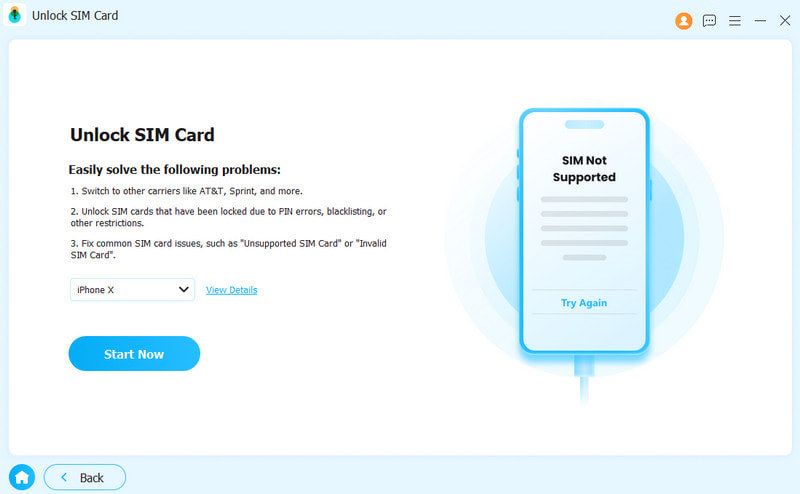
Étape 1 : Installez l'outil d'extraction de carte SIM
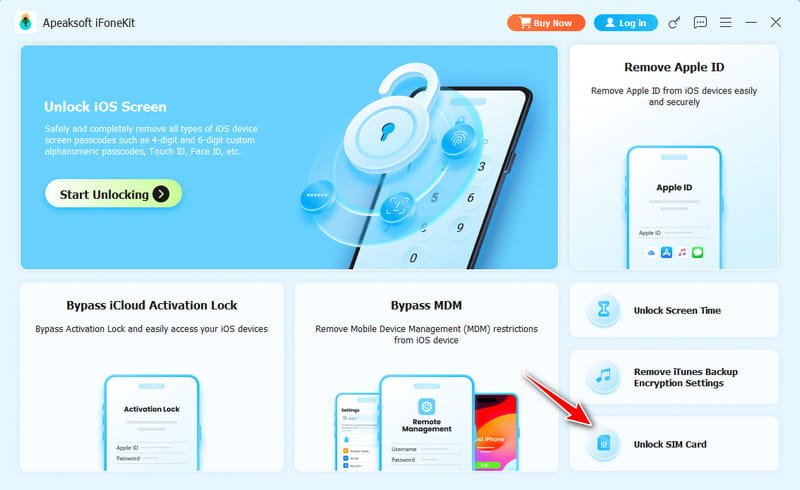
Lancez le logiciel d'extraction de carte SIM après l'avoir installé sur votre ordinateur. Il est compatible avec Windows 11/10/8/7/XP/Vista et macOS 10.7 ou version ultérieure. Choisissez l'option correspondante. Déverrouiller la carte SIM mode pour continuer.
Étape 2 : Connectez-vous à votre iPhone
Connectez votre iPhone à votre ordinateur à l'aide d'un câble Lightning. Ensuite, cliquez sur Commencez maintenant bouton pour charger les informations de votre appareil. Cliquez Démarrer le contournement et débrider votre appareil.
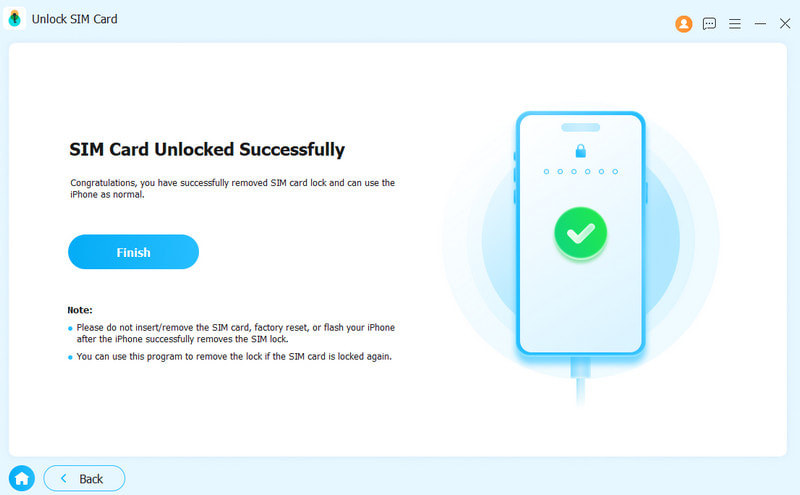
Étape 3 : Suppression du verrouillage de la carte SIM
Suivez ensuite les instructions à l'écran pour effectuer les réglages nécessaires. Cliquez OK et frapper OK Pour confirmer le retrait de la carte SIM, retirez-la de votre iPhone et changez d'opérateur.
Conclusion
Ce guide a été partagé Comment retirer la carte SIM de votre iPhoneTout d'abord, repérez le tiroir SIM sur votre appareil. Assurez-vous de sauvegarder vos données avant de commencer. Ensuite, suivez les étapes pour retirer la carte SIM d'origine, insérer une nouvelle carte et importer vos contacts sur votre iPhone. Déverrouillage iOS Apeaksoft iFoneKit est un moyen efficace de supprimer le verrouillage de la carte SIM de votre iPhone sans suivre les politiques de déverrouillage de l'appareil.
 Apeaksoft iFoneKit
 Déverrouillez tous les types de mots de passe iOS de l'iPhone, de l'iPad et de l'iPod.
Téléchargement sécurisé
Téléchargement sécurisé
Articles Relatifs




