"C'est ennuyeux qu'iTunes se mette à tout sauvegarder à chaque fois que je connecte mon iPhone, j'ai des tonnes de données sur mon téléphone portable et cela prend très longtemps à chaque fois, comment empêcher iTunes de sauvegarder automatiquement mon iPhone" Bien qu'Apple ait arrêté iTunes sur le dernier MacBook, de nombreuses personnes ont toujours le logiciel sur leur disque dur. La fonction de sauvegarde automatique peut être redondante maintenant. Par conséquent, ce guide vous explique comment le désactiver.

- Partie 1 : Comment empêcher iTunes de sauvegarder automatiquement l'iPad
- Partie 2 : FAQ sur l'arrêt d'iTunes de la sauvegarde automatique de mon iPad
Partie 1 : Comment empêcher iTunes de sauvegarder automatiquement l'iPad
Méthode 1 : Désactiver la sauvegarde automatique dans la boîte de dialogue des préférences d'iTunes
Le moyen le plus simple de désactiver la sauvegarde automatique sur iTunes consiste à utiliser la boîte de dialogue Préférences. Une fois que vous avez activé cette fonctionnalité, iTunes ne sauvegardera pas votre appareil sans votre permission. De cette façon, votre iPad ou iPhone doit se connecter à votre ordinateur.
Étape 1Connectez votre iPad ou iPhone à votre ordinateur avec un câble Lightning. Exécutez iTunes sur votre bureau.
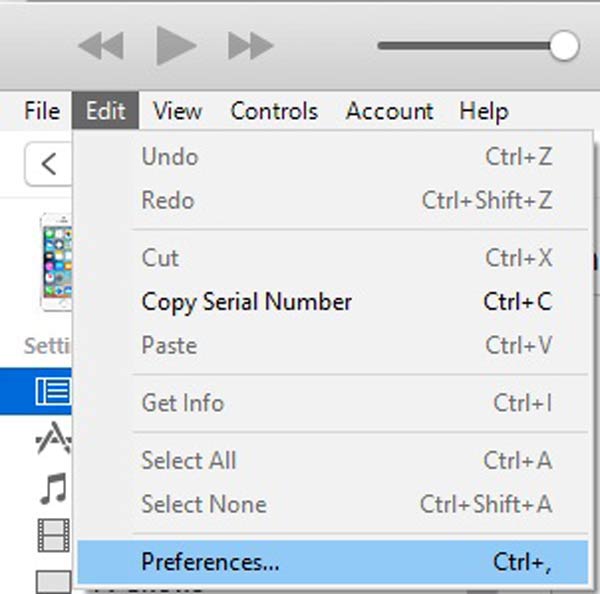
Étape 2Rendez-vous dans la section éditer menu dans iTunes, puis choisissez Préférences pour ouvrir la boîte de dialogue Préférences.
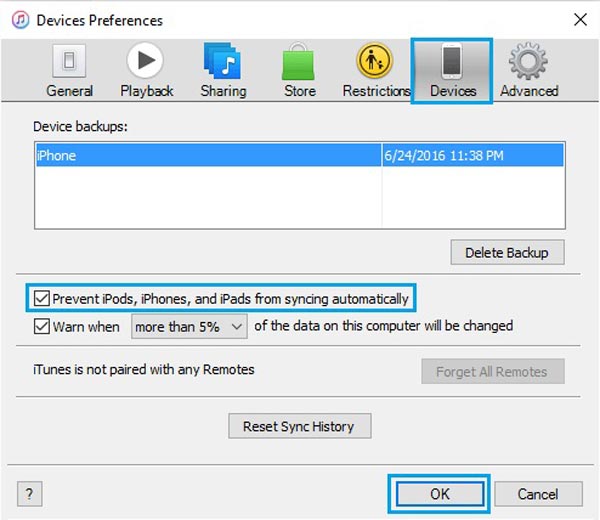
Étape 3Passer à la Appareils onglet, et cochez la case à côté de Empêcher les iPod, iPhones et iPads de se synchroniser automatiquement.
Étape 4Cliquez sur OK bouton pour confirmer les modifications. Ensuite, iTunes ne sauvegardera pas automatiquement votre iPhone la prochaine fois.
Méthode 2 : Arrêtez la sauvegarde automatique sur iTunes en désactivant la synchronisation automatique
En plus de la boîte de dialogue Préférences, vous pouvez également arrêter la sauvegarde automatique de l'iPad sur iTunes en désactivant l'option de synchronisation automatique. De cette façon, vous devez également connecter votre iPhone à l'ordinateur avec un câble ou sans fil.
Étape 1 Cliquez sur Téléphone une fois qu'iTunes reconnaît votre iPad ou iPhone.
Étape 2Rendez-vous dans la section Résumé dans la barre latérale gauche, puis recherchez le panneau de droite.
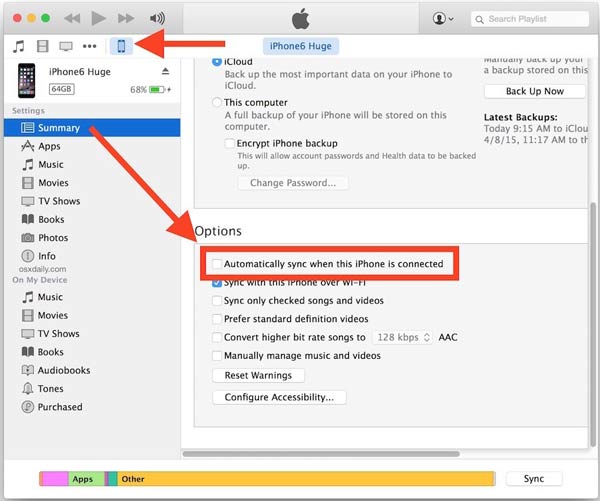
Étape 3Faites défiler vers le bas jusqu'à ce que vous atteigniez le Options section. Décochez ensuite la case à côté de Synchroniser automatiquement lorsque cet iPhone est connecté. Cela empêche iTunes de sauvegarder automatiquement votre iPhone.
Méthode 3 : Désactivez la sauvegarde automatique d'iTunes en utilisant iCloud
Actuellement, de plus en plus d'utilisateurs d'iPad se tournent vers iCloud pour sauvegarder leurs données. Si vous configurez sauvegarde iCloud dans iTunes, cela désactive la sauvegarde automatique d'iTunes en même temps.
Étape 1 Branchez votre iPad ou iPhone sur votre ordinateur et lancez la dernière version d'iTunes.
Étape 2 Appuyez sur la touche Téléphone en haut à gauche une fois qu'iTunes a détecté votre téléphone mobile.
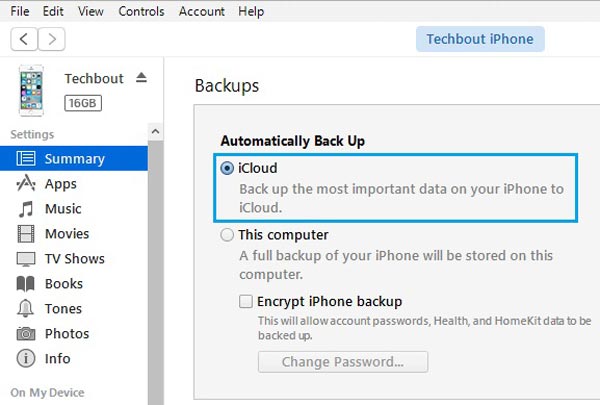
Étape 3 Ensuite, dirigez-vous vers le Résumé onglet sur le côté gauche, et localisez le sauvegardes section sur le panneau de droite. Cochez la case à côté de iCloud sous le Sauvegarde automatique .
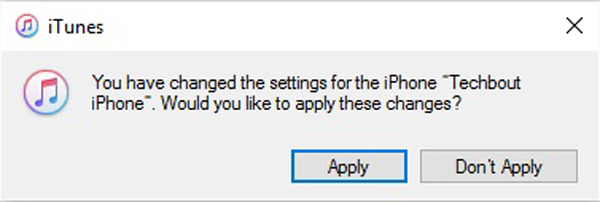
Étape 4 Lorsque vous y êtes invité, cliquez sur le Appliquer bouton dans la boîte de dialogue d'alerte. Désormais, vos données seront sauvegardées sur iCloud au lieu d'iTunes chaque fois que vous connecterez votre iPhone à l'ordinateur.
Recommander : meilleure alternative à iTunes pour la sauvegarde de l'iPad
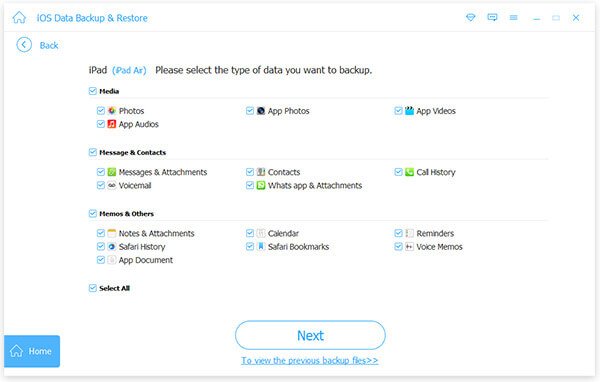
Que vous utilisiez iTunes ou iCloud, la sauvegarde d'un iPad présente des inconvénients. iTunes est obsolète et il faut du temps pour sauvegarder un seul appareil. iCloud ne fournit qu'une capacité de stockage limitée. La solution alternative consiste à sauvegarder votre iPhone sur votre ordinateur avec Apeaksoft Sauvegarde & Restauration de Données iOS. Il est plus facile à utiliser qu'iTunes et ne nécessite pas de réseau sans fil pour sauvegarder votre appareil iOS.
4,000,000+ Téléchargements
Sauvegardez votre iPad ou iPhone en un seul clic.
Sélectionnez des types de données spécifiques ou sauvegardez l'intégralité de l'iPad.
Prend en charge un large éventail de types de données, comme des photos, des vidéos, etc.
Conservez l'état d'origine des données de votre iPhone.
Partie 2 : FAQ sur l'arrêt d'iTunes de la sauvegarde automatique de mon iPad
Où sont les sauvegardes iPad dans iTunes ?
Sur Mac OS X, vous pouvez trouver des sauvegardes iPad ou iPhone effectuées par iTunes ou Finder dans ~/Bibliothèque/Application Support/MobileSync. Si vous installez iTunes à partir du Microsoft Store, les sauvegardes se trouvent dans %HOMEPATH%\Apple\MobileSync. Sinon, le chemin est %APPDATA%\Apple Computer\MobileSync.
Comment désactiver la sauvegarde Apple ?
Ouvrez l'application Paramètres sur votre iPad ou iPhone, appuyez sur iCloud, sélectionnez Sauvegarder, et désactivez le iCloud sauvegarde option. Ensuite, Apple ne sauvegardera plus votre appareil iOS.
Pourquoi iTunes a-t-il arrêté de sauvegarder mon iPad ?
Les principales causes incluent : La connexion médiocre ou instable entre iTunes et votre appareil iOS ; Votre iTunes ou iPadOS est obsolète ; Votre iPad reste bloqué dans un mode spécifique ; La synchronisation de l'identifiant Apple n'est pas précise ; Il y a trop de données sur votre iPad.
Conclusion
Maintenant, vous devez comprendre comment empêcher iTunes de sauvegarder automatiquement votre iPad. Bien que cela semble avoir été une fonctionnalité utile dans le passé, la sauvegarde automatique est actuellement ennuyeuse pour certaines personnes. Heureusement, vous pouvez le désactiver avec la configuration appropriée. Apeaksoft iOS Data Backup & Restore est la meilleure alternative à iTunes. Si vous avez d'autres questions sur ce sujet, veuillez les écrire ci-dessous.