

Récupération de données iPhone avec FonePaw : tout ce que vous devez savoir

FonePaw iPhone Data Recovery peut s'avérer très utile en cas de perte de données importantes sur votre iPhone, notamment lorsqu'il s'agit de photos, de messages ou de documents précieux. Heureusement, FonePaw iPhone Data Recovery offre une solution pratique pour récupérer les données supprimées ou perdues directement depuis votre appareil ou votre sauvegarde. Ce guide présente en détail le fonctionnement de FonePaw iPhone Data Recovery. Avis sur FonePaw iPhone Data Recovery, le processus de récupération détaillé et un outil alternatif fiable à prendre en considération en 2026.
CONTENU DE LA PAGE :
- Partie 1 : Introduction à la récupération de données iPhone avec FonePaw
- Partie 2 : Avantages et inconvénients : Quelles sont les performances de FonePaw iPhone Data Recovery ?
- Partie 3 : Les étapes pour récupérer des données avec FonePaw iPhone Data Recovery
- Partie 4 : Une alternative puissante à FonePaw pour la récupération de données iPhone
Partie 1 : Introduction à la récupération de données iPhone avec FonePaw
Conçu pour aider les utilisateurs à récupérer des données supprimées ou perdues sur iPhone, FonePaw iPhone Data Recovery prend en charge la récupération de photos, messages, contacts, notes et bien plus encore. Solution de récupération de données fiable, il se distingue par son interface intuitive et sa large compatibilité avec différentes versions d'iOS. Avant d'aborder ses fonctionnalités et ses performances de récupération, il est essentiel de comprendre son fonctionnement et les types de données qu'il peut récupérer.
Quel que soit votre appareil (Windows, Mac ou iPhone), FonePaw iPhone Data Recovery propose une version adaptée. Vous pouvez l'essayer gratuitement pour vérifier s'il résout le problème de votre appareil et ainsi décider si un achat est nécessaire. Trois formules d'abonnement sont disponibles : 49.95 $ par mois, 55.97 $ par an et 66.47 $ pour une licence à vie.
Partie 2 : Avantages et inconvénients : Quelles sont les performances de FonePaw iPhone Data Recovery ?
En résumé, si vous recherchez un outil professionnel capable de résoudre efficacement les problèmes potentiels de votre appareil, FonePaw iPhone Data Recovery est la solution idéale. Pour ceux qui souhaitent approfondir leurs connaissances sur les différentes fonctionnalités de cet outil, cette section présente ses avantages et ses inconvénients.
FonePaw iPhone Data Recovery se distingue par ses trois modes de récupération pratiques (directement depuis l'appareil, iTunes et iCloud), permettant de prévisualiser les fichiers avant la récupération et d'éviter ainsi les restaurations inutiles. Grâce à sa compatibilité avec la quasi-totalité des versions d'iOS et des modèles d'iPhone, aucune compétence technique n'est requise.
Cependant, comme tout logiciel, il présente des avantages et des inconvénients qu'il convient d'examiner attentivement avant l'achat. Tout d'abord, bien qu'une version d'essai gratuite soit proposée, elle ne permet que l'analyse et la prévisualisation, sans possibilité de récupération. De plus, les licences monoposte s'avèrent restrictives pour les utilisateurs de plusieurs appareils. Malgré ces limitations, son prix est légèrement supérieur à celui de certaines alternatives économiques disponibles sur le marché. Par conséquent, bien qu'il s'agisse d'un programme d'entraînement fiable, de nombreux utilisateurs hésitent encore à l'acquérir.
Partie 3 : Les étapes pour récupérer des données avec FonePaw iPhone Data Recovery
Récupérer des données iPhone perdues avec FonePaw iPhone Data Recovery est un jeu d'enfant une fois les étapes maîtrisées. Que la récupération se fasse directement depuis votre appareil, une sauvegarde iTunes ou iCloud, le logiciel vous guide à chaque étape. Contrairement à beaucoup d'autres logiciels, FonePaw iPhone Data Recovery vous offre une expérience utilisateur optimale. récupération de données iPhone gratuite Si le logiciel manque de détails, vous pouvez connecter votre iPhone pour analyser et prévisualiser les fichiers avant de les restaurer. Cette section explique en détail la procédure complète afin de garantir une récupération réussie.
Étape 1 : Téléchargez FonePaw iPhone Data Recovery depuis le site officiel. Une fois le téléchargement terminé, ouvrez le fichier pour installer le logiciel. Cliquez Commencez maintenant procéder.

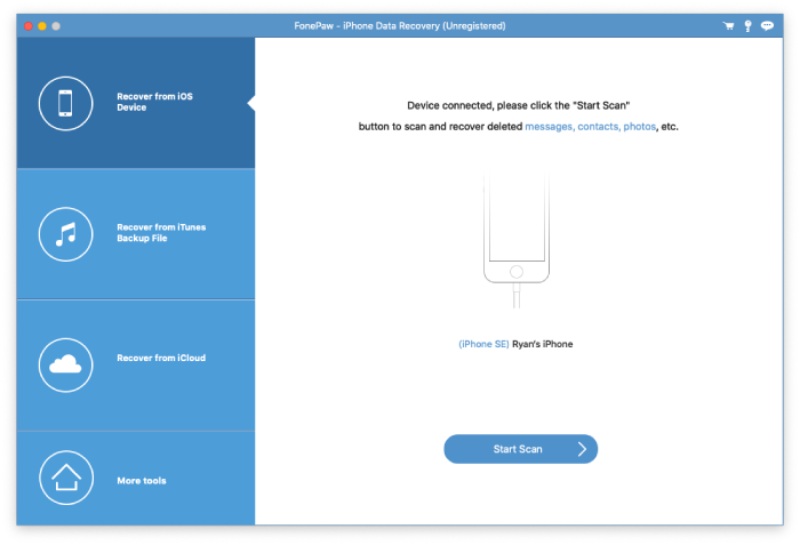
Étape 2 : Lancez FonePaw iPhone Data Recovery sur votre appareil et connectez votre iPhone à l'aide d'un câble USB. Appuyez sur Aie confiance en cet ordinateur sur votre iPhone. Ensuite, cliquez Start scan pour scanner votre iPhone.
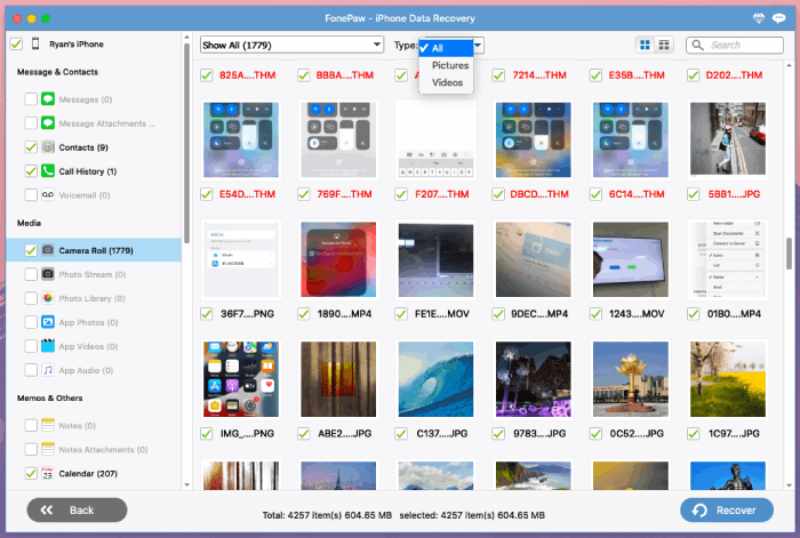
Étape 3 : Après une brève analyse, tous les fichiers et dossiers s'afficheront sur l'interface principale. Vous pouvez cliquer pour sélectionner les données que vous souhaitez récupérer sur votre iPhone. Ensuite, cliquez Récupérer.
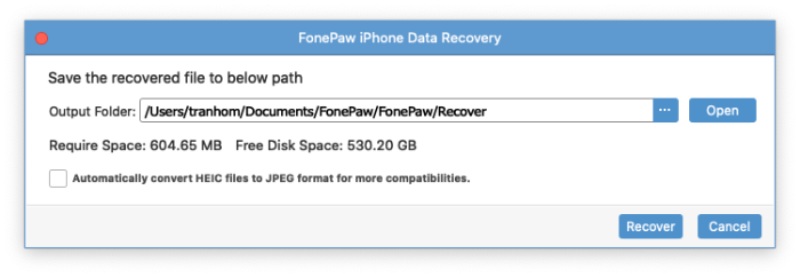
Étape 4 : Une nouvelle fenêtre s'ouvrira et vous pourrez cliquer Etc. pour sélectionner un dossier de sortie pour les données récupérées. Cliquez Récupérer Veuillez patienter pendant le traitement. Les données seront récupérées et enregistrées dans le dossier de sortie que vous aurez choisi.
Partie 4 : Une alternative puissante à FonePaw pour la récupération de données iPhone
Bien que FonePaw iPhone Data Recovery soit un outil efficace pour certains problèmes de données, il manque encore d'efficacité et d'options avancées. Par conséquent, certains utilisateurs recherchent une solution plus rapide, plus stable ou offrant davantage de fonctionnalités. Apeaksoft Récupération de Données iPhone se distingue comme une excellente option. Que vous recherchiez une compatibilité étendue avec différents appareils, des taux de récupération plus élevés ou une interface optimisée, cette solution répond à tous vos besoins. Elle offre une expérience utilisateur optimale pour ceux qui souhaitent une récupération de données fiable et efficace sur divers appareils iOS.
Étape 1 : Téléchargez le package d'installation d'Apeaksoft iPhone Data Recovery depuis le site officiel. Une fois le téléchargement terminé, installez le logiciel.
Téléchargement sécurisé
Téléchargement sécurisé
Étape 2 : Lancez Apeaksoft iPhone Data Recovery sur votre appareil et connectez votre iPhone à l'aide d'un câble USB. Assurez-vous que la connexion est stable.
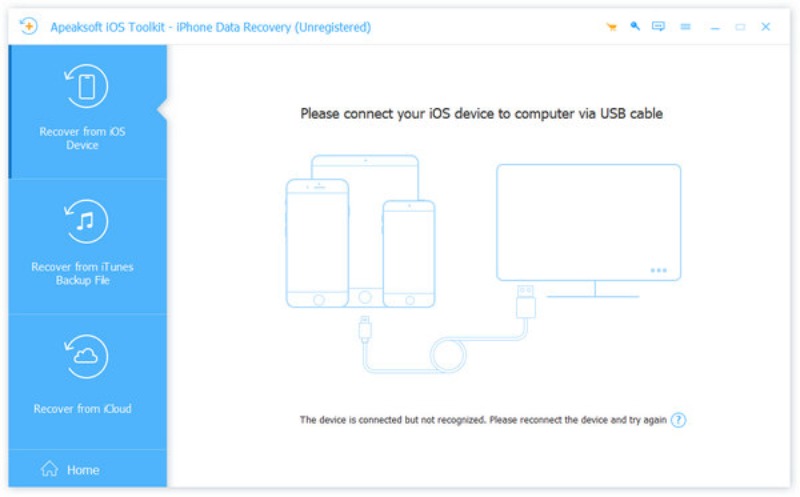
Étape 3 : Une fenêtre contextuelle s'affichera sur votre iPhone. Appuyez dessus. Confiance Saisissez ensuite votre code d'accès à l'écran pour vous assurer que le contenu est accessible depuis votre ordinateur.
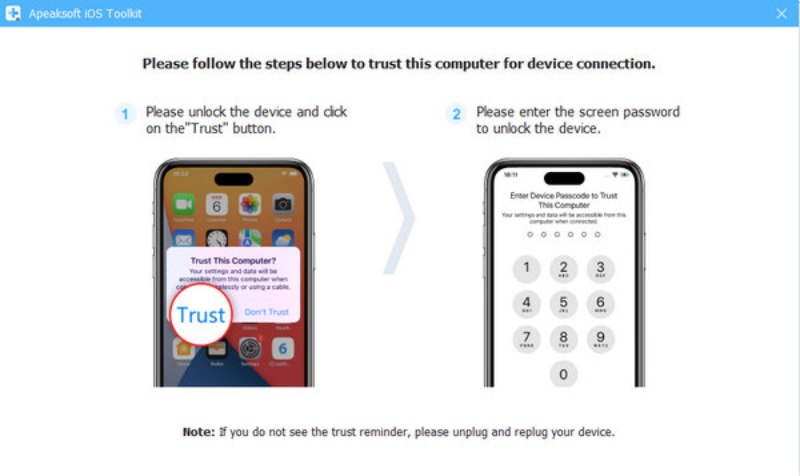
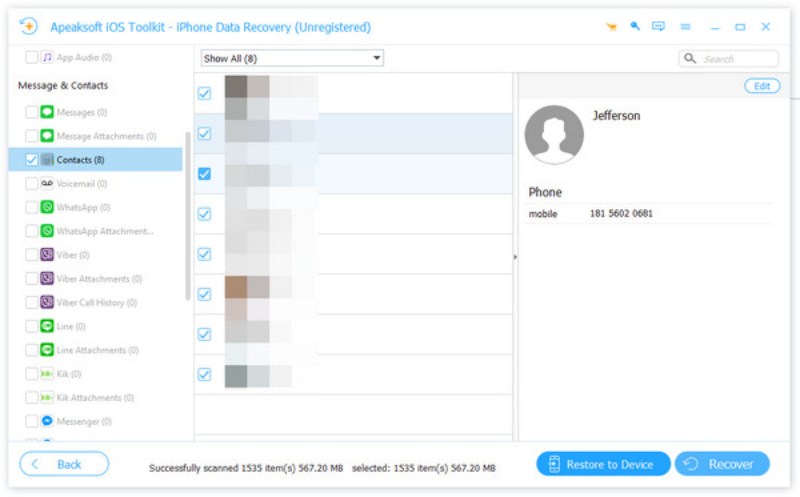
Étape 4 : Une fois la préparation terminée, cliquez Start scan Sur l'interface principale d'Apeaksoft iPhone Data Recovery. Après une analyse approfondie, toutes les données de votre iPhone s'afficheront. Cliquez pour sélectionner les données perdues que vous souhaitez récupérer sur votre iPhone. Ensuite, cliquez Récupérer.
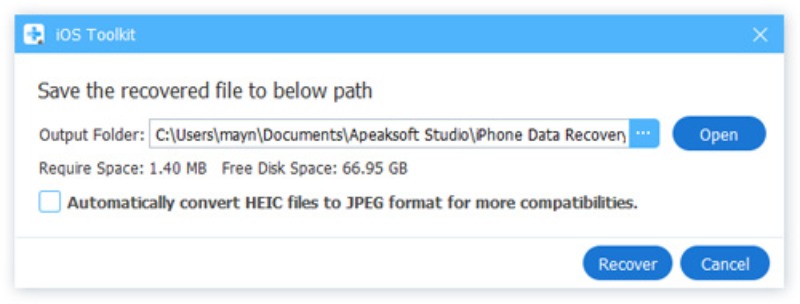
Étape 5 : Il vous sera demandé de choisir un dossier de destination pour vos données récupérées. Cliquez Etc. pour sélectionner la destination. Enfin, cliquez Récupérer et attendez que le processus de récupération de vos données depuis l'iPhone aboutisse.
Conseils: Vous pouvez aussi vous Restaurer l'iPhone à partir d'une sauvegarde précédente avec Apeaksoft iPhone Data Recovery.
Conclusion
Bien que la perte de données puisse causer de nombreux problèmes, Récupération de données iPhone FonePaw Il est possible de récupérer toutes les données critiques en les restaurant. Cependant, pour les utilisateurs recherchant une solution plus complète et fiable, Apeaksoft iPhone Data Recovery se distingue comme une alternative performante, garantissant une récupération sûre et efficace des données essentielles.
Articles Relatifs




