

Déverrouiller le contrôle parental sur iPhone avec ou sans mot de passe

Aujourd'hui, des quantités astronomiques de contenu sont publiées et diffusées sur Internet. De plus, presque tout le monde possède un appareil mobile pour y accéder. Cela représente un défi de taille pour les parents qui souhaitent protéger leurs enfants. Il est donc logique que de plus en plus de personnes recherchent des solutions de contrôle parental. Nombreux sont les parents qui utilisent le contrôle parental d'Apple sur l'iPhone de leurs enfants. Ce tutoriel explique comment procéder. comment déverrouiller le contrôle parental sur un iPhone, avec ou sans mot de passe.
CONTENU DE LA PAGE :
Partie 1 : Que sont les contrôles parentaux sur iPhone ?
Que vous ayez acheté un nouvel appareil Apple à votre enfant ou que vous ayez mis à jour le vôtre et lui ayez donné l'ancien, la solution idéale consiste à créer un nouvel identifiant Apple via la fonctionnalité Partage familial afin de configurer le contrôle parental.
Que pouvez-vous faire avec le contrôle parental ? Il vous permet de gérer les téléchargements et les achats de vos enfants, les personnes avec lesquelles ils peuvent communiquer, ainsi que les applications et autres contenus auxquels ils peuvent accéder.
- 1.Empêcher les achats sur l'App Store.
- 2.Autoriser les applications et fonctionnalités intégrées.
- 3.Empêcher le contenu explicite et gérer la classification du contenu.
- 4.Empêcher la diffusion de contenus Web inappropriés.
- 5.Restreindre les fonctionnalités de Game Center.
- 6.Restreindre les fonctionnalités d'Intelligence Artificielle et de Siri.
- 7.Empêcher toute modification des paramètres de confidentialité.
- 8.Empêcher ou autoriser la modification d'autres paramètres et fonctionnalités.
- 9.Apporter des modifications aux dispositifs de santé et de sécurité.
Quand faut-il désactiver le contrôle parental ?
- 1.Vos enfants ont atteint l'âge de 16 ans.
- 2.Vous prévoyez de vendre les appareils de vos enfants.
- 3.Vous avez oublié le code d'accès Temps d'écran.
- 4.Vos enfants veulent se débarrasser de leurs appareils.
Partie 2 : Comment déverrouiller le contrôle parental sur iPhone
Comment désactiver le contrôle parental sur l'iPhone de votre enfant
Une façon simple de désactiver le contrôle parental est d'utiliser l'application Réglages de l'iPhone de votre enfant. Cette méthode ne nécessite aucun logiciel ni matériel supplémentaire. Seul le code d'accès Temps d'écran est requis.
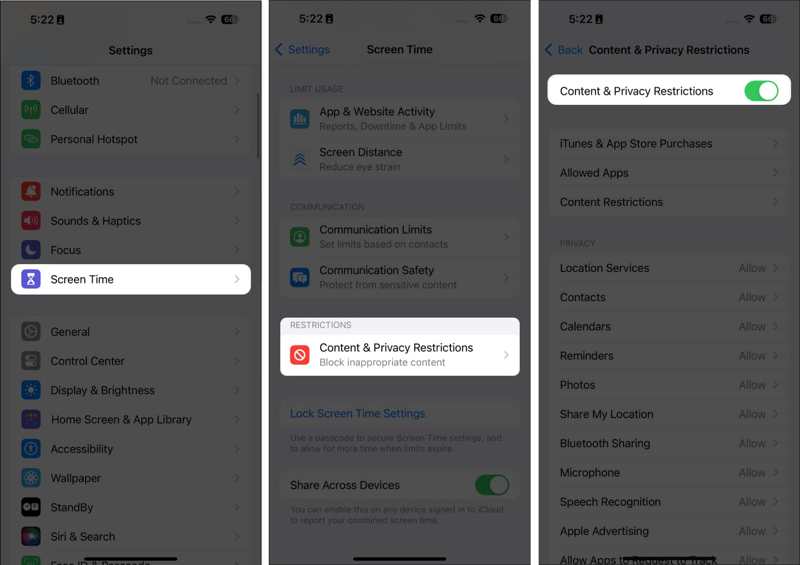
Étape 1 : Ouvrez le Paramètres application sur votre iPhone.
Étape 2 : Choisissez "Temps d'écran"., et saisissez le code d'accès du contrôle parental.
Étape 3 : Exploiter Contenu et restrictions de confidentialité et désactiver Contenu et restrictions de confidentialité.
Étape 4 : Si le système vous le demande, confirmez votre action.
Comment désactiver le contrôle parental via le partage familial
Si vous ne pouvez pas accéder à l'iPhone de votre enfant, vous pouvez également désactiver le contrôle parental à distance via le Partage familial. Cette méthode nécessite l'appareil Apple de l'organisateur familial et le mot de passe de connexion.
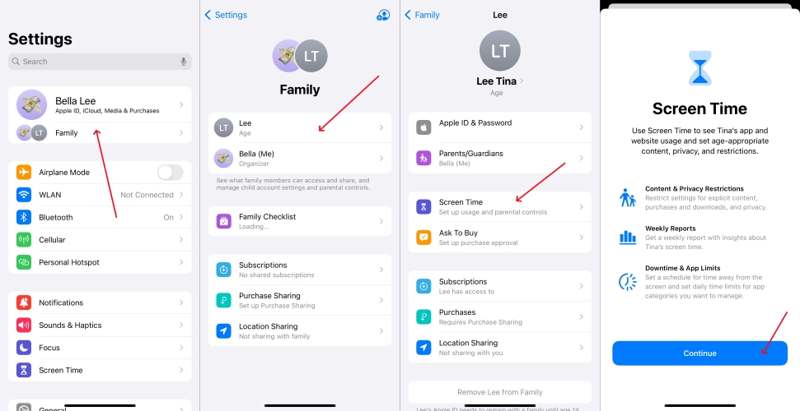
Étape 1 : Exécutez le Paramètres application sur l'appareil de l'organisateur familial.
Étape 2 : Appuyez sur le profil et choisissez Echange en famille.
Étape 3 : Choisissez le nom de votre enfant dans la liste.
Étape 4 : Choisissez "Temps d'écran".et appuyez sur Contenu et restrictions de confidentialité.
Étape 5 : Si vous y êtes invité, entrez le mot de passe.
Étape 6 : Ensuite, confirmez la désactivation du contrôle parental sur l'iPhone.
Lectures complémentaires
Partie 3 : Comment désactiver certains contrôles parentaux
Parfois, on souhaite désactiver certaines restrictions du contrôle parental sur iPhone, mais pas toutes. Heureusement, Apple permet de contrôler les achats d'applications, certaines applications ou l'accès à certains contenus.
Comment désactiver le contrôle parental sur les achats d'applications
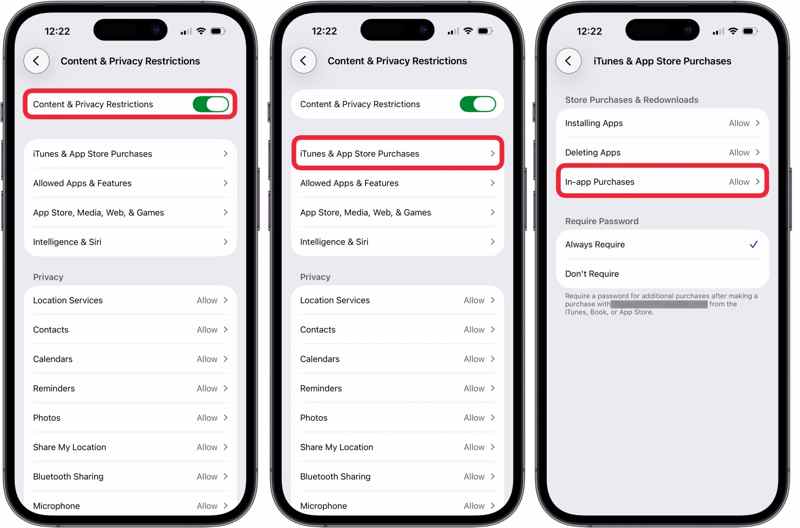
Étape 1 : Exécutez le Paramètres application à partir de l'écran d'accueil.
Étape 2 : Choisissez "Temps d'écran". et saisissez le code d'accès Temps d'écran.
Étape 3 : Exploiter Contenu et restrictions de confidentialité et de garder Contenu et restrictions de confidentialité sur.
Étape 4 : Choisissez Achats iTunes et App Store, et choisissez Achats intégrés.
Étape 5 : Exploiter Autoriser et supprimez le contrôle parental.
Comment contourner le contrôle parental pour certaines applications
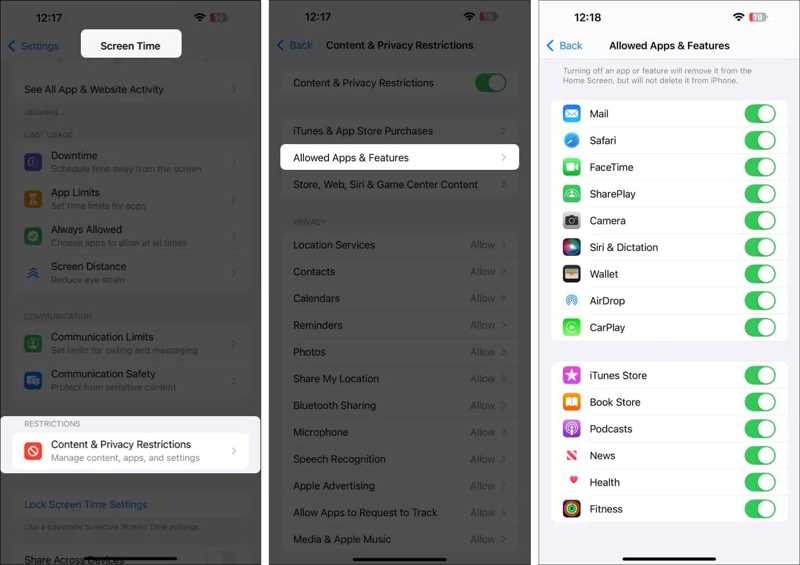
Étape 1 : Entrer "Temps d'écran". dans votre Paramètres app.
Étape 2 : Saisissez le code d'accès Temps d'écran lorsque vous y êtes invité.
Étape 3 : Choisissez Contenu et restrictions de confidentialité et basculer sur Contenu et restrictions de confidentialité.
Étape 4 : Choisissez Applications et fonctionnalités autorisées pour afficher toutes les applications.
Étape 5 : Désactivez les applications pour lesquelles vous souhaitez contourner le contrôle parental.
Comment désactiver le contrôle parental pour le contenu
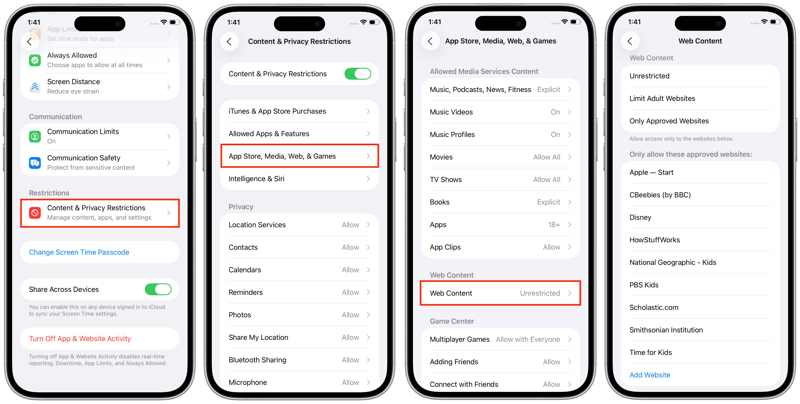
Étape 1 : Allez dans "Temps d'écran". dans le Paramètres app.
Étape 2 : Saisissez le code d'accès Temps d'écran.
Étape 3 : Choisissez Contenu et restrictions de confidentialité, et choisissez App Store, médias, Web et jeux.
Étape 4 : Choisissez Contenu Web et sélectionnez Libre or Limiter les sites Web pour adultes.
Remarque : Si vous devez supprimer le contrôle parental pour certains sites web, appuyez sur Ajouter un site Web et saisissez les adresses, puis sélectionnez Sites Web approuvés uniquement.
Partie 4 : Comment désactiver le contrôle parental sans mot de passe
Que vous désactiviez le contrôle parental sur l'iPhone de votre enfant ou sur l'appareil de votre organisateur familial, vous devrez saisir le mot de passe. Si vous l'avez oublié, vous aurez besoin d'un outil puissant, tel que… Apeaksoft iOS UnlockerIl permet de supprimer le contrôle parental sur un iPhone sans mot de passe ni compétences techniques.
Désactiver rapidement le contrôle parental sans mot de passe
- Désactivez le contrôle parental sur les appareils iOS.
- Aucun mot de passe ni code d'accès n'est requis.
- Protégez vos données tout en supprimant le contrôle parental.
- Compatible avec les dernières versions d'iOS et d'iPadOS.
- Disponible pour Temps d'écran et autres codes d'accès.
Téléchargement sécurisé
Téléchargement sécurisé

Comment désactiver le contrôle parental sans mot de passe
Étape 1 : Connectez-vous à votre iPhone
Exécutez l'outil de suppression rapide du contrôle parental après l'avoir installé sur votre PC. Il est compatible avec Windows 11/10/8/7/XP/Vista. Une version pour Mac est également disponible. Connectez votre iPhone à votre PC à l'aide d'un câble Lightning. Si vous y êtes invité, appuyez sur Confiance sur votre écran pour faire confiance à ce PC. Ensuite, choisissez le Déverrouiller le temps d'écran mode pour continuer.
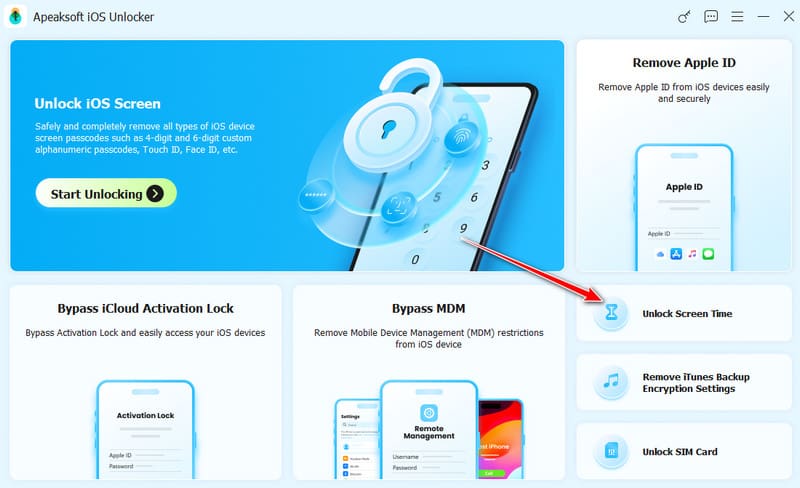
Étape 2 : Supprimer le contrôle parental
Une fois votre appareil détecté, cliquez sur le bouton Commencez maintenant Appuyez sur le bouton. Suivez ensuite les instructions à l'écran pour désactiver Localiser mon iPhone si cette fonction est activée. Le logiciel contournera alors immédiatement le contrôle parental de l'iPhone. Pendant toute la durée du processus, laissez votre appareil connecté à votre ordinateur. Une fois le processus terminé, déconnectez votre iPhone et fermez le logiciel. Toutes les restrictions seront alors levées.
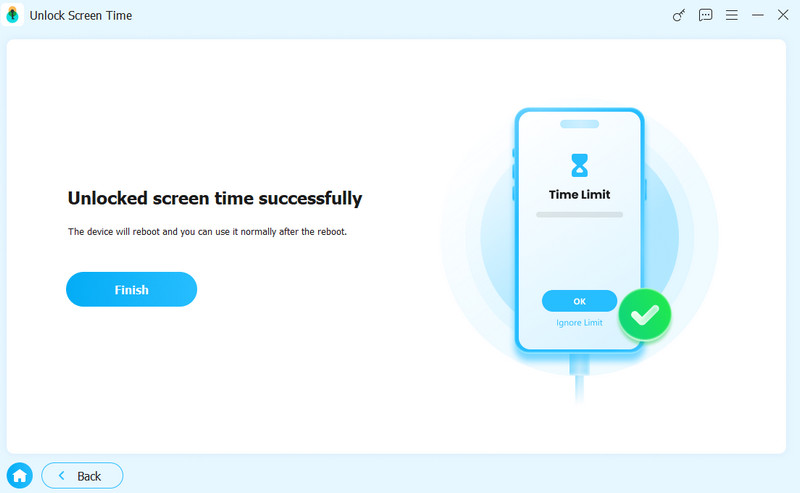
Remarque : Le logiciel ne supprimera pas les données existantes sur votre iPhone lors de la désactivation du contrôle parental.
Conclusion
Ce guide a été partagé Comment désactiver le contrôle parental ? Sur votre iPhone ou iPad, ou celui de votre enfant, vous pouvez supprimer complètement les restrictions de l'appareil grâce au mot de passe. De plus, vous pouvez également lever les restrictions sur certains achats d'applications, applications et sites web. Apeaksoft iOS Unlocker Vous pouvez ainsi désactiver les contrôles si vous avez oublié votre code d'accès ou votre mot de passe. De plus, son interface intuitive le rend très facile à utiliser.
Articles Relatifs
Comment changer votre mot de passe de restriction si vous l'avez oublié ? Venez découvrir les méthodes complètes sur ce qu'il faut faire si vous avez oublié votre mot de passe de restriction !
Dans cet article, nous partagerons cinq méthodes simples pour désactiver ou dépasser les limites de temps d'écran sans mot de passe et à l'insu des parents.
Vous pouvez apprendre quatre approches efficaces pour empêcher Life360 de suivre votre position sur votre iPhone sans que personne ne le sache.
Découvrez dès aujourd’hui les méthodes avancées pour geler la localisation sur Localiser mon iPhone et voyez comment cela peut vous aider à protéger votre vie privée.



