

Hogyan lehet gyorsan visszaállítani a gyári beállításokat egy Samsung telefonon vagy táblagépen

Van néhány olyan helyzet, amikor muszáj gyári alaphelyzetbe állítja a Samsung telefontAmikor a telefon teljesítménye lelassul, a gyári beállítások visszaállítása eltávolíthatja a felesleges fájlokat és növelheti a sebességet. Mielőtt eladná Samsung készülékét, állítsa vissza a gyári beállításokat, és távolítsa el teljesen az adatait az adatai védelme érdekében. Ezenkívül ez egy elengedhetetlen lépés a hibaelhárításhoz és a szoftverhibák kijavításához. Mindenesetre számos módszert tanulhat meg arról, hogyan állíthatja vissza készülékét a gyári beállításokra különböző helyzetekben.
OLDAL TARTALMA:
- 1. rész: Mi történik, ha gyári alaphelyzetbe állítja a Samsung készüléket
- 2. rész: Hogyan állítsuk vissza a Samsung telefon gyári beállításait egy kóddal
- 3. rész: Hogyan állítsuk vissza a Samsung telefon gyári beállításait a Beállításokban
- 4. rész: Hogyan állítsuk vissza a Samsung készülék gyári beállításait helyreállítási módban
- 5. rész: Hogyan lehet távolról visszaállítani a Samsung gyári beállításait
1. rész: Mi történik, ha gyári alaphelyzetbe állítja a Samsung készüléket
A Samsung telefon vagy táblagép gyári beállításainak visszaállítása az eszközön található összes adatot eltávolítja, beleértve a fényképeket, videókat, zenéket, névjegyeket, üzeneteket, fiókokat, alkalmazásokat, alkalmazásadatokat és testreszabott beállításokat. Az adatvesztés elkerülése érdekében érdemes biztonsági másolatot készíteni.
Ne feledd, hogy a gyári beállítások visszaállítása a legtöbb Android-eszközön nem oldja fel az FRP-t. Ezért a gyári beállítások visszaállítása után is meg kell adnod a Google-fiókodat a készülék beállításakor.
A Samsung telefon gyári visszaállítása előtt
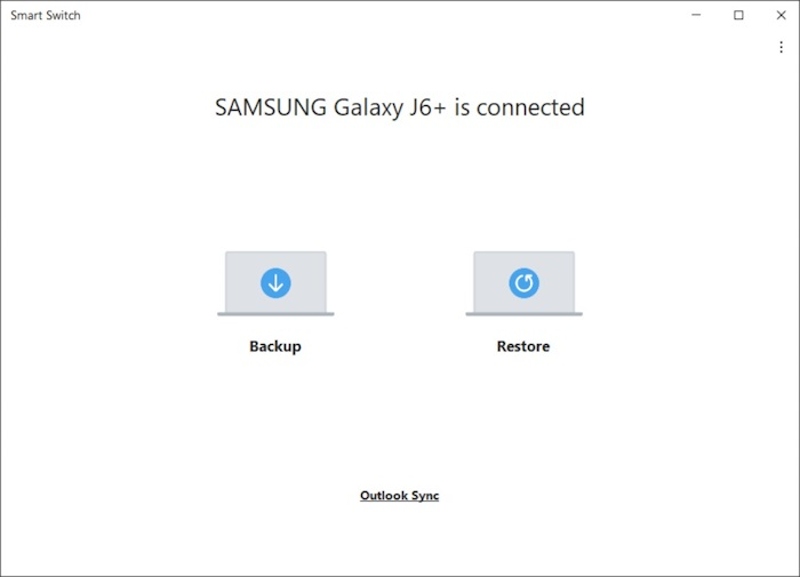
Lépés 1. Készítsen biztonsági másolatot a telefonjáról
Telepítse a Smart Switch alkalmazást a számítógépére.
Használjon USB-kábelt a számítógép és a telefon összekapcsolásához.
Nyissa meg a Smart Switch alkalmazást a készülékén lévő tartalom olvasásához.
Kattints mentés A folytatáshoz.
Ha kéri, érintse meg a gombot LEHETŐVÉ TESZI a telefon képernyőjén biztonsági mentés készítéséhez.
Ha kész, csatlakoztassa le a telefonját.
Lépés 2. Fiókok eltávolítása
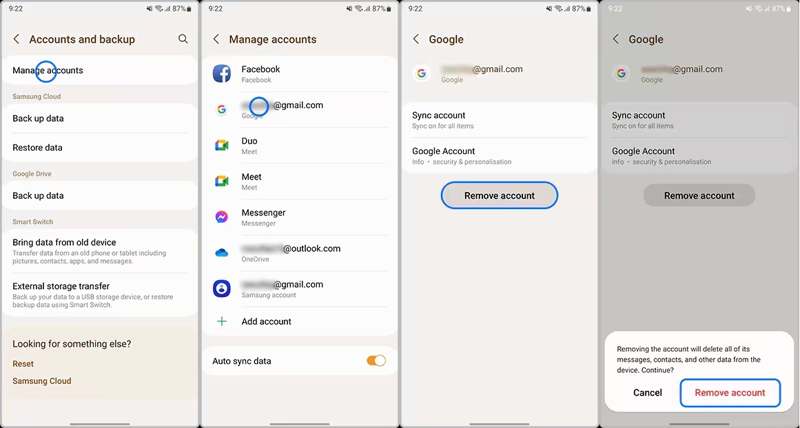
Futtassa a beállítások alkalmazást, és válassza ki Fiókok és biztonsági mentés.
Érintse Fiókok kezelése és válassza ki az eltávolítani kívánt Google-fiókot.
Érintse meg a Fiók törlése gombot.
Amikor a rendszer kéri, válassza a lehetőséget Fiók törlése annak megerősítésére.
2. rész: Hogyan állítsuk vissza a Samsung telefon gyári beállításait egy kóddal
Mi a Samsung gyári visszaállítási kódja? Ez egy numerikus és alfanumerikus sorozat, amely bizonyos feladatok végrehajtásához szükséges, például egy Samsung eszköz gyári beállításainak visszaállításához jelszó nélkül. Az alábbiakban ismertetjük az előfeltételeket és a munkafolyamatot:
Előfeltételek:
1. A telefonod elérhető.
2. A képernyő működik.
3. Egy régebbi Samsung telefonmodellt használsz.

Lépés 1. Futtassa a Telefon alkalmazást a telefonján.
Lépés 2. Írd be a visszaállító kódot: * 2767 3855 * # or * # * # * # * # 7780.
Lépés 3. Ha a folyamat nem indul el automatikusan, koppintson a Hívás gombra.
Lépés 4. Amikor a rendszer kéri, írja be az igent a megerősítéshez.
3. rész: Hogyan állítsuk vissza a Samsung telefon gyári beállításait a Beállításokban
A Samsung telefon gyári beállításainak visszaállításának egyik egyszerű módja a beépített gyári adatok visszaállítása. A Samsung minden Samsung telefonhoz és táblagéphez hozzáadta ezt a funkciót. A munkafolyamat kissé eltérhet a telefonmodelltől függően.
Előfeltételek:
1. Az eszközöd elérhető.
2. Még mindig emlékszel a fiókod jelszavára.
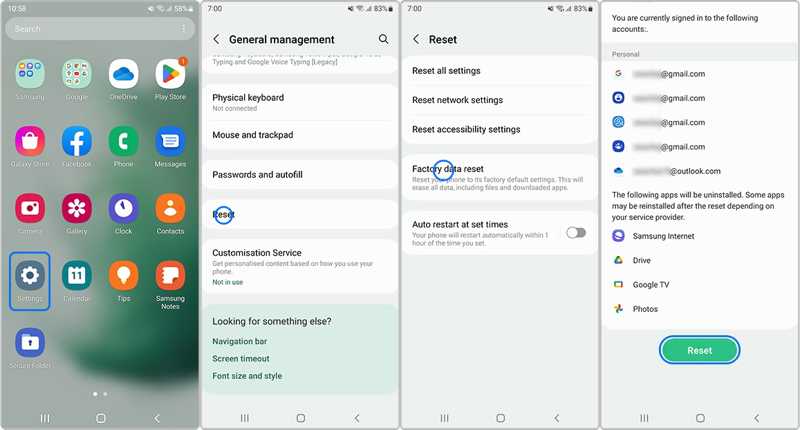
Lépés 1. Nyissa meg a beállítások alkalmazás az alkalmazástálcán.
Lépés 2. Görgessen lefelé, és válassza ki Általános menedzsment.
Lépés 3. Érintse vissza és válassza a Gyári adatok visszaállítása lehetőséget.
Tipp: Ha csak a Samsung telefon gyári beállításait szeretné visszaállítani adatok törlése nélkül, válassza a következőt: Minden beállítás visszaállítása helyette.
Lépés 4. Olvasd el a figyelmeztetést, és koppints a vissza gombot újra
Lépés 5. Ha a rendszer kéri, adja meg fiókja vagy telefonja jelszavát.
Lépés 6. Érintse meg a Törlésl gombot a Samsung gyári alaphelyzetbe állításához.
4. rész: Hogyan állítsuk vissza a Samsung készülék gyári beállításait helyreállítási módban
Még ha elfelejtette is a telefon jelszavát, vagy nem fér hozzá az eszközéhez, akkor is visszaállíthatja a telefonját. Android helyreállítási mód lehetővé teszi a Samsung telefon gyári beállításainak visszaállítását zárolt képernyővel vagy jelszó nélkül. Ez a módszer némi technikai tudást igényel.
Előfeltételek:
1. A telefonod gombjai működnek.
2. USB-kábel.
3. Számítógép.

Lépés 1. Nyomja meg hosszan a gombot Power gombot, amíg a telefon ki nem kapcsol.
Lépés 2. Csatlakoztassa telefonját a számítógépéhez egy kompatibilis kábellel.
Lépés 3. Tartsa lenyomva a Power/Bixby + hangerő növelése gombokat egyszerre 5 másodpercig.
Lépés 4. Miután a telefon helyreállítási módba lépett, engedje el a gombokat.
Lépés 5. Nyomja meg a hangerő le gombot többször a kiemeléshez Adatok törlése / gyári visszaállítás. Ezután nyomja meg a Power gombbal válassza ki.
Lépés 6. Amikor a rendszer kéri, jelölje ki Igen a hangerőszabályzó gombok segítségével, és nyomja meg a Power a Samsung gyári visszaállításának jelszó nélküli elindításához.
Lépés 7. Amikor elkészült, jelölje ki Újraindítja rendszer most a hangerőszabályzó gombokkal, és nyomja meg a Power a készülék újraindításához.
Jegyzet: Ha a Samsung Galaxy Tab készüléked nem tudja visszaállítani a gyári beállításokat normál módban, próbáld ki a helyreállítási módot.
5. rész: Hogyan lehet távolról visszaállítani a Samsung gyári beállításait
Ha elveszett a telefonja, vagy nincs a kezében, gyári beállításokra kell állítania a SmartThings Find vagy a Samsung Find segítségével. Ez egy online eszközkezelő Samsung-felhasználók számára. Néhány hasznos funkciót találhat, például a Samsung távoli gyári beállításainak visszaállítását.
Előfeltételek:
1. A készüléknek csatlakoznia kell az internethez.
2. Hozzá kell adni egy Samsung-fiókot a telefonhoz vagy táblagéphez.
3. Emlékszel a Samsung-fiókod hitelesítő adataira.

Lépés 1. Látogass el a https://smartthingsfind.samsung.com/ oldalra egy böngészőben.
Lépés 2. Kattints Bejelentkezés és adja meg Samsung-fiókját és jelszavát.
Lépés 3. Kattints Bejelentkezés újra és megüt Egyetért a felugró párbeszédpanelen.
Lépés 4. Ezután a szolgáltatás azonnal megtalálja az eszközét a térképen.
Lépés 5. Kattintson az Adatok törlése gombra az eszköztáron.
Lépés 6. Ha a rendszer kéri, adja meg fiókja jelszavát.
Lépés 7. Végül olvassa el a figyelmeztetést, és kattintson a Törli gombot a Samsung S8 vagy más modell gyári visszaállításának megkezdéséhez.
Jegyzet: Ez a módszer nem tudja megkerülni a Samsung gyári visszaállítás elleni védelmét.
Bónusz tipp: Az adatok helyreállításának legjobb módja a Samsung gyári visszaállítása után
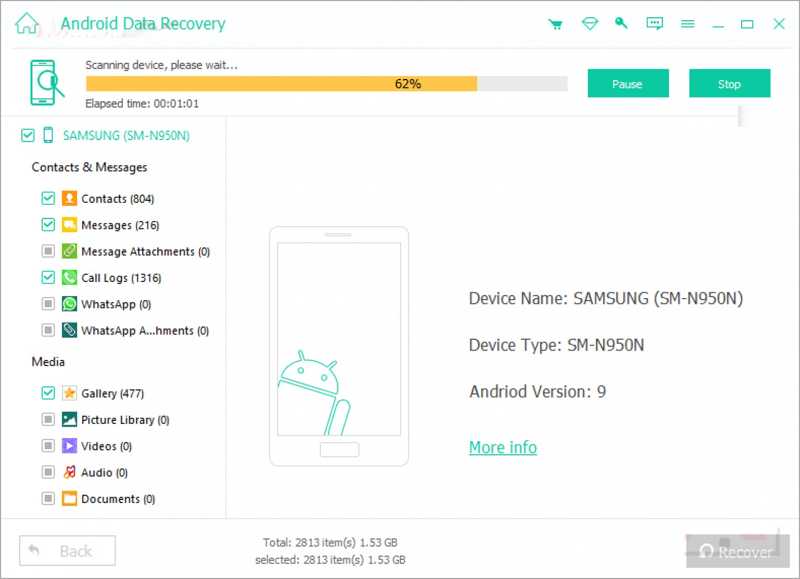
Köztudott, hogy a Samsung gyári beállításainak visszaállítása az eszközön található összes adatot törli. Ha nem készített biztonsági másolatot a telefonjáról vagy táblagépéről, Apeaksoft Android Data Recovery segíthet az adataid visszaszerzésében. Képes beolvasni az eszköz memóriáját és megtalálni az elveszett fájlokat.
A legjobb módja az adatok helyreállításának a Samsung gyári visszaállítása után
- Adatok lekérése Samsung eszközökről biztonsági mentés nélkül.
- Elérhető gyári beállítások visszaállításához, véletlen törléshez és egyebekhez.
- Az elveszett fájlok előnézete szelektív helyreállításhoz.
- Számos adattípussal kompatibilis.
- Szinte az összes Samsung telefont és táblagépet támogatja.
Biztonságos letöltés
Biztonságos letöltés

Hogyan lehet visszaállítani az adatokat a Samsung gyári visszaállítása után
Lépés 1. Telepítse a Samsung helyreállító eszközt
Indítsd el a legjobb Samsung adat-helyreállító szoftvert, miután telepítetted a számítógépedre. Van egy másik verzió is Mac-re. Kapcsold be. USB hibakeresés módot a telefonodon, és csatlakoztasd a számítógépedhez USB-kábellel.
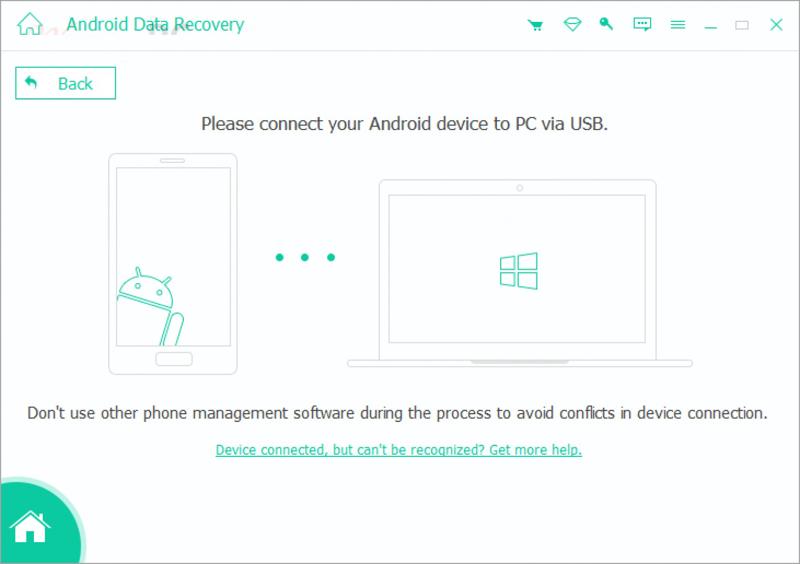
Lépés 2. Az elveszett fájlok előnézete
Engedélyezze a szoftvernek az eszközhöz való hozzáférést. Ezután válassza ki a helyreállítani kívánt adattípusokat. Kattintson a Következő gombra az eszköz szkennelésének megkezdéséhez. Ha elkészült, megtekintheti a típus szerint helyreállítható adatok előnézetét.

Lépés 3. Samsung adatok helyreállítása
Jelölje ki a visszaállítani kívánt fájlokat és elemeket, majd kattintson a Meggyógyul gombra alul. Hozz létre egy kimenő mappát, és nyomd meg a Meggyógyul gombot ismét az adat-helyreállítás megerősítéséhez.
Összegzés
Ez az útmutató elmagyarázta Hogyan lehet gyári alaphelyzetbe állítani egy Samsung tabletet vagy telefonját különböző helyzetekben. A visszaállító kód egy gyors módja a gyári beállítások visszaállításának. A Beállítások alkalmazásban is visszaállíthatja a készüléket. Ha a telefon le van tiltva, akkor helyreállítási módba kell helyeznie, és gyári beállításokat kell végrehajtania. A Samsung SmartThings Find egy online eszköz a gyári beállítások visszaállításához. Apeaksoft Android Data Recovery képes visszaállítani az adatokat a Samsung készülék gyári beállításainak visszaállítása után.
Kapcsolódó cikkek
Megpróbálhatja visszaállítani a Samsung jegyzeteket a Samsung felhőalapú biztonsági mentéséből. Ha nem, akkor harmadik féltől származó szoftvert használhat a Samsung jegyzetek biztonsági mentés nélküli visszaállításához.
Amikor Samsungról iPhone-ra váltasz, az adatokat az iOS-re váltás alkalmazással, számítógéppel, felhőszolgáltatással és harmadik féltől származó szoftverekkel viheted át.
Itt négy módszert tanulhatsz meg az adatok helyreállítására egy Samsung telefonról, még akkor is, ha a telefon képernyője nem kapcsol be vagy eltört.
Ez a bejegyzés részletesen ismerteti a Samsung zárolási képernyőjét. Megtanulhatod, hogyan állíthatod be, szabhatod testre és távolíthatod el egyszerűen.



