


A képernyőidő jelszavának beállítása, módosítása, visszaállítása és megkerülése

A Képernyőidő az Apple által kiadott szülői felügyeleti funkció Apple eszközökhöz. Lehetővé teszi a felhasználók számára a képernyő-hozzáférési idő szabályozását, valamint korlátozások beállítását bizonyos szolgáltatásokhoz és alkalmazásokhoz. Miután beállította a Képernyőidőt a saját vagy gyermeke eszközén, megadhat egy jelszót a jogosulatlan hozzáférés megakadályozása érdekében. Ez a cikk további információkat tartalmaz róla, például hogyan... módosítsa a Képernyőidő jelszavát az iPhone-on vagy az iPad-en.
OLDAL TARTALMA:
- 1. rész: A képernyőidő jelszavának beállítása
- 2. rész: A képernyőidő jelszavának módosítása
- 3. rész: A képernyőidő jelszavának kikapcsolása
- 4. rész: A képernyőidő jelszavának visszaállítása
- 5. rész: Mi a teendő, ha a képernyőidő jelszava nem működik
- 6. rész: Hogyan lehet korlátozások nélkül eltávolítani a képernyőidő jelszavát
1. rész: A képernyőidő jelszavának beállítása
Mi az a Képernyőidő jelszó? Ahogy korábban említettük, beállíthat egy Képernyőidő jelszót a saját vagy gyermeke iPhone-ján vagy iPadjén, hogy megakadályozza, hogy mások megváltoztassák a vonatkozó beállításokat. A jelszó nélkül senki sem tudja módosítani a Képernyőidő beállításait, és nem tudja kikapcsolni a szülői felügyeleti funkciót.
Hogyan állítsunk be képernyőidő-jelszót iPhone-on
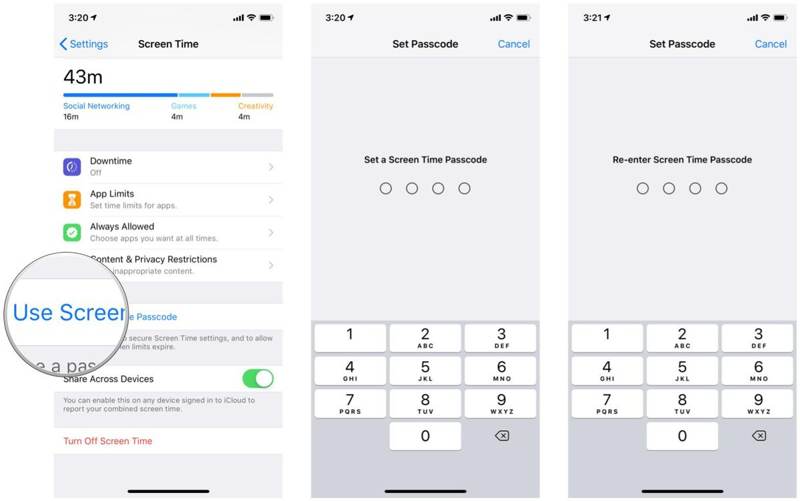
Lépés 1. Nyissa meg a beállítások app a készüléken.
Lépés 2. Tovább Képernyőidő.
Lépés 3. Érintse Használja a képernyőidő jelszavát.
Lépés 4. Írjon be egy jelszót, majd írja be újra.
Hogyan állítsunk be képernyőidő-jelszót egy gyermek telefonján
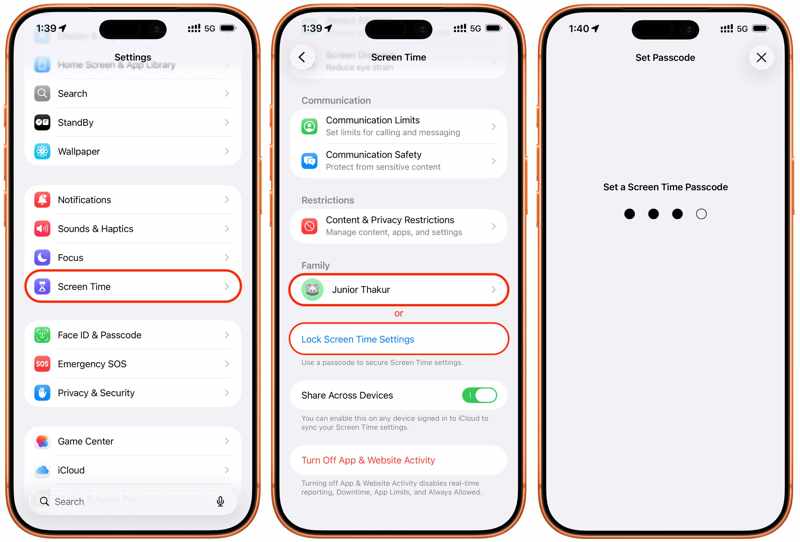
Lépés 1. A pop-art design, négy időzóna kijelzése egyszerre és méretének arányai azok az érvek, amelyek a NeXtime Time Zones-t kiváló választássá teszik. Válassza a Képernyőidő a beállítások app.
Lépés 2. Koppintson gyermeke nevére a Család szakasz.
Lépés 3. navigáljon Képernyőidő kezelése, majd a Zárolás gombot Képernyőidő beállításai.
Lépés 4. Ezután hagyjon meg egy Képernyőidő jelszót.
2. rész: A képernyőidő jelszavának módosítása
A Képernyőidő jelszavának beállítása után módosíthatja azt az iOS-en vagy gyermeke eszközén a biztonság fokozása érdekében. Természetesen a Képernyőidő jelszavának módosítása előtt meg kell adnia az aktuális Képernyőidő jelszavát.
Hogyan módosítsa a képernyőidő jelszavát iPhone/iPad készülékén
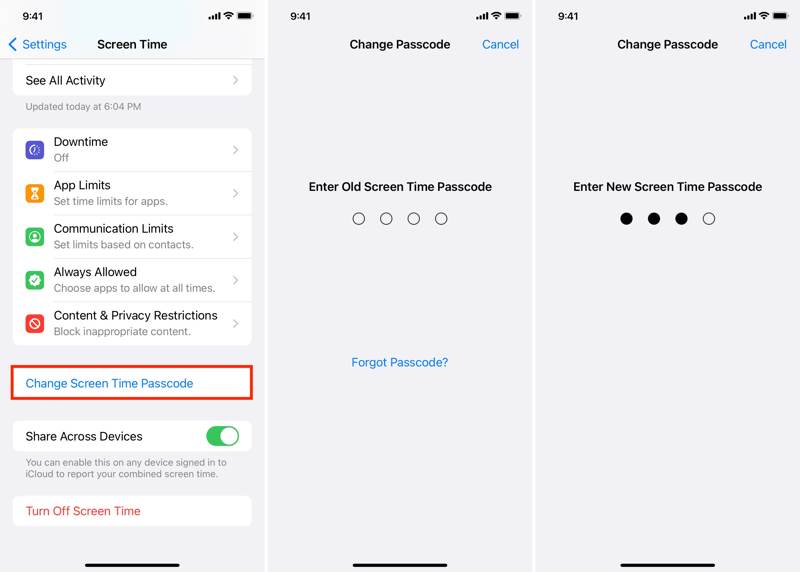
Lépés 1. Fuss el beállítások app.
Lépés 2. Menjen a Képernyőidő Tab.
Lépés 3. Érintse meg a Változtassa meg a képernyőidő-jelszót gombot.
Lépés 4. Ezután válasszon Változtassa meg a képernyőidő-jelszót.
Lépés 5. Írja be a jelenlegi Képernyőidő jelszót.
Lépés 6. Ezután hozzon létre egy új Képernyőidő jelszót, és adja meg újra.
Hogyan módosíthatod a képernyőidő jelszavát a gyermeked telefonján
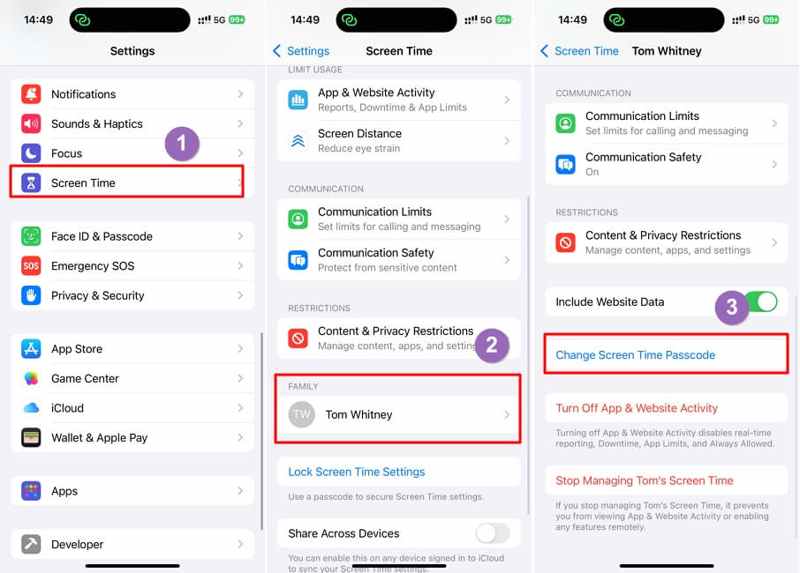
Lépés 1. IPhone vagy iPad készülékén menjen a következőhöz: beállítások és a Képernyőidő.
Lépés 2. Válaszd ki gyermeked nevét az alábbiak közül Család cím.
Lépés 3. Érintse meg a Változtassa meg a képernyőidő-jelszót gombot.
Lépés 4. A hitelesítéshez kövesse a képernyőn megjelenő utasításokat.
Lépés 5. Adjon meg egy új Képernyőidő jelszót, majd adja meg újra a jelszó módosításához gyermeke telefonján.
3. rész: A képernyőidő jelszavának kikapcsolása
Ha le szeretne mondani a Képernyőidő jelszaváról, kikapcsolhatja azt. Ne feledje, hogy a Képernyőidő jelszó kikapcsolása nem tiltja le a Képernyőidőt. Ez lehetővé teszi a Képernyőidő beállításainak korlátozás nélküli módosítását.
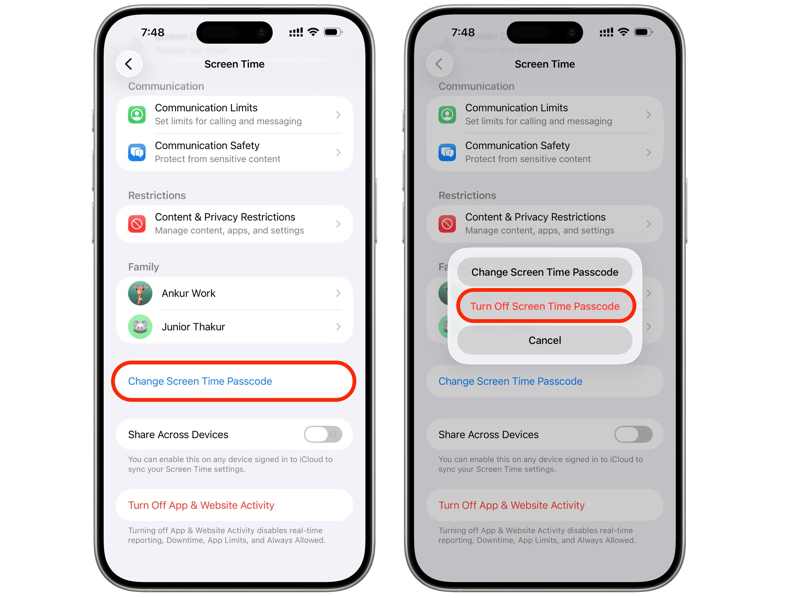
Lépés 1. Menj a te beállítások app az iPhone-on.
Lépés 2. Válassza a Képernyőidő bejegyzést.
Tipp: A Képernyőidő jelszó eltávolításához gyermeke eszközéről koppintson a névre a Család szakasz.
Lépés 3. Érintse meg a Változtassa meg a képernyőidő-jelszót gombot.
Lépés 4. A pop-art design, négy időzóna kijelzése egyszerre és méretének arányai azok az érvek, amelyek a NeXtime Time Zones-t kiváló választássá teszik. Válassza a Kapcsolja ki a képernyő időkódját.
Lépés 5. Ezután adja meg a jelenlegi Képernyőidő jelszavát, hogy megszabaduljon a Képernyőidő jelszavától.
4. rész: A képernyőidő jelszavának visszaállítása
Tegyük fel, hogy nem emlékszel a Képernyőidő jelszavára, és harmadik féltől származó jelszókezelő nélkül nincs mód arra, hogy megtudd. A jó hír az, hogy időkorlát nélkül kipróbálhatod a jelszavadat. Mi történik 10 sikertelen Képernyőidő jelszó-megadási kísérlet után? A készüléked nem lesz letiltva, csak meg kell várnod, amíg letelik az időkorlát. Ráadásul visszaállíthatod a Képernyőidő jelszavát az Apple-fiókoddal és jelszavaddal.
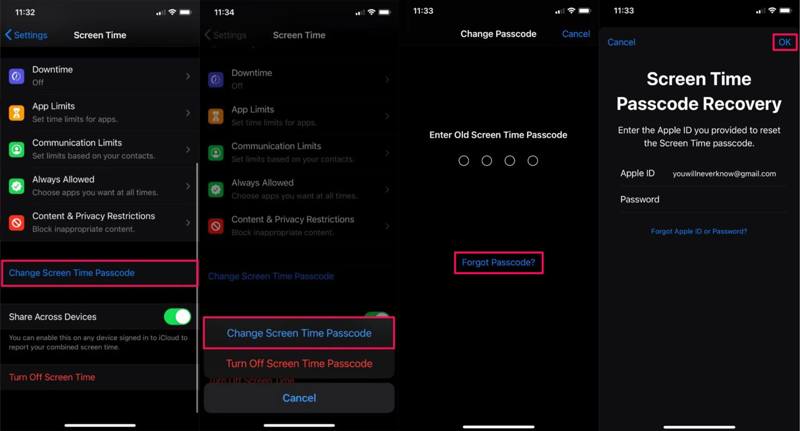
Lépés 1. Futtassa a beállítások app a készüléken.
Lépés 2. Válassza a Képernyőidő opciót.
Lépés 3. Érintse meg a Változtassa meg a képernyőidő-jelszót gombot.
Lépés 4. Pick Változtassa meg a képernyőidő-jelszót or Kapcsolja ki a képernyő időkódját.
Lépés 5. Amikor a rendszer kéri a jelszó megadását, koppintson a Elfelejtett jelszó.
Lépés 6. Írd be az Apple-fiókod jelszavát, és koppints OK.
Lépés 7. Ezután állítson be egy új Képernyőidő jelszót, és adja meg újra.
Tipp: Ha az eszközödön iOS 13.4-es vagy korábbi rendszer fut, vagy MDM-en keresztül van regisztrálva, akkor nincs „Elfelejtett képernyőidő-jelszó” opció. Ráadásul ez az opció nem jelenik meg a gyermek iOS-eszközén.
További olvasnivalók
5. rész: Mi a teendő, ha a képernyőidő jelszava nem működik
A beállítások módosításakor előfordulhat, hogy a Képernyőidő jelszava nem működik. Ennek fő okai lehetnek a helytelen jelszó, az elavult szoftver, az Apple-fiókjával kapcsolatos probléma és egyebek.
Megoldás 1: Szoftverfrissítés
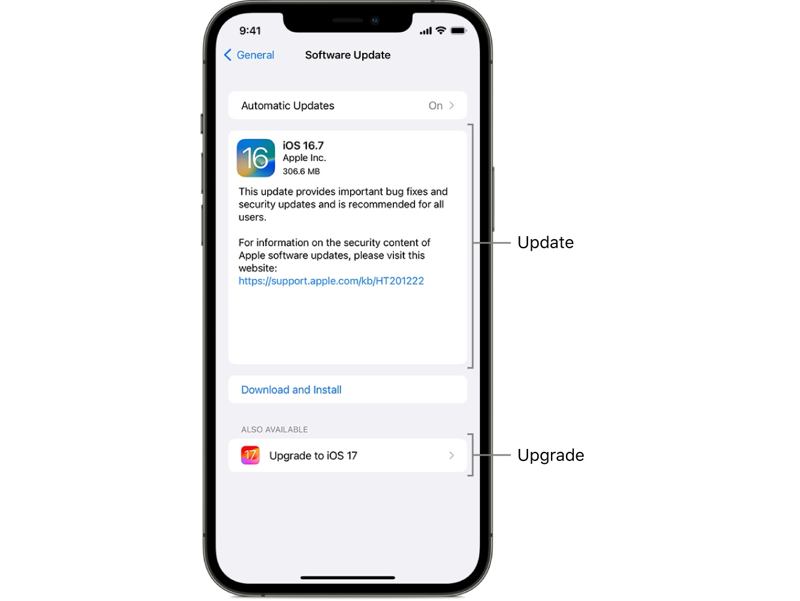
Lépés 1. Menj a te beállítások app.
Lépés 2. Lépjen be a Általános Tab.
Lépés 3. Érintse szoftver frissítése frissítések kereséséhez.
Lépés 4. Ha elérhető frissítés, érintse meg a Letöltése és telepítése gombot.
Lépés 5. Az iOS frissítéséhez kövesse a képernyőn megjelenő utasításokat.
Lépés 6. Ha elkészült, a készülék újraindul, és újra megpróbálhatja megadni a Képernyőidő jelszavát.
2. megoldás: A képernyőidő jelszavának visszaállítása
Ha Ön vagy valaki más megváltoztatta a jelszót, a régi Képernyőidő jelszó nem fog működni. Szerencsére a Képernyőidő jelszavát visszaállíthatja az Apple-fiókja jelszavával. A fenti munkafolyamatot bemutattuk.
Ha nem találod az „Elfelejtett jelszó” opciót, frissítsd a szoftvert a legújabb verzióra. Ezenkívül a szervező eszközén is vissza kell állítanod, ha vissza szeretnéd állítani a képernyőidő jelszavát a gyermeked telefonján.
3. megoldás: Kijelentkezés és bejelentkezés az Apple-fiókkal
Lépés 1. Koppints a profilodra a beállítások.
Lépés 2. Görgessen lefelé, és érintse meg a gombot Kijelentkezés gombot alul.
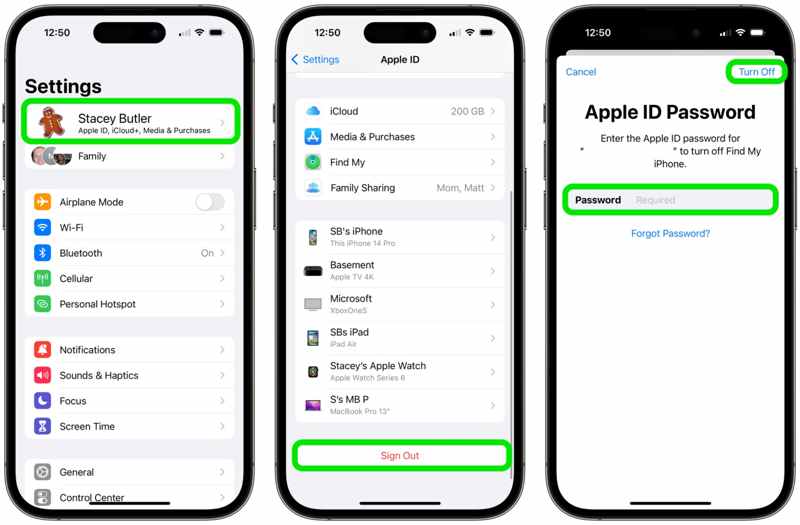
Lépés 3. Add meg az Apple-fiókod jelszavát a Lokátor kikapcsolásához.
Lépés 4. Érintse meg a Kikapcsolása gombot.
Lépés 5. Válassza ki a megtartani kívánt adattípusokat, majd koppintson a Kijelentkezés annak megerősítésére.
Lépés 6. Indítsa újra a készüléket.
Lépés 7. Menj vissza a beállítások app.
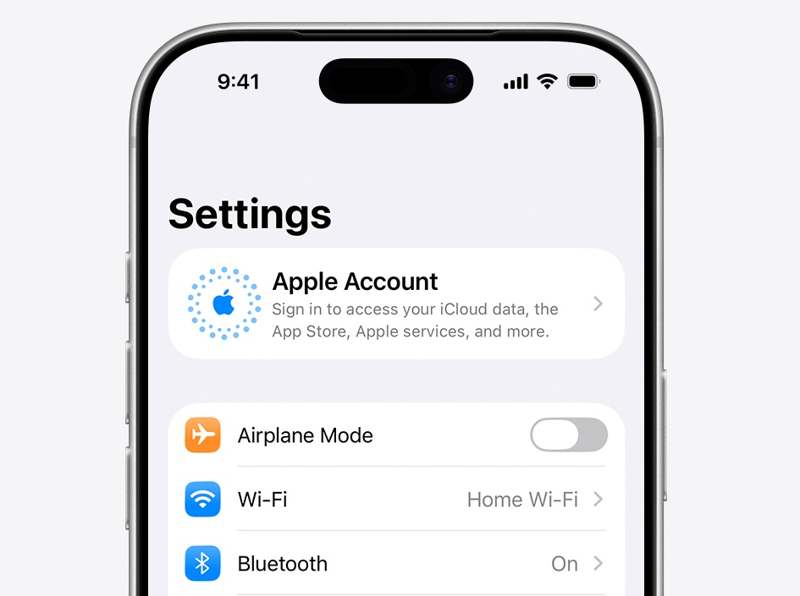
Lépés 8. Érintse Apple fiók És válasszon Jelentkezzen be manuálisan hogy újra bejelentkezzen fiókjába.
6. rész: Hogyan lehet korlátozások nélkül eltávolítani a képernyőidő jelszavát
Apeaksoft iFoneKit iOS feloldó egy gyors módja annak, hogy megkerüld a Képernyőidő jelszavát iPhone-odon. Nem kéri a jelenlegi Képernyőidő jelszavát vagy Apple ID jelszavát. Az adatkezelés nem szakad meg a folyamat során.

Letöltötte több mint 1,000,000 Felhasználók
- Képernyőidő jelszó eltávolítása 3 lépésben.
- Védje adatait a folyamat során.
- Működjön mind a saját, mind a gyermeke eszközén.
- Széles körű iPhone és iPad eszközök támogatása.
Biztonságos letöltés
Biztonságos letöltés

Hogyan lehet letiltani a képernyőidő jelszavát az iPhone-on
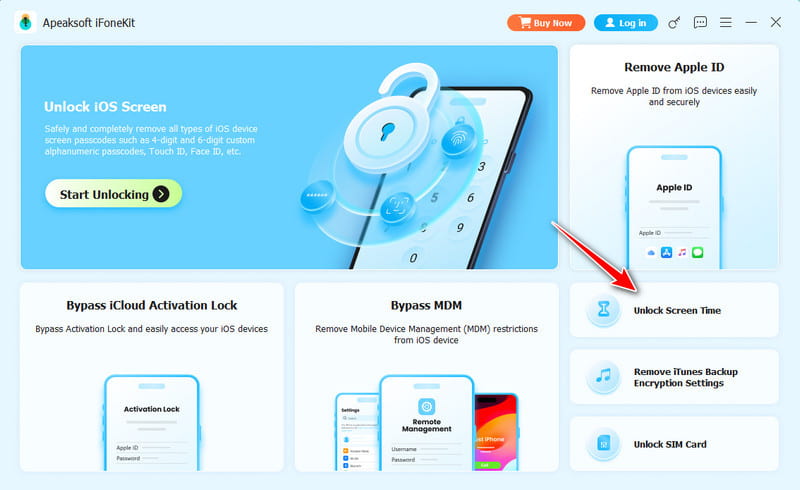
Lépés 1. Telepítse az iOS Unlocker alkalmazást
Töltsd le és telepítsd a Képernyőidő jelszó eltávolító szoftvert egy PC-re. Van egy másik verzió is Mac-re. Indítsd el, és válaszd ki a A képernyő idejének feloldása mód.
Lépés 2. Csatlakozzon iPhone-jához
Csatlakoztasd iPhone-odat a számítógépedhez Lightning kábellel. Várd meg, amíg a készülék felismeri a rendszert, majd válaszd ki a Képernyőidő jelszavad beállítási módját.
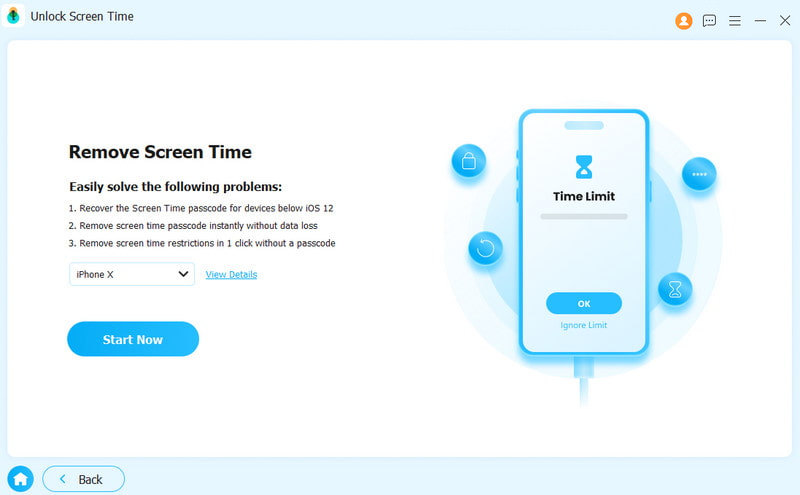
Lépés 3. Képernyőidő jelszó letiltása
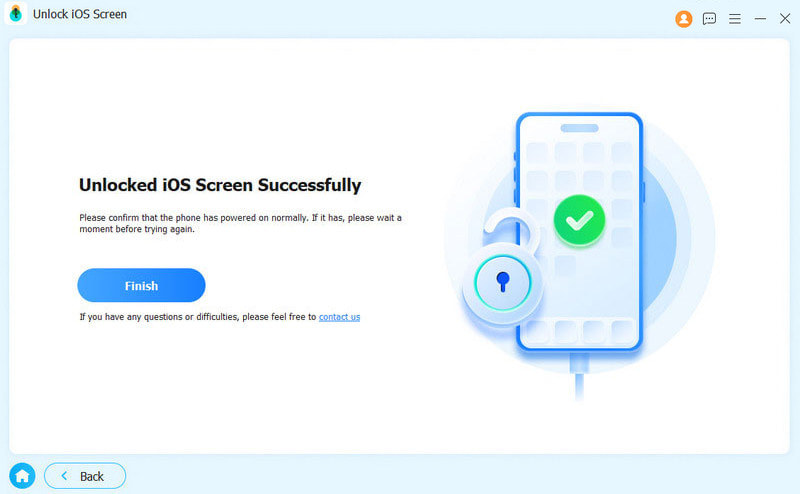
Kattintson az Kapcsolat gombra, miután a szoftver betölti az eszköz adatait. Kövesse a képernyőn megjelenő utasításokat a Lokátor letiltásához az eszközén. Ezután a szoftver automatikusan megkezdi a Képernyőidő jelszó letiltását.
Összegzés
Ez az útmutató elmagyarázza, hogyan kell módosítsa a Képernyőidő jelszavát az Ön vagy gyermeke iOS-eszközén. A Képernyőidő jelszavának módosításához, kikapcsolásához és alaphelyzetbe állításához kövesse a lépéseinket különböző helyzetekben. Ha a jelszava nem működik, próbálja ki a következőt: Apeaksoft iFoneKit iOS feloldó hogy korlátozás nélkül megszabaduljon a szülői felügyelet funkciótól az eszközéről.
Kapcsolódó cikkek




