

Come recuperare le email cancellate su iPhone in 4 metodi

"Ho cancellato per errore alcune email importanti. Come recuperare le email cancellate su un iPhone?" Secondo la nostra ricerca, la maggior parte degli utenti iOS legge, riceve e invia email sui propri dispositivi iOS. Questo comporta un nuovo problema: l'email è scomparsa. Fortunatamente, esistono metodi per recuperare le email perse in diverse situazioni. Il nostro tutorial condivide metodi collaudati e illustra i flussi di lavoro per aiutarti a trovare i messaggi importanti.
CONTENUTO DELLA PAGINA:
Parte 1: Come recuperare le email eliminate su iPhone dal Cestino
Sia l'app Mail di Apple che le app di posta di terze parti dispongono della cartella Cestino. Questa cartella conserva le email eliminate per un periodo di tempo specifico. Prima che vengano eliminate definitivamente, puoi recuperarle rapidamente sul tuo iPhone.
Come recuperare le email eliminate su iPhone in Apple Mail
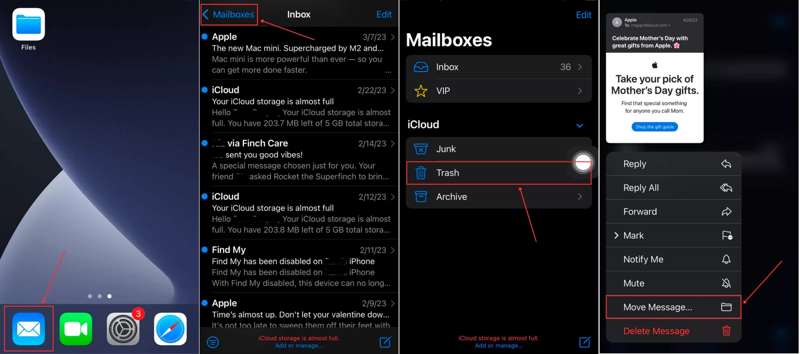
Passo 1: Apri iOS posta app sul tuo iPhone.
Passo 2: Tocca Caselle di posta e scegli Cestino sulla lista.
Passo 3: Visualizza le email eliminate di recente e tieni premuto il messaggio che vuoi recuperare.
Passo 4: Quindi, scegli Sposta il messaggio nel menu di scelta rapida.
Passo 5: Imposta la cartella del destinatario, come la Posta in arrivo.
Passo 6: Ora puoi trovare le email eliminate dall'iPhone nella posizione del destinatario.
Come recuperare le email eliminate da Gmail su iPhone
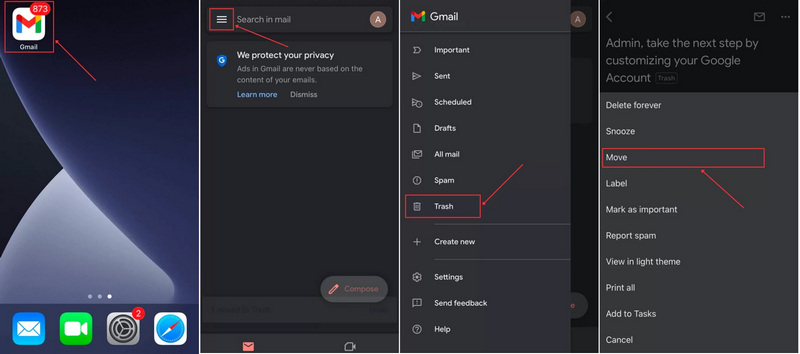
Passo 1: Esegui il tuo Gmail app.
Passo 2: Clicca il Pulsante Hamburger e scegli Cestino.
Passo 3: Seleziona l'email che desideri recuperare e premi il pulsante altro pulsante con un'icona a tre punti.
Passo 4: Scegli Sposta e seleziona la posizione in cui desideri salvare l'email recuperata da Gmail sul tuo iPhone.
Come recuperare le email eliminate su iPhone da Yahoo
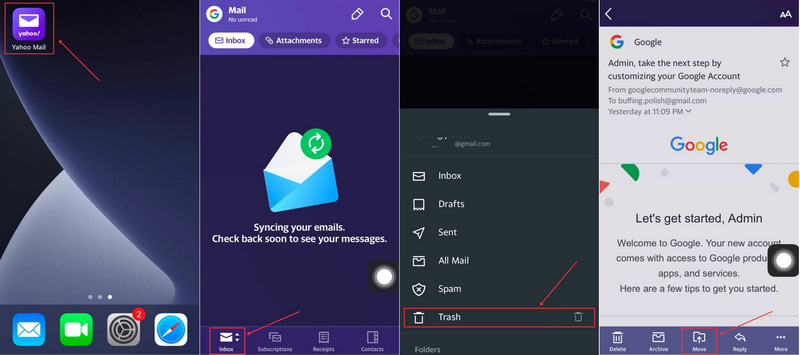
Passo 1: Esegui il tuo Yahoo app.
Passo 2: Clicca il Posta in arrivo pulsante in basso e scegli Cestino.
Passo 3: Apri l'email che vuoi ripristinare toccandola.
Passo 4: Clicca il Sposta in basso e scegli una posizione in cui salvare l'email. Se desideri gestire le email recuperate in modo indipendente, scegli Crea una nuova cartella e lascia un nome.
Parte 2: Come recuperare le email eliminate su iPhone tramite Shake Undo
A partire da iOS 3, Apple ha aggiunto il gesto "Scuoti per annullare" agli iPhone. Questo gesto consente di recuperare immediatamente le email eliminate dall'iPhone una volta rimossa un'email. In altre parole, funziona solo se hai appena eliminato un'email e non hai chiuso l'app Mail.
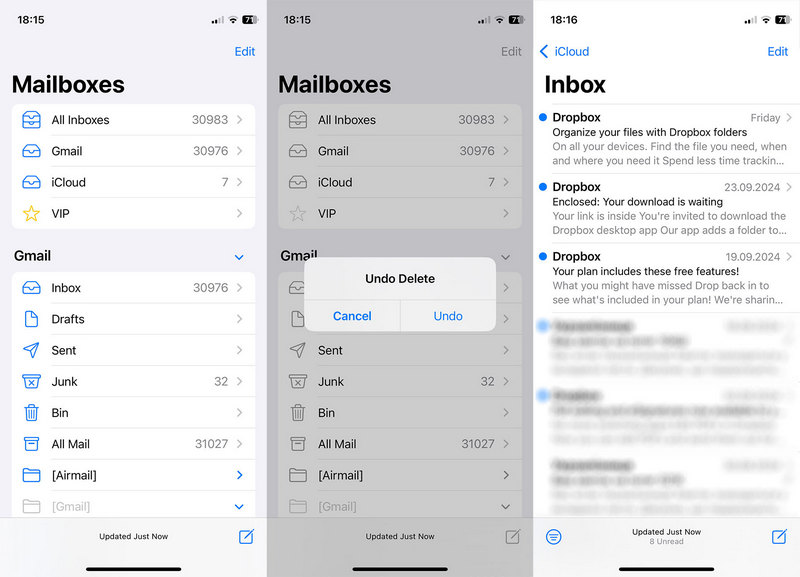
Passo 1: Se elimini accidentalmente un'e-mail, scuoti immediatamente il tuo iPhone.
Passo 2: Quindi, tocca il Disfare pulsante nella finestra di dialogo a comparsa.
Passo 3: Ora scoprirai che l'email torna nella tua Posta in arrivo.
Parte 3: Come trovare le email eliminate su iPhone da iCloud
In quanto servizio cloud ufficiale, iCloud conserva le tue email nel tuo account o in un backup. Ciò significa che puoi recuperare le email eliminate su iPhone dal tuo account iCloud o dal backup di iCloud, a seconda della situazione.
Come trovare le email eliminate dall'iPhone su iCloud.com
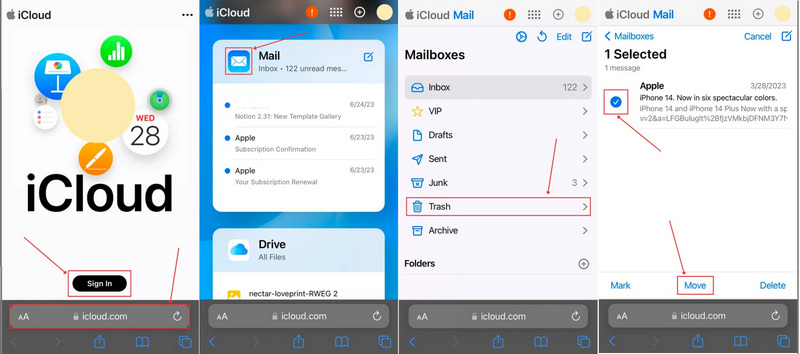
Passo 1: Apri il tuo browser web, vai su www.icloud.com e accedi con il tuo account.
Passo 2: Scegliere il maggiol'app.
Passo 3: Tocca Caselle di posta e scegli Cestino.
Passo 4: Seleziona le email desiderate e tocca Sposta pulsante.
Passo 5: Imposta la posizione desiderata e premi Sposta.
Come ripristinare le email eliminate su iPhone dal backup di iCloud
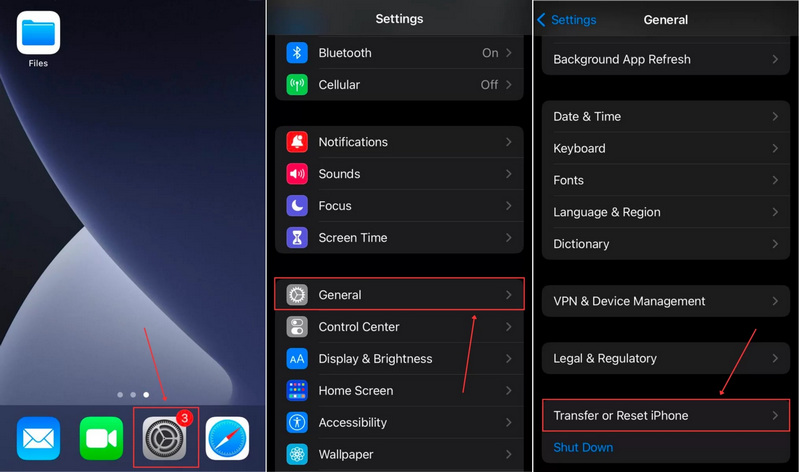
Passo 1: Se non riesci a trovare le email eliminate su iCloud.com, esegui il tuo Impostazioni profilo app.
Passo 2: Accedere a Generalee Trasferisci o ripristina iPhone.
Passo 3: Scegli Cancella contenuto e impostazioniQuesto processo sarà cancella il tuo iPhone.
Passo 4: Se richiesto, inserisci il codice di accesso del tuo iPhone o la password del tuo ID Apple.
Passo 5: Segui le istruzioni sullo schermo per cancellare il tuo dispositivo.
Passo 6: Una volta riavviato l'iPhone, configuralo e connettilo a una rete Wi-Fi.
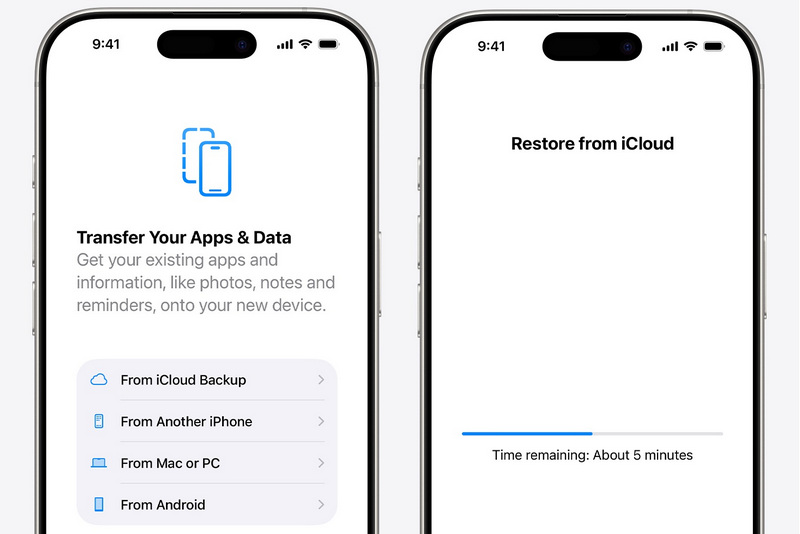
Passo 7: Scegli Da iCloud Backup sul canale App e dati schermo.
Passo 8: Inserisci il tuo ID Apple e la password.
Passo 9: Seleziona il backup che potrebbe includere le email perse.
Passo 10: Una volta fatto, completa la configurazione.
Nota: Per recuperare le email eliminate definitivamente dall'iPhone tramite il backup di iCloud, è necessario prima cancellare i dati del dispositivo.
Parte 4: Come ripristinare le email eliminate su iPhone senza backup
Anche se non hai un backup, è possibile recuperare le email eliminate definitivamente dal tuo iPhone. Tutto ciò di cui hai bisogno è un potente strumento di recupero dati per iPhone, come Apeaksoft iPhone Data RecoveryOffre tre modalità per il recupero delle email su iPhone, il backup di iTunes e il backup di iCloud. Ancora più importante, è facile da usare, soprattutto per gli utenti inesperti.
Il modo migliore per ripristinare le email eliminate su iPhone senza backup
- Recupera le email cancellate dalla memoria del tuo iPhone.
- Estrai le email dai backup senza cancellare i dati del tuo dispositivo.
- Visualizza in anteprima i dati persi sul tuo iPhone.
- Supporta un'ampia gamma di tipi di dati.
- Compatibile con le ultime versioni di iOS e iPadOS.
Download sicuro
Download sicuro

Come ripristinare le email eliminate sul tuo iPhone senza backup
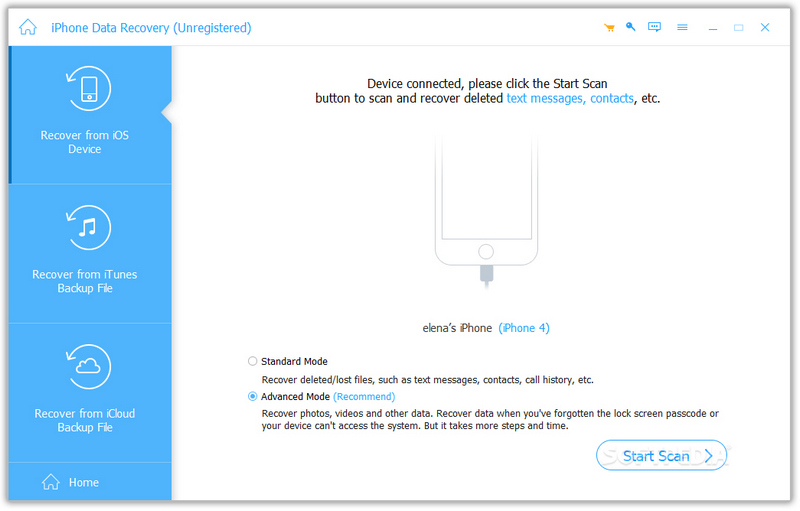
Passo 1: Scansiona il tuo iPhone
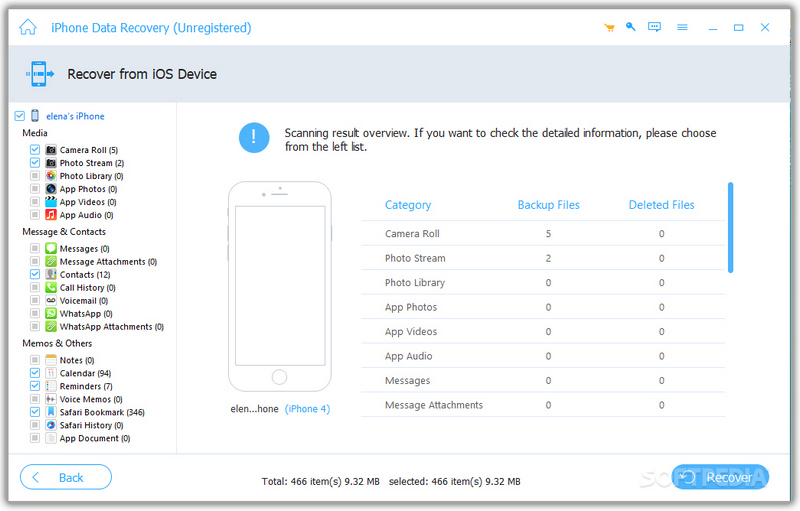
Avvia il miglior software di recupero dati per iPhone dopo averlo installato sul tuo computer. Collega il tuo iPhone al computer con un cavo Lightning. Una volta rilevato il dispositivo, vai su Recupera dal dispositivo iOS scheda e fare clic su Avvio scansione pulsante per iniziare la scansione della memoria.
Passo 2: Anteprima dei dati persi
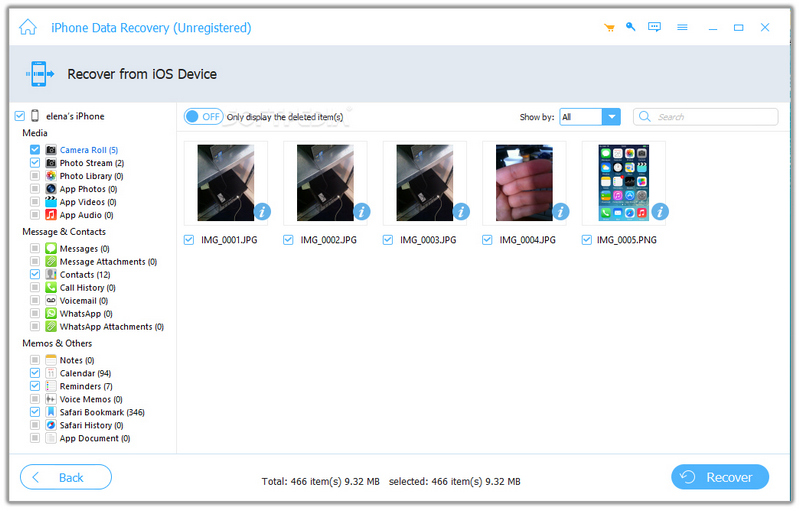
Al termine della scansione, seleziona i tipi di dati che desideri recuperare. Quindi, visualizza i file persi, come gli allegati e-mail eliminati.
Passo 3: recupero dati iPhone
Seleziona i file e gli elementi che desideri recuperare e fai clic su Recuperare pulsante. Quindi, imposta una cartella di output e premi Recuperare di nuovo per confermarlo. Puoi anche recupera le foto cancellate su iPhone.
Nota: Il software recupererà le email e gli allegati eliminati sul tuo disco rigido. Non interromperà i dati esistenti sul tuo dispositivo.
Conclusione
Ora dovresti capire come recuperare le email cancellate sul tuo iPhoneLa cartella Cestino nell'app Apple Mail o in app di posta elettronica di terze parti ti consente di trovare rapidamente le email perse. Inoltre, puoi accedere al tuo account iCloud o al backup di iCloud per ripristinare le tue email. Apeaksoft iPhone Data Recovery è il modo più semplice per ripristinare le email perse dal tuo iPhone. È facile da usare e non richiede competenze tecniche.
Articoli Correlati
Cerchi un modo per visualizzare la cronologia eliminata su iPhone? Scopri come trovare la cronologia eliminata su iPhone in 6 modi, anche senza backup!
Questa guida ti spiega come ripristinare il tuo iPhone da iCloud o dal backup di iTunes e come ripristinare le impostazioni di fabbrica del tuo iPhone.
Vuoi recuperare memo vocali cancellati dal tuo iPhone senza restrizioni? Se lo fai, questa guida esplorerà 3 metodi per te.
Per trovare i messaggi Viber eliminati su iPhone, puoi utilizzare il backup di Viber/iCloud/iTunes. Se non hai un backup, puoi utilizzare Apeaksoft iPhone Data Recovery.



