
動画の制作やレタッチにおいて、BGMは重要な要素です。音楽は動画に質感、色彩、深みを加え、主要な要素を引き立てます。動画クリップに彩りを添え、ソーシャルメディアで魅力的な動画を作成したい場合は、音楽を取り入れるのが良いでしょう。このガイドでは、実績のある方法を紹介します。 iPhoneで動画に音楽を追加するAndroidスマートフォン、パソコン、またはオンラインで、画質を損なうことなく視聴できます。
ページコンテンツ:
パート1:パソコンで動画に音楽を追加する簡単な方法
ApeaksoftビデオコンバータUltimate デスクトップ上の動画に音楽を追加するのに最適なアプリケーションです。実際、これは動画のポストプロダクションに必要な機能をすべて備えたツールキットです。技術的なスキルがなくても、背景音楽の適用を含め、動画のレタッチを行うことができます。

100万人以上がダウンロードしました 1,000,000 users
- 動画に音楽を追加する3つのステップ。
- 処理中はビデオ品質を維持してください。
- 幅広いビデオ編集機能を搭載する。
- ほとんどすべてのビデオおよびオーディオ形式をサポートします。
- 内蔵メディアプレーヤーで結果をプレビューできます。
パソコンで動画に音楽を追加する方法
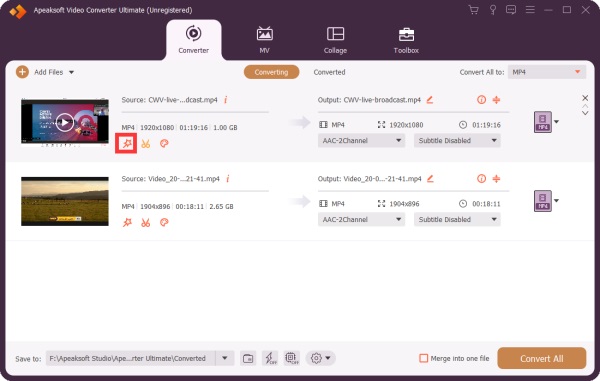
ステップ 1: ビデオをインポートする
PCにインストールしたら、ビデオ編集ソフトウェアを起動してください。Mac OS X 10.12以降用の別のバージョンもあります。 ファイルの追加 メニューを開き、ハードドライブから編集したいビデオファイルをインポートします。
ステップ 2: 動画に音楽を追加する
クリック 編集 ビデオのボタンをクリックして、ビデオエディターで開きます。オーディオタブに切り替えます。 追加 ボタンをクリックし、ビデオに音楽を追加します。 出来高 (NAIST) と ディレイ 画像に従ってクリックしてください。 プレイ 結果をプレビューするには、ボタンをクリックしてください。 OK それを確認する。
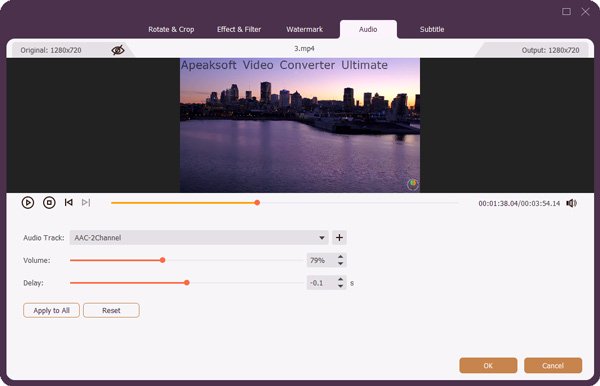
ヒント: すべての動画に音楽を追加したい場合は、クリックしてください。 すべてに適用.
ステップ 3: 結果のエクスポート
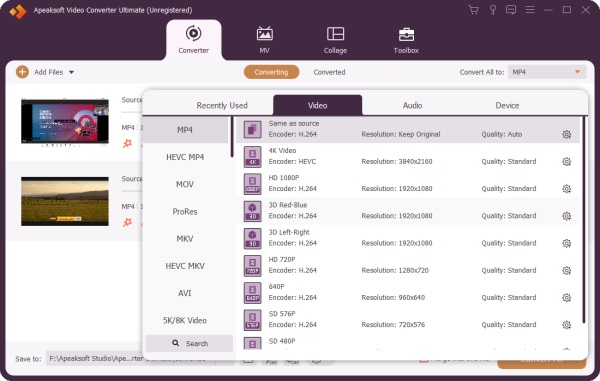
クリック 設定 ボタンの隣に 出力フォーマット 一番下までスクロールしてプロファイルダイアログを起動します。 ビデオ タブをクリックし、適切なフォーマットを選択してプリセットを選択します。パラメーターを変更する場合は、 設定 歯車アイコンのボタン。出力フォルダを設定します。 に保存 フィールドをクリックします。最後に、 すべて変換 すべての動画をエクスポートするためのボタン。
パート2:オンラインで動画に音楽を追加する方法
ウォーターマークなしで動画に音楽を無料で追加するオンライン方法も選択肢の一つです。この方法の利点は、何もインストールせずに作業を完了できることです。ただし、長い動画には適していません。また、安定したインターネット接続が必要です。
Adobe Expressで動画に音楽を追加する方法
ステップ 1: ブラウザでwww.adobe.com/express/loginにアクセスしてください。
ステップ 2: アカウントでログインしてください。
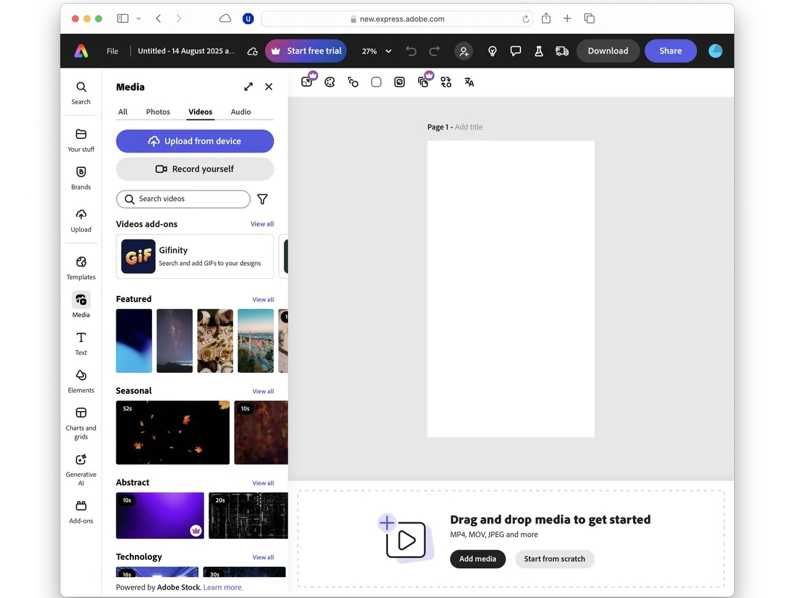
ステップ 3: に行きます 動画 タブをクリックして デバイスからアップロード 動画をアップロードします。
ステップ 4: 動画ファイルをストーリーボードにドラッグ&ドロップしてください。
ステップ 5: 次に、をクリックします。 音声を追加 一番下にあるボタンをクリックしてオーディオトラックをインポートし、Adobe Expressでビデオに音楽を追加します。
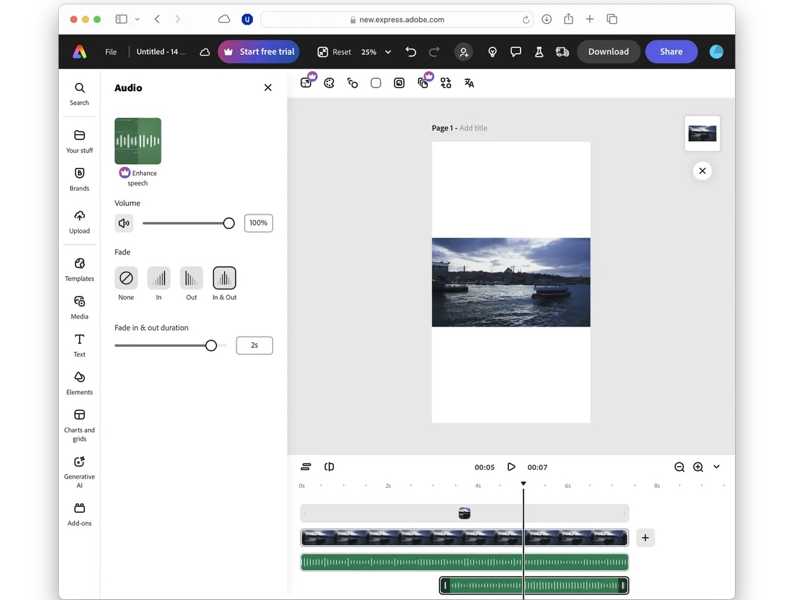
ステップ 6: クリック ダウンロード
Canvaで動画に音楽を追加する方法
ステップ 1: ブラウザでwww.canva.comにアクセスしてください。
ステップ 2: アカウントとパスワードでログインしてください。
ステップ 3: クリック アップロード サイドバーのメニュー。
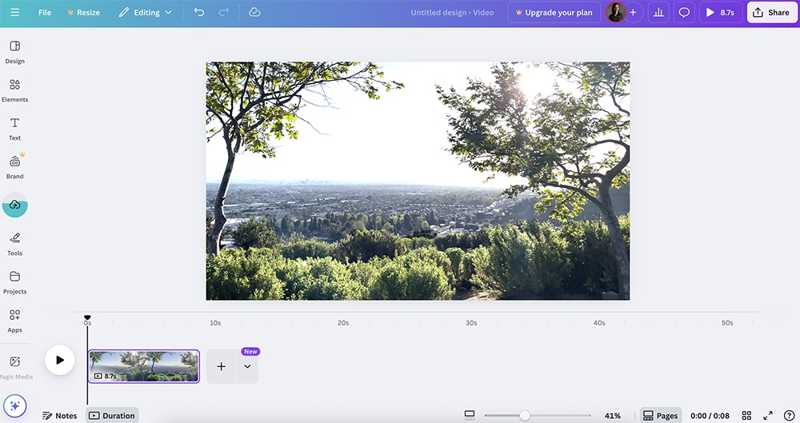
ステップ 4: クリック ファイルをアップロード ボタンをクリックし、編集したいビデオとオーディオトラックをインポートします。
ステップ 5: ビデオクリップをタイムラインにドラッグ&ドロップしてください。
ステップ 6: に行きます 音楽 Canvaで動画に音楽を追加するには、タブをクリックしてオーディオトラックをタイムラインにドラッグ&ドロップします。
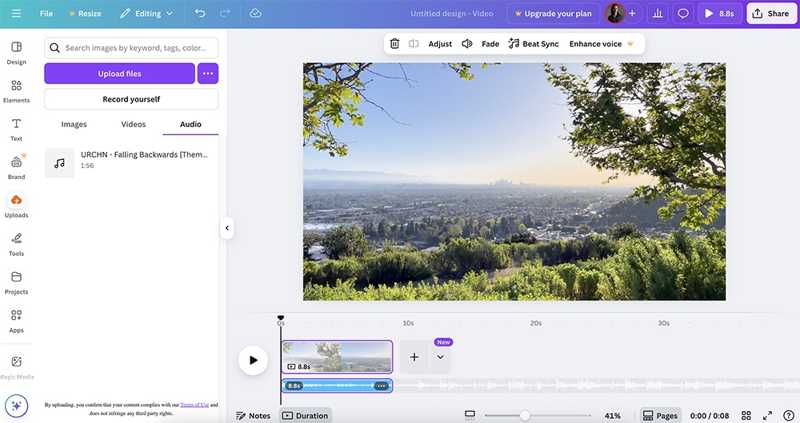
ステップ 7: クリック プレイ 結果を表示するにはボタンをクリックします。
ステップ 8: 最後に、動画ファイルを保存してダウンロードしてください。
パート3:iPhoneで動画に音楽を追加する方法
iPhoneで動画に音楽を追加したい場合は、AppleのiMovieがおすすめです。この動画編集アプリはほとんどのiPhoneに対応しており、無料で利用できます。タイムライン上で動画ファイルを編集できます。
ステップ 1: 実行する iMovieの あなたのiPhone上のアプリ。
ステップ 2: 選択する 映画 オプションの下に 新しいプロジェクトを開始する メニュー。
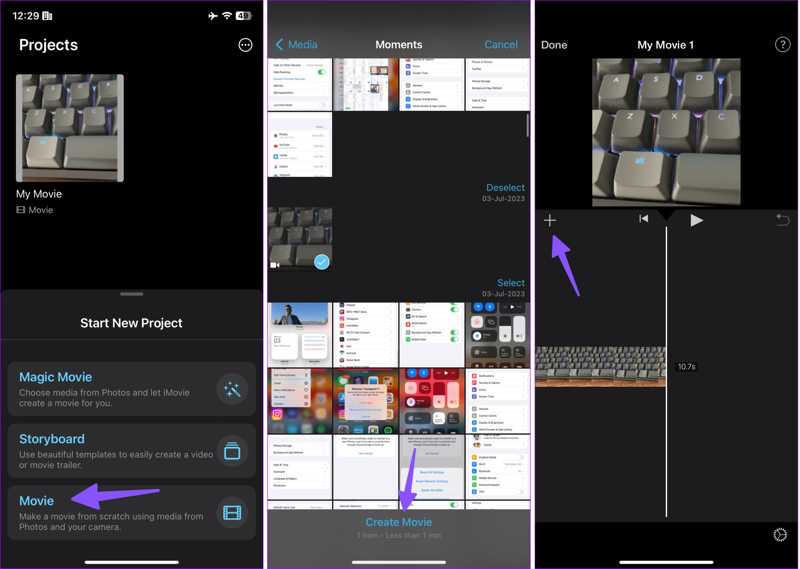
ステップ 3: 目的のビデオを選択してタップします ムービーを作成 ボタンをクリックします。
ステップ 4: をタップ 追加 メディアプレーヤーの下にあるボタンを選択し、 音楽.
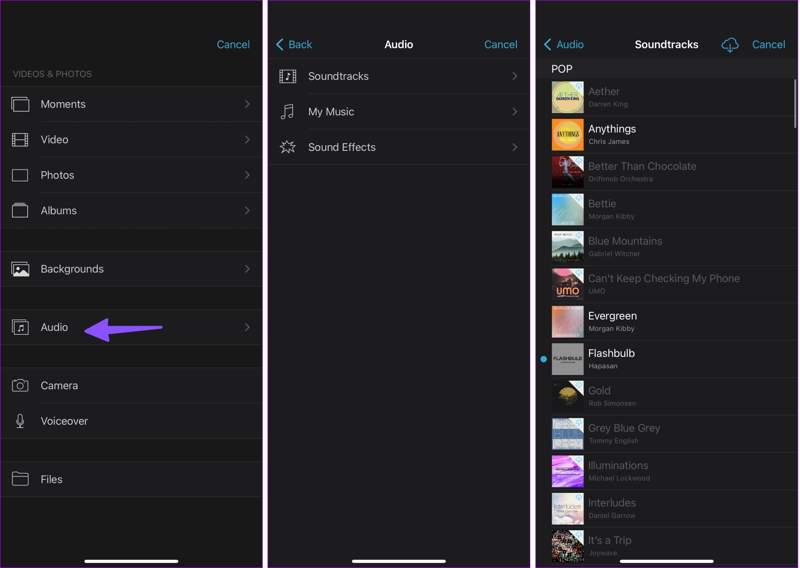
ステップ 5: 選択 サウンドトラック, 私の音楽または サウンドエフェクトそして、適切な曲を選びましょう。
ステップ 6: iMovieがiPhoneのビデオに音楽を追加したら、 プレイ ボタンをクリックしてプレビューします。
ステップ 7: 満足したら、 シェアする ボタンを選択 ビデオを保存.
ステップ 8: 結果は写真アプリで確認できます。
パート4:Androidで動画に音楽を追加する方法
Androidには標準搭載の動画編集アプリはありません。しかし、Google Playストアから動画編集アプリを探せば、Android端末で動画に音楽を追加できます。例えば、CapCutは、背景音楽を素早く適用できる多機能な動画編集アプリです。
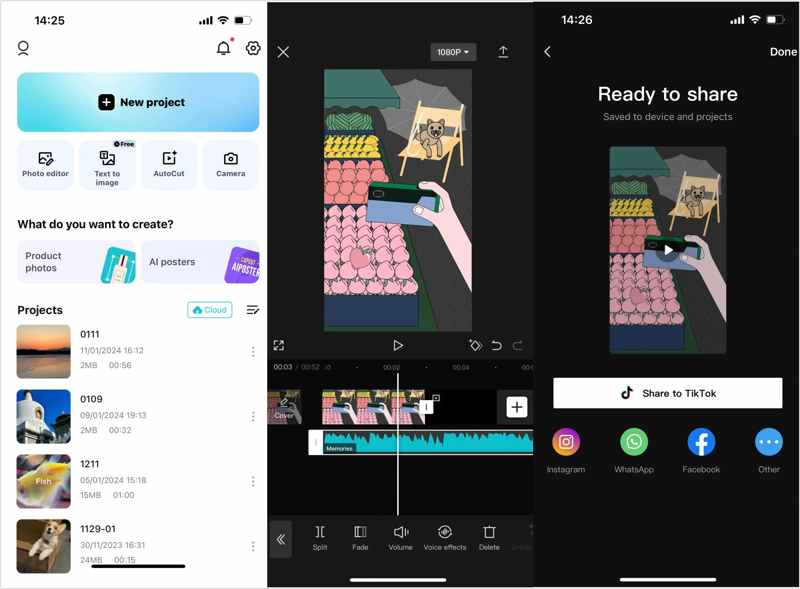
ステップ 1: Playストアから動画編集アプリをスマートフォンにインストールしてください。
ステップ 2: それを開いて、 新しいプロジェクト CapCutで動画に音楽を追加するための新しいプロジェクトを作成するボタン。
ステップ 3: 次に、目的のビデオを選択してタップします。 追加 をクリックして次に進みます。
ステップ 4: 選択する 音楽 下部のメニュー。
ステップ 5: 適切な楽曲またはオーディオトラックを選択してください。
内蔵ライブラリを使用する場合は、 ダウンロード 目的のトラックの横にあるボタン。
曲を使用するには、 デバイスから
ステップ 6: 最後に、 シェアする ボタンを押して目的地を選択してください。
ヒント: Androidの動画編集アプリのほとんどは無料でダウンロードできますが、HD出力などの高度な機能を利用するには、アプリ内課金でアップグレードを購入する必要があります。
結論
さあ、あなたは次の5つの方法を学ぶべきです ビデオに音楽を追加する パソコン、オンライン、iPhone、Android端末など、様々なデバイスで利用できます。状況やプラットフォームに合わせて適切な方法を選択し、詳細な手順に従って、魅力的なBGM付き動画を作成しましょう。 ApeaksoftビデオコンバータUltimate これは、画質を損なうことなく動画をレタッチする究極の方法です。さらに、簡潔なインターフェースにより、特に一般ユーザーにとって操作が簡単になります。
関連記事