


"중요한 이메일 몇 개를 실수로 삭제했어요." 아이폰에서 삭제된 이메일을 복구하는 방법저희 조사에 따르면 대다수의 iOS 사용자는 iOS 기기에서 이메일을 읽고, 받고, 보냅니다. 그런데 여기서 새로운 문제가 발생합니다. 바로 이메일이 사라진 경우입니다. 다행히 다양한 상황에서 사라진 이메일을 되찾을 수 있는 방법이 있습니다. 이 튜토리얼에서는 검증된 방법을 공유하고 중요한 메시지를 찾는 데 도움이 되는 워크플로를 보여드립니다.
페이지 내용:
파트 1: 아이폰 휴지통에서 삭제된 이메일을 복구하는 방법
애플 메일 앱과 타사 메일 앱 모두 휴지통 폴더를 제공합니다. 이 폴더는 삭제된 이메일을 특정 기간 동안 보관합니다. 이메일이 영구적으로 삭제되기 전에 아이폰에서 삭제된 이메일을 빠르게 복구할 수 있습니다.
아이폰 애플메일에서 삭제된 이메일을 복구하는 방법
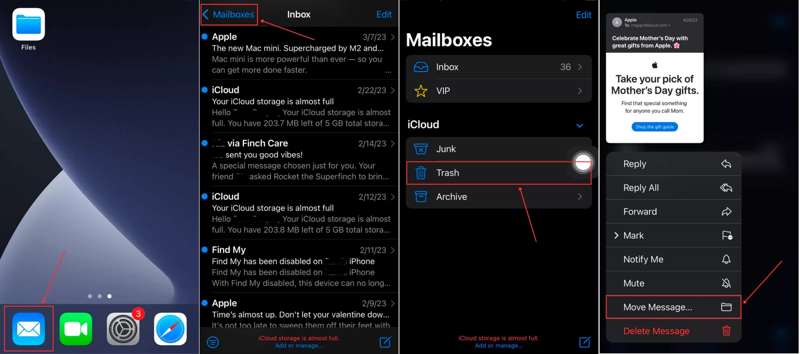
1 단계 iOS 열기 우편 앱을 iPhone에 설치하십시오.
2 단계 가볍게 두드리다 사서함 선택하고 휴지통 목록에.
3 단계 최근 삭제된 이메일을 확인하고 복구하려는 메시지를 길게 누르세요.
4 단계 그런 다음 메시지 이동 상황에 맞는 메뉴에서
5 단계 수신자 폴더를 다음과 같이 설정하세요. 받은 편지함.
6 단계 이제 삭제된 아이폰 이메일은 수신자 위치에서 찾을 수 있습니다.
아이폰에서 Gmail에서 삭제된 이메일을 복구하는 방법
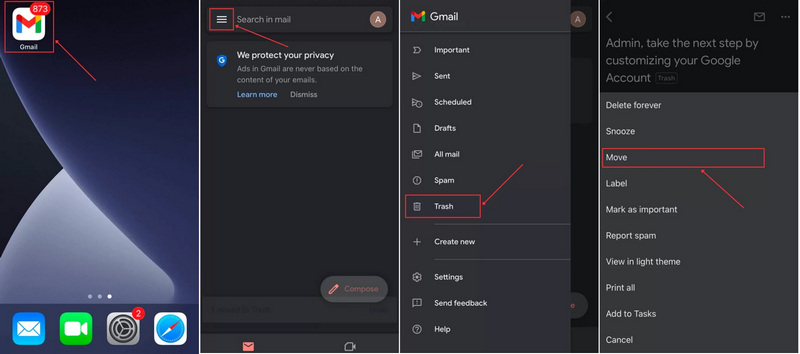
1 단계 너를 실행 시켜라. Gmail 응용 프로그램.
2 단계 탭 햄버거 버튼을 누르고 선택하세요 휴지통.
3 단계 조회하려는 이메일을 선택하고 버튼을 누르세요. 더 보기 3개 점으로 구성된 아이콘이 있는 버튼.
4 단계 왼쪽 메뉴에서 무브 그리고 아이폰에서 Gmail에서 복구한 이메일을 저장할 위치를 선택하세요.
아이폰에서 야후 이메일을 삭제한 후 복구하는 방법
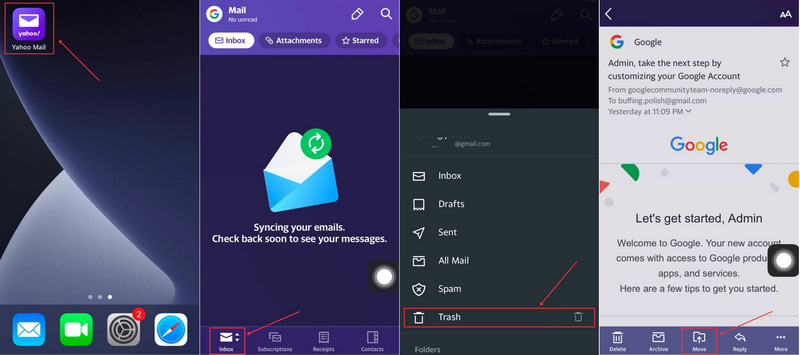
1 단계 너를 실행 시켜라. Yahoo 응용 프로그램.
2 단계 탭 받은 편지함 하단의 버튼을 눌러 선택하세요 휴지통.
3 단계 복원하려는 이메일을 탭하여 여세요.
4 단계 탭 무브 하단의 버튼을 클릭하고 이메일을 저장할 위치를 선택하세요. 복구된 이메일을 개별적으로 관리하려면 다음을 선택하세요. 새 폴더 생성 그리고 이름을 남겨주세요.
파트 2: 흔들어서 삭제 취소 기능을 이용해 아이폰에서 삭제된 이메일을 복구하는 방법
iOS 3부터 Apple은 iPhone에 '흔들어서 실행 취소' 제스처를 추가했습니다. 이 기능을 사용하면 이메일을 삭제한 직후에 삭제된 이메일을 iPhone에서 즉시 복구할 수 있습니다. 즉, 이메일을 삭제한 직후이고 메일 앱을 닫기 전일 때만 작동합니다.
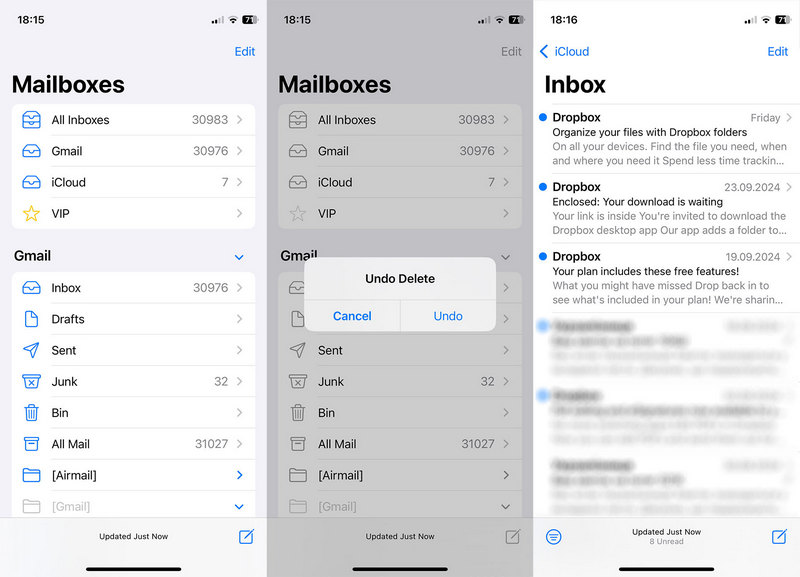
1 단계 실수로 이메일을 삭제했을 경우, 즉시 아이폰을 흔들어 주세요.
2 단계 그런 다음 취소 팝업 대화 상자의 버튼을 클릭하세요.
3 단계 이제 이메일이 받은 편지함으로 돌아온 것을 확인하실 수 있습니다..
파트 3: iCloud에서 아이폰에 삭제된 이메일을 찾는 방법
공식 클라우드 서비스인 iCloud는 사용자의 계정을 통해 또는 백업을 통해 이메일을 보관합니다. 따라서 삭제된 이메일은 사용자의 상황에 따라 iCloud 계정이나 iCloud 백업에서 복구할 수 있습니다.
iCloud.com에서 삭제된 iPhone 이메일을 찾는 방법
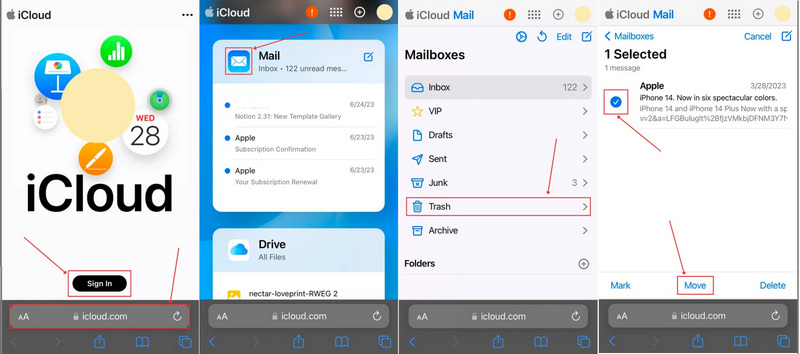
1 단계 웹 브라우저를 열고 www.icloud.com으로 이동하여 계정으로 로그인하세요.
2 단계 선택 더앱
3 단계 가볍게 두드리다 사서함 선택하고 휴지통.
4 단계 원하는 이메일을 확인하고 탭하세요. 무브 버튼을 클릭합니다.
5 단계 원하는 위치를 설정하고 클릭하세요. 무브.
iCloud 백업에서 아이폰의 삭제된 이메일을 복원하는 방법
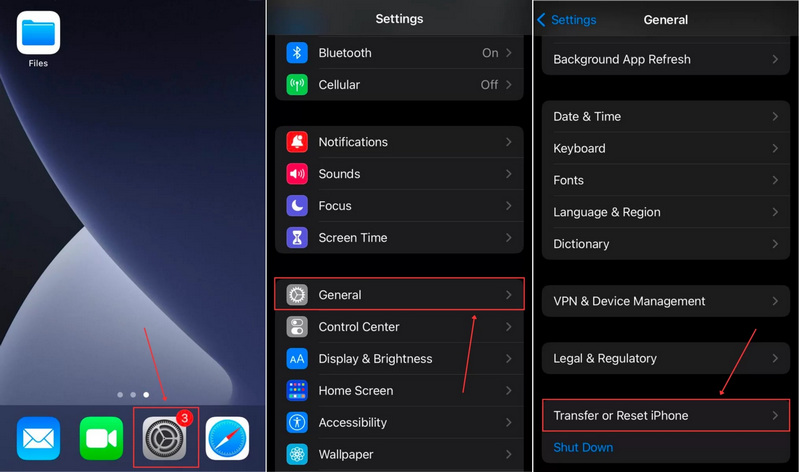
1 단계 iCloud.com에서 삭제된 이메일을 찾을 수 없는 경우, 다음 명령어를 실행하세요. 설정 응용 프로그램.
2 단계 로 이동 일반 글렌데일 iPhone 전송 또는 재설정.
3 단계 왼쪽 메뉴에서 모든 콘텐츠 및 설정 지우기이 과정은... 당신의 아이폰을 지우십시오.
4 단계 메시지가 표시되면 iPhone 암호나 Apple ID 비밀번호를 입력하세요.
5 단계 화면의 지시에 따라 기기를 초기화하세요.
6 단계 iPhone이 재시작되면 Wi-Fi 네트워크를 설정하고 연결하세요.
7 단계 왼쪽 메뉴에서 iCloud 백업에서 를 시청하여 이에 대해 더 많은 정보를 얻을 수 있습니다. 앱 및 데이터 화면을 표시합니다.
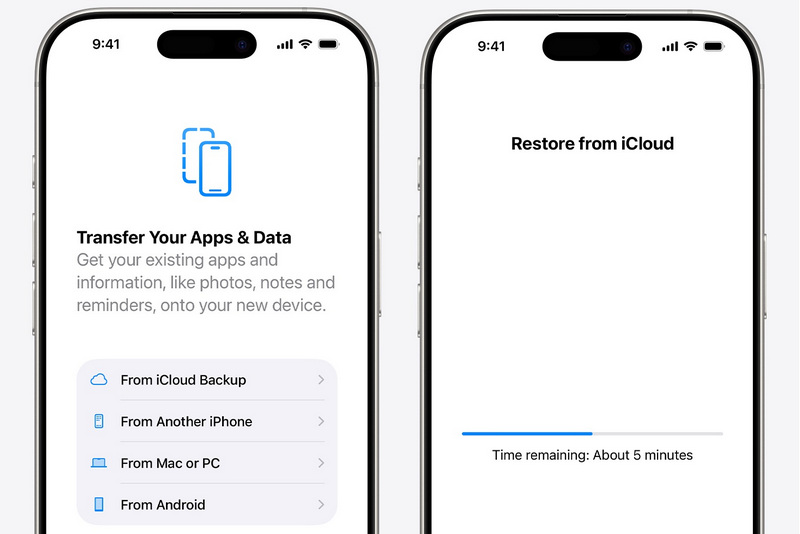
8 단계 Apple ID와 비밀번호를 입력하세요.
9 단계 손실된 이메일이 포함되어 있을 수 있는 백업 파일을 선택하세요.
10 단계 완료되면 설정을 마무리하십시오.
참고 : 아이폰에서 영구 삭제된 이메일을 iCloud 백업에서 복구하려면 먼저 기기를 초기화해야 합니다.
파트 4: 백업 없이 아이폰에서 삭제된 이메일을 복구하는 방법
백업이 없더라도 아이폰에서 영구 삭제된 이메일을 복구할 수 있습니다. 필요한 것은 아이폰용 강력한 데이터 복구 도구뿐입니다. 예를 들어, Apeaksoft 아이폰 데이터 복구이 프로그램은 아이폰, iTunes 백업, iCloud 백업의 세 가지 모드를 통해 이메일을 복구할 수 있도록 지원합니다. 무엇보다 사용하기 쉽고, 특히 초보 사용자에게 적합합니다.
백업 없이 아이폰에서 삭제된 이메일을 복구하는 가장 좋은 방법
- 아이폰 메모리에서 삭제된 이메일을 복구하세요.
- 기기를 초기화하지 않고 백업에서 이메일을 추출하세요.
- 아이폰에서 손실된 데이터를 미리 보세요.
- 다양한 데이터 유형을 지원합니다.
- 최신 버전의 iOS 및 iPadOS와 호환됩니다.

백업 없이 아이폰에서 삭제된 이메일을 복구하는 방법
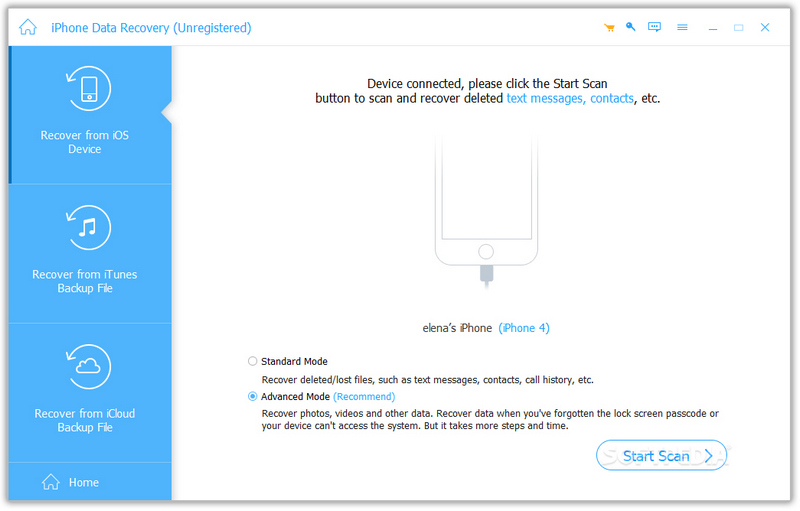
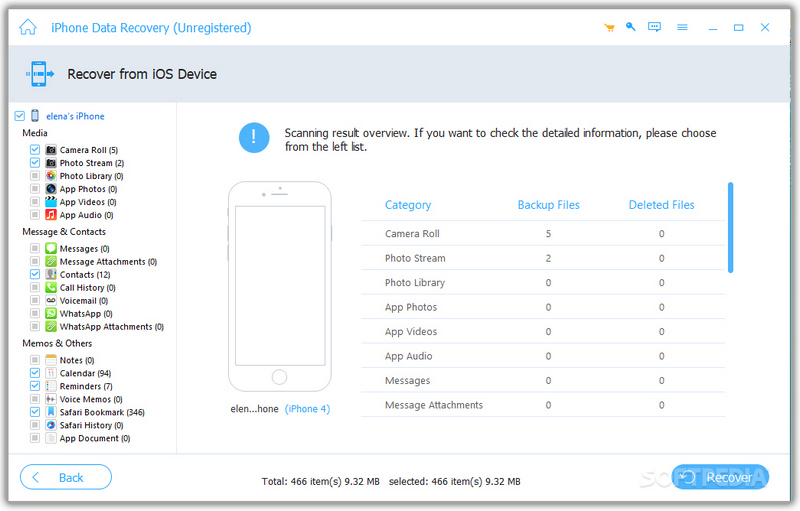
1 단계 아이폰 스캔
컴퓨터에 아이폰용 데이터 복구 소프트웨어를 설치한 후 실행하세요. 라이트닝 케이블을 사용하여 아이폰을 컴퓨터에 연결합니다. 기기가 인식되면 다음 단계로 진행하세요. iOS 기기에서 복구 탭을 클릭 스캔 시작 메모리 스캔을 시작하려면 버튼을 클릭하세요.
2 단계 손실된 데이터 미리보기
스캔이 완료되면 복구할 데이터 유형을 선택하세요. 그런 다음 삭제된 이메일 첨부 파일과 같이 손실된 파일을 확인하세요.
3 단계 아이폰 데이터 복구
검색하려는 파일과 항목을 선택하고 클릭하세요. 복구 버튼을 누른 다음 출력 폴더를 설정하고 버튼을 누르세요. 복구 다시 한번 확인해 보세요. iPhone에서 삭제된 사진 복구.
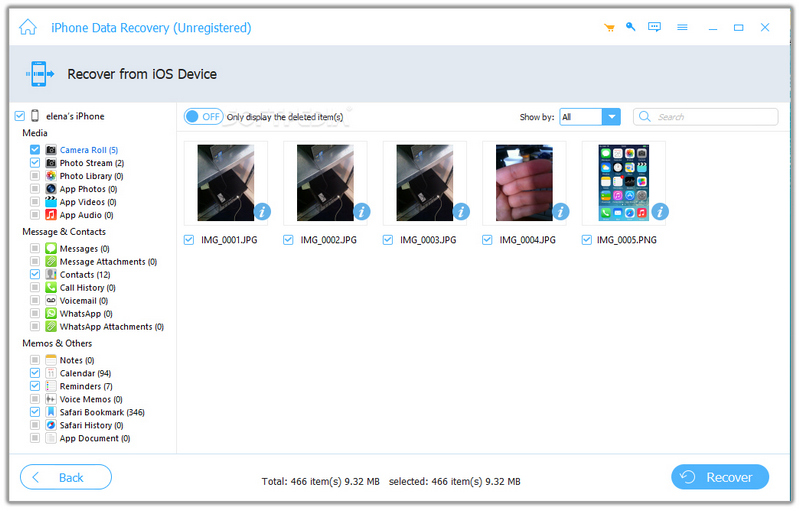
참고 : 이 소프트웨어는 삭제된 이메일과 첨부 파일을 하드 디스크로 복구합니다. 기기에 이미 저장된 데이터는 손상되지 않습니다.
맺음말
이제, 당신은 이해해야합니다 아이폰에서 삭제된 이메일을 복구하는 방법Apple Mail 앱이나 타사 이메일 앱의 휴지통 폴더를 이용하면 삭제된 이메일을 빠르게 찾을 수 있습니다. 또한 iCloud 계정이나 iCloud 백업에 접근하여 이메일을 복원할 수도 있습니다. Apeaksoft iPhone Data Recovery는 iPhone에서 삭제된 이메일을 복원하는 가장 쉬운 방법입니다. 사용법이 간단하며 특별한 기술 지식이 필요하지 않습니다.
관련 기사
iPhone에서 삭제된 기록을 확인하는 방법을 찾고 계신가요? 백업 없이도 iPhone에서 삭제된 기록을 찾는 6가지 방법을 확인해 보세요!
이 가이드에서는 iCloud 또는 iTunes 백업에서 iPhone을 복원하는 방법과 iPhone을 공장 설정으로 복원하는 방법을 설명합니다.
iPhone에서 삭제된 음성 메모를 제한 없이 복구하고 싶으신가요? 그렇다면 이 가이드에서 3가지 방법을 살펴보겠습니다.
iPhone에서 삭제된 Viber 메시지를 찾으려면 Viber/iCloud/iTunes 백업을 사용하세요. 백업이 없다면 Apeaksoft iPhone 데이터 복구를 사용할 수 있습니다.



