

Hoe muziek van een iPhone of iPod naar een computer over te zetten

Omdat Apple strenge auteursrechtregels hanteert, kun je geen nummers downloaden op je iPhone. Met andere woorden, je moet muziek kopen en downloaden via Apple Music en andere geautoriseerde streamingdiensten. Het beheren van nummers op je iOS-apparaat is echter niet altijd even handig. Deze handleiding beschrijft beproefde methoden om dit te doen. Muziek overzetten van een iPod of iPhone naar een computer.Zo kunt u uw nummers back-uppen en beheren zonder dat dit geheugen in beslag neemt.
PAGINA-INHOUD:
Deel 1: De ultieme manier om iPhone/iPod-muziek naar de computer over te zetten
Zoek je een makkelijke manier om muziek van je iPhone of iPod naar je computer over te zetten? Apeaksoft iPhone-overdracht is een goede optie. Hiermee kun je al je nummers, afspeellijsten en albums op je computer bekijken en beheren. Je hebt er geen internetverbinding of technische kennis voor nodig.
De ultieme manier om nummers van iPod of iPhone naar de computer over te zetten.
- Zet snel muziek over van een iOS-apparaat naar een computer.
- Transcodeer muziekbestanden volgens het beoogde platform.
- Bescherm de geluidskwaliteit van uw muziek automatisch.
- Ondersteunt een breed scala aan muziekbestandsformaten.
- Compatibel met de nieuwste modellen iPhone en iPod.
Veilige download
Veilige download

Hoe je nummers van je iPhone naar je pc overzet
Stap 1. Installeer iPhone-overdracht
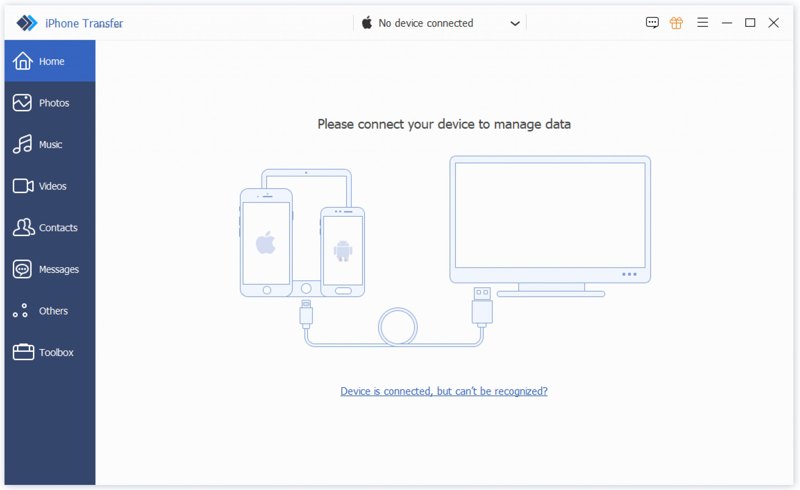
Start de software voor het overzetten van iPhone-muziek nadat je deze op je pc hebt geïnstalleerd. Er is ook een versie voor Mac. Verbind je iPhone met je pc via een Lightning-kabel. Tik indien nodig op Vertrouwd op uw scherm om deze pc te vertrouwen.
Stap 2. Beluister een voorbeeld van je muziek
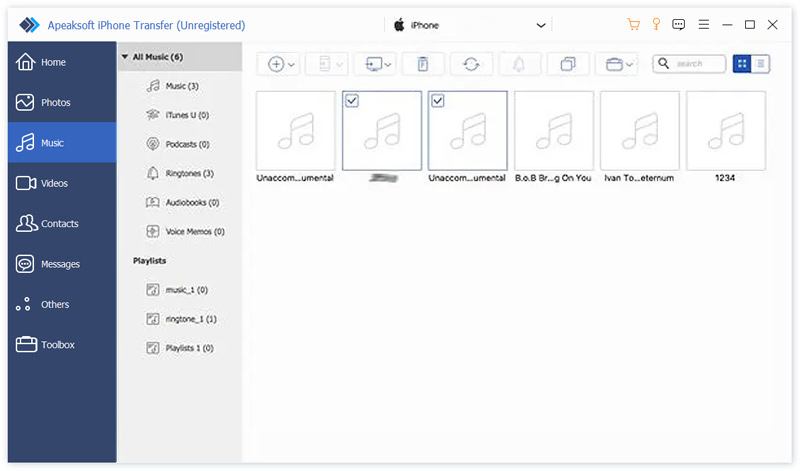
Zodra uw apparaat is herkend, gaat u naar de Music Het tabblad in de zijbalk geeft je de mogelijkheid om al je nummers op je iPhone te bekijken en te beheren.
Stap 3. Zet muziek over naar pc
Selecteer de nummers die u wilt overzetten. Klik op de Monitor op het bovenste lint en kies Exporteren naar pcStel vervolgens een uitvoermap in en bevestig dit. Dit programma kan u hierbij ook helpen. iPhone-contacten exporteren naar een andere iPhone.
Deel 2: Hoe je nummers van je iPhone naar je pc/Mac overzet via iCloud Drive
Zoals eerder vermeld, is het vanwege auteursrechtelijke regels niet mogelijk om nummers rechtstreeks van een iPhone naar een computer over te zetten met een USB-kabel. Je kunt echter wel iCloud Drive gebruiken om gedownloade muziekbestanden over te zetten.
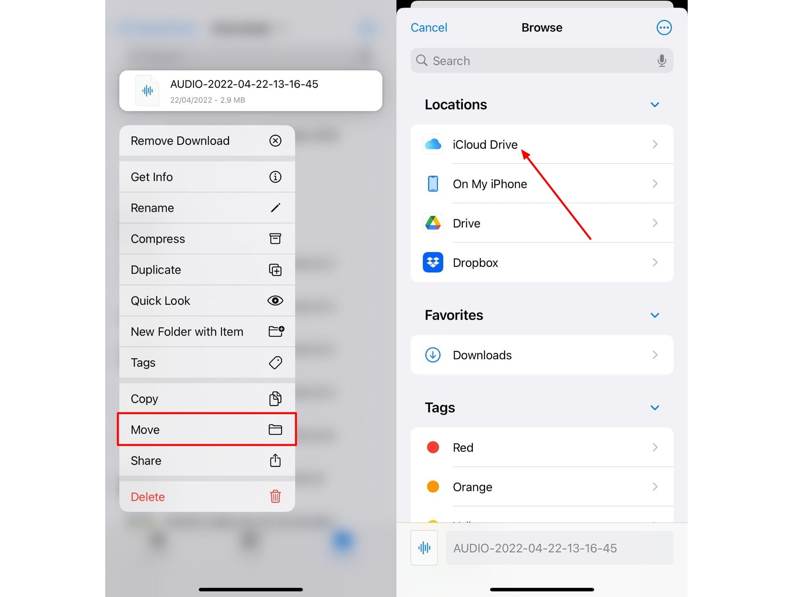
Stap 1. Verplaats de gedownloade muziekbestanden naar de iCloud Drive map in uw Bestanden app.
Stap 2. Voer de ... uit settings app en tik op je profiel.
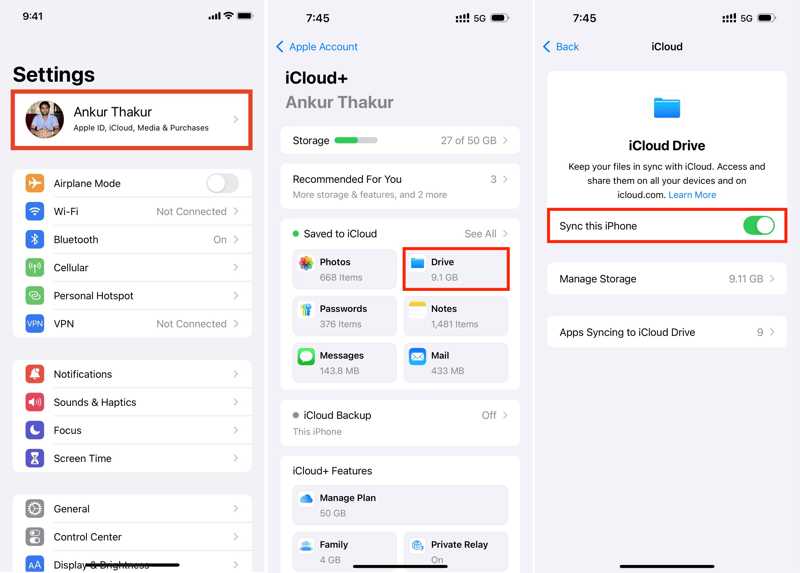
Stap 3. Kies iCloud, kraan iCloud Driveen schakel in Synchroniseer deze iPhone.
Stap 4. Zodra de synchronisatie is voltooid, ga je in een browser op je computer naar www.icloud.com.
Stap 5. Log in met uw Apple ID en wachtwoord.
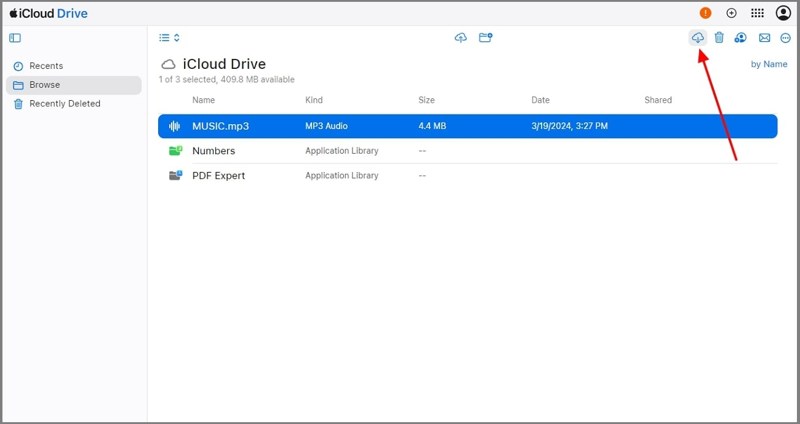
Stap 6. Kies DriveZoek en selecteer de muziekbestanden.
Stap 7. Klik op de Downloaden knop om muziek van iPhone naar computer over te zetten.
Deel 3: Hoe je nummers van je iPhone naar je Mac overzet via AirDrop
AirDrop is de draadloze verbindingsservice van Apple. Hiermee kun je snel muziek van je iPhone naar je Mac overzetten. Deze methode werkt alleen voor muziek die je niet hebt gekocht. Houd er rekening mee dat het overzetten van grote muziekbestanden tijd kost.
Stap 1. Open controle Center op je Mac of de vinder app.
Stap 2. Kies AirDrop, schakel het in en selecteer Iedereen.
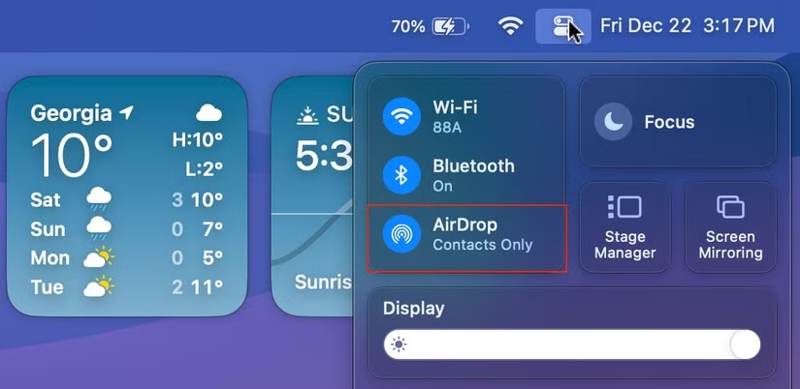
Tip: Turn on Bluetooth en Wi-Fi op je Mac als AirDrop werkt niet.
Stap 3. Pak je iPhone erbij en voer het volgende in: controle Center.
Stap 4. Enable Bluetooth en Wi-Fi.
Stap 5. Tik AirDropen kies Iedereen.
Stap 6. Zoek het muziekbestand dat je wilt overzetten.
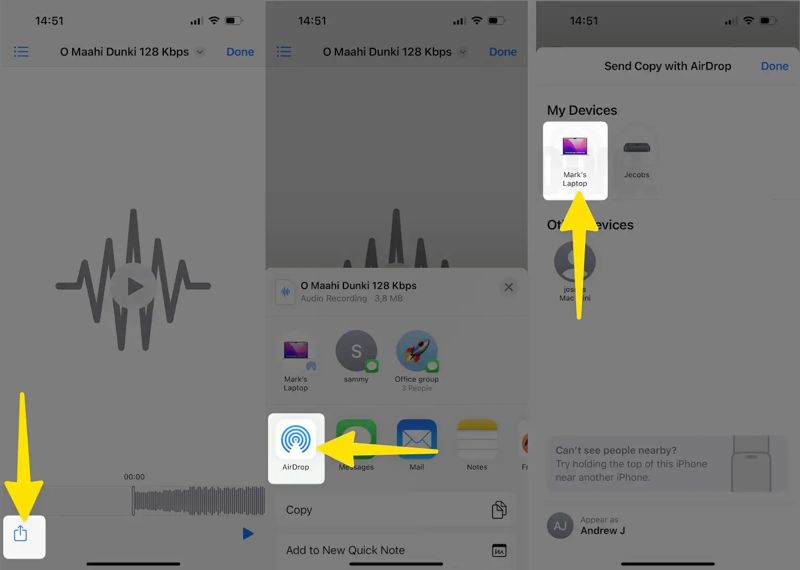
Stap 7. Druk op Delen knop, kies AirDropen tik op je Mac.
Stap 8. Schakel over naar je Mac en accepteer het muziekbestand.
Deel 4: Muziek overzetten van iPod naar computer met Apple Music
Als je gekochte muziek van een iPod of iPhone naar een computer wilt overzetten, moet je de Apple Music-service gebruiken. Deze heeft iTunes inmiddels vervangen als muziekbeheerservice op pc en Mac.
Stap 1. Start de settings app op je iPhone of iPod. Maak verbinding met een stabiele internetverbinding.
Stap 2. Scroll naar beneden en ga naar de Music Tab.
Stap 3. Schakel de Bibliotheek synchroniseren optie.
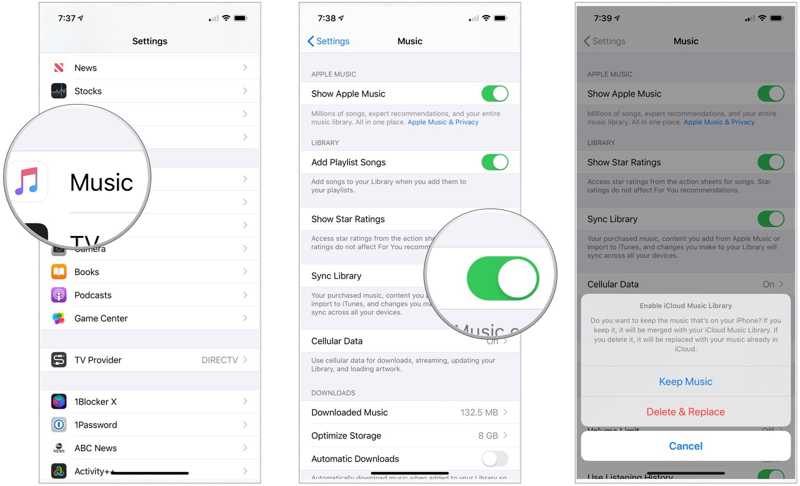
Stap 4. Kies Houd muziek or Verwijderen en vervangen in het dialoogvenster. De eerste optie voegt je muziekbibliotheek samen, de tweede vervangt deze door je eigen muziekbibliotheek.
Stap 5. Synchroniseer vervolgens je muziekbibliotheek op je Mac of pc:
Voor Mac
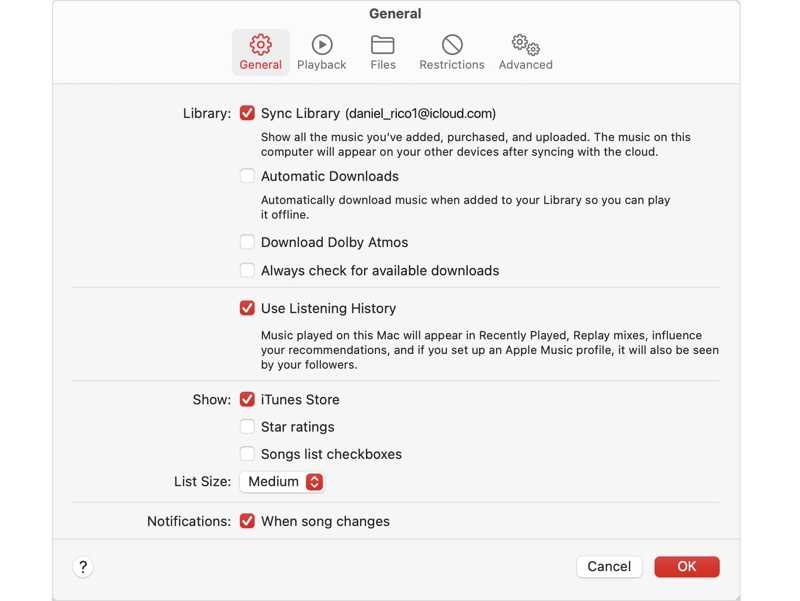
Open de Apple Music app, kies Account in de menubalk en meld je aan met hetzelfde Apple-account.
Stap 6. Klik op de Music menu, kies settingsen schakel over naar de Algemeen Tab.
Stap 7. Check Bibliotheek synchroniserenen klik OK.
Voor pc
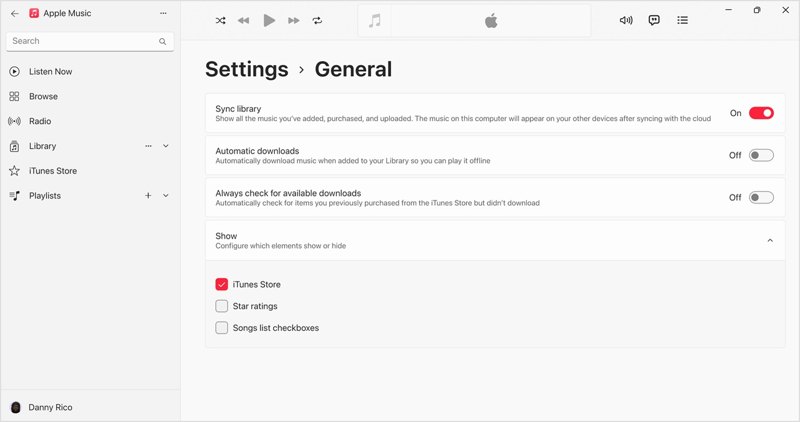
Open de Apple Music app. Je kunt hem installeren via de Apple-website.
Stap 8. Klik op je naam en log in met hetzelfde Apple-account.
Stap 9. Klik op de Menu klik op de knop bovenaan de zijbalk en kies settings.
Stap 10. Ga naar uw Algemeen tab, en schakel in Synchroniseer bibliotheek.
Conclusie
Nu zou je het moeten begrijpen hoe muziek overzetten van iPhone naar computerJe kunt niet-aangekochte nummers op je iPhone of iPod draadloos delen met een computer via iCloud Drive of AirDrop. Voor het synchroniseren van gekochte nummers moet je de Apple Music-service gebruiken. Apeaksoft iPhone-overdracht Dit is een snelle manier om je iPhone-muziek naar elk platform over te zetten.
Gerelateerde artikelen




