

iTunes Data Recovery-tips for å gjenopprette slettede iPhone-filer

I daglig bruk er det vanligere enn du kanskje tror å miste data på en iPhone, enten ved utilsiktet sletting, en mislykket systemoppdatering eller en skadet enhet. Med iPhone-datagjenoppretting via iTunes, kan du fortsatt raskt gjenopprette kontakter, bilder, notater og til og med appdata. Å mestre riktig metode kan ikke bare spare mye tid, men også unngå ytterligere datatap forårsaket av feil bruk.
SIDEINNHOLD:
Del 1. Slik viser du innholdet i iTunes-sikkerhetskopien
Før du kan utføre iTunes-datagjenoppretting, må du først sørge for at sikkerhetskopien finnes og hvor den er lagret. iTunes lagrer automatisk sikkerhetskopien lokalt på datamaskinen din, men den vises ikke på en lesbar måte, så du må finne sikkerhetskopifilen via systembanen.
Windows
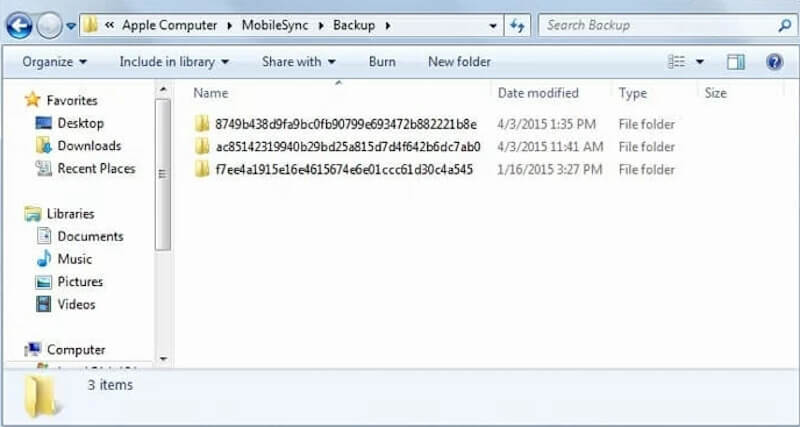
På Windows-maskiner lagrer iTunes sikkerhetskopier som standard i brukerdatamappen. Du finner den ved å følge følgende sti:
C:Brukere[Ditt brukernavn]AppDataRoamingApple ComputerMobileSyncBackup
Hvis du ikke finner AppData-mappen, kan du aktivere Vis skjulte filer i Utforsker, eller bare skriv inn banen i adressefeltet og skriv inn.
Mac
På macOS lagres sikkerhetskopier vanligvis i brukerarkivet. Du kan få tilgang til dem via Finder ved å bruke følgende sti:
~ / Bibliotek / Application Support / MobileSync / Backup /
Hvis bibliotekmappen ikke er synlig, kan du klikke Gå> Gå til mappe i den øverste linjen i Finder, og skriv deretter inn banen.
Selv om du nå har funnet sikkerhetskopieringsplasseringen, kan ikke filen åpnes direkte for å se innholdet, fordi sikkerhetskopien er lagret i strukturert kryptering. Hvis du vil lære mer om tekstmeldinger, bilder eller appdata, må du analysere sikkerhetskopien din ved hjelp av profesjonell iTunes-programvare for datagjenoppretting.
Del 2. Slik gjenoppretter du data fra iTunes-sikkerhetskopi
Etter at du har bekreftet at du har funnet iTunes-sikkerhetskopien din, kan du bruke den offisielle gjenopprettingsprosessen for å gjenopprette dataene i sikkerhetskopien til iPhonen din fullstendig. Merk at gjenopprettingen overskriver gjeldende data på enheten, så sørg for at backup dato av den gjeldende enheten før du begynner for å forhindre utilsiktet tap.
Trinn 1. Koble iPhonen til datamaskinen med en original eller kompatibel USB-kabel. Vent til iTunes eller Finder identifiserer enheten. Hvis «Stoler du på denne datamaskinen?» dukker opp på telefonen, skriver du inn telefonpassordet og klikker på Stol.
Trinn 2. Fra iTunes-skjermen klikker du på enhetsknappen som vises øverst til venstre i hjørnet eller vinduet for å gå til Sammendrag side.
Trinn 3. Finn det Restore Backup -knappen og klikk på den. En liste over valgfrie sikkerhetskopier vil dukke opp. Velg sikkerhetskopien du vil gjenopprette fra rullegardinlisten.
Trinn 4. Hvis den valgte sikkerhetskopien er kryptert, vil du bli bedt om å angi iTunes backup passord for å fortsette. Skriv inn riktig passord og klikk GjenoppretteDe krypterte dataene i denne sikkerhetskopien kan ikke dekrypteres og gjenopprettes uten et passord.
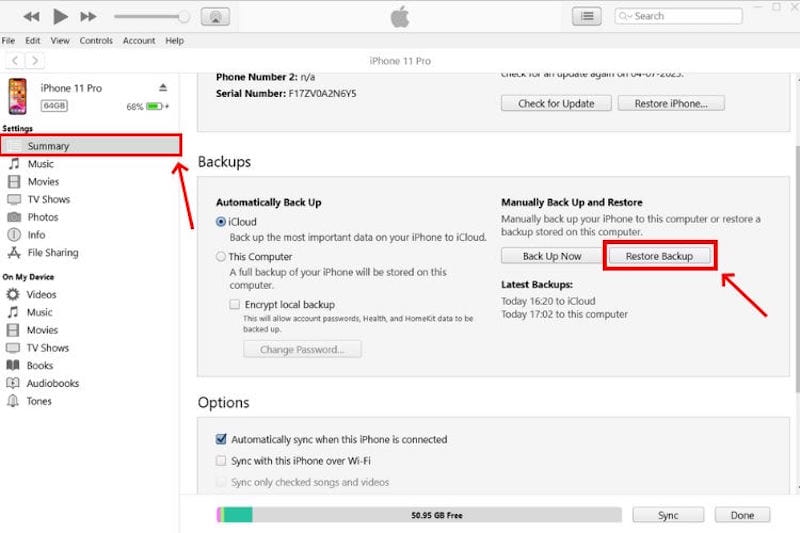
Du kan følge standardprosessen for å gjenopprette data fra iTunes-sikkerhetskopi og gjenopprette alle dataene i sikkerhetskopien til iPhone-en din.
Del 3. Beste iPhone-datagjenoppretting uten iTunes
Hvis du ikke har en sikkerhetskopi tilgjengelig, eller ikke ønsker å gjenopprette hele maskinen, vil ikke den offisielle metoden dekke dine behov. I dette tilfellet trenger du en metode for iPhone-datagjenoppretting uten iTunes som lar deg selektivt gjenopprette innhold uten å overskrive eksisterende filer. Apeaksoft iPhone Data Recovery er et av de mer modne verktøyene i denne kategorien, og støtter iTunes-datagjenoppretting, iPhone-skannemodus, samt gjenoppretting fra selve enheten.
Gjenopprett iPhone-data uten iTunes
- Støtter gjenoppretting fra enhetsontologi, iTunes-sikkerhetskopi eller iCloud-sikkerhetskopi, med fleksible alternativer.
- Forhåndsvis innhold før gjenoppretting for å unngå gjentatt gjenoppretting av uønskede data.
- Støtter gjenoppretting av mer enn 20 datakategorier, inkludert bilder, meldinger, WhatsApp, kontakter og mer.
- Gjelder flere scenarier, som systemskade, utilsiktet sletting, svart skjerm og oppgraderingsfeil.
Sikker nedlasting
Sikker nedlasting

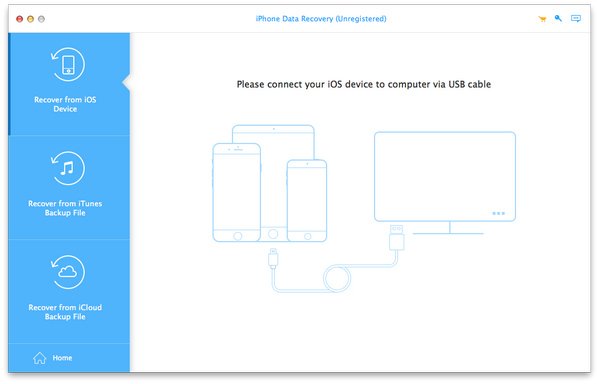
Trinn 1. Last ned og installer programvaren. På hovedsiden kan du velge om du vil gjenopprette sikkerhetskopien fra iOS, iTunes eller iCloud. Koble deretter iPhonen til datamaskinen. Når «Stol på denne datamaskinen» vises på telefonen, klikker du på Stol.
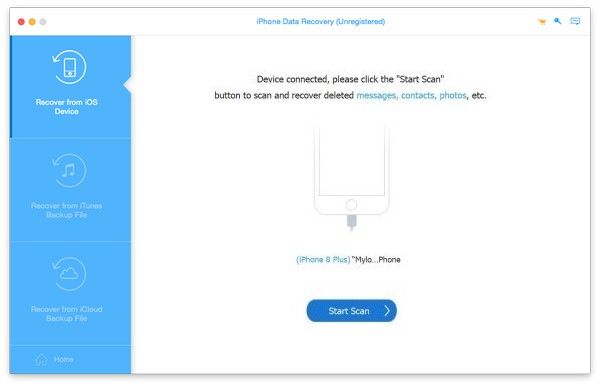
Trinn 2. Etter vellykket gjenkjenning, klikk start Scan, og programvaren vil begynne å skanne enheten eller sikkerhetskopifilen. Skannetiden avhenger av enhetens kapasitet og datavolum.
Trinn 3. Når skanningen er fullført, kan du bla gjennom dataene etter type. Denne metoden er mer fleksibel enn å gjenopprette data direkte fra en iTunes-sikkerhetskopi gratis, fordi du kan bekrefte om hvert element må gjenopprettes.
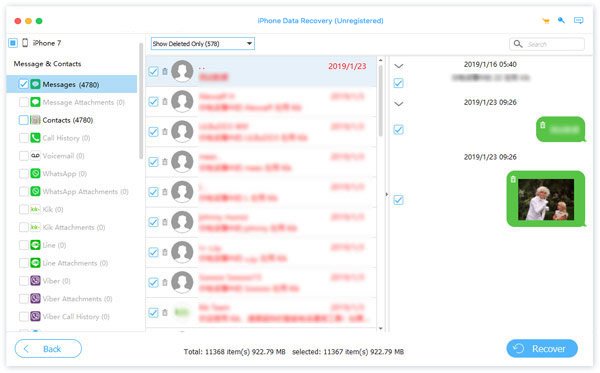
Trinn 4. Velg datatypen du vil gjenopprette, og klikk på GjenoppretteVelg å gjenopprette til datamaskinen eller delvis gjenopprette til enheten.
Konklusjon
Datagjenoppretting er alltid viktig etter en ulykke; nøkkelen er å velge den mest passende iTunes datagjenoppretting metode. Hvis det finnes en sikkerhetskopi, er det fortsatt den mest effektive måten å bruke iTunes eller et verktøy for å analysere den. Hvis du ikke har en sikkerhetskopi, kan verktøy som Apeaksoft iPhone Data Recovery tilby flere muligheter.
Relaterte artikler




