

Slik eksporterer du kontakter fra iPhone til en annen enhet

Det finnes scenarier der du må eksportere kontakter fra iPhonen din. For eksempel bør du sikkerhetskopiere iPhone-kontaktene dine før du frigjør plass eller selger enheten din på bruktmarkedet. Dessuten må du kanskje eksporter kontakter fra en iPhone til en annen mobilenhet hvis du oppgraderer til en ny iPhone eller Android-telefon. Uansett deler denne artikkelen de velprøvde metodene og demonstrerer arbeidsflyten trinn for trinn.
SIDEINNHOLD:
Del 1: En fleksibel måte å eksportere iPhone-kontakter på
For tiden bruker stadig flere enheter. De har mer enn én digital enhet, som iPhone, iPad, Android-telefon, nettbrett, datamaskin, bærbar PC, Chromebook og mer. Derfor anbefaler vi en fleksibel måte å eksportere kontakter fra iPhonen din på: Apeaksoft iPhone TransferDen kan raskt flytte iPhone-kontaktene dine til en annen mobil enhet eller en datamaskin.
En fleksibel metode for å eksportere kontakter fra iPhonen din
- Eksporter kontakter raskt fra en iPhone.
- Flytt iPhone-kontakter til hvilken som helst enhet.
- Forhåndsvis og administrer iPhone-kontakter.
- Eksporter iPhone-kontakter som CSV, vCard og mer.
- Støtt et bredt utvalg av iPhone-modeller.
Sikker nedlasting
Sikker nedlasting

Slik eksporterer du kontakter fra iPhonen din
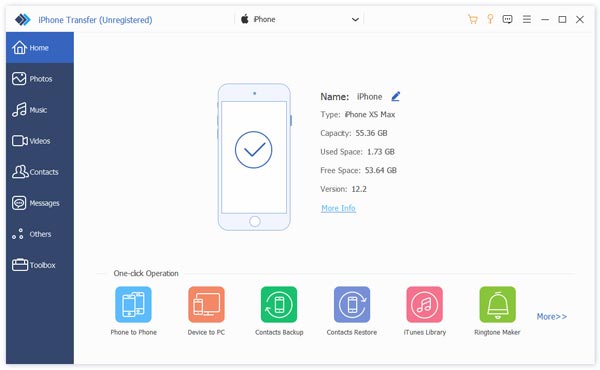
Trinn 1. Koble til iPhonen din
Når du trenger å eksportere iPhone-kontakter, installerer du iPhone Transfer på PC-en og starter programmet. Det finnes en annen utgave for Mac-brukere. Koble iPhonen til PC-en med en Lightning-kabel.
Tips: Hvis du har tenkt å eksportere kontakter fra en iPhone til en iPad eller en annen iPhone, kobler du de to enhetene til datamaskinen.
Trinn 2. Forhåndsvis iPhone-kontakter
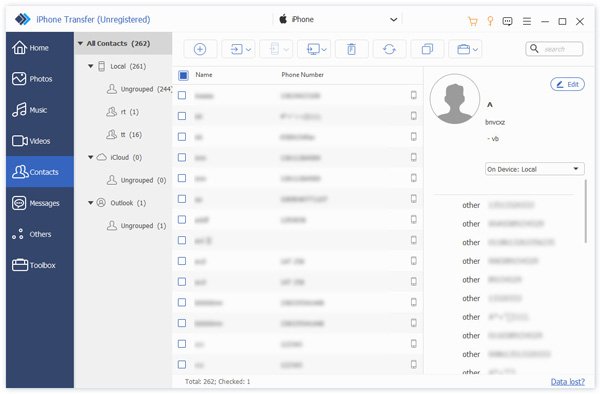
Etter at enheten din er oppdaget, gå til Kontakter fanen i sidefeltet. Deretter kan du se alle kontaktene på enheten din. Her kan du administrere, gruppere eller slette iPhone-kontakter.
Trinn 3. Eksporter kontakter på iPhonen din
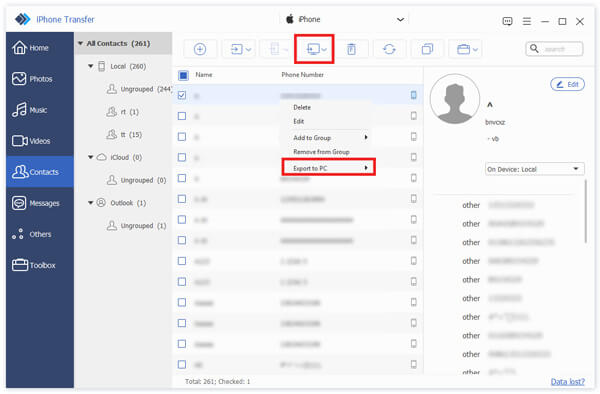
Velg kontaktene du vil eksportere. For å eksportere kontakter fra iPhone til datamaskinen, klikk på PC knappen på det øverste båndet, velg Eksporter til PC, og angi en utdatamappe. Hvis du vil eksportere kontakter til en annen iOS-enhet, klikker du på Telefon -knappen og velg målenheten.
Del 2: Slik eksporterer du kontakter fra iPhone-kontaktappen
Den innebygde Kontakter-appen på iPhonen din lar deg eksportere kontakter fra iPhone til Android, en annen iPhone eller iPad. Denne metoden krever rett og slett ikke ekstra programvare eller maskinvare.
Trinn 1. Åpne Kontakter app på iPhone.
Trinn 2. Trykk på Tilbake knappen og trykk Legg til liste.
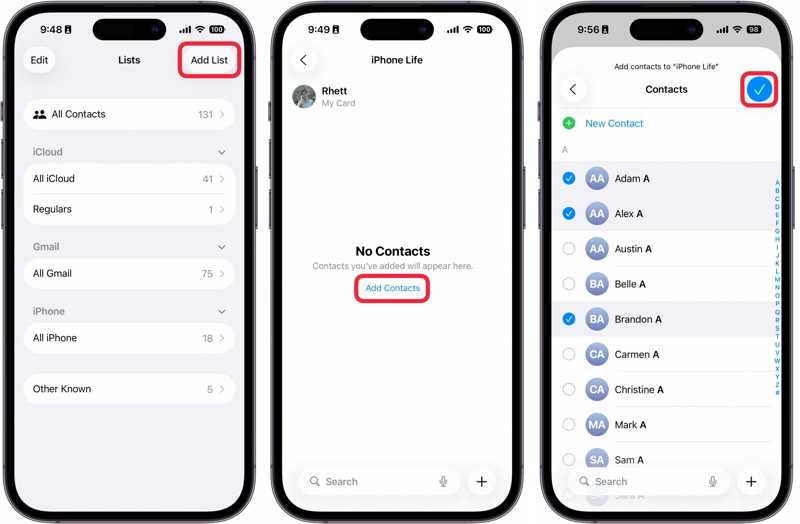
Trinn 3. Velg iPhone or iCloud, og legg igjen et navn for den nye gruppen.
Trinn 4. Trykk på den nye gruppen, trykk på Legg til kontakter, og velg kontaktene du vil eksportere.
Trinn 5. Når du er ferdig, trykk på Ferdig knapp.
Trinn 6. Trykk og hold inne gruppen til hurtigmenyen vises, og velg Eksport.
Nå vil du møte to scenarier:
Scenario 1: Eksporter iPhone-kontakter til en datamaskin
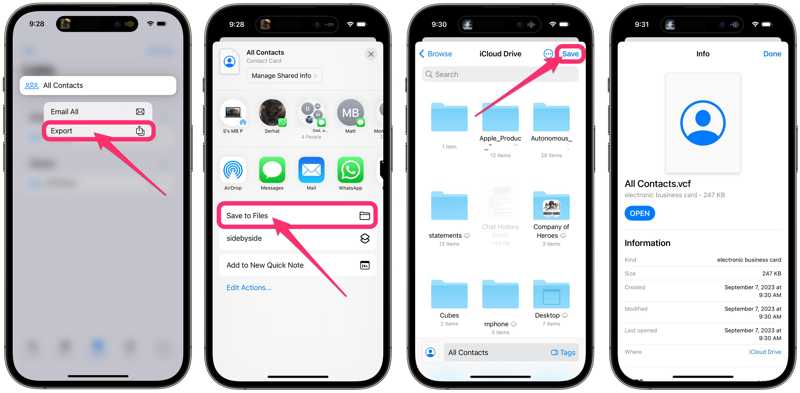
Trinn 7. Velg Lagre til filer, tilgang iCloud Drive, og trykk Spar.
Trinn 8. Gå til www.icloud.com i en nettleser og logg inn med Apple-legitimasjonen din.
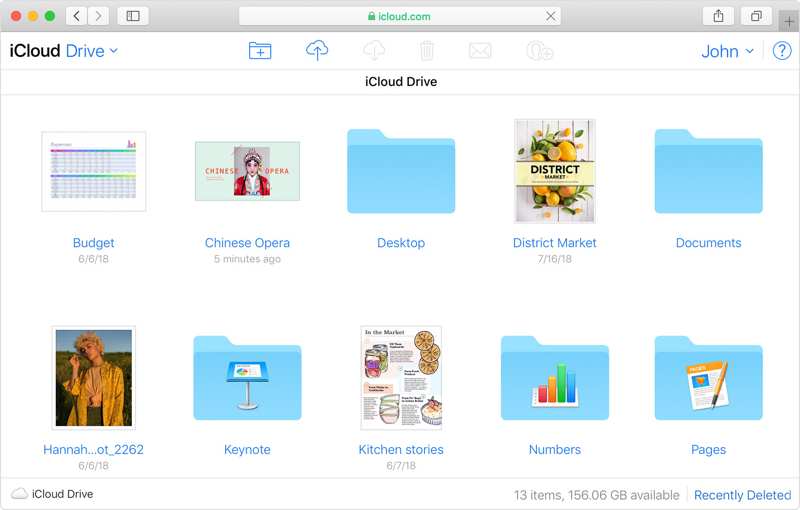
Trinn 9. Velg iCloud Drive, og last ned VCF-filen.
Scenario 2: Eksporter kontakter fra iPhone til Samsung eller en annen iPhone
Trinn 7. Velg en direktemeldingsapp, for eksempel WhatsApp.
Trinn 8. Deretter vil mottakeren motta de eksporterte iPhone-kontaktene.
Del 3: Slik eksporterer du iPhone-kontakter via iCloud
iCloud er en annen måte å eksportere kontakter trådløst fra en iPhone til en datamaskin. Du kan synkronisere alle iPhone-kontaktene dine til iCloud, og deretter eksportere kontaktene dine som en vCard-fil. Denne måten brukes til å eksportere alle kontakter på enheten din. Selvfølgelig kan du flytte bestemte kontakter eller lister.
Trinn 1. Kjør innstillinger app på iPhone.
Trinn 2. Trykk på profilen din, og trykk på Vis alle under Apper som bruker iCloud seksjon.
Trinn 3. Veksle på Kontakter alternativet.
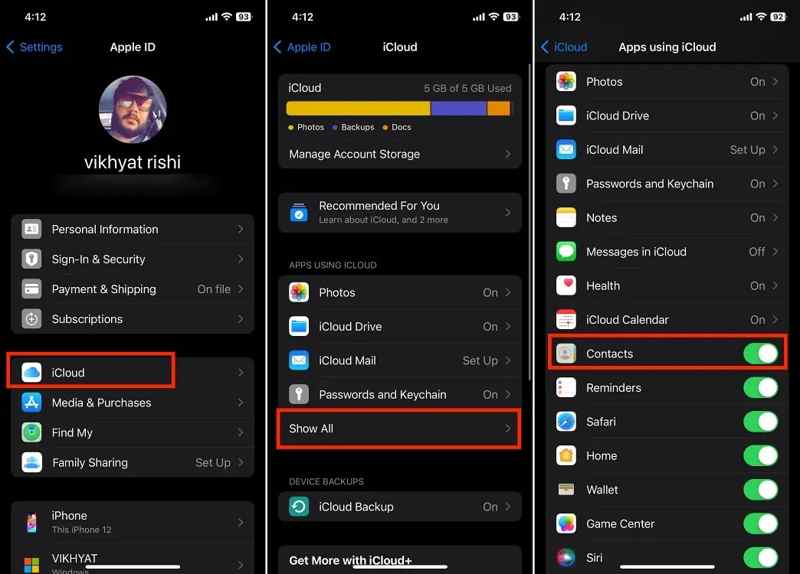
Trinn 4. Koble iPhone til en internettforbindelse.
Trinn 5. Etter at kontaktene dine er synkronisert med iCloud, slår du på datamaskinen.
Trinn 6. Gå til www.icloud.com i en nettleser og logg inn med Apple-ID-en og passordet ditt.
Trinn 7. Utvid Apps panelet og velg Kontakter.
Trinn 8. Merk alle kontaktene du vil eksportere, og klikk på Del knapp.
Tips: Trykk på Ctrl nøkkel på PC eller Kommando tasten på Mac og velg diskontinuerlige kontakter. For å velge flere sammenhengende kontakter, trykk på Skift nøkkel på tastaturet.
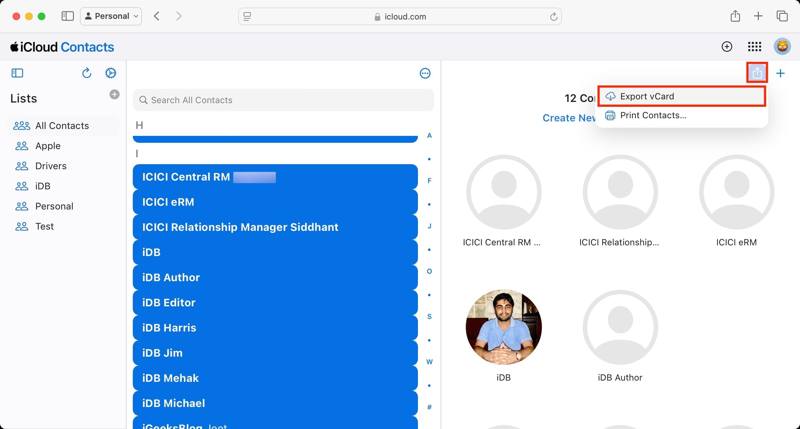
Trinn 9. Velg Eksporter vCard alternativet, velg en utdatamappe og eksporter den.
Hvis du har tenkt å eksportere kontakter fra iPhone til Mac, vil den spørre deg om du vil legge til kontaktene på Mac-en. Kontakter app. Klikk på Legg til -knappen for å bekrefte. Hvis du vil eksportere iPhone-kontakter som en fil, velger du Kansellere.
Videre Reading
Del 4: Slik eksporterer du kontakter fra iPhone til Excel
Hvis du trenger å eksportere kontakter fra en iPhone til Excel, er iTunes tilgjengelig. Det lar deg synkronisere iPhone-kontakter med Windows-kontakter. Deretter kan du eksportere kontakter i CSV. MS Excel kan åpne CSV-filer.
Trinn 1. Koble iPhonen din til PC-en med en USB-kabel.
Trinn 2. Klikk på Telefon knappen øverst til venstre.
Trinn 3. Gå til Mer info fanen i sidefeltet.
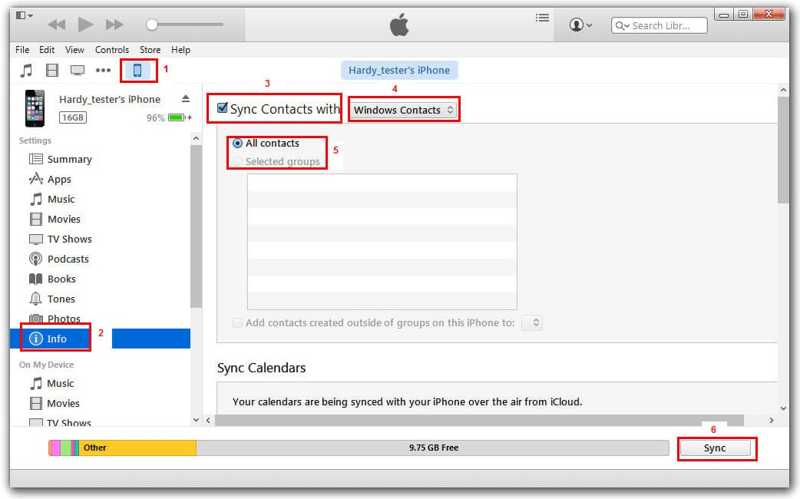
Trinn 4. Trykk her Synkronisere kontakter med, og velg Windows Kontakter fra rullegardinmenyen.
Trinn 5. Velg ønskede grupper eller Alle kontakter.
Trinn 6. Klikk på Synkroniser or Påfør knappen for å bekrefte den.
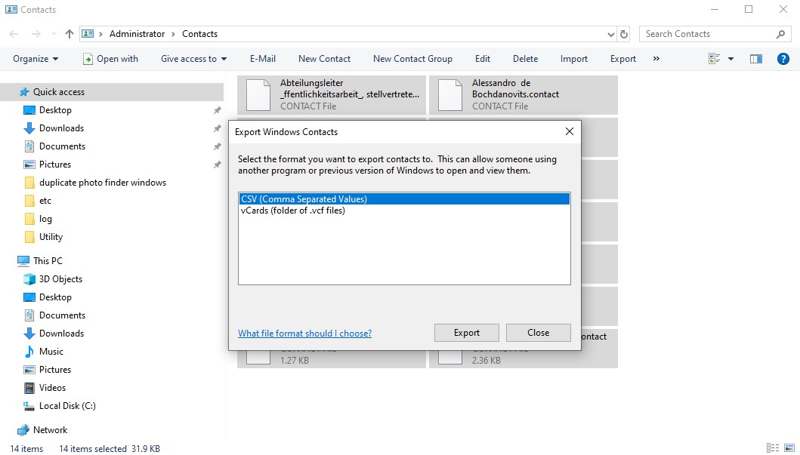
Trinn 7. Åpne Filutforsker og få tilgang til Kontakter mappe.
Trinn 8. Velg iPhone-kontaktene dine, og klikk på Eksport menyen.
Trinn 9. Velg CSV og treffer Eksport.
Trinn 10. Angi en utdatamappe, og lagre CSV-filen.
Trinn 11. Kjør MS Excel fra skrivebordet, og åpne CSV-filen direkte.
Konklusjon
Denne veiledningen viste fire måter å eksporter kontakter fra iPhonen dinDen forhåndsinstallerte Kontakter-appen lar deg eksportere kontakter til en annen mobil enhet eller datamaskin. Du kan også synkronisere iPhone-kontakter til iCloud og eksportere kontaktene dine. iTunes lar deg synkronisere kontakter til Windows-kontakter og eksportere dem til Excel. Apeaksoft iPhone Transfer er en fleksibel måte å eksportere kontakter på iOS-enheten din.
Relaterte artikler
Denne veiledningen demonstrerer fire effektive metoder for å gjenopprette slettede kalendere på iPhone eller iPad med eller uten sikkerhetskopi.
Du kan lære hvordan du gjenoppretter iPhone eller iPad uten iTunes ved hjelp av iCloud, Finder, Apple-enheter og annen programvare.
Denne veiledningen forklarer de velprøvde metodene for å få bildene dine fra en ødelagt iPhone eller iPad, selv om du ikke har sikkerhetskopiert enheten din.
Slettet du Safari-historikken ved et uhell og får den ikke hentet tilbake? Les denne artikkelen for å gjenopprette slettet Safari-historikk på iPhonen din.



