How to Transfer Photos from iPhone to iPhone Quickly

This guide shares five ways to Overfør bilder fra iPhone til iPhone. Photo migration between iOS devices is not as straightforward as syncing data between iOS and a computer. However, if you use the right way, the process can be fast. Whether you want to share specific photos with your friends or move all images to a new iPhone, you will find what you need in this single article.
SIDEINNHOLD:
- Part 1: A Fast Way to Transfer Photos from iPhone to iPhone
- Part 2: How to Transfer iPhone Photos to New iPhone via Quick Start
- Part 3: How to Transfer Photos from iPhone to iPhone by iCloud Photos
- Part 4: How to Transfer iPhone Photos to iPhone through AirDrop
- Part 5: How to Transfer Photos from iPhone to iPhone with iTunes
Part 1: A Fast Way to Transfer Photos from iPhone to iPhone
Apeaksoft iPhone Transfer is a flexible way to transfer photos from one iPhone to another. It works for specific photo migration and all photo syncing. Moreover, the target device can be a new iPhone or a used device. It won’t damage existing data on the target iPhone.

Lastet ned av over 1,000,000 Brukere
- Transfer photos directly from one iPhone to another.
- Work through physical connections quickly.
- Move all photos between iOS devices.
- Preview iPhone photos for selective transfer.
- Støtt de nyeste versjonene av iOS og iPadOS.
Sikker nedlasting
Sikker nedlasting
Sikker nedlasting
Sikker nedlasting
How to Transfer Photos from an iPhone to Another
Trinn 1. Koble til enheter
Launch the photo transfer software once you install it on your PC. There is another version for Mac. Connect the two iPhones to your PC with Lightning cables. Make sure to trust this PC on both devices. Choose the source iPhone from the top drop-down list.
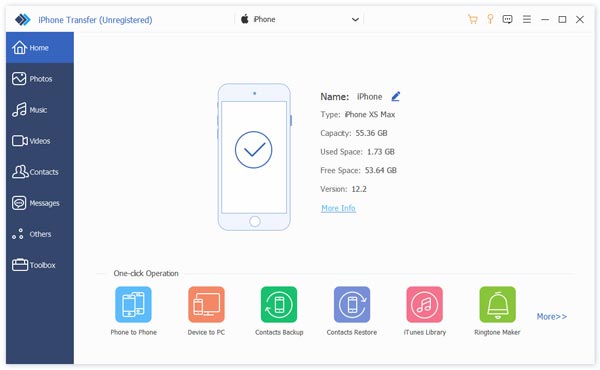
Tips: If you want to transfer all photos, choose the Enhet til enhet verktøy fra Toolbox fanen.
Trinn 2. Forhåndsvis iPhone-bilder
After the data scans, go to the Bilder tab from the sidebar. Then, preview all photos on the source iPhone.
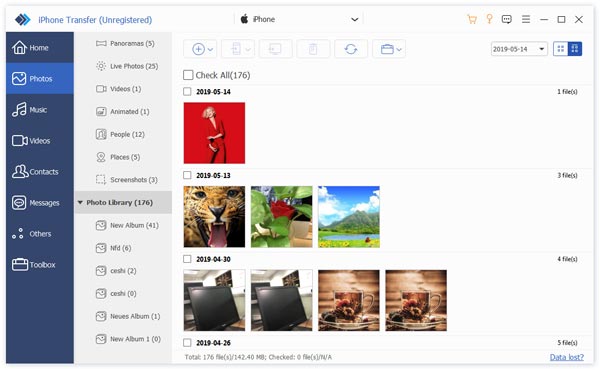
Trinn 3. Transfer photos between iPhones
Select the photos and albums you want to move. Click the Phone button on the top menu bar, then select the target iPhone to initiate the process.

Part 2: How to Transfer iPhone Photos to New iPhone via Quick Start
When releasing iOS 11, Apple added the Quick Start feature to iPhones. It can transfer iPhone photos to a new iPhone when the new iPhone is set up over a wireless connection. If you want to move all photos, this feature is a good option.
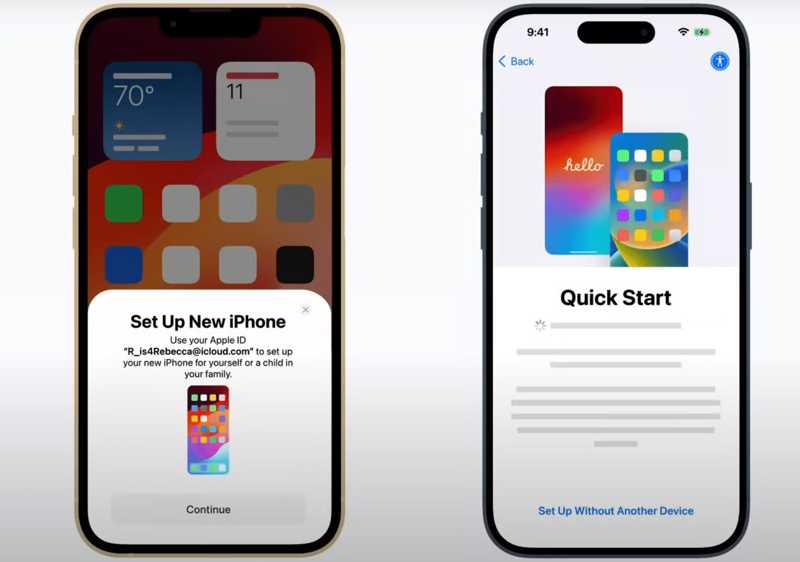
Trinn 1. Place your old iPhone next to the new device, then enable Wi-Fi and Bluetooth on both devices.
Trinn 2. Power on the new iPhone and follow the on-screen instructions to set it up.
Trinn 3. Når du ser Quick Start screen, the Sett opp ny iPhone notification will appear on the old device.
Trinn 4. Pek Fortsett.
Trinn 5. Use the camera to scan the animation.
Trinn 6. Type the passcode of the old device on the new iPhone.
Trinn 7. When prompted, set up Face ID or Touch ID.
Trinn 8. Select the desired data types and begin transferring.
Trinn 9. When it finishes, complete the setup.
Part 3: How to Transfer Photos from iPhone to iPhone by iCloud Photos
To transfer photos from an iPhone to another after setup, iCloud Photos is a good option. It allows you to sync photos across devices associated with the same Apple Account. It only requires a stable Wi-Fi connection.
Trinn 1. Åpne innstillinger appen på kilde-iPhonen.
Trinn 2. Tap on your profile, then go to iCloud.
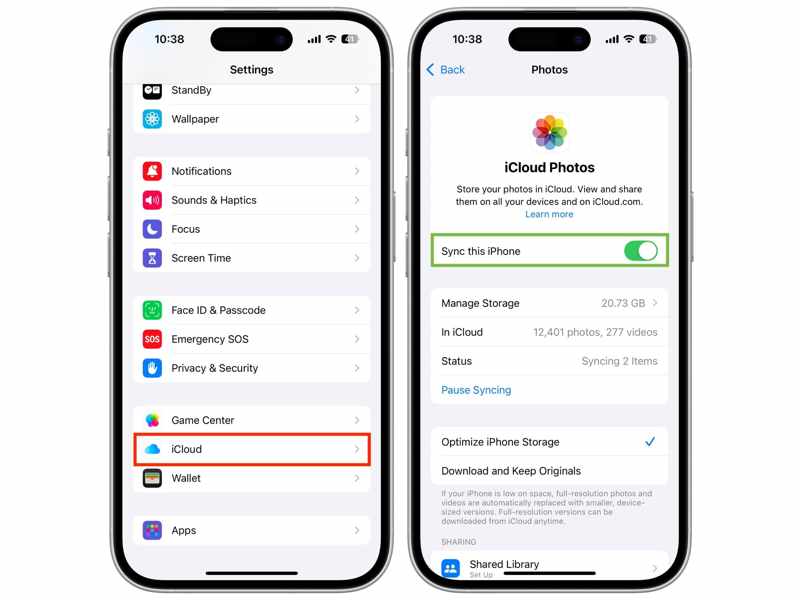
Trinn 3. Velg Bilder alternativ under Lagret til iCloud seksjon.
Trinn 4. Slå på Synkroniser denne iPhone.
Trinn 5. Wait for all your photos to sync to iCloud.
Trinn 6. Turn on the target iPhone.
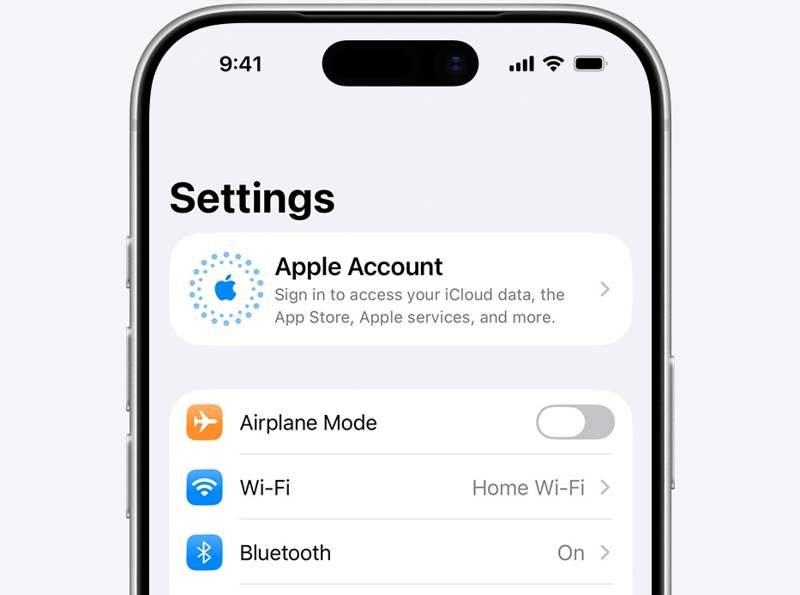
Trinn 7. Kjør innstillinger app og trykk Apple-konto.
Trinn 8. Velg Logg på manuelt and log in with the same account.
Trinn 9. Then, turn on iCloud Photos and select Last ned og hold originaler to download the photos.
Part 4: How to Transfer iPhone Photos to iPhone through AirDrop
If you need to transfer several photos from one iPhone to another, such as sharing photos with your friends, AirDrop fra iPhone til iPhone is a suitable option. It is the official wireless connection for syncing data between Apple devices.
Trinn 1. Turn on the target iPhone.
Trinn 2. Angi kontroll~~POS=TRUNC.
Trinn 3. Slå på Wi-Fi og Bluetooth.
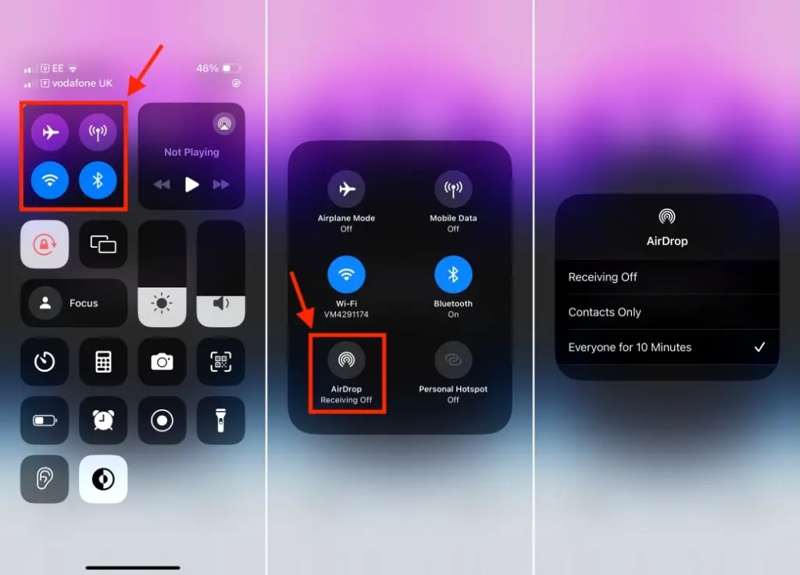
Trinn 4. Tap the connection pane, tap Airdrop, og velg Alle i 10 minutter.
Trinn 5. Switch to the source iPhone and turn it on.
Trinn 6. Åpne Bilder app og gå til Bibliotek.
Trinn 7. Pek Velg and select the desired photos.
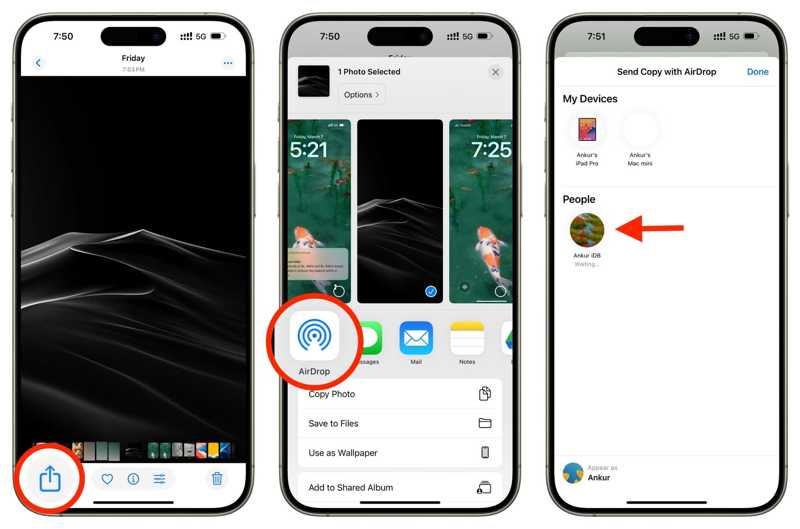
Trinn 8. Trykk på Del knappen, velg Airdrop, and tap the target iPhone.
Trinn 9. Then, accept the photos on the target device.
Part 5: How to Transfer Photos from iPhone to iPhone with iTunes
If you have a PC, you can transfer photos from one iPhone to another with the latest version of iTunes. While this way is indirect, it doesn’t require an internet connection. If you are running macOS Catalina or later, use Finder instead, but the workflow is similar.
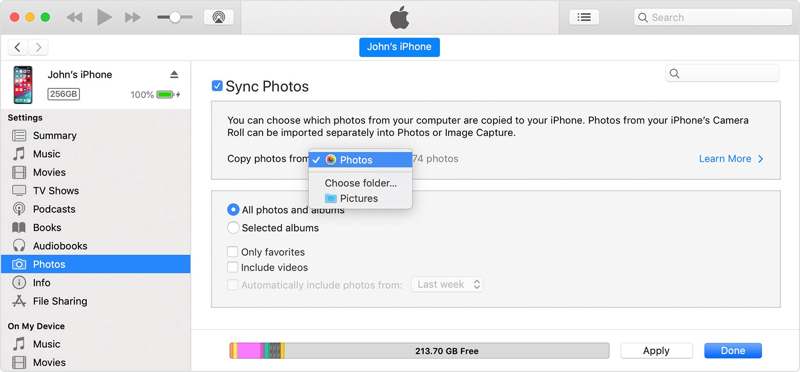
Trinn 1. Plug the source iPhone into a PC with a USB cable.
Tips: If you have set up photo syncing via Wi-Fi in iTunes, connect your iPhone to the network.
Trinn 2. Åpne iTunes fra skrivebordet.
Trinn 3. Klikk på Enhet -knappen øverst til venstre.
Trinn 4. Gå til Bilder fanen.
Trinn 5. Merk av i boksen ved siden av Synkroniser bilder.
Trinn 6. Velg Alle bilder og album or the desired albums.
Trinn 7. Klikk på Påfør or Synkroniser knapp.
Trinn 8. When it finishes, disconnect the source iPhone.
Trinn 9. Then, connect the target iPhone to the PC using a compatible cable.
Trinn 10. Klikk på Enhet button after the device is detected.
Trinn 11. Hodet til Bilder tab and sync photos from iTunes.
Konklusjon
This guide outlined multiple ways to transfer photos from one iPhone to another, via USB or wirelessly. The Quick Start feature is used to move all photos to a new iPhone. iCloud Photos lets you sync all your photos to a new or used iPhone. AirDrop lets you share specific photos between iPhones. iTunes can transfer all photos between iOS devices. Apeaksoft iPhone Transfer is an efficient option to transfer any photos between iPhones.
 Apeaksoft iPhone Transfer
Overfør iOS-data mellom iOS-enheter, datamaskiner og iTunes.
Sikker nedlasting
Sikker nedlasting
Relaterte artikler