

Slik fikser du at App Store fortsetter å spørre om passord

"Hvorfor gjør App Store spør stadig etter passord «Når du oppdaterer en app?» Da App Store ble lansert av Apple i 2008, hadde den bare 500 apper. I dag er den en av de rikeste appbutikkene i verden med hundrevis av millioner apper. I tillegg til å laste ned apper, kan du oppdatere appene dine i App Store. Noen brukere kan imidlertid støte på en passordfeil. Denne artikkelen deler løsningene for å bli kvitt dette problemet.
SIDEINNHOLD:
Del 1: Hvorfor ber App Store om et passord
App Store krever passordet ditt av sikkerhetshensyn når du laster ned og oppdaterer apper, og kjøper kjøp i apper. Det er imidlertid uvanlig hvis App Store stadig vekk ber om passord. Vanlige årsaker inkluderer:
- 1.Du har endret Apple ID-legitimasjonen eller -detaljene dine.
- 2.Sikkerhetsinnstillinger.
- 3.Korrupte appoppdateringer.
- 4.Ubetalte saldoer eller problemer med betalingsmetodene dine.
- 5.Programvarefeil.
Del 2: Slik hindrer du App Store i å be om et passord
Løsning 1: Logg på Apple ID på nytt
Hvis du bruker en annen Apple-ID og App Store som ber om et passord, bør du logge på med samme konto. Dessuten må du oppdatere passordet hvis du har endret det på andre enheter.
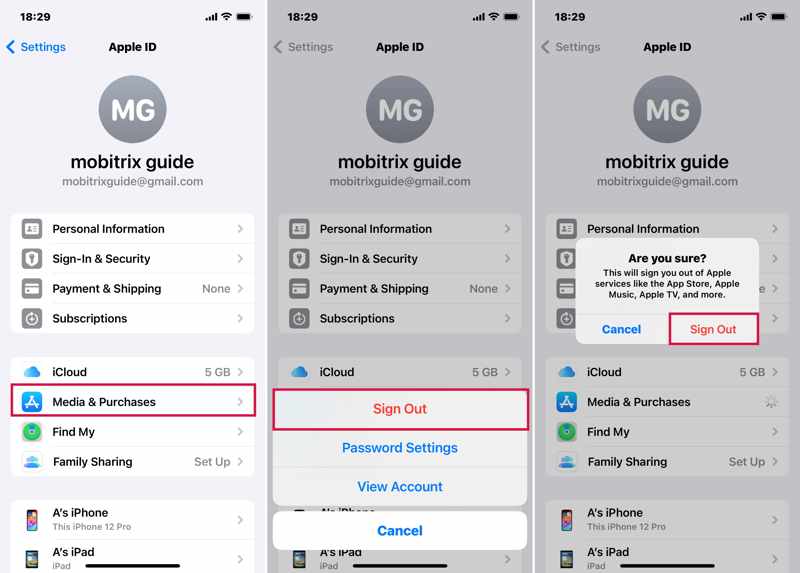
Trinn 1. Åpne innstillinger app på enheten din.
Trinn 2. Trykk på profilen din og velg Media og kjøp.
Trinn 3. Trykk på Apple-ID-en din og velg Logg av på kontekstmenyen.
Trinn 4. Hvis du blir bedt om det, trykker du på Logg ut igjen for å bekrefte.
Trinn 5. Start iOS-enheten på nytt.
Trinn 6. naviger til innstillinger, trykk på profilen din og velg Media og kjøp.
Trinn 7. Logg på med Apple-ID og passord.
Tips: Du kan også logge ut av Apple-ID-en din i App Store-appen og logge på med den.
Løsning 2: Oppdater betalingsinformasjonen
At App Store ber om passord kan skyldes utdaterte betalingsmåter. Derfor bør du holde betalingsmåtene dine oppdaterte. Her er trinnene for å oppdatere informasjonen din:
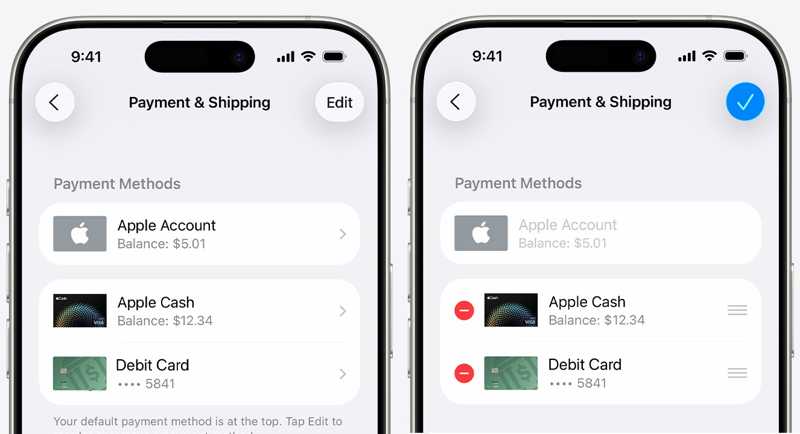
Trinn 1. Kjør din innstillinger appen og trykk på profilen din.
Trinn 2. Velg Betaling og frakt.
Trinn 3. Hvis du blir bedt om det, logg inn med Apple-kontoen din.
Trinn 4. For å fjerne utdaterte betalingsmåter, trykk på Rediger knappen, trykk på Delete knappen, og trykk fjerne.
Trinn 5. Hvis du vil legge til en ny betaling, trykker du på Legg til betalingsmåte, skriver inn informasjonen og trykker på Ferdig.
Løsning 3: Juster passordinnstillingene
Hver gang du kjøper en vare eller laster ned en app i App Store, må du oppgi passordet ditt. Hvis du vil hindre at App Store ber om et passord, kan du justere passordinnstillingene.
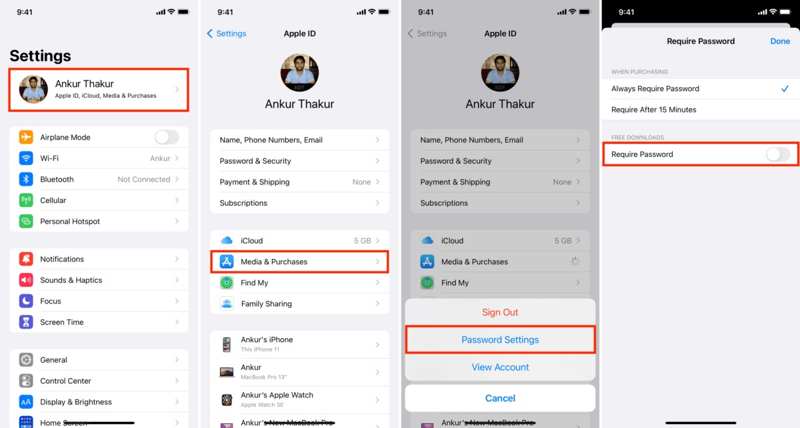
Trinn 1. Trykk på profilen din i din innstillinger app.
Trinn 2. Velg Media og kjøp, og velg Passordinnstillinger på popup-dialogen.
Trinn 3. Slå av Krev passord etter GRATIS NEDLASTING.
Trinn 4. Deretter velger du Krev etter 15 minutter etter VED KJØP.
Trinn 5. Pek Ferdig og prøv App Store på nytt.
Løsning 4: Sjekk kjøpshistorikken
Hvis et kjøp venter, fortsetter App Store å be om et passord. Du kan sjekke kjøpshistorikken din og fullføre eller avbryte det ventende kjøpet. Slik sjekker du kjøpshistorikken din:
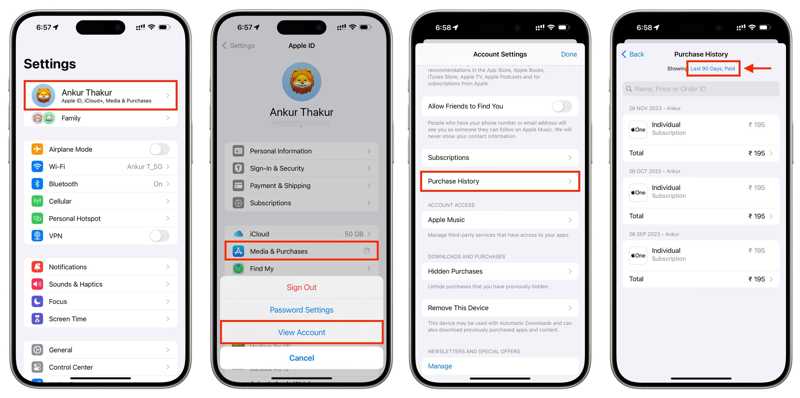
Trinn 1. Gå til innstillinger og trykk på profilen din.
Trinn 2. Velg Media og kjøp og velg Se konto.
Trinn 3. Skriv inn Apple ID-passordet ditt og trykk Logg inn.
Trinn 4. Pek Kjøpshistorie, og sjekk regningen din.
Trinn 5. Hvis et kjøp venter på kjøp, fullfør eller avbryt det.
Videre Reading
Del 3: Den ultimate løsningen for å fikse App Store-spørsmål om passord
Hvis de vanlige løsningene ikke er tilgjengelige og App Store stadig ber om et passord, bør du slette den gamle kontoen fullstendig. Fra nå av anbefaler vi at du Apeaksoft iOS UnlockerDen kan slette Apple ID-kontoen din uten passord.
Den ultimate løsningen for å fikse App Store som ber om passord
- Fjern Apple ID fra iPhonen din raskt.
- Ikke krev passordet ditt eller iPhone-koden din.
- Tilgjengelig i en rekke situasjoner, som en deaktivert iPhone.
- Støtt de nyeste modellene av iPhone og iPad.
Sikker nedlasting
Sikker nedlasting

Slik fikser du App Store-spørsmål om passord
Trinn 1. Installer iOS Unlocker
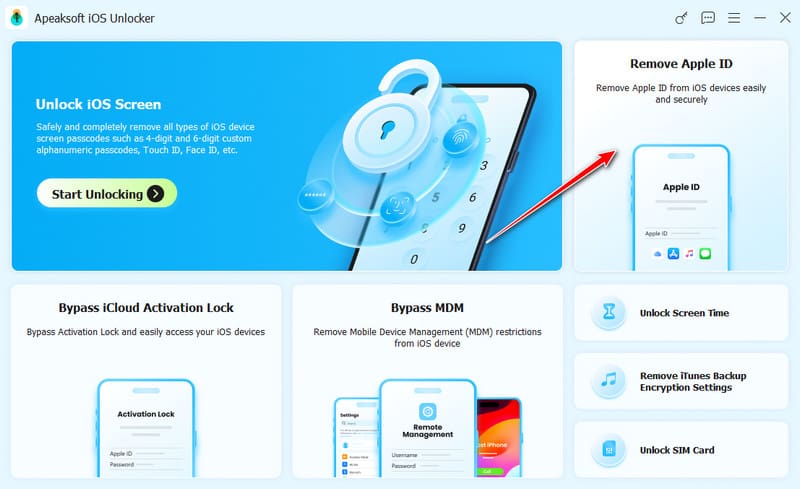
Kjør iOS-opplåsingsprogramvaren etter at du har installert den på datamaskinen. Den er kompatibel med Windows og macOS. Koble iPhonen til datamaskinen med en Lightning-kabel. Velg Fjern Apple ID modus, og klikk på Start nå knapp.
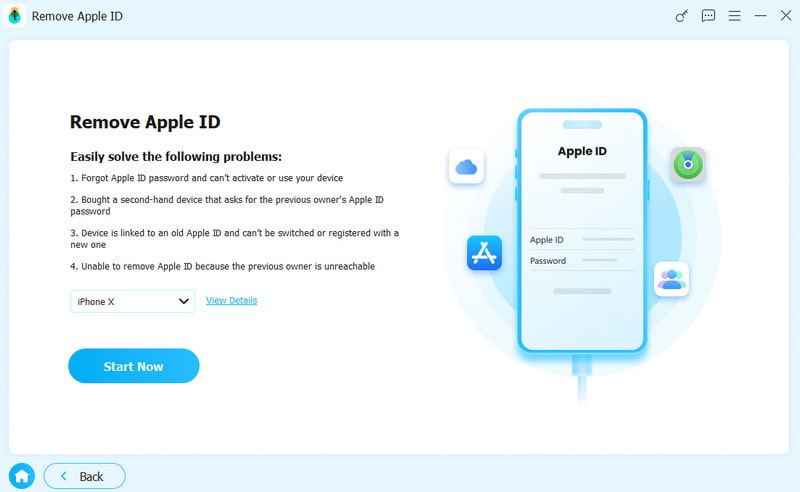
Trinn 2. Fjern problematisk Apple-ID
Programvaren vil fjerne Apple-ID-en din automatisk hvis Finn min iPhone er deaktivert.
Hvis Finn min iPhone er aktivert, tilbakestill alle innstillinger på iOS 11.3 eller tidligere. Da vil programvaren gjøre jobben sin.
Hvis Finn min iPhone er aktivert på iOS 11.4 eller nyere, slå på tofaktorautentisering på enheten din. Sjekk deretter informasjonen din og bekreft fjerning av kontoen.
Når det er gjort, registrer deg for en ny Apple-ID og et nytt passord på iPhonen din.
Konklusjon
Ved å følge løsningene våre, bør du hindre App Store i å be om passord på iPhone eller iPad. I tillegg til å oppdatere kontoinformasjonen din, kan du også slå av passordkravet for gratis nedlastinger. Dessuten, Apeaksoft iOS Unlocker lar deg bli kvitt en problematisk Apple-konto direkte.
Relaterte artikler
Hvis du får en melding om at Apple-ID-en din er deaktivert, må du ikke få panikk og følge løsningene våre for å låse opp kontoen din raskt.
Selv om feilmeldingen om at Apple ID ikke er gyldig eller støttet kan bety noen forskjellige ting, kan du følge løsningene våre for å fikse det.
Kan du låse opp en iPad uten Apple-ID? Hvordan låse opp iPhone-passordet uten Apple-ID? Les dette innlegget for å finne ut hvordan du låser opp iOS uten Apple-ID!
Når Apple ID-passordet ditt ikke fungerer, kan du følge våre fem løsninger for å løse det og få tilgang til kontoen din igjen.



