


Hvorfor Apple ID-passordet ikke fungerer, og hvordan fikser du det?

«For noen uker siden fungerte plutselig ikke Apple ID-passordet mitt. I går fungerte det ikke igjen. Hvorfor er min Apple ID-passord fungerer ikkeDet er velkjent at Apple-kontoen spiller en nøkkelrolle i Apples økosystem. Den kobler sammen nesten alle Apple-tjenester på iPhone, iPad, iPod, Apple Watch og mer. Denne artikkelen forklarer hvorfor denne feilen oppstår og gir effektive løsninger for å fikse dette problemet raskt.
SIDEINNHOLD:
Del 1: Hvorfor fungerer ikke Apple ID-passordet mitt
Et Apple ID-passord er nødvendig når du aktiverer og bruker en Apple-enhet, samt får tilgang til Apple-tjenester, som FaceTime, iMessage, iCloud, Finn min og mer. Hovedårsakene hvorfor Apple ID-passordet mitt ikke fungerer inkluderer:
- 1.iOS lastes inn feil.
- 2.Utdatert Apple-kontoinformasjon.
- 3.Apples servere er nede.
- 4.Noe er galt med kontoen din.
- 5.Feil dato og klokkeslett.
- 6.Utdatert passord for Apple-konto.
- 7.Programvarefeil.
Del 2: Hva du skal gjøre hvis Apple ID-passordet ikke fungerer
Løsning 1: Start iPhone på nytt
Når Apple-ID-passordet ditt ikke fungerer, er det første du kan gjøre å starte iPhone eller iPad på nytt. Det kan laste inn operativsystemet på nytt og lese Apple-kontoen og passordet ditt.
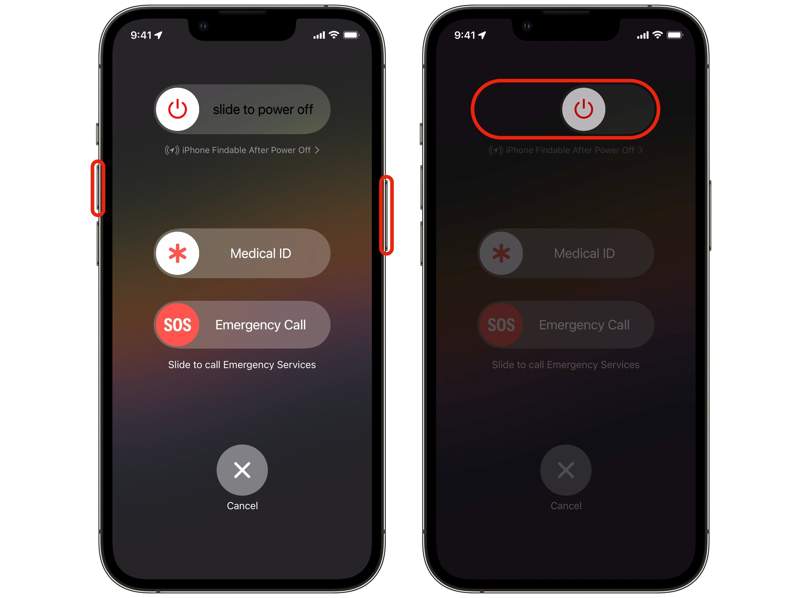
Trinn 1. For en iPhone med Face ID, trykk og hold inne en av volumknappene + Side knapp.
For eldre iPhones, hold nede Side or Sleep / Wake knapp.
Trinn 2. Når avstengingsskjermen vises, slipper du knappene eller -knappen.
Trinn 3. Flytt glidebryteren for å slå den av.
Trinn 4. Noen minutter senere holder du nede Side or Sleep / Wake knappen til du ser Apple-logoen.
Løsning 2: Logg ut og logg inn på Apple-kontoen din
Hvis du har endret Apple-kontoen din på andre enheter, bør du oppdatere den på iPhonen din for å fikse at Apple ID-passordet ikke fungerer. Prosessen er enkel: logg ut av kontoen din og logg inn på nytt.
Trinn 1. Åpne innstillinger app.
Trinn 2. Trykk på profilen din.
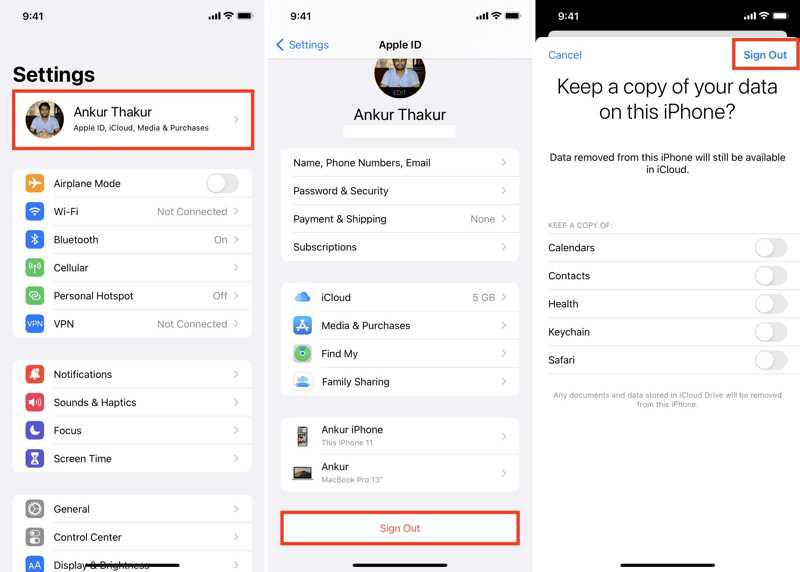
Trinn 3. Rull ned og trykk Logg av på bunnen.
Trinn 4. Skriv inn passordet for Apple-kontoen din og trykk på slår Off for å deaktivere Finn min.
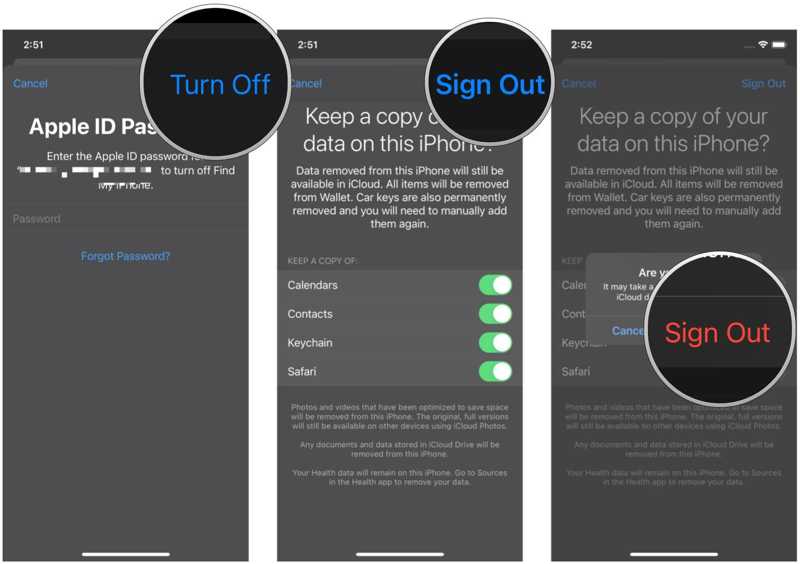
Trinn 5. Start iPhone på nytt.
Trinn 6. Tilbake til den innstillinger app.
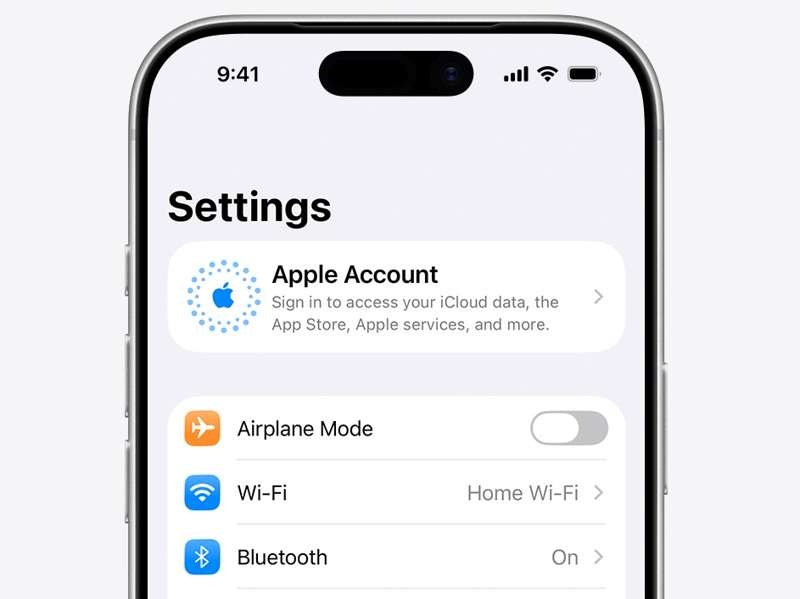
Trinn 7. Pek Apple-konto, og velg Logg på manuelt.
Trinn 8. Skriv inn Apple-kontoen og passordet ditt.
Løsning 3: Riktig dato og klokkeslett
Apple justerer dato og klokkeslett automatisk. Men hvis du angir det manuelt, fungerer ikke passordet for Apple-ID-en. Løsningen er enkel: korriger dato og klokkeslett på iPhone eller iPad.
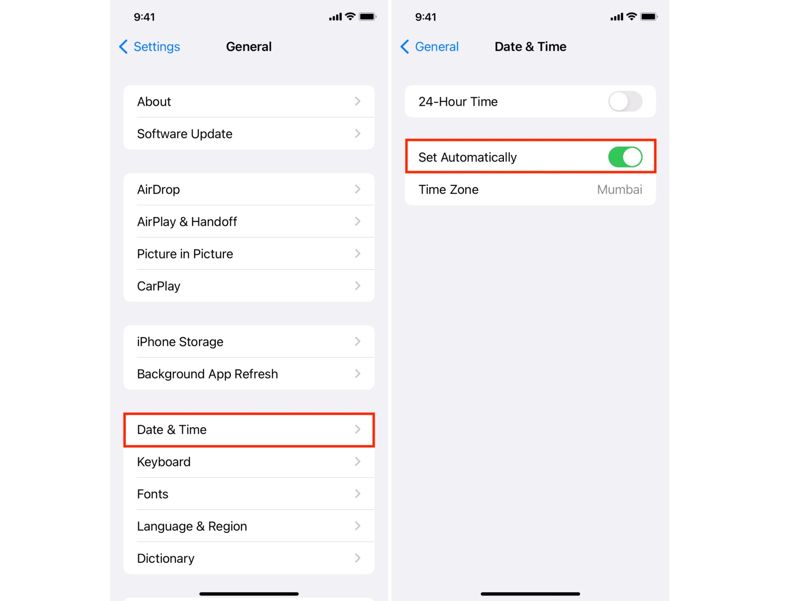
Trinn 1. Kjør din innstillinger app.
Trinn 2. Gå til Informasjon og Dato og tid.
Trinn 3. Slå på Sett automatisk.
Trinn 4. Koble iPhone til en internettforbindelse.
Løsning 4: Sjekk Apple-servere
Når du bruker Apple-kontoen din, sender den en forespørsel til Apple-servere. Etter at den er samsvart, kan du få tilgang til Apple-tjenestene. Hvis Apple-ID-passordet ditt ikke fungerer, bør du sjekke de relevante Apple-serverne.
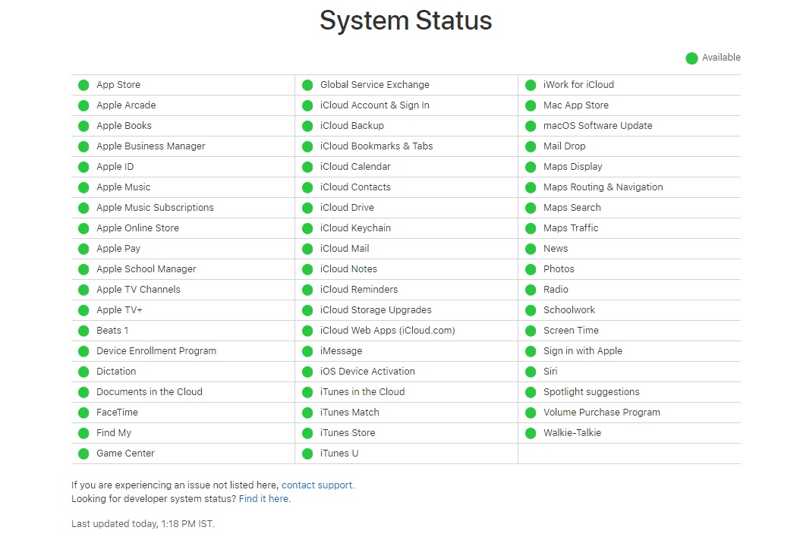
Trinn 1. Gå til https://www.apple.com/support/systemstatus/ i en nettleser.
Trinn 2. Sjekk statusen til Apple-serverne.
Trinn 3. Hvis noe er nede, vent til det fungerer igjen.
Løsning 5: Tilbakestill Apple ID-passordet
En annen løsning for å fikse problemet med at Apple-ID og passord ikke fungerer på iPhonen din, er å tilbakestille passordet. Apples iForgot-nettsted lar deg tilbakestille Apple-ID-passordet ditt etter at du har autentisert med riktig kanal.
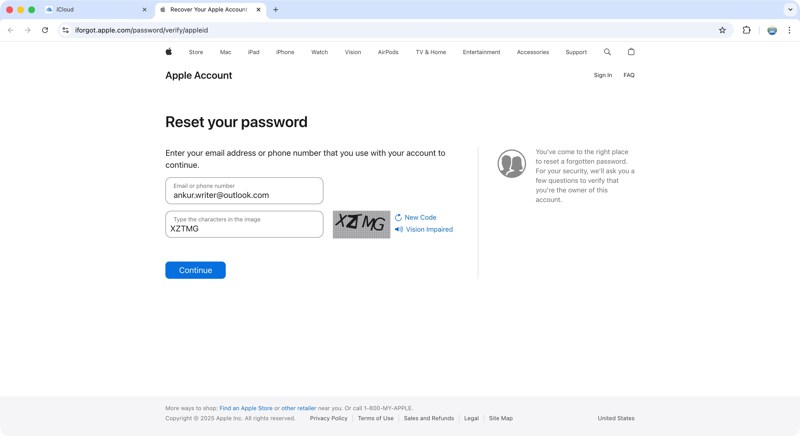
Trinn 1. Gå inn på www.iforgot.apple.com i en nettleser.
Trinn 2. Klikk på Tilbakestill passord knapp.
Trinn 3. Skriv inn Apple-kontoen din, skriv inn tegnene i bildet, og klikk på Fortsett.
Trinn 4. Skriv inn det pålitelige telefonnummeret og klikk Fortsett.
Trinn 5. Følg instruksjonene på skjermen for å autentisere.
Trinn 6. Legg igjen et nytt passord, bekreft det og bekreft det.
Trinn 7. Oppdater nå det nye passordet på enheten din.
Videre Reading
Del 3: En komplett løsning for å fikse Apple ID-passordet som ikke fungerer
Hvis løsningene ovenfor ikke er tilgjengelige, og Apple-ID-passordet ditt fortsatt ikke fungerer, kan du prøve Apeaksoft iFoneKit iOS-opplåserDen lar deg fjerne en Apple-konto uten passordet. Deretter kan du opprette en ny konto og et nytt passord.

Lastet ned av over 1,000,000 Brukere
- Fjern en gammel Apple-konto fra en iOS-enhet i tre trinn.
- Ikke spør om iPhone-passordet eller Apple-kontopassordet ditt.
- Tilby bonusfunksjoner, som å låse opp skjermtid.
- Fungerer for nesten alle iPhone- og iPad-modeller.
Sikker nedlasting
Sikker nedlasting

Slik fikser du Apple ID-passordet som ikke fungerer
Trinn 1. Installer verktøyet for fjerning av Apple ID
Kjør verktøyet for fjerning av Apple ID etter at du har installert det på datamaskinen. Det er kompatibelt med Windows 11 til XP og Mac OS X 10.7 eller nyere. Velg Fjern Apple ID modus for å fortsette.
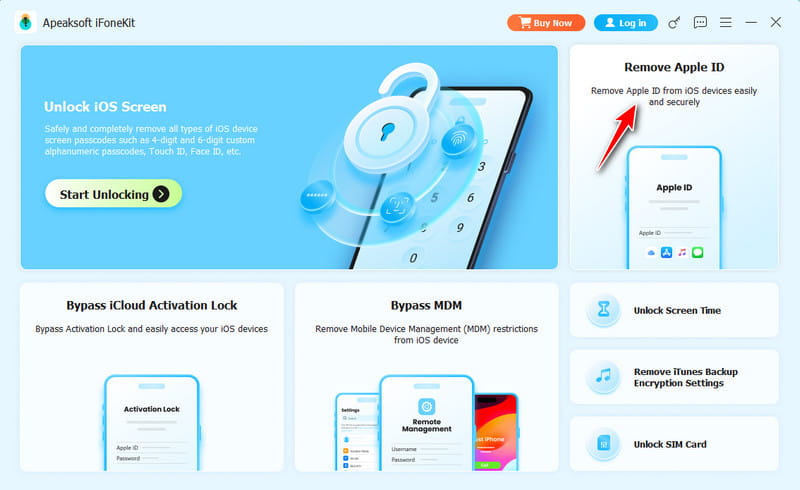
Trinn 2. Koble til enheten din
Koble iPhonen din til datamaskinen med en Lightning-kabel og stol på denne datamaskinen. Når den er gjenkjent, klikker du på Start nå knapp.
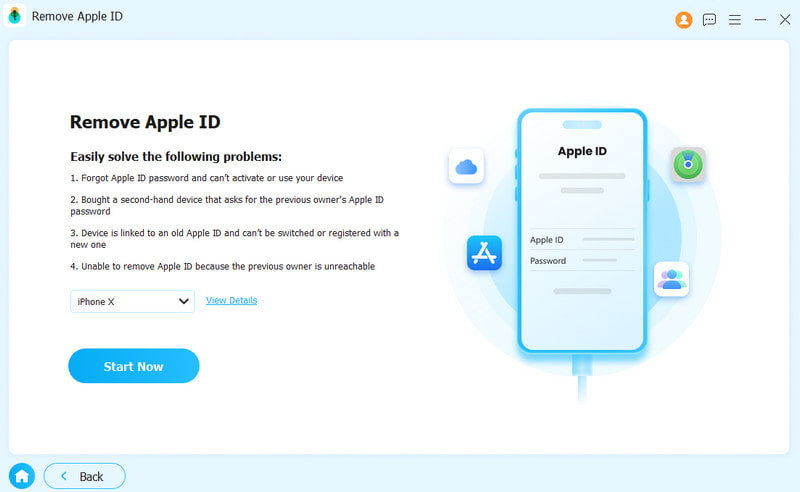
Trinn 3. Fjern Apple ID
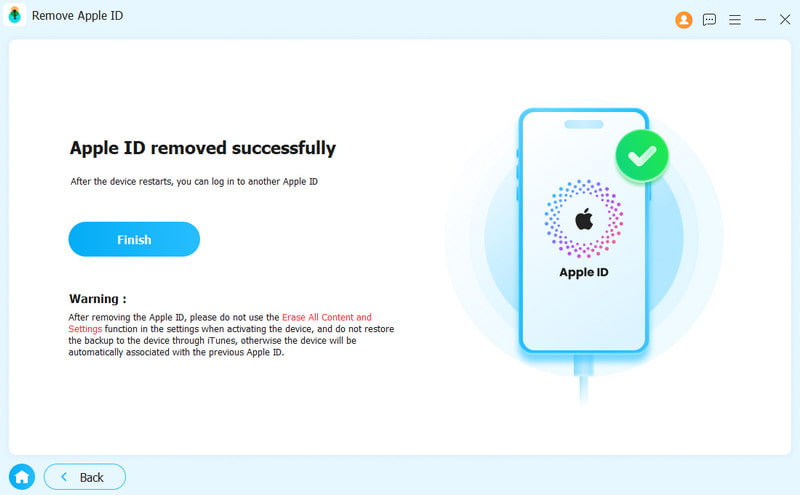
Hvis Finn min iPhone er deaktivert, vil programvaren starte fjerning av Apple ID. Hvis Finn min iPhone er aktivert, tilbakestill alle innstillinger på enheten din. Klikk deretter på OK og treffer Bekreft igjen å starte prosessen.
Konklusjon
Etter feilsøkingen vår bør du forstå hovedårsakene til Apple ID-passord fungerer ikke på iPhone eller iPad. Enda viktigere er det at du kan følge løsningene våre for å fikse dette problemet og bruke kontoen din som vanlig. Apeaksoft iFoneKit iOS-opplåser er den ultimate løsningen for å bli kvitt eventuelle programvarefeil.
 Apeaksoft iPhoneKit
 Lås opp alle typer iOS-passord fra iPhone, iPad og iPod.
Sikker nedlasting
Sikker nedlasting
Relaterte artikler




