

Beste måtene å låse opp en gammel iPhone hvis du har glemt passordet

Hvis du nylig har funnet den gamle telefonen din og slått den på, og så oppdaget at du hadde glemt passordet til låseskjermen, kan det være veldig frustrerende! Mange opplever dette problemet når de prøver å bruke en gammel telefon på nytt etter måneder eller til og med år. Så, hvordan låse opp en gammel telefon uten passordFinnes det en måte å komme seg inn på en låst iPhone på en trygg måte? Svaret er ja! I denne veiledningen deler vi 6 praktiske metoder som hjelper deg med å fjerne skjermlåsen fra den gamle iPhonen din raskt og trygt!
SIDEINNHOLD:
- Del 1: Slik låser du opp en gammel iPhone uten passord (iOS Unlocker)
- Del 2: Lås opp den gamle iPhonen din ved å fjerne bærerlåsen
- Del 3: Komme inn i en gammel iPhone ved hjelp av gjenopprettingsmodus
- Del 4: Lås opp din gamle iPhone med iCloud
- Del 5: Slett den gamle iPhonen din via alternativet Glemt passord
Del 1: Slik låser du opp en gammel iPhone uten passord
Hvis du leter etter den raskeste og enkleste måten å låse opp den gamle iPhonen din, Apeaksoft iFoneKit iOS-opplåser skiller seg ut som det smarteste valget. Du kan enkelt slette den 4-sifrede/6-sifrede passordkoden, Face ID og Touch ID på iPhonen din uten passord.

Lastet ned av over 1,000,000 Brukere
- Håndter ulike typer passord på iOS-enheter.
- Lås opp din gamle/deaktiverte/brukte iPhone uten passord.
- Omgå Mobile Device Management uten datatap.
- Fjern Apple ID/iTunes Backup-kryptering/SIM-begrensninger enkelt.
- Støtter alle iOS-versjoner og -enheter, inkludert den nyeste iOS.
Sikker nedlasting
Sikker nedlasting

Slik låser du opp en gammel iPhone uten passord:
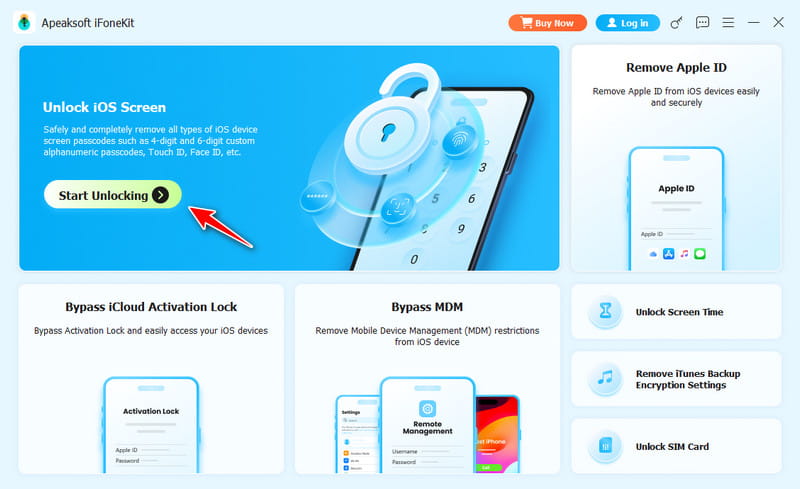
Trinn 1. Last ned og installer iOS Unlocker for Windows eller Mac. Start programmet og klikk på Lås opp iOS-skjermen i hovedgrensesnittet.
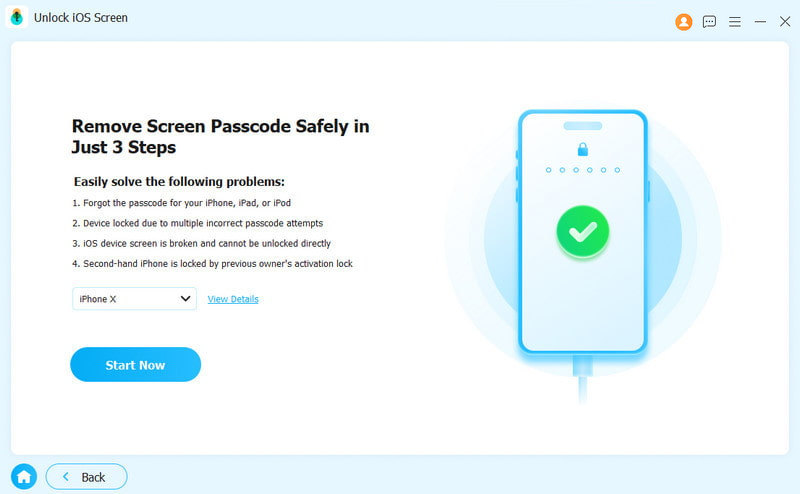
Trinn 2. Koble enheten til datamaskinen med en USB-kabel. Når enheten er oppdaget, bekreft enhetsinformasjonen og klikk deretter på Start nå å fortsette.
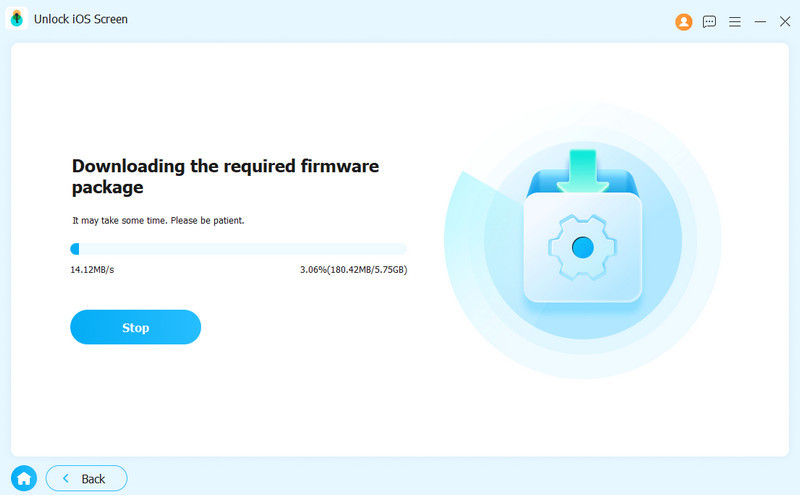
Trinn 3. Last ned den nødvendige fastvarepakken. Vent tålmodig mens nedlastingen fullføres.
Trinn 4. Når du blir bedt om det, følger du instruksjonene på skjermen for å bekrefte denne handlingen. Du må kanskje bekrefte to ganger for å bekrefte fastvaren.
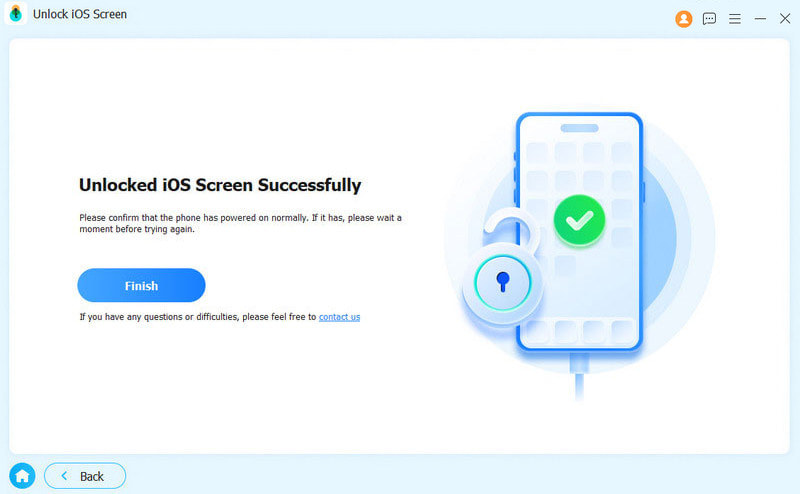
Trinn 5. Etter bekreftelse starter opplåsingsprosessen automatisk. Vent noen minutter, så starter enheten på nytt, og du kan sette opp en ny skjermkode.
Del 2: Lås opp den gamle iPhonen din ved å fjerne bærerlåsen
Hvis du vil bytte operatør, men den gamle iPhonen din er låst til en operatør, må du først be om en opplåsing via operatøren. Apple kan ikke låse opp den gamle iPhonen din for bruk med en annen operatør. Bare den nåværende operatøren din har myndighet til å låse opp iPhonen din.
Du må kontakte operatøren din for å fjerne SIM-kortrestriksjoner. Det kan ta noen dager før operatøren din fullfører forespørselen din. Du kan følge opp med dem for å sjekke statusen på forespørselen din. Etter at operatøren din har bekreftet at de har låst opp iPhonen din, går du til Innstillinger> Generelt> Om for å sjekke statusen. Hvis Ingen SIM-begrensninger vises ved siden av Bærelås, iPhonen din er nå opplåst.
Del 3: Komme inn i en gammel iPhone ved hjelp av gjenopprettingsmodus
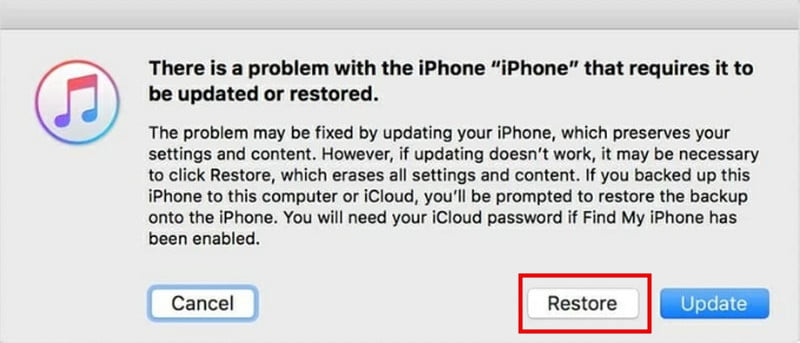
Hvis du foretrekker en offisiell Apple-metode, lar gjenopprettingsmodus deg låse opp den gamle iPhonen din uten passord. Du kan tilbakestill den gamle iPhonen din til fabrikkinnstillinger og angi et nytt passord med det.
Trinn 1. Last ned og installer den nyeste versjonen av iTunes på datamaskinen din. Hvis den allerede er installert, må du sørge for at den er oppdatert.
Trinn 2. Sett inn din iPhone Recovery ModeKnappekombinasjonen avhenger av modellen din:
iPhone 8 og nyere (inkludert iPhone SE 2. generasjon)
Trykk og slipp volum opp knappen raskt, etterfulgt av volum ned knapp. Trykk og hold inne Power knappen til Recovery Mode vises.
iPhone 7 / iPhone 7 Plus
Trykk og hold inne volum ned -knappen og sideknappen samtidig til Recovery Mode skjermen vises.
iPhone 6S og tidligere (inkludert iPhone SE 1. generasjon)
Trykk og hold inne Home og Side knappene sammen til Recovery Mode skjermen dukker opp.
Trinn 3. Koble iPhonen din til datamaskinen via en USB-kabel. Start iTunes og velg den gamle iPhonen din fra sidefeltet.
Trinn 4. Når en melding vises, velg GjenoppretteiTunes vil begynne å gjenopprette enheten din, og alle eksisterende data på iPhonen din vil bli fjernet.
Del 4: Lås opp din gamle iPhone med iCloud
Glemt passordet, men husker fortsatt Apple-ID-en din? Hvis du tidligere har aktivert det Find My iPhone, kan du låse opp den gamle iPhonen din via iCloud.
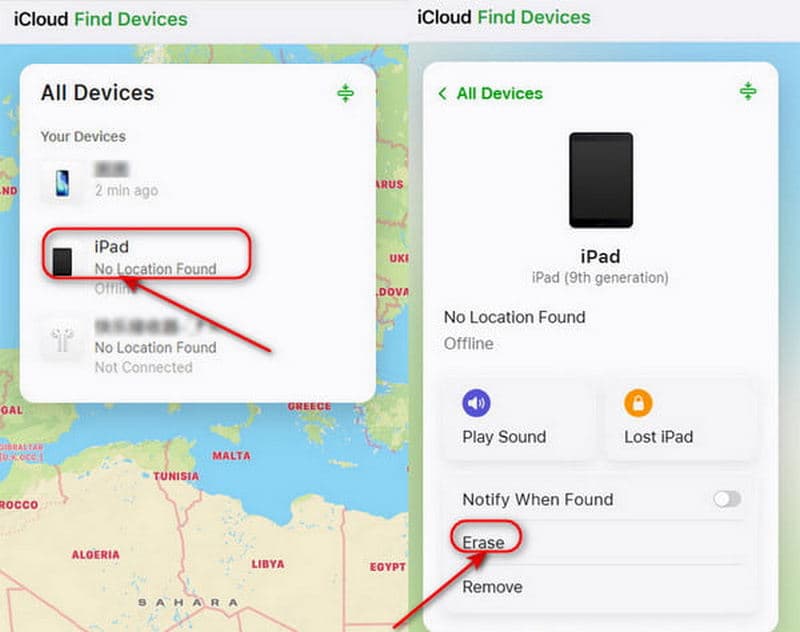
Trinn 1. Gå til iCloud.com på en annen enhet. Logg inn med Apple ID-legitimasjonen din.
Trinn 2. Etter å ha logget inn, klikk Alle enheter øverst på skjermen. Finn og velg den gamle iPhonen du vil låse opp.
Trinn 3. Klikk Slett iPhone nederst til høyre. Vent til tilbakestillingsprosessen er fullført. iPhonen din vil starte på nytt, og du kan gjenopprett iPhonen din fra en tidligere sikkerhetskopi.
Del 5: Slett den gamle iPhonen din via alternativet Glemt passord
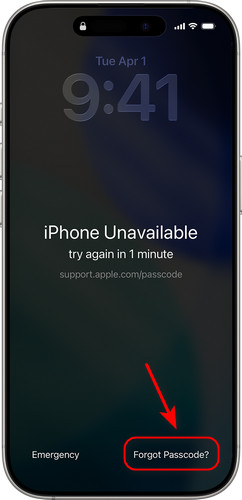
Hvis du ikke har en datamaskin eller rett og slett ikke vil installere programvare, finnes det fortsatt en enkel løsning. Så lenge enheten din kjører iOS 17 eller nyere, vil du se support.apple.com/iPhone/passcode skjermen på den låste iPhonen din, og du kan låse opp den gamle iPhonen din uten en datamaskin direkte fra låseskjermen ved hjelp av Glemt passord alternativet.
Trinn 1. Skriv inn feil passord gjentatte ganger til du ser iPhone utilgjengelig skjermen.
Trinn 2. På låseskjermen trykker du på Glemt passord nederst til høyre. Hvis enheten din kjører iOS 15.2 eller iOS 16, er alternativet Slett iPhone i stedet.
Trinn 3. Pek Start iPhone Reset, og logg deretter på med Apple-ID-en og passordet ditt for å bekrefte avgjørelsen.
Trinn 4. Etter bekreftelse, velg Slett iPhone for å slette alle data og innstillinger. Når tilbakestillingen er fullført, kan du konfigurere iPhonen din og opprette en ny passordkode.
Konklusjon
For å oppsummere, hvis du søker etter hvordan låse opp en gammel iPhone hvis du har glemt passordetDet viktigste å vite er at enheten må slettes. Hvis du fortsatt har Apple-ID-en din, er offisielle metoder som iCloud eller alternativet «Glemt passord» trygge og pålitelige. Hvis du foretrekker en enklere og raskere løsning, kan en iOS-opplåser som Apeaksoft iFoneKit iOS Unlocker være mer praktisk. Og hvis problemet er relatert til en operatørlås, er det å kontakte operatøren din den eneste måten å fjerne SIM-kortrestriksjonene på.
Relaterte artikler




