

Czym jest tryb odzyskiwania systemu Android i jak go używać

Dziś niemal nieustannie korzystamy ze smartfonów i tabletów. Oferują one wbudowane funkcje, takie jak robienie zdjęć, nagrywanie filmów i wiele innych. Ponadto w Google Play Store i sklepach z aplikacjami innych firm znajdziemy mnóstwo aplikacji. Podobnie jak inne urządzenia cyfrowe, telefony z Androidem mogą się zawieszać lub zawieszać z powodu usterek sprzętowych i programowych. Na szczęście, Tryb odzyskiwania Androida umożliwia użytkownikom rozwiązywanie problemów i odzyskiwanie dostępu do urządzeń z systemem Android.
TREŚĆ STRONY:
Część 1: Czym jest tryb odzyskiwania systemu Android
Czym jest tryb odzyskiwania Androida? Jak wspomniano wcześniej, tryb odzyskiwania w Androidzie to unikalny tryb uruchamiania wszystkich urządzeń z Androidem. Oferuje on zestaw narzędzi do diagnozowania i rozwiązywania problemów z oprogramowaniem i błędami bez konieczności uruchamiania systemu operacyjnego. Jest on zazwyczaj używany do aktualizacji oprogramowania, przywracania ustawień fabrycznych lub instalowania niestandardowych ROM-ów w przypadku zawieszenia się telefonu, jego zawieszenia lub awarii.
Wyjaśnienie opcji trybu odzyskiwania systemu Android

Na ekranie trybu odzyskiwania Androida dostępnych jest kilka opcji. Opcje mogą się nieco różnić w zależności od marki lub modelu urządzenia. Poniżej wyjaśniamy główne opcje trybu odzyskiwania Androida:
1. Zrestartuj system teraz: uruchom ponownie urządzenie z systemem Android do normalnego systemu.
2. Zastosuj aktualizację z ADB: podłącz telefon do komputera i zaktualizuj system operacyjny za pomocą Android SDK.
3. Wyczyść dane/przywróć ustawienia fabryczne: usuń wszystkie dane z urządzenia, w tym zdjęcia, filmy, muzykę, aplikacje, dane aplikacji, ustawienia niestandardowe i inne. Przywrócenie ustawień fabrycznych Androida w trybie odzyskiwania to niezbędny krok w rozwiązywaniu problemów.
4. Montowanie/system: montuje partycję danych lub system i modyfikuje wszystkie dane w partycji. Ta opcja umożliwia przeglądanie, analizowanie i edycję wszystkich danych w partycji systemowej.
Część 2: Przełącz telefon z Androidem w tryb odzyskiwania
Jak przejść do trybu odzyskiwania na Androidzie? Ogólnie rzecz biorąc, można przełączyć urządzenie w tryb odzyskiwania za pomocą kombinacji przycisków. Jednak proces ten różni się nieco w zależności od marki i modelu telefonu.
Jak przełączyć Google Pixel w tryb odzyskiwania

Krok 1. Naciśnij i przytrzymaj Moc + zwiększanie głośności naciśnij i przytrzymaj oba przyciski jednocześnie i wyłącz telefon.
Krok 2. Następnie przytrzymaj Zasilanie + zmniejszenie głośności naciśnij i przytrzymaj przez chwilę przyciski.
Krok 3. Podczas Tryb bootloadera pojawi się, zwolnij wszystkie przyciski.
Krok 4. Wybierz Tryb odzyskiwania z objętość przyciski i naciśnij Prąd aby potwierdzić.
Krok 5. Następnie dotknij Zwiększenie głośności + zasilanie przycisków, gdy pojawi się obraz robota Android.
Krok 6. Teraz Twój system Android uruchomi się w trybie odzyskiwania.
Jak wejść w tryb odzyskiwania na Samsungu Galaxy
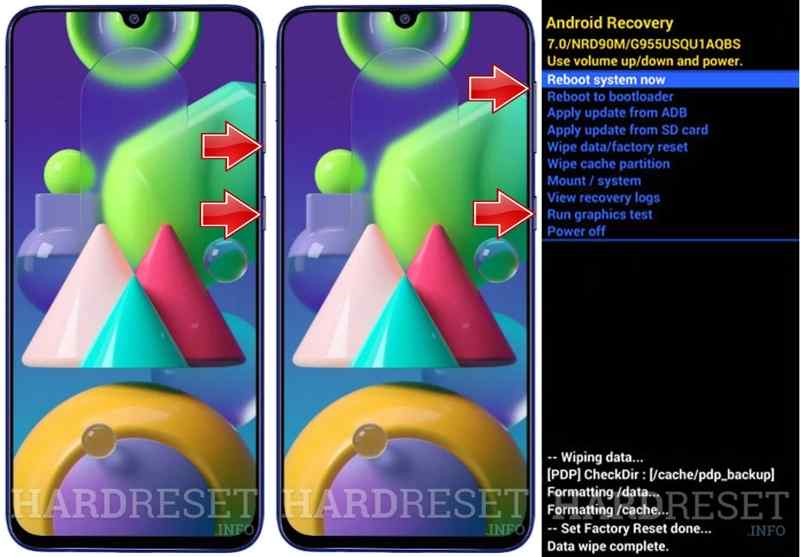
Krok 1. Trzymaj Prąd Naciśnij przycisk i wyłącz telefon. Jeśli ekran nie reaguje, naciśnij i przytrzymaj Prąd Naciskaj przycisk, aż ekran stanie się czarny.
Krok 2. Trzymaj Prąd + Maksymalna objętość przyciski lub Zasilanie + Zwiększenie głośności + Ekran główny/Bixby Naciskaj przyciski, aż zobaczysz logo Samsunga.
Krok 3. Teraz Twój system Android przejdzie w tryb odzyskiwania.
Jak przejść do trybu odzyskiwania w telefonie Motorola
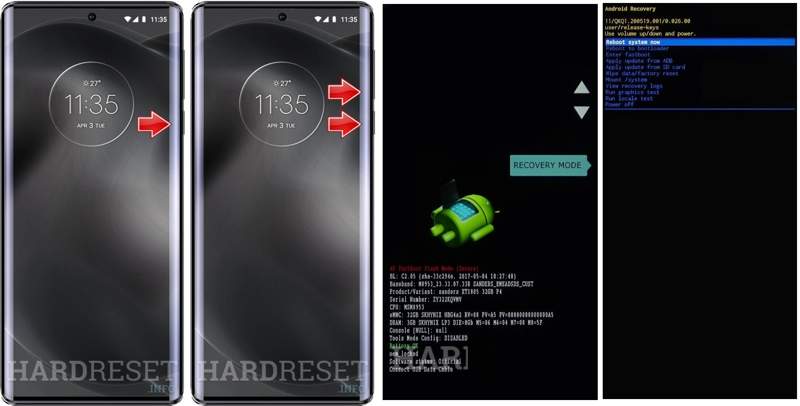
Krok 1. Przytrzymaj przycisk Prąd klucz i wyłącz telefon.
Krok 2. Naciśnij i przytrzymaj Zasilanie + Obniżenie głośności naciśnij i przytrzymaj przyciski razem przez około 10 sekund, aż Tryb bootloadera pojawia się.
Krok 3. Użyj objętość klawisze do wyboru Recovery Modei uderz Prąd aby potwierdzić.
Krok 4. Naciśnij Prąd przycisk, krótko go dotykając Maksymalna objętość przycisk na ekranie Brak polecenia.
Krok 5. Następnie urządzenie z systemem Android przejdzie w tryb odzyskiwania.
Jak uruchomić tryb odzyskiwania w urządzeniu OnePlus

Krok 1. Trzymaj Prąd klawisz, aby wyłączyć telefon.
Krok 2. Trzymaj Zasilanie + Obniżenie głośności przyciski na chwilę.
Krok 3. Następnie zwolnij Prąd naciśnij przycisk, gdy zobaczysz logo OnePlus.
Krok 4. Wybierz swój język i otwórz tryb odzyskiwania na swoim telefonie z systemem Android.
Jak przełączyć telefon Huawei z Androidem w tryb odzyskiwania
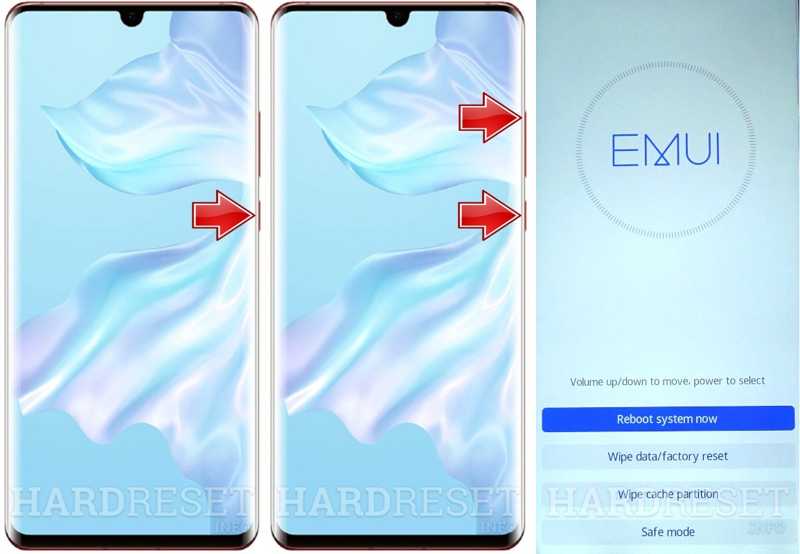
Krok 1. Naciśnij Prąd przycisk i wyłącz telefon.
Krok 2. Przytrzymaj przycisk Zwiększanie głośności + moc Jednocześnie przyciski.
Krok 3. Gdy zobaczysz ekran trybu odzyskiwania, puść wszystkie przyciski.
Krok 4. Następnie możesz użyć swojego objętość przyciski do podświetlenia Wyczyść dane / przywróć ustawienia fabryczne w trybie odzyskiwania systemu Android.
Część 3: Wyjście z trybu odzyskiwania w systemie Android
Po rozwiązaniu problemu należy ręcznie wyjść z trybu odzyskiwania na Androidzie. Oznacza to, że można uruchomić ponownie system i powrócić do ekranu standardowego. Poniżej przedstawiamy procedurę wychodzenia z trybu odzyskiwania Androida:

Krok 1. Użyj swojego objętość klucze do podświetlenia Reboot system now opcja na ekranie Tryb odzyskiwania.
Krok 2. Następnie naciśnij Prąd aby potwierdzić.
Krok 3. Po ponownym uruchomieniu urządzenie przejdzie w tryb standardowy.
Inne dokumenty
Część 4: Odzyskiwanie danych po przywróceniu ustawień fabrycznych Androida w trybie odzyskiwania
Przywrócenie ustawień fabrycznych Androida w trybie odzyskiwania spowoduje usunięcie wszystkich danych i ustawień z urządzenia. Jeśli nie masz kopii zapasowej, Apeaksoft Android Data Recovery może pomóc Ci odzyskać dane i pliki.
Najprostszy sposób na odzyskanie Androida po przywróceniu ustawień fabrycznych w trybie odzyskiwania
- Odzyskaj wszystkie dane z Androida po przywróceniu ustawień fabrycznych.
- Wyodrębnij dane z uszkodzonego lub rozbitego telefonu.
- Podgląd utraconych plików w celu ich selektywnego odzyskania.
- Pracuj nad zdjęciami, filmami, kontaktami, wiadomościami i nie tylko.
- Obsługuje szeroką gamę marek i modeli Androida.

Jak odzyskać dane z Androida po przywróceniu ustawień fabrycznych w trybie odzyskiwania
Krok 1. Połącz się z telefonem
Otwórz najlepsze oprogramowanie do odzyskiwania systemu Android po zainstalowaniu go na komputerze. Podłącz telefon do komputera kablem USB. Upewnij się, że funkcja jest włączona. USB Debugging tryb w telefonie i wybierz Przenieś plikiOprogramowanie automatycznie wykryje Twój telefon.

Krok 2. Zeskanuj swój telefon
Autoryzuj i zezwól oprogramowaniu na dostęp do swoich urządzeń. Następnie wybierz typy danych, które chcesz odzyskać. Jeśli nie masz pewności, zaznacz Zaznacz wszystko, Kliknij Następna przycisk, aby rozpocząć skanowanie telefonu.

Krok 3. Odzyskiwanie danych
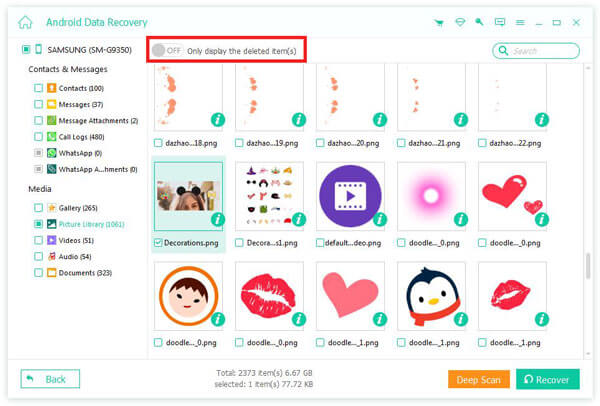
Po zeskanowaniu możesz wyświetlić dane, które można odzyskać na urządzeniu. Zaznacz żądane pliki i elementy. Jeśli nie możesz znaleźć żądanych plików, kliknij Głębokie skanowanie, Kliknij Recover przycisk, ustaw folder wyjściowy i potwierdź odzyskiwanie Androida. Możesz na przykład: odzyskaj usunięte wiadomości tekstowe na swoim Androidzie.
Podsumowanie
Teraz powinieneś zrozumieć, co Tryb odzyskiwania systemu Android Co ważniejsze, pokazaliśmy, jak przełączyć urządzenie w tryb odzyskiwania w zależności od marki i modelu telefonu. Po rozwiązaniu problemu możesz wyjść z trybu odzyskiwania i uruchomić urządzenie w trybie standardowym. Apeaksoft Android Data Recovery jest prostym sposobem na odzyskanie danych po przywróceniu ustawień fabrycznych.
Powiązane artykuły
W tym artykule dowiesz się, jak wykonać obejście FRP w urządzeniu Schok Volt SV55 za pomocą profesjonalnych narzędzi do obejścia FRP, jeśli Twój model Schok Volt SV55 znajduje się w stanie FRP po przywróceniu ustawień fabrycznych.
W tym artykule dowiesz się, jak zresetować hasło systemu Android, w tym hasło ekranu telefonu z systemem Android oraz hasło konta Google w telefonie z systemem Android.
Nie wiesz, gdzie znaleźć Kosz na Androidzie, aby odzyskać usunięte zdjęcia lub pliki? Ten post pokaże Ci szczegółowo, jak przywrócić Kosz z Androida.
Przyjdź i dowiedz się, jak odzyskać kartę SD dla systemu Android za pomocą oprogramowania komputerowego - Apeaksoft Data Recovery lub aplikacji mobilnej do odzyskiwania kart SD z systemu Android.



