


Как быстро и безопасно перенести сообщения с iPhone на iPhone

Если вы только что приобрели новый iPhone и ищете способ перенести сообщения на новый iPhone, вы попали по адресу! В этой статье представлены 5 полезных способов это сделать. передавать сообщения с iPhone на iPhoneЕсли вы уже настроили свой iPhone и хотите только передавать сообщения, в этой статье вы найдете оптимальное решение для вашей ситуации.
СОДЕРЖАНИЕ СТРАНИЦЫ:
- Какой метод следует выбрать?
- Способ 1: Как перенести сообщения на новый iPhone с помощью функции «Быстрый старт»
- Способ 2: Как синхронизировать сообщения с iPhone на iPhone с помощью iCloud Sync
- Способ 3: Как перенести только сообщения с iPhone на iPhone без использования iCloud
- Способ 4: Как перенести сообщения с iPhone на iPhone с помощью резервной копии iCloud
- Способ 5: Как перенести сообщения с iPhone на iPhone с помощью iTunes/Finder
Какой метод следует выбрать?
Ниже представлена сводная таблица, которая поможет вам быстро определить, какой метод лучше всего подходит для переноса сообщений с одного iPhone на другой.
| Ваша ситуация | Рекомендуемый метод |
| Настройка совершенно нового iPhone | Быстрый старт / Резервное копирование iCloud |
| Вы настроили свой новый iPhone и вам нужны только сообщения. | Синхронизация iCloud / Перенос данных с iPhone через Apeaksoft |
| У вас недостаточно места в iCloud. | Apeaksoft iPhone Transfer / iTunes/Finder |
| Вы хотите передать только выбранные сообщения и не хотите перезаписывать текущие данные. | Apeaksoft iPhone Transfer |
| Вы хотите, чтобы сообщения синхронизировались между устройствами Apple. | Синхронизация сообщений iCloud |
| Старый iPhone сломан, но у вас есть резервная копия. | Резервное копирование iCloud / iTunes/Finder |
Способ 1: Как перенести сообщения на новый iPhone с помощью функции «Быстрый старт»
Если вы только что приобрели новый iPhone и еще не настроили его, функция «Быстрый старт» — это официальный способ перенести сообщения с одного iPhone на другой во время первоначальной настройки с помощью iOS Setup Assistant. Apple позволяет переносить как текстовые сообщения, так и iMessages напрямую со старого iPhone на новое устройство.
Шаг 1. Держите оба своих устройства, новый и старый iPhone, включенными и подключенными к Wi-Fi. Включите Bluetooth на обоих устройствах.
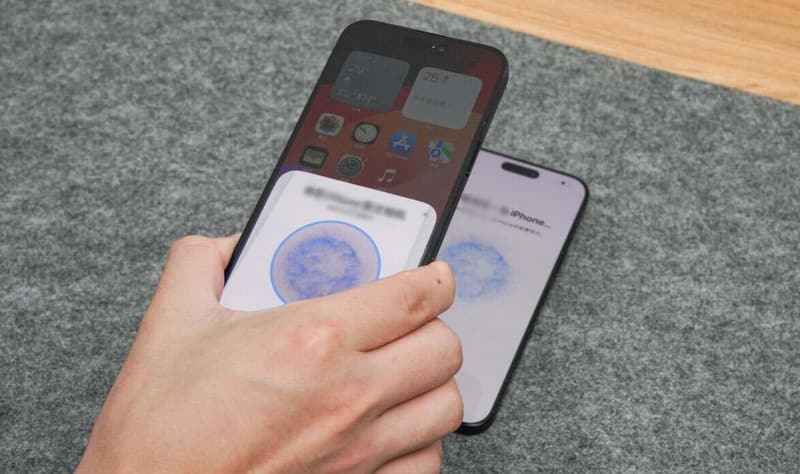
Шаг 2. Положите два iPhone рядом друг с другом. На вашем новом iPhone появится анимация. Используйте свой старый iPhone для сканирования анимации, затем введите пароль от старого iPhone на новом устройстве, когда появится соответствующий запрос.
Шаг 3. Когда появится экран «Перенос данных», выберите «Перенос с iPhone». Точное время переноса зависит от размера данных на вашем старом iPhone. По результатам наших тестов, перенос 240 ГБ данных с iPhone 14 на iPhone 17 Pro занял около 2 часов.
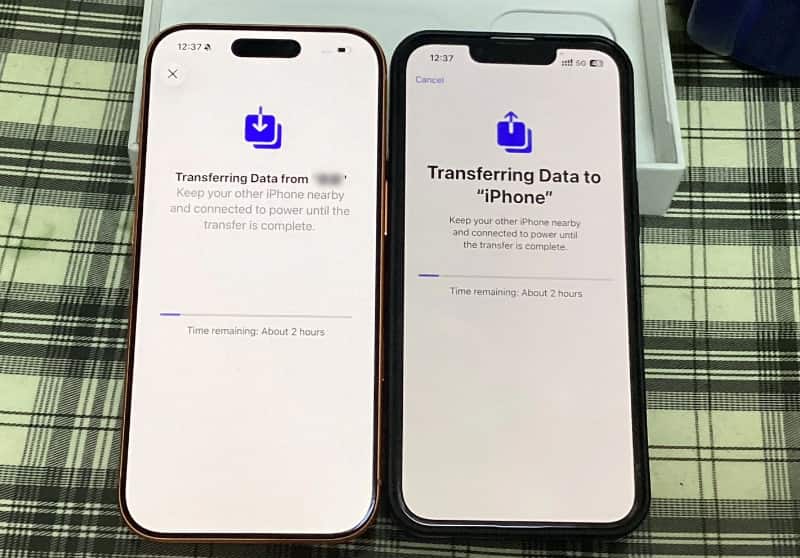
Шаг 4. После завершения передачи вы увидите все сообщения, как на старом iPhone.
Способ 2: Как синхронизировать сообщения с iPhone на iPhone с помощью iCloud Sync
Синхронизация с облаком — это сервис iCloud. Когда функция «Сообщения в iCloud» включена, ваши сообщения загружаются в iCloud и становятся доступны на других устройствах Apple, подключенных к тому же Apple ID. При удалении или добавлении контента с одного устройства все остальные устройства будут обновлены. Таким образом, вы можете использовать эту функцию для синхронизации сообщений или iMessages с новыми iPhone.
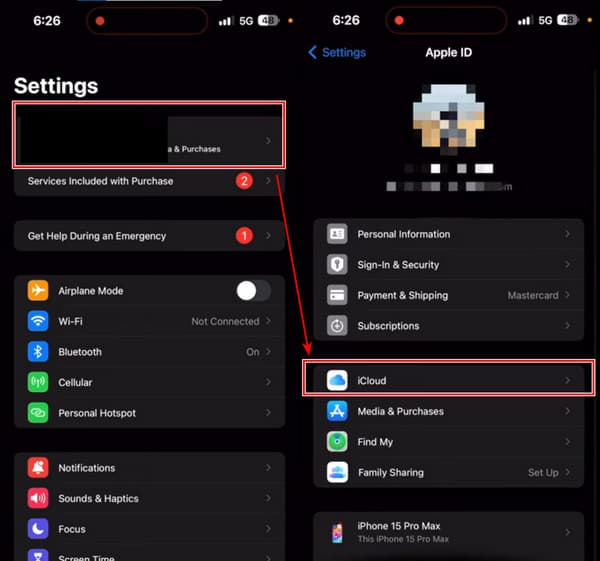
Шаг 1. На старом iPhone откройте Настройки. Нажмите на имя вашего устройства и введите ICloud.
Шаг 2. Нажмите показать все недооценивают ее ПРИЛОЖЕНИЯ, ИСПОЛЬЗУЯ ICLOUD. Тогда узнайте Сообщения и нажмите на него.
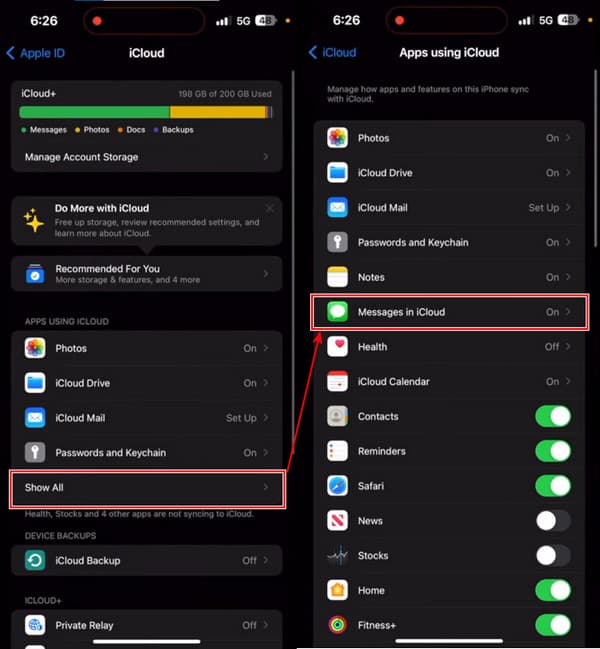
Шаг 3. включать Использовать на этом iPhone и нажмите Синхронизировать сейчас. Если вы видите статус: Синхронизация с iCloud, вы успешно выполнили этот шаг.
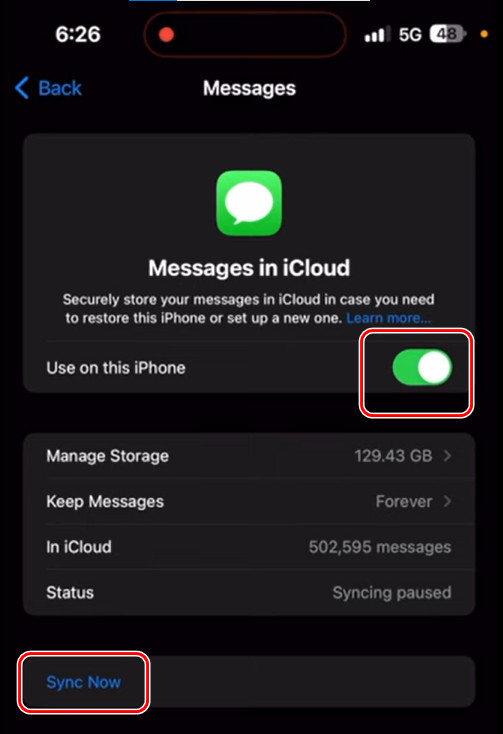
Шаг 4. Теперь выполните три шага на вашем новом iPhone.
Недостатки: Некоторые пользователи однажды спросили, почему мои текстовые сообщения не синхронизируются на устройствах my-apple. Это правда, что иногда iMessage не синхронизируется при этом методе. По словам пользователя в Apple Discussion, iCloud не может синхронизировать сообщения с его iPhone 14.
Способ 3: Как перенести только сообщения с iPhone на iPhone без использования iCloud
Функция «Быстрый запуск» обычно переносит все данные iPhone, в то время как для синхронизации с iCloud требуется достаточно места в хранилище iCloud. Если после настройки вам нужно перенести только сообщения с iPhone на iPhone, Apeaksoft iPhone Transfer Предлагает более гибкое решение.
Это профессиональная программа, которая позволяет передавать сообщения, контакты, телефонные звонки, фотографии, музыку и многое другое всего за несколько кликов. Более того, передача завершается всего за несколько секунд и не приводит к потере данных. Эта программа также может экспортировать текстовые сообщения с iPhone в форматы PDF, CSV, HTML и TXT.

Загружено более 1,000,000 пользователей
- Передавайте сообщения только с iPhone на iPhone без использования iCloud.
- Перенесите на новый iPhone только выбранные сообщения.
- Перед переводом просмотрите подробные сообщения.
- Помимо сообщений, приложение также поддерживает прямую передачу контактов, фотографий, музыки и т.д. с iPhone на iPhone.
- Также синхронизируйте данные iPhone с ПК/iCloud/устройствами iOS одним щелчком мыши.
- Поддержите последнюю версию iOS.
Давайте посмотрим, как перенести текстовые сообщения на новый iPhone без iCloud.
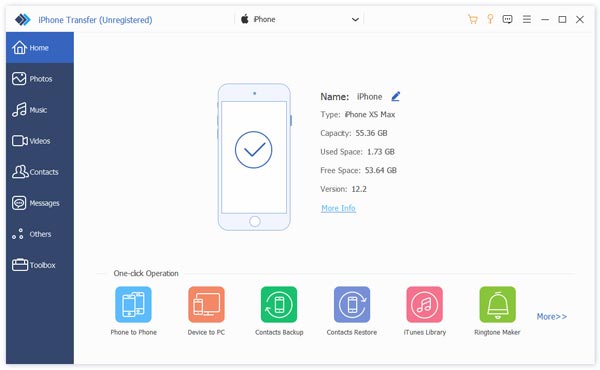
Шаг 1. Запустите программу на компьютере и подключите к нему старый и новый iPhone. Если вы видите этот экран, ваши iPhone успешно подключены. В верхнем раскрывающемся списке выберите свой старый iPhone.
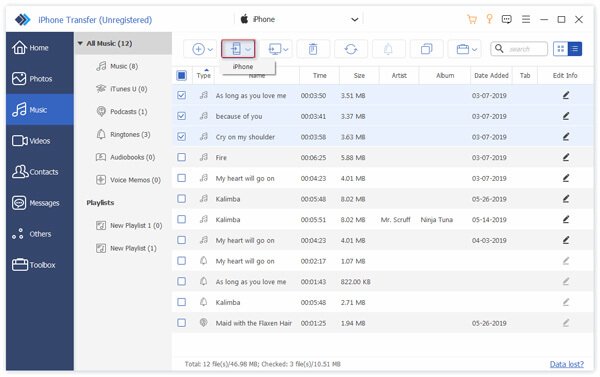
Шаг 2. Нажмите Сообщения В левой боковой панели выберите сообщения, которые хотите передать. Затем нажмите кнопку телефона вверху. Выберите свой новый iPhone для получения файлов. Сообщения будут переданы за считанные секунды.
Недостатки: В отличие от встроенных в Apple методов переноса данных, этот метод требует наличия компьютера и установки стороннего программного обеспечения. Кроме того, старый iPhone необходимо разблокировать и распознать компьютером перед передачей сообщений.
Способ 4: Как перенести сообщения с iPhone на iPhone с помощью резервной копии iCloud
Этот метод подойдет вам, если вы еще не настроили свой новый iPhone. Вы можете создать резервную копию всего iPhone в iCloud и восстановить его, когда настроите новый iPhone. Убедитесь, что оба iPhone заряжены и подключены к Wi-Fi. Давайте начнем прямо сейчас.
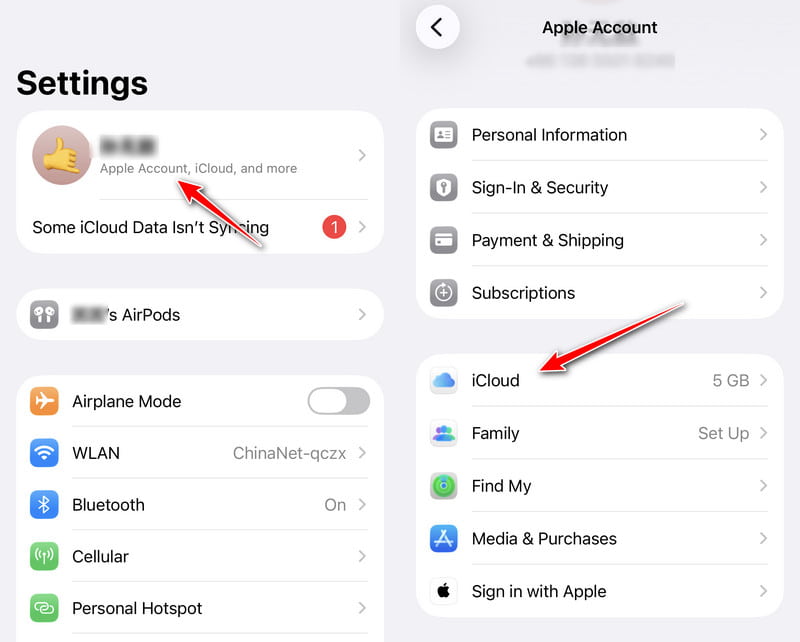
Шаг 1. Откройте свой старый iPhone Настройки и нажмите на имя. В следующем Apple ID экран, нажмите ICloud.
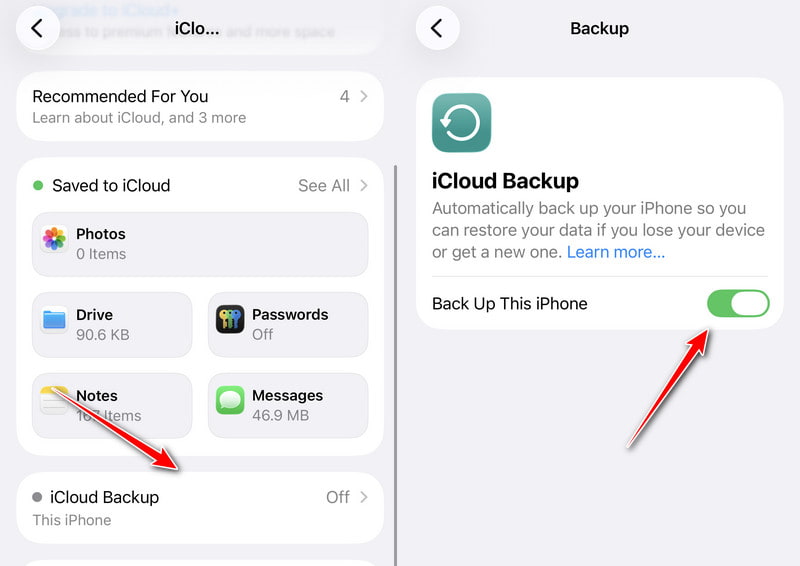
Шаг 2. Прокрутите вниз и нажмите ICloud Резервное копирование. Включить Сделать резервную копию этого iPhone. Подождите несколько минут, пока резервная копия будет создана, и перейдите к новому iPhone.
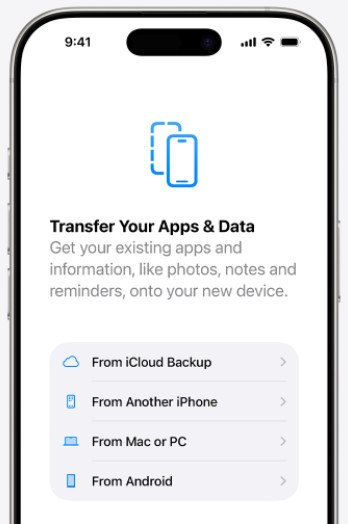
Шаг 3. Настройте новый iPhone, следуя инструкциям. Когда вы дойдете до Перенесите свои приложения и данные экран, нажмите Из резервной копии iCloud. Теперь войдите в свой Apple ID и восстановите резервную копию.
Недостатки:Некоторые пользователи сообщают, что Резервное копирование iCloud не может быть завершено и застревает на каком-то этапе, и этот метод отнимает много времени. Кроме того, если на вашем старом iPhone есть какая-то проблема с запуском, она может быть скопирована на ваш новый iPhone через iCloud.
Способ 5: Как перенести сообщения с iPhone на iPhone с помощью iTunes/Finder
iTunes/Finder — официальная программа резервного копирования для устройств Apple, и все они сохраняют все данные на iPhone для резервного копирования, включая сообщения. Однако iTunes отличается от резервного копирования iCloud, поскольку резервные копии iTunes не занимают хранилище iCloud, что делает его более гибким. Давайте посмотрим, как импортировать текстовые сообщения с одного iPhone на другой с помощью iTunes.
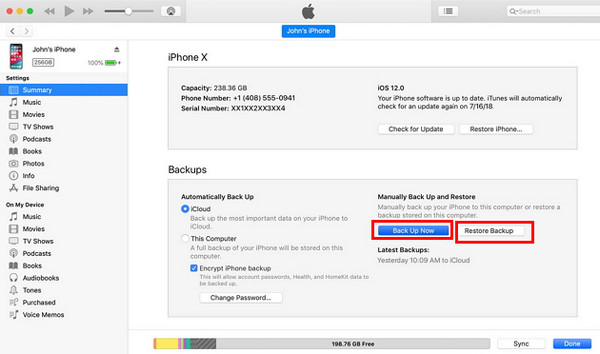
Шаг 1. Откройте iTunes или Finder на вашем компьютере. Подключите ваш старый iPhone к этому компьютеру. Когда ваш iPhone будет обнаружен, щелкните имя устройства.
Шаг 2. Нажмите Резюме or Общие вкладку на интерфейсе. Нажмите на Создать копию .
Шаг 3. Вы можете восстановить эту резервную копию в Данные приложения экран, показанный в Шаге 3, Часть 3. Или подключите новый iPhone к этому компьютеру, войдите в тот же Apple ID и нажмите Восстановить из копии в iTunes/Finder.
Недостатки: Этот метод требует много шагов и немного сложен. Кроме того, иногда iPhone не может подключиться к iTunes.
Заключение
Как перенести сообщения на новые iPhoneiCloud и iTunes — удобные решения этой проблемы, поскольку они встроены в устройства Apple. Если вы хотите перенести на новый iPhone только iMessages без подключения к интернету, Apeaksoft iPhone Transfer помогает легко синхронизировать сообщения между iPhone.

Статьи по теме




