Så här stänger du av och kringgår förlorat läge på din iPhone

Apple har infört några säkerhetsåtgärder för att skydda iOS-enheter. Förlorat läge är utformat för att skydda dina data, din integritet och din information om din iOS-enhet förloras eller blir stulen. Vem som helst kommer att bli utelåst från din förlorade iPhone eller iPad, inklusive du själv. När du hittar din förlorade enhet eller av misstag lägger din iPhone i förlorat läge, den här guiden visar dig effektiva sätt att låsa upp den och få åtkomst till din enhet igen.
SIDINNEHÅLL:
Del 1: Vad gör förlorat läge på iPhone
Som tidigare nämnts är förlorat läge på iPhone en viktig säkerhetsfunktion inbyggd i Apples Hitta-tjänst. Den hjälper dig att hitta, säkra och återställa din förlorade eller stulna iOS-enhet samtidigt som den skyddar din integritet och dina konton. När förlorat läge är aktiverat låses din enhet automatiskt och ett anpassat meddelande med din kontaktinformation visas.
Vad gör förlorat läge på iPhone?
1. Din iPhone låses automatiskt med ett lösenord. Om din iPhone inte hade ett lösenord kommer du att bli ombedd att skapa ett.
2. Ett anpassat meddelande visas på låsskärmen: Den här telefonen är borttappad. Ring [ditt telefonnummer] om den hittas.
3. När din iPhone är i Förlorat läge skickas platsen till appen Hitta. Du kan spåra din enhet.
4. Apple Pay och andra tjänster, som Apple Card, inaktiveras automatiskt.
5. När din iPhone är upplåst eller lokaliserad får du omedelbart aviseringar.
Kan någon låsa upp min iPhone i Förlorat läge?
Ingen kan låsa upp eller komma åt din iOS-enhet i Förlorat läge utan ditt Apple-ID och lösenord.
Krav för iPhones förlorade läge
1. Hitta min iPhone är aktiverat.
2. Din iPhone ansluter till internet.
3. Ditt Apple-ID och lösenord är kopplade till din iPhone.
Så här aktiverar du förlorat läge på din iPhone
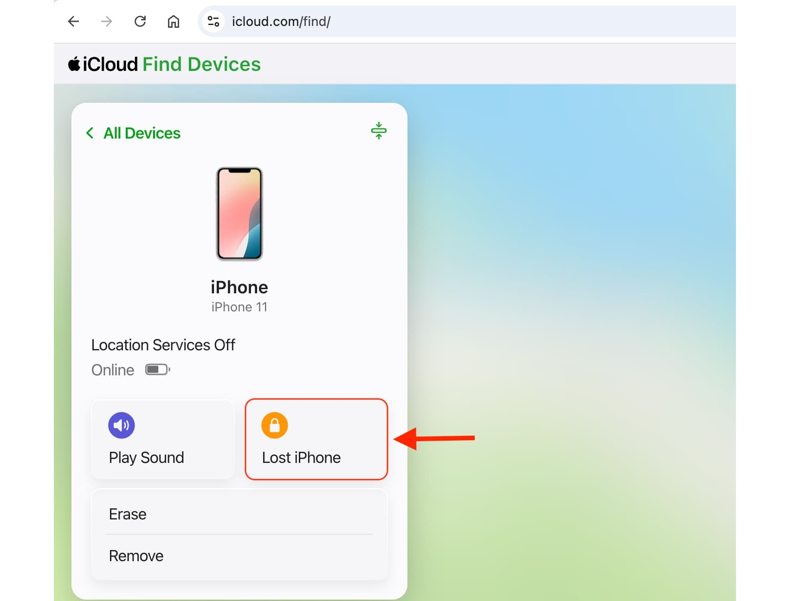
Steg 1. Gå till www.icloud.com/find i en webbläsare.
Steg 2. Logga in med ditt Apple-ID och lösenord.
Steg 3. Välj din iPhone från Alla enheter alternativ.
Steg 4. Klicka på Förlorad iPhone knapp.
Tips: Om du uppmanas att göra det, skapa ett lösenord.
Steg 5. Ange ett telefonnummer som visas på den förlorade enheten.
Steg 6. Klicka Nästa och skriv in ett meddelande som är upp till 160 tecken långt.
Steg 7. Dubbelkolla ditt telefonnummer och behåll det Meddela när den hittas aktiverad.
Obs: Dessutom kan du aktivera Förlorat läge i Hitta-appen på en annan Apple-enhet.
Del 2: Hur man låser upp iPhone Lost Mode
Kan man inaktivera iPhones förlorade läge? Svaret är ja. Du kan slutföra jobbet på din iPhone, på www.icloud.com/find, eller med appen Hitta på en tillgänglig Apple-enhet. Vi beskriver arbetsflödena respektive.
Hur man avbryter förlorat läge på iPhone
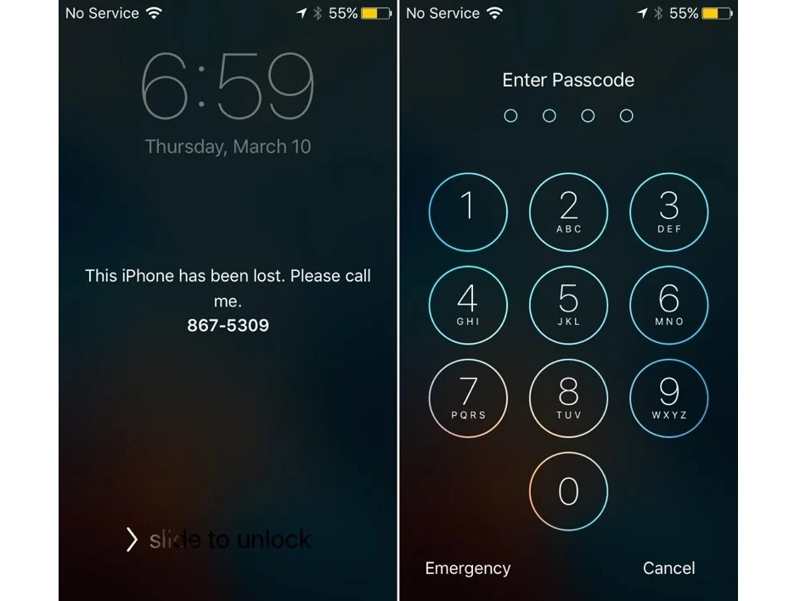
Steg 1. Tryck och håll antingen Volym knapp + Sida knappen på iPhone X och senare. Eller håll in Sida or Sova vakna knappen på iPhone 8 eller tidigare.
Steg 2. När du ser avstängningsskärmen släpper du knapparna eller knappen .
Steg 3. Tryck på Annullera knapp.
Steg 4. Ange sedan ditt iPhone-lösenord för att avbryta Förlorat läge på din iPhone.
Hur man tar bort förlorat läge på iPhone
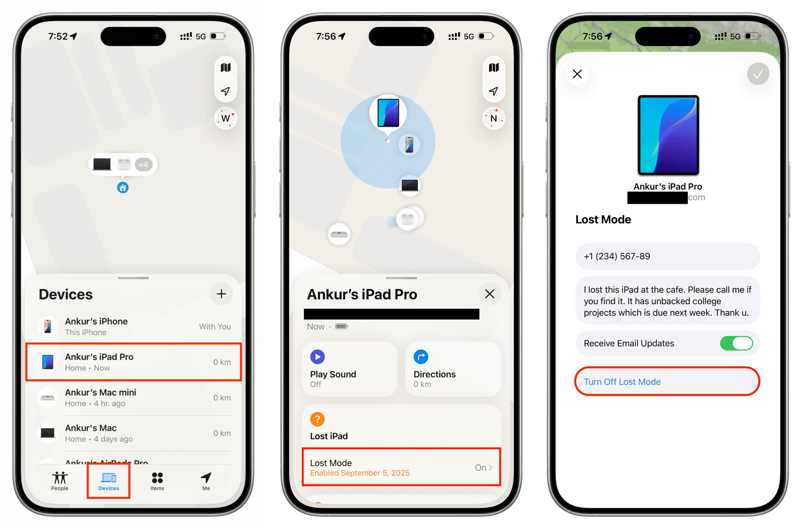
Steg 1. Öppna Hitta mig app på en annan iOS-enhet eller Mac.
Steg 2. Gå till Enheter fliken längst ner och välj din iPhone.
Tips: Om du inte hittar den, tryck på Lägg till bredvid Enheterväljer Lägg till AirTagoch lägg till din iPhone.
Steg 3. Tryck på och expandera verktygsfältet längst ner och tryck på Förlorat läge.
Steg 4. Tryck på Stäng av Lost Mode knappen och tryck Stäng av i varningsdialogrutan för att stänga av Förlorat läge på din iPhone.
Steg 5. Ange ditt Apple-ID-lösenord om du uppmanas.
Hur man tar bort en iPhone från Lost Mode Online
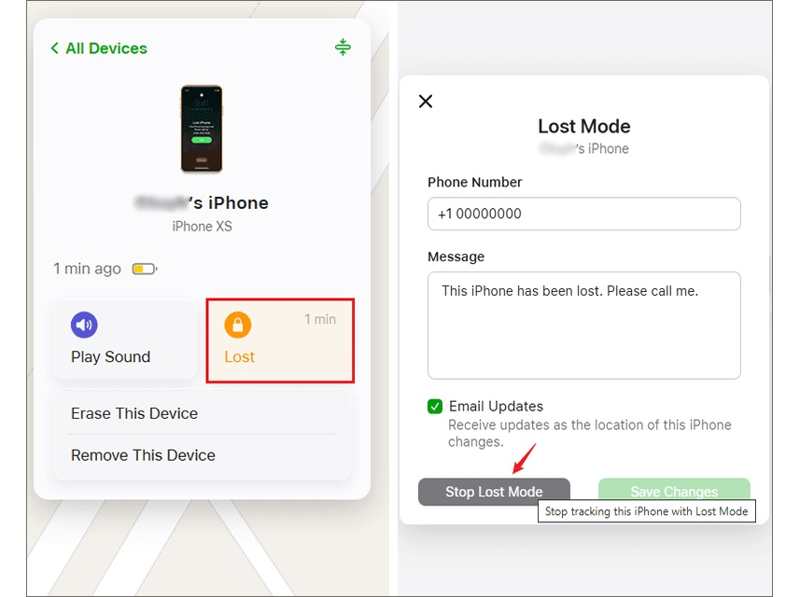
Steg 1. Gå till www.icloud.com/find i din webbläsare.
Steg 2. Logga in med ditt Apple-ID och lösenord.
Steg 3. Välj din iPhone från Alla enheter lista.
Steg 4. Klicka på knappen Förlorad och tryck på Stoppa borttappat läge.
Steg 5. Följ sedan instruktionerna på skärmen för att få din iPhone ur Förlorat läge.
Ytterligare läsning
Del 3: Hur man kringgår förlorat läge på iPhone
Om du har glömt ditt Apple-ID-lösenord är de vanliga metoderna inte tillgängliga för att inaktivera iPhones förlorade läge. Lyckligtvis, Apeaksoft iOS System Recovery låter dig kringgå Förlorat läge på din iPhone eller iPad utan lösenord. Dessutom gör det intuitiva gränssnittet det till ett bra alternativ för vanliga människor.
Ett snabbt sätt att kringgå förlorat läge på din iPhone utan lösenord
- Omgå snabbt förlorat läge på iPhone eller iPad.
- Kräv inte ditt Apple ID-lösenord eller iPhone-lösenkod.
- Fungerar för en mängd olika situationer, inklusive låsta enheter.
- Stöd de senaste versionerna av iOS och iPadOS.

Hur man kringgår förlorat läge på din iPhone utan lösenord
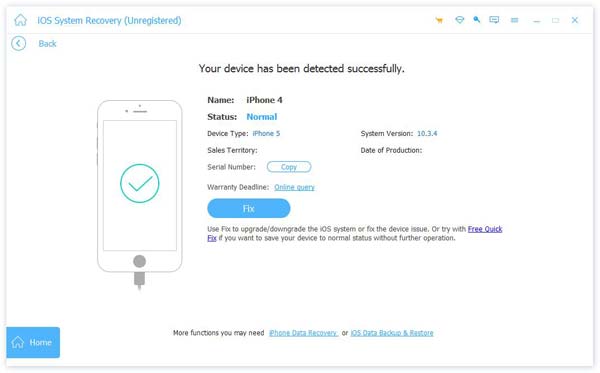
Steg 1. Anslut till din iPhone
Starta iOS-systemåterställningsprogramvaran efter att du har installerat den på din dator. Det finns en annan version för Mac. Anslut din iPhone till din dator med en Lightning-kabel. Välj. iOS-systemåterställning, och klicka Börja nu under System Repair.
Steg 1. Välj ett läge
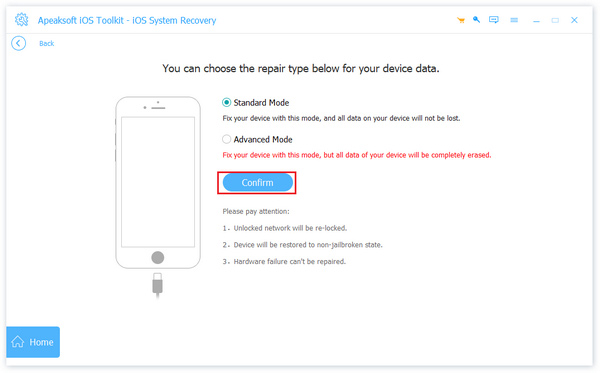
Klicka sedan på Start för att börja identifiera problemet med enheten. Klicka på Fast knappen och välj Avancerat läge, och klicka Bekräfta att välja ett lämpligt läge.
Steg 3. Bypass iPhone Lost Mode
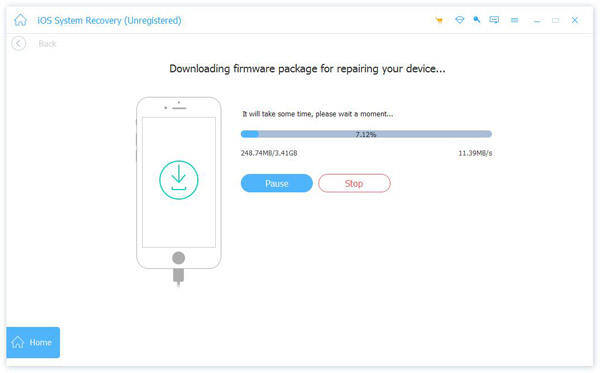
När din enhetsinformation har laddats bekräftar du den själv. Välj sedan en lämplig version av programvaran och ladda ner den inbyggda programvaran. Om du redan har den inbyggda programvaran importerar du den. Klicka slutligen på Nästa knappen för att börja kringgå Förlorat läge på din iPhone.
Slutsats
Den här guiden förklarade vad iPhone förlorat läge är och hur du stänger av den efter att du hittat din borttappade enhet. Nu bör du förstå den här säkerhetsfunktionen. Med ditt Apple-ID-lösenord eller iPhone-lösenord kan du återfå åtkomst till din enhet och avbryta Förlorat läge. Om du inte kommer ihåg ditt Apple-ID-lösenord, Apeaksoft iOS System Recovery kan snabbt kringgå Förlorat läge på din iOS-enhet. Dessutom är det användarvänliga gränssnittet lätt att navigera.

Relaterade artiklar