


Fixa enkelt varför jag inte kan ändra mitt Apple ID-lösenord

Det är otroligt frustrerande när man är utelåst från sitt eget konto, eller om man helt enkelt vill uppdatera sin säkerhet, och din iPhone helt enkelt inte låter en göra det. Man trycker igenom inställningarna, försöker ändra saker, och pang, ett felmeddelande dyker upp: Kan inte återställa lösenordet, eller så är alternativet helt nedtonat.
Om du för närvarande lider av kan inte ändra lösenordet för Apple-ID på din skärm, oroa dig inte. Du är definitivt inte ensam. Tusentals användare stöter på just den här tegelväggen varje dag.
I den här enkla guiden kommer vi att förklara exakt varför jag inte kan ändra mitt Apple ID-lösenord, vad som orsakar felet och de enkla steg-för-steg-metoder du kan använda för att åtgärda det just nu.
SIDINNEHÅLL:
Del 1: Varför kan jag inte ändra mitt Apple ID-lösenord? (Vanliga orsaker)
Här är de vanligaste orsakerna till huvudvärken med att man inte kan ändra Apple ID-lösenordet:
- Skärmtidsbegränsningar är aktiverade: Detta är den främsta boven i dramat. Om du eller en förälder har aktiverat skärmtidsgränser kan det blockera ändringar av dina konton och lösenord.
- Dålig Internetanslutning: Att ändra ett Apple-ID-lösenord kräver en supersäker och stabil anslutning till Apples servrar. En skakig Wi-Fi-anslutning eller svag mobildataanslutning kommer att göra att processen misslyckas.
- Apples servrar är nere: Ibland är problemet inte alls du, utan Apple. Om deras systemservrar genomgår underhåll kommer lösenordsåterställningar tillfälligt att sluta fungera, och du kommer att se frågan om att lösenordet för Apple-ID inte kan ändras.
- Föråldrat iOS-system: Att köra en mycket gammal version av iOS kan orsaka konstiga problem där vissa säkerhetsinställningar vägrar att laddas eller sparas.
- Kontot är låst av säkerhetsskäl: Om det nyligen har förekommit för många felaktiga lösenordsförsök kan Apple tillfälligt frysa dina kontoinställningar för att skydda dig från hackare.
Del 2: Snabba kontroller för att se om Apple ID-lösenordet inte kan ändras
Innan vi går vidare till de mer avancerade felsökningsstegen, låt oss utesluta de grundläggande problemen med att "det går inte att ändra Apple-ID-lösenordet". Prova dessa snabba lösningar först:
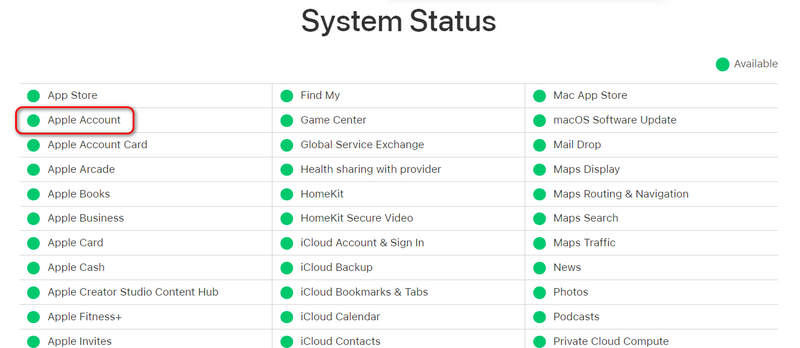
1. Kontrollera Apples systemstatus
Innan du ändrar något på din telefon, se till att Apples backend fungerar korrekt.
- 1.Gå till en webbläsare och sök efter sidan Apples systemstatus.
- 2.Leta efter Apple-konto.
- 3.Om pricken bredvid är röd eller gul har Apple serverproblem. Du behöver bara vänta några timmar tills de åtgärdar det hos dem. Om den är grön ligger problemet på din enhet.
2. Testa din internetanslutning
Ett svagt nätverk kan lätt utlösa problemet med varför jag inte kan ändra mitt Apple-ID-lösenord.
- 1.Stäng av ditt Wi-Fi och växla till Mobildata, eller tvärtom.
- 2.Försök att öppna en webbsida eller spela upp en video på YouTube för att se om ditt internet laddar snabbt.
- 3.Om din anslutning är långsam, starta om routern eller slå på den flygplans~~POS=TRUNC i 10 sekunder och stäng sedan av den för att uppdatera nätverket.
Del 3: Så här åtgärdar du problemet "Kan inte ändra Apple ID-lösenord"
Om ditt internet fungerar bra och Apples servrar är gröna, använd dessa beprövade metoder för att låsa upp dina kontoinställningar.
Metod 1. Stäng av skärmtidsbegränsningar (mest populär lösning)
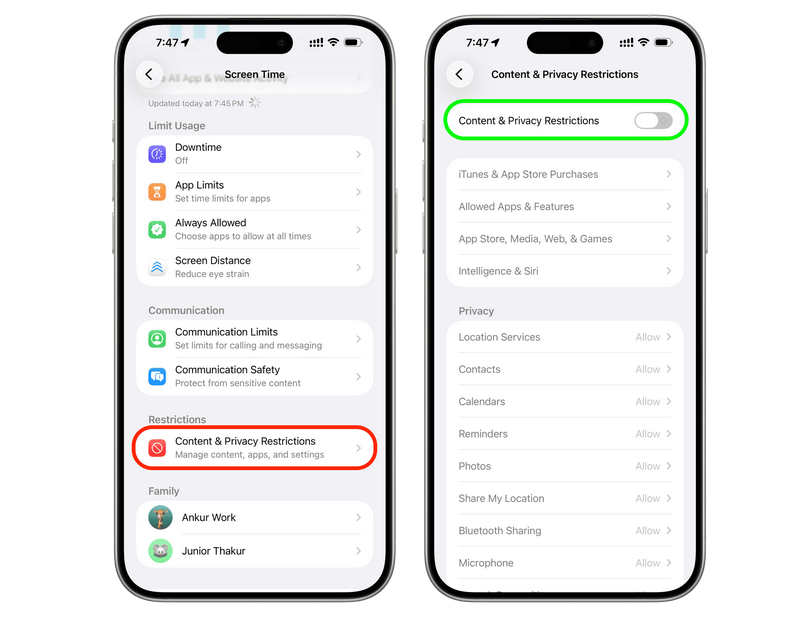
Om du går till dina iPhone-inställningar, trycker på ditt namn högst upp och ser att lösenordsalternativen är gråmarkerade eller oklickbara, blockerar Skärmtid dig nästan säkert. Så här inaktiverar du den här begränsningen för att åtgärda problemet med att inte ändra lösenordet för Apple-ID:
Steg 1. Öppna Inställningar app på din iPhone eller iPad.
Steg 2. Scrolla ner lite och tryck på Skärmtid.
Steg 3. Scrolla ner till botten och tryck på Restriktioner för innehåll och integritet.
Steg 4. Titta ner i listan tills du hittar Tillåt ändringar sektion.
Steg 5. Knacka på Kontoändringar och se till att den är inställd på Tillåt. (Om den var inställd på Tillåt inte, är det just därför du inte kunde ändra ditt lösenord!). När du gör ändringar i Skärmtid kan du behöva ange Lösenord för skärmtid.
Bonus: Kan man inte ta bort skärmtid?
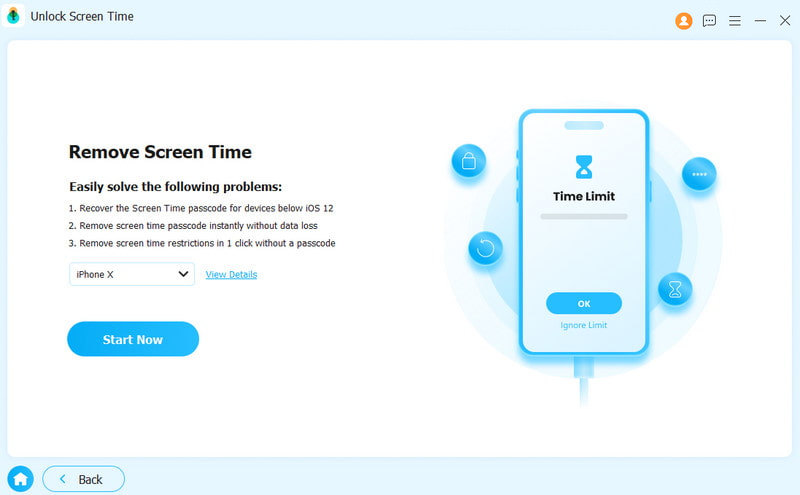
Ibland kan du dock inte ta bort begränsningarna för skärmtid. Det beror på att institutionen inte ger dig tillräckliga rättigheter för att göra det, eller om du är ett barn eller en student. Hur kan du i så fall ta bort skärmtid för att hantera problemet med att "det går inte att ändra Apple ID-lösenordet"? Du bör använda Apeaksoft iFoneKit iOS-upplåsareDen kan med ett enda klick ta bort alla typer av skärmtidsbegränsningar, oavsett vem som har ställt in det på din iPhone. Du behöver bara ansluta din iPhone till en dator och sedan slå på den. Vänta några sekunder, så är din iPhone fri från kontroller.
Steg 1. Ladda ner, installera och starta Apeaksoft iFoneKit iOS-upplåsare på din Windows- eller Mac-dator. Anslut din iPhone till datorn.
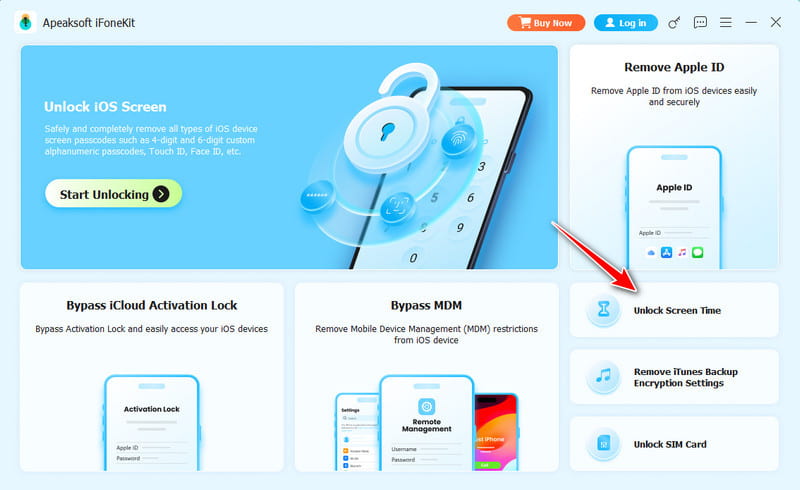
Steg 2. På Apeaksofts huvudgränssnitt klickar du på Lås upp skärmtid knapp.
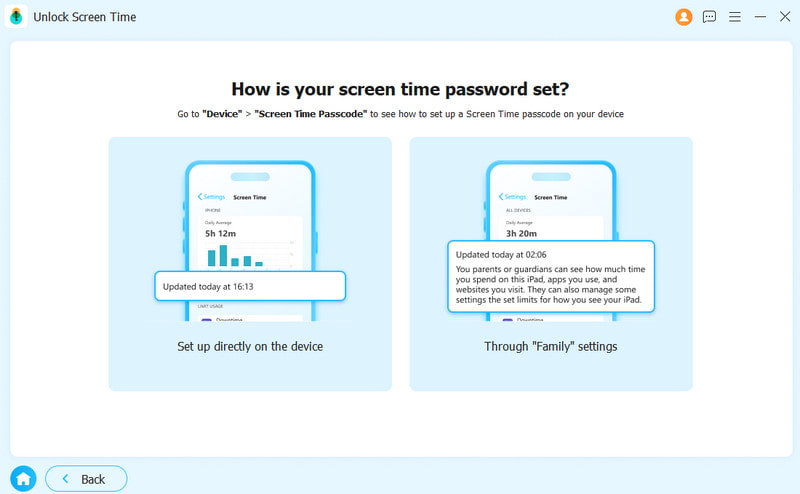
Steg 3. Välj nu hur din skärmtid är inställd. Om den är inställd av dig själv, välj det vänstra alternativet. Om den är inställd av andra, som dina föräldrar, välj det högra alternativet.
Steg 4. Slutligen klickar du på Börja nu knappen för att snabbt och direkt ta bort Skärmtid. Då åtgärdar du problemet med att "det går inte att ändra Apple ID-lösenordet".
Metod 2. Starta om din iPhone
Ibland blir telefonens programvara helt enkelt förvirrad. En omstart rensar tillfälliga systemfel utan att ta bort några av dina foton eller meddelanden. Detta kan åtgärda problemet med att lösenordet för Apple-ID inte kan ändras.
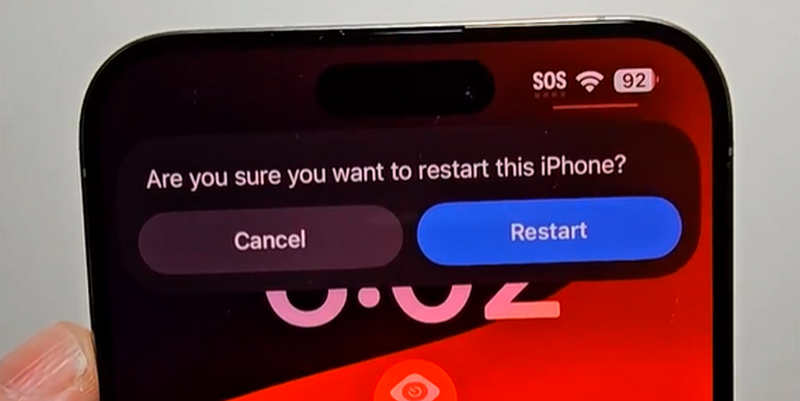
När din iPhone startar upp igen, gå direkt tillbaka till dina inställningar och se om du kan ändra ditt lösenord nu.
Metod 3. Uppdatera din iOS-version
Om din telefon körs på ett föråldrat system kan det komma i konflikt med Apples senaste säkerhetskrav. Att uppdatera din programvara kan snabbt lösa detta.
Steg 1. Anslut din iPhone till ett bra Wi-Fi-nätverk och anslut den till en laddare.
Steg 2. Öppet Inställningar och tryck på Allmänt.
Steg 3. Knacka på Programuppdatering.
Steg 4. Om en uppdatering är tillgänglig trycker du på Uppdatera nu or Uppdatering ikväll.
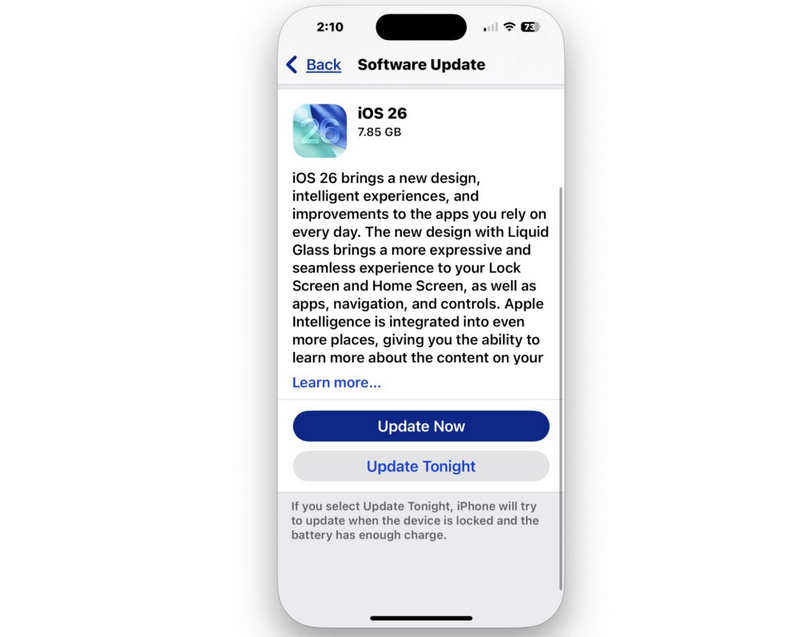
När uppdateringen är klar uppdateras systemet, vilket ofta åtgärdar felet "kan inte ändra Apple ID-lösenordet".
Ytterligare läsning
Del 4: Alternativa sätt att återställa ditt Apple ID-lösenord
Om du fortfarande inte kan ändra lösenordet för ditt Apple-ID via den vanliga inställningsmenyn för iPhone, oroa dig inte. Det finns några alternativa sätt som Apple erbjuder för att du ska kunna återställa saker på ett säkert sätt.
Metod 1. Använd webbsidan "iforgot"
Om din telefon fungerar helt fel kan du göra en ren återställning med hjälp av en webbläsare på en dator eller vilken mobil enhet som helst.
Steg 1. Öppna din webbläsare och gå till iforgot.apple.com. Knacka Återställ lösenord.
Steg 2. Skriv in din Apple ID-e-postadress (den e-postadress du använder för ditt konto).
Steg 3. Ange ditt telefonnummer som är kopplat till kontot för att bekräfta din identitet.
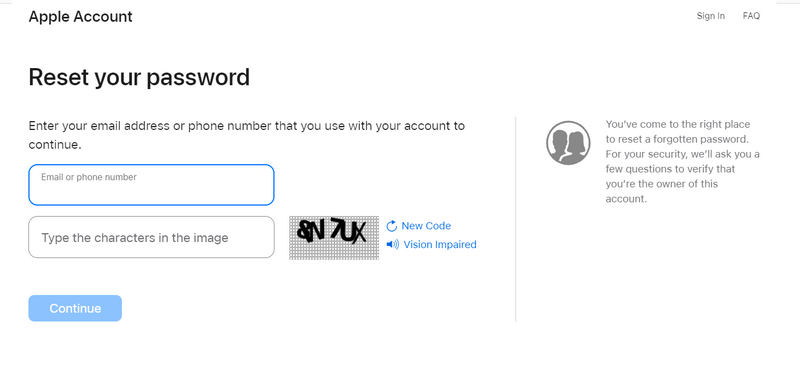
Steg 4. En avisering skickas till din iPhone, iPad eller Mac. Tryck på Tillåt på din enhetsskärm, och du kommer att kunna skriva in ett helt nytt lösenord direkt och där.
Metod 2: Använd kontoåterställning (den sista utvägen)
Om du har provat allt ovan och fortfarande undrar varför jag inte kan återställa mitt Apple-ID-lösenord eftersom du inte har tillgång till ditt betrodda telefonnummer eller din betrodda e-postadress, är ditt sista alternativ Kontoåterställning.
Steg 1. Gå till Inställningar för att försöka logga in på ditt Apple-ID.
Steg 2. Låtsas att du inte vet lösenordet, så får du alternativet att använda kontoåterställning.
Steg 3. Se till att stänga av andra enheter som var inloggade på ditt Apple-ID under kontoåterställningen.
Steg 4. Apple ringer dig inom 72 timmar om din kontoåterställning lyckas. När du får ett sms eller ett automatiskt telefonsamtal följer du instruktionerna för att återställa åtkomsten till ditt Apple-ID. Sedan kan du åtgärda problemet med att lösenordet för Apple-ID inte kan ändras permanent.
Slutsats
Att hantera en kan inte ändra Apple ID-lösenordet Problemet är irriterande, men det är nästan alltid lätt att lösa. I 90 % av fallen fungerar allt perfekt igen om du helt enkelt stänger av begränsningarna för Skärmtid-kontot eller gör en snabb tvångsomstart. Om du inte lyckas med Skärmtid, Apeaksoft iFoneKit iOS-upplåsare är din slutgiltiga utväg. Den kan enkelt ta bort alla typer av skärmtidslösenord och begränsningar, och du kan göra valfria ändringar på din iPhone eller ditt Apple-ID.

Relaterade artiklar




